Stop Dealing with SSH Keys: Real-Time Terminal Access directly on ODAC Canvas
Context-switching is the ultimate productivity killer for sysadmins and developers.
Every time you need to debug a running application, you are forced to break your flow: you find your terminal, locate the correct SSH key, authenticate into the host server, and run a manual execution command just to inspect a container.
This tedious process feels ancient, introduces security risks by leaving SSH ports exposed, and slows down your debugging speed when every second counts.
We decided to destroy this friction.
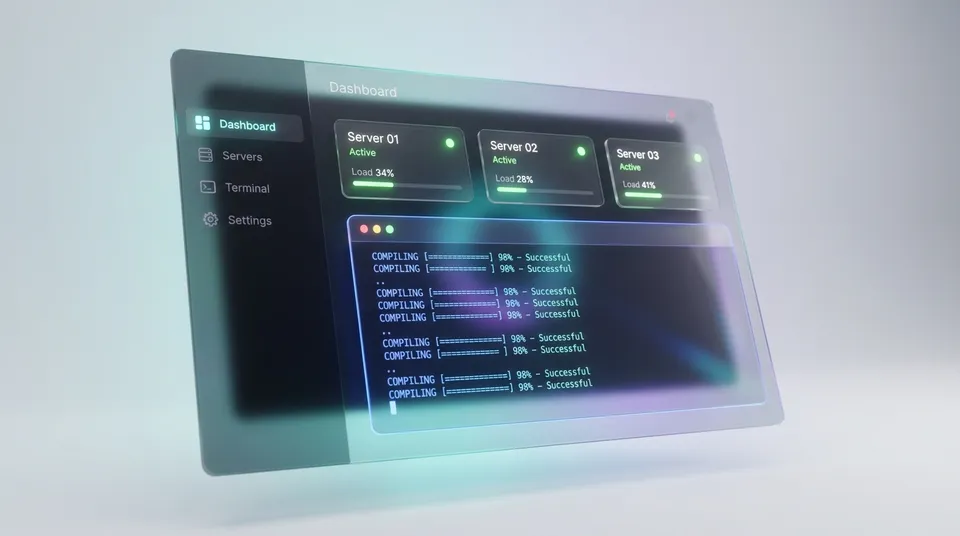
With the latest update to ODAC, you can now launch a secure, high-performance, cloud-native interactive terminal directly inside your web browser with a single click.
Accessible entirely from the Live Canvas on the Dashboard at app.odac.run, you get immediate, zero-config terminal access to any of your running applications without ever leaving your browser or managing a single SSH key.
The Old Way vs. The ODAC Way
Previously, debugging required manual intervention. You had to worry about securing port 22, rotating SSH credentials, and typing lengthy docker commands.
Now, ODAC handles everything seamlessly. The secure tunnel established between your server and the Dashboard handles authorization on the fly, keeping your server ports fully closed to the public internet while delivering sub-millisecond input response times.
Here is what makes this feature truly enterprise-grade:
- Zero-Config Security: Connect securely using ephemeral, single-use access tickets generated automatically. No public SSH ports, no key rotation, and no configuration required.
- Isolated Performance Core: Terminal traffic travels over an isolated, high-speed data stream. This ensures that heavy command outputs, log streams, or interactive text editors never stall your server's critical telemetry or dashboard updates.
- Guaranteed Clean Closures: When you close the terminal window, ODAC automatically and gracefully sweeps the container's shell environment. It cleans up all associated shell processes instantly, preventing orphan processes from consuming precious CPU and memory.
- Resource Guardrails: To protect your host server from accidental resource drain, active terminal sessions automatically time out after 15 minutes of user inactivity, with a hard session limit of 4 hours.
A Visual Step-by-Step Guide
Getting into your application's shell takes less than five seconds. Let us walk through the simple, frictionless journey.
Step 1: Open the Live Canvas
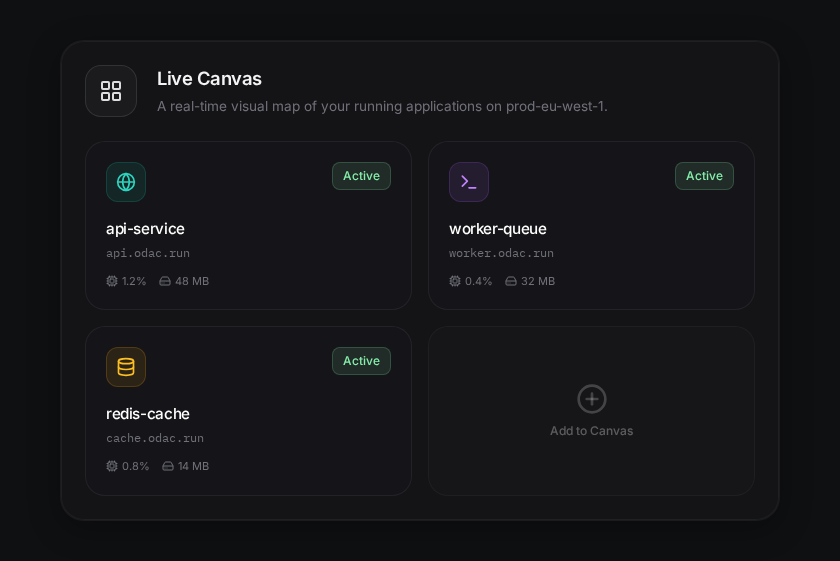
First, navigate to your server's Live Canvas on the Dashboard at app.odac.run. Here, you will see a real-time visual map of all your servers, resources, and active applications.
Step 2: Open the Action Bar
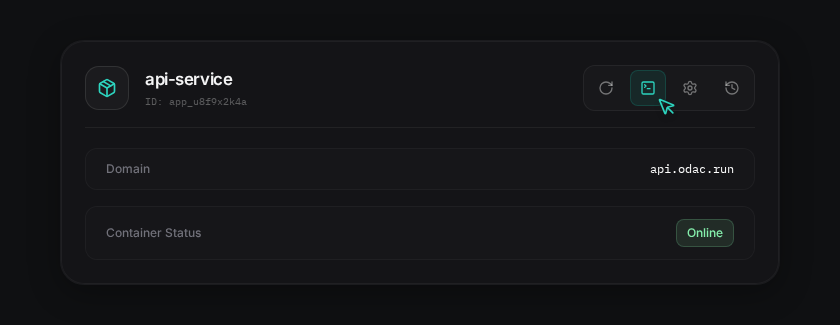
Click on any running application on the canvas to open the detailed inspector drawer on the right. In the action bar at the top of the panel, you will spot the new Terminal icon.
Step 3: Run Your Commands
Click the Terminal icon, and a secure terminal session opens instantly inside the drawer. It automatically sizes itself to fit your screen perfectly, giving you a full-featured, zero-latency terminal directly in the interface.
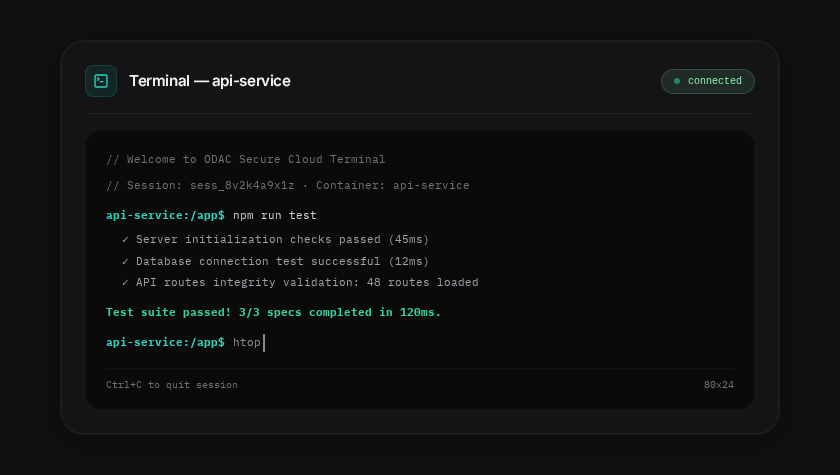
Once you are done debugging, simply close the terminal pane or click away. Your session is terminated and cleaned up instantly, keeping your server running clean and secure.
Experience radical simplicity and start debugging your applications today on app.odac.run.