Stop Fighting SSH: ODAC's Browser Terminal
Debugging a running application in production should not feel like an archaeological expedition.
Yet, for most developers and operators, the journey from noticing an error to inspecting a running container is filled with friction. You must locate your private key, configure SSH tunnels, modify bastion host access lists, and open up firewalls. If you are on a new machine or a mobile device, you are simply locked out.
With ODAC v2.0.0, we are ending this era of complexity. We have introduced secure, zero-config, interactive browser terminals right inside the Live Canvas dashboard.
No SSH keys to manage. No firewall ports to expose. Just instant, secure, and isolated terminal access in a single click.
The SSH Paradox: Security That Creates Friction
Traditional server access relies on SSH. While SSH is secure, it creates an enormous operational burden. Key rotation, credential sharing, bastion host maintenance, and IP allowlisting represent a significant tax on developers.
When a database migration fails or a runtime log shows memory bloat, you need access immediately. You do not have ten minutes to request bastion permissions or configure an SSH client.
Even worse, standard SSH gives you access to the host machine. This violates the principle of least privilege. What you actually want is isolated access to the specific application environment, not the underlying host operating system.
We wanted a better way. We wanted an experience where your server management platform handles the security handshake automatically, giving you zero-config shell access directly inside your browser.
With ODAC Cloud, you get exactly that. When you select an application, your connection is authenticated and authorized on the fly, spinning up an interactive terminal within milliseconds.
Inside the Browser-Based Terminal Journey
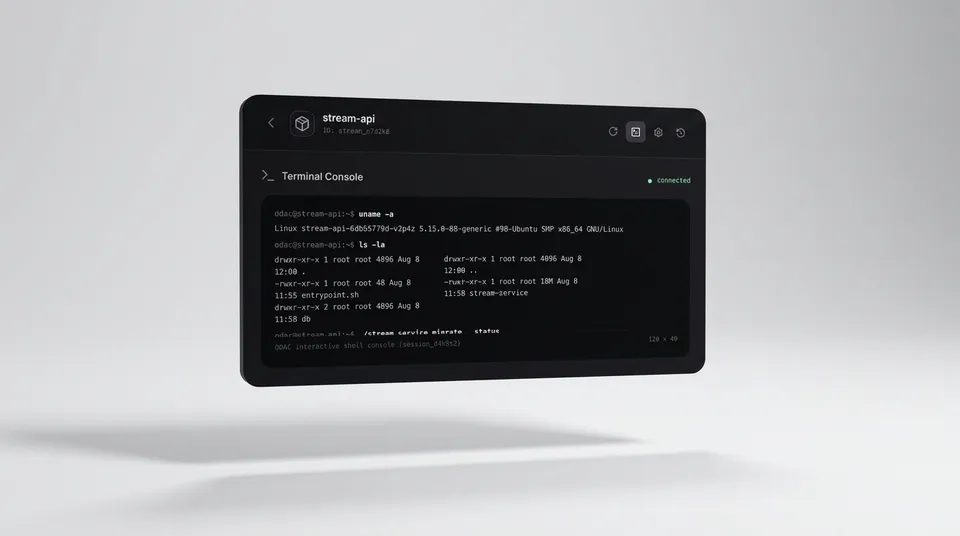
Opening an interactive shell session is driven entirely by the ODAC interface, and the workflow is completely seamless. Here is how it works:
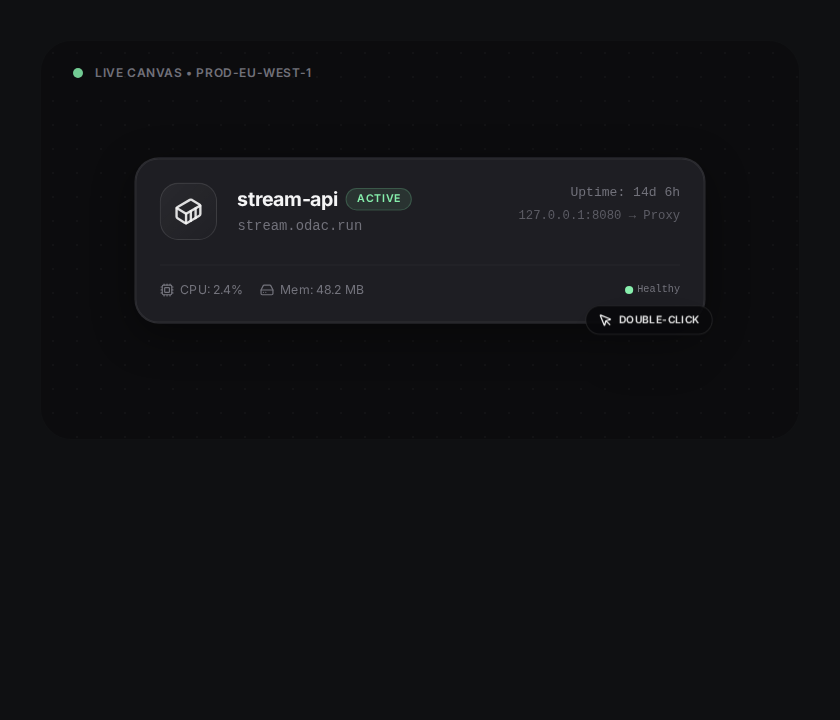
- Open the Live Canvas: Log in to the Cloud dashboard at app.odac.run and open your connected server on the visual Live Canvas.
- Open App Inspector: Select the running application card (such as a database service or Go backend) to open its settings drawer on the right side of the screen.
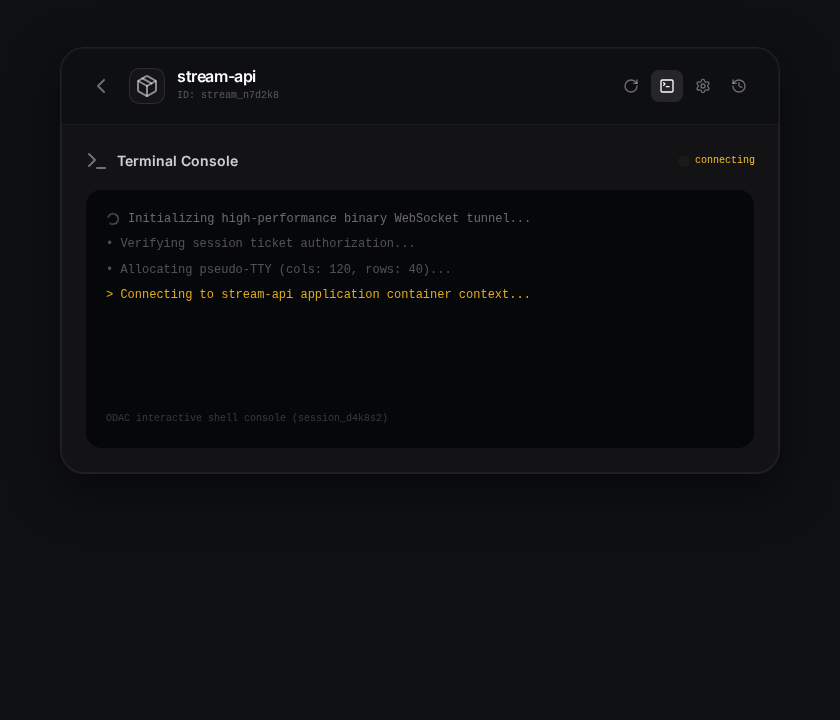
- Launch Terminal: Click the terminal icon in the drawer header. Within milliseconds, the dashboard exchanges authentication tickets and establishes a secure shell connection.
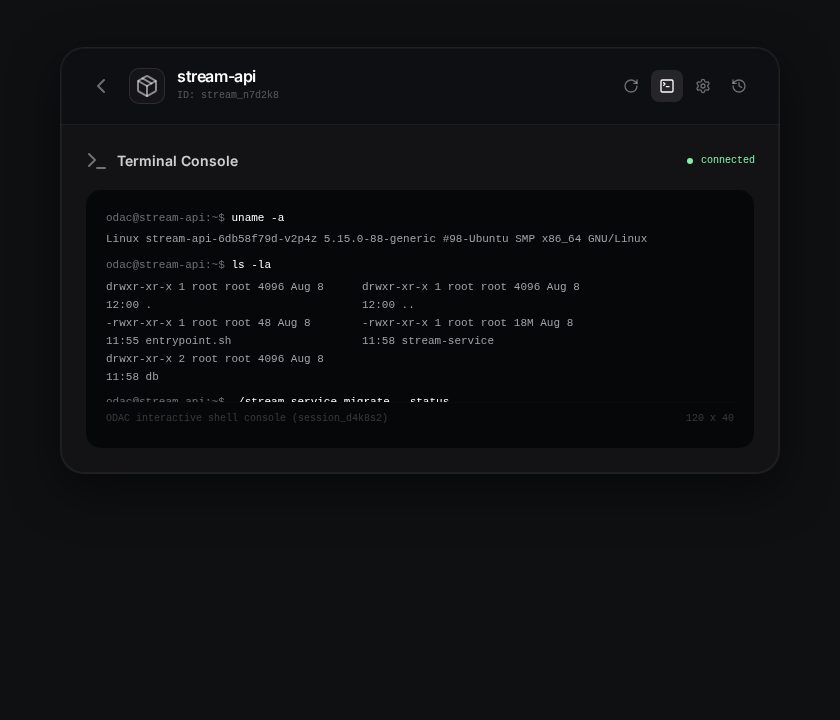
- Interact in Real-Time: You are logged in to the application's interactive prompt with full terminal resizing, ready to run diagnostics or execute database commands.
Enterprise-Grade Governance and Security
Providing direct shell access to production environments requires strict security boundaries and resource limits. ODAC is engineered with enterprise security at its core.
Every terminal session runs within the strict isolation context of its application container. It is impossible to escape the container environment to access host files or other isolated projects.
Additionally, to prevent host memory leaks and ensure pristine server performance, we enforce strict governance policies:
- Session Limits: A maximum of 3 concurrent terminal sessions are allowed per agent.
- Inactivity Timeout: Sessions automatically terminate after 15 minutes of idle time.
- Maximum Lifetime: A hard 4-hour limit ensures that no terminal is left running indefinitely.
- Process Reaping: When you close the terminal window or disconnect, the platform automatically cleans up the entire process tree. It signals all spawned processes, leaving absolutely no orphaned shell or zombie processes on your server.
This zero-maintenance architecture guarantees that your server remains fast, secure, and fully performant.
Edge Cases and Guidelines
Since interactive terminals are designed for active debugging, they are strictly tied to the lifecycle of your application and your active dashboard connection.
If your network connection drops or the container is restarted, the active terminal session will terminate immediately and its processes will be cleaned up.
For long-running tasks, such as complete database backups or heavy compilations, we recommend scheduling them as independent, non-interactive tasks rather than executing them inside an interactive browser prompt. This ensures that your long-running processes complete successfully even if your browser session closes.
Experience the future of server debugging today. Connect your server and launch your first terminal by visiting the Cloud dashboard at app.odac.run.