View Git branches and commits
Review the active Git branch and commit history for any repository-backed app from its right-hand inspector at app.odac.run. From Source, you can check the current branch and latest commit at a glance, open the full Source panel to filter and switch between branches, and read the Commits timeline.
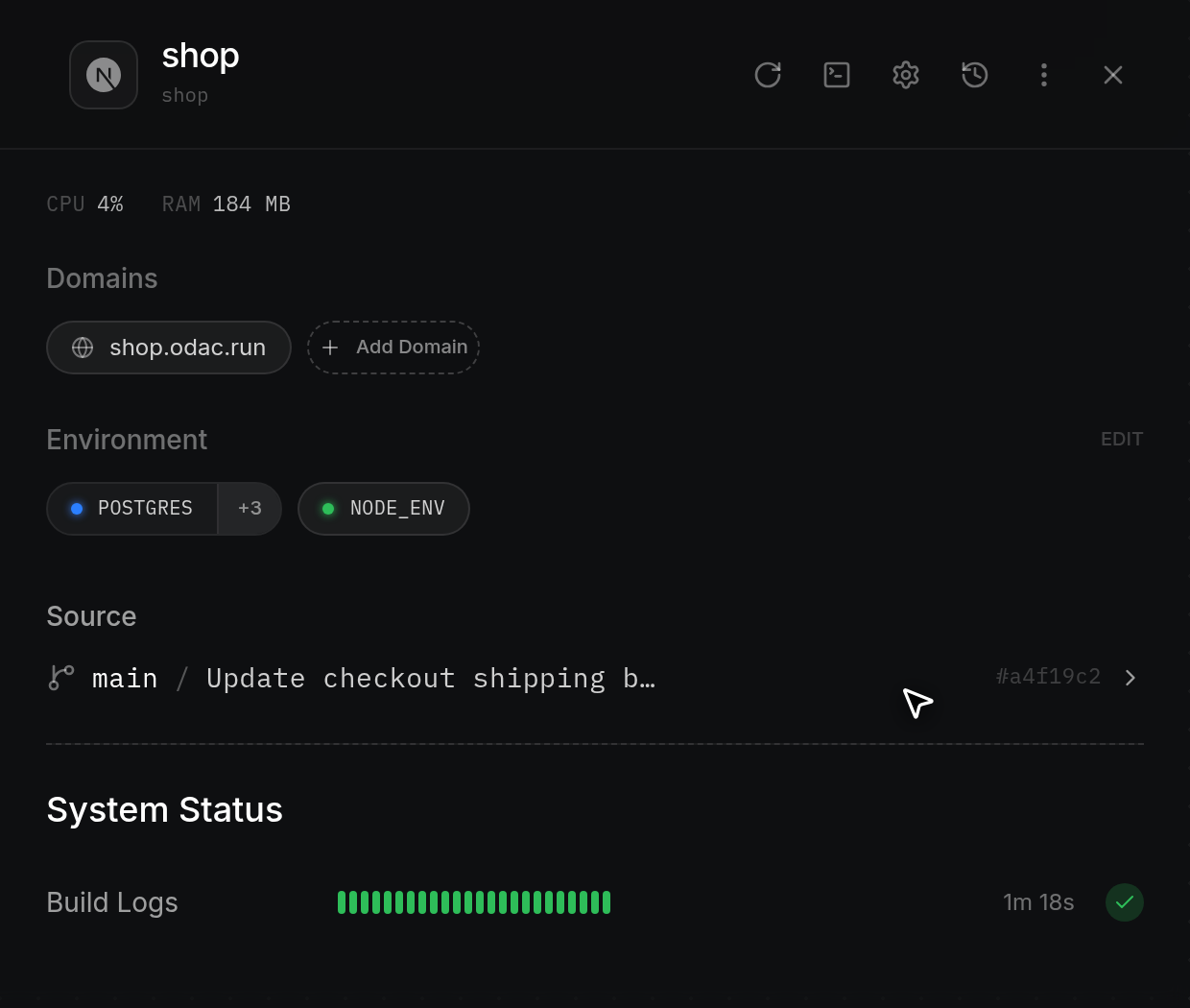
Check the Source summary in the inspector
- Open the inspector drawer for a Git-deployed app from the Canvas (see Inspect, rename, restart, and delete an app and Connect and deploy from GitHub). Below Domains and Environment, Source displays a single summary row with a branch icon, the active branch name (such as
main), a slash (/), the latest commit message (truncated if long, orNo commit messagewhen none is recorded), the 7-character short commit hash prefixed with#on the right when available, and a right chevron. Catalog apps deployed without a Git repository do not display Source.
Open the Source panel and read the Commits timeline
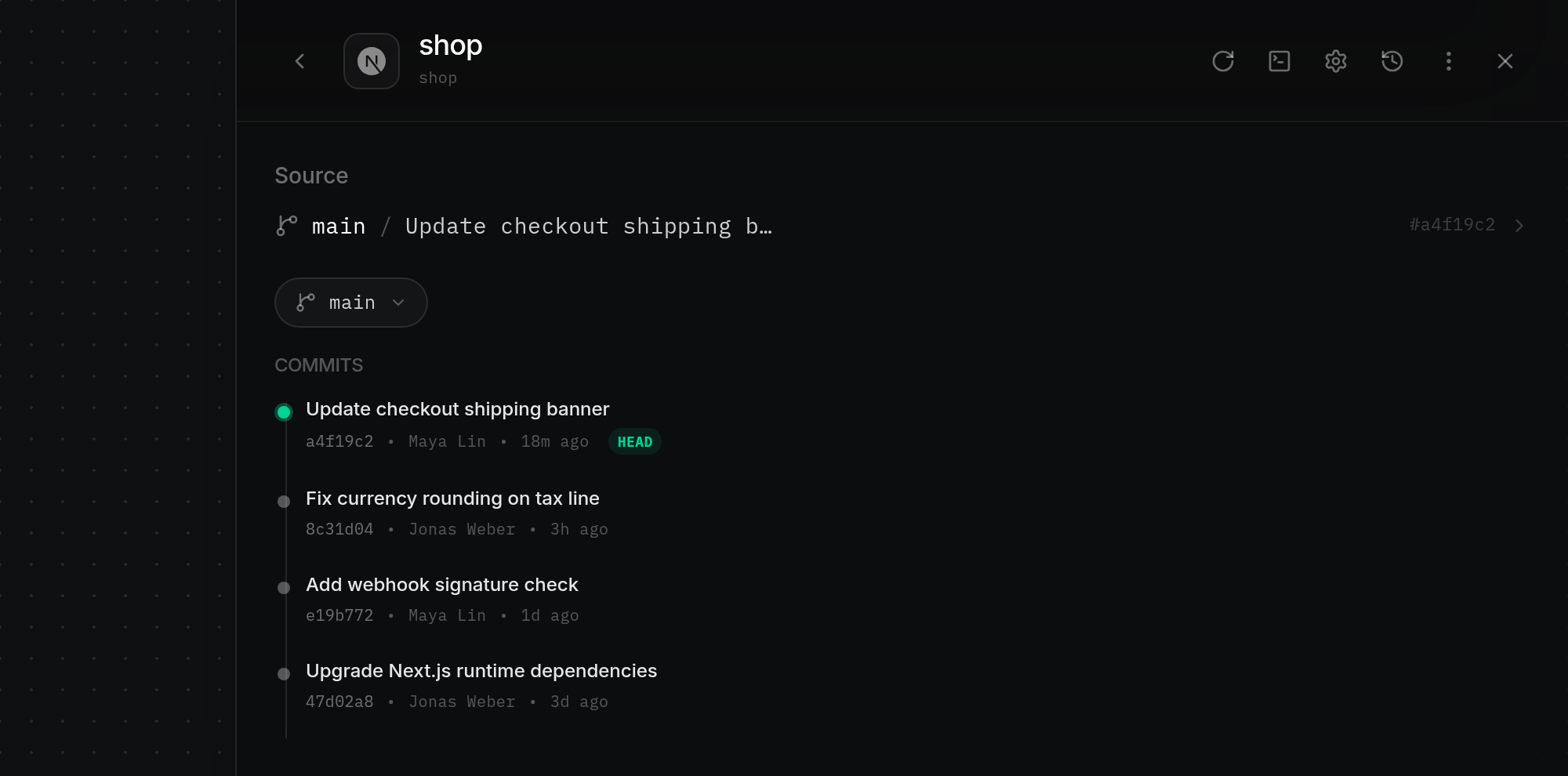
- Click the Source row to widen the inspector drawer, collapse the other overview sections out of view, reveal the Back button on the left of the header, and open the full Source view below the summary row. At the top sits the branch selector pill displaying the active branch, followed by Commits. While commits fetch,
Loading commits…appears briefly; if the list cannot be loaded or the branch has no commits, ODAC displaysCould not load commitsorNo commits on this branch(No git source attachedif no repository is linked). Each entry on the Commits timeline shows the commit message above a metadata line with the 7-character commit hash, the author name, and a relative timestamp (such as 18m ago, 3h ago, or1d ago). A glowing green timeline dot and a greenHEADbadge mark the currently deployed commit (or the top commit if no deployed hash is recorded).
Filter and switch branches
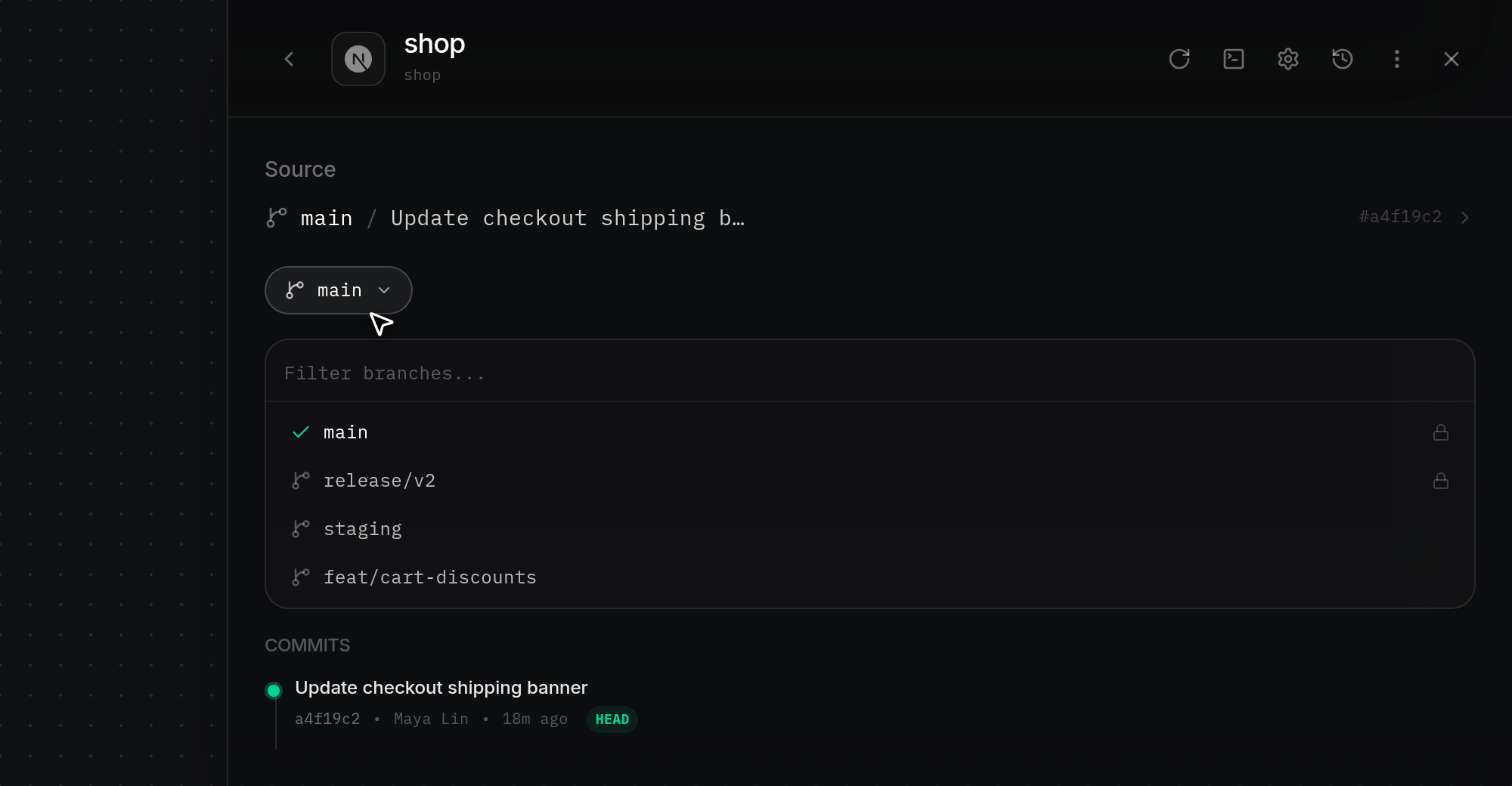
- Click the branch selector pill at the top of the Source view (such as
main) to open the branch dropdown directly below it and focus the Filter branches... search field. Wait briefly ifLoading branches…appears; if branches cannot be fetched or none exist, ODAC showsCould not load branchesorNo branches. The active branch displays a green checkmark, other branches display a branch icon, and protected branches show a lock icon on the right.
- Type part of a branch name into Filter branches... to narrow the list in real time, then click a branch such as release/v2.
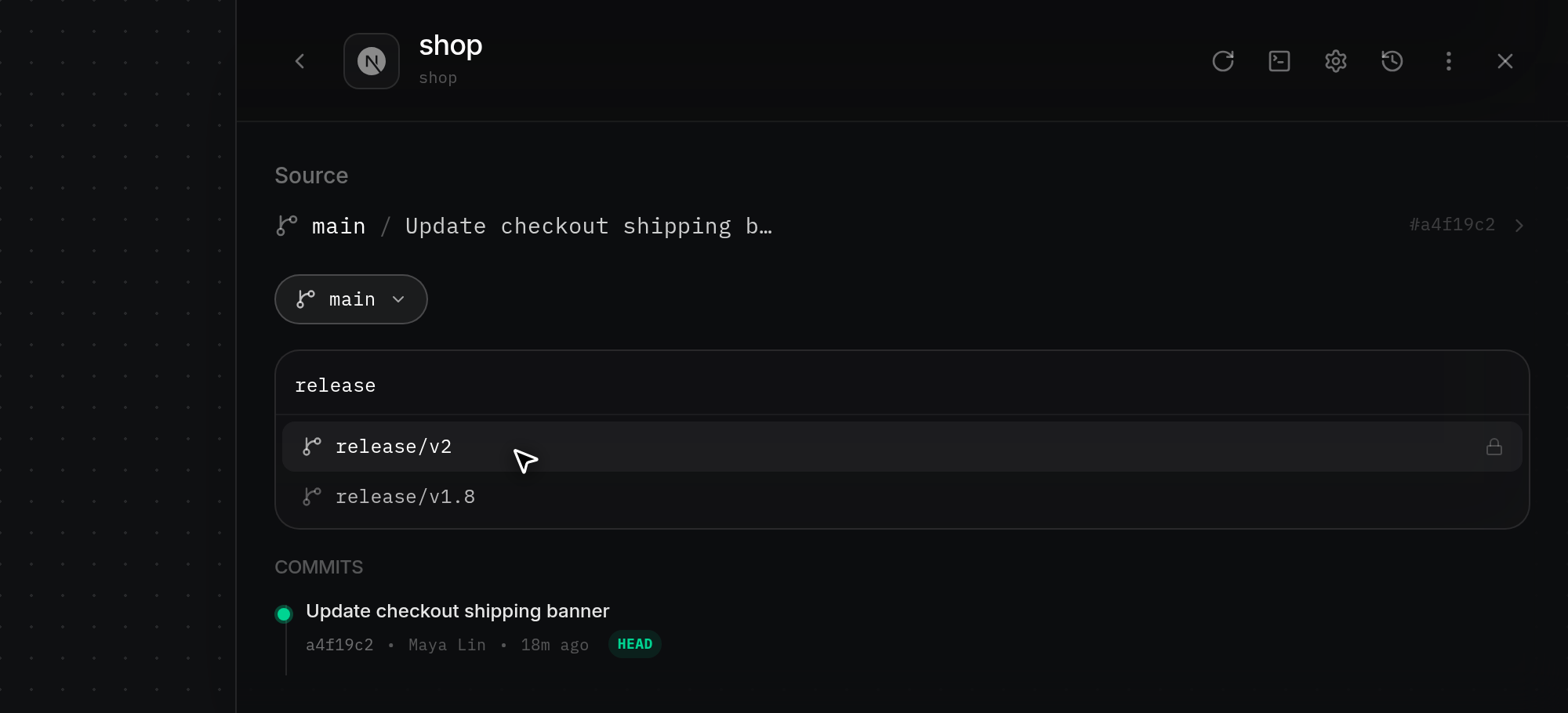
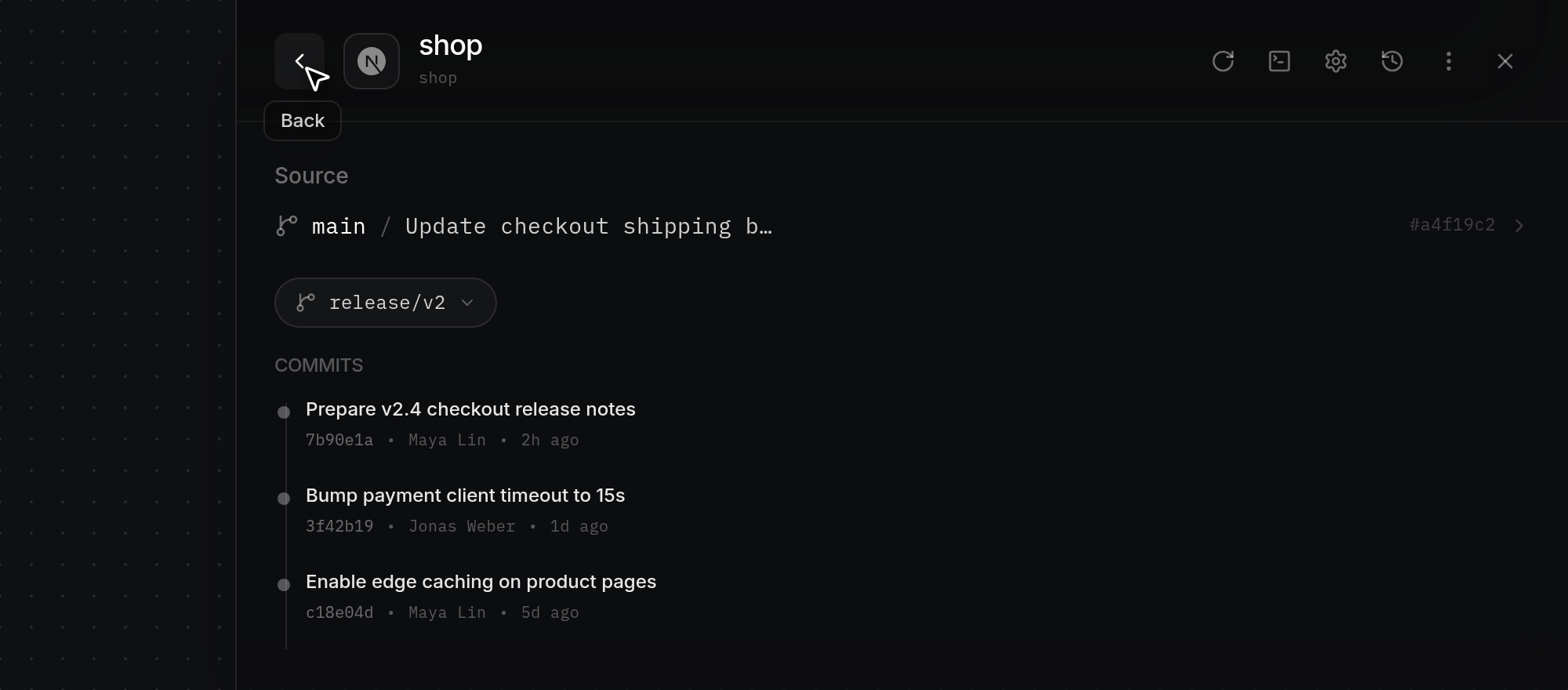
- The dropdown closes, the branch selector pill updates to release/v2, and the Commits timeline reloads with the commits on that branch (
Loading commits…appears while fetching). Click the left-chevron Back button in the inspector header (or click the Source summary row again) to close the Source view, narrow the drawer back to standard width, and return to the app inspector overview. You can also click Close (×), click empty space on the Canvas, or click another app card to close or switch the inspector drawer.