Inspect, rename, restart, and delete an app
Click any app card on your Canvas at app.odac.run to open its right-hand inspector drawer. From there you can monitor live resource usage, rename the app, restart its container, or permanently delete it.
Open the app inspector
- Click any app card on the Canvas without dragging to slide open the inspector drawer on the right. If the app is actively building or deploying, clicking its card opens Build Logs directly (see Read build and runtime logs). On a project without a server attached yet, clicking a queued card shows
This app is queued. Connect a server to deploy and inspect it.(see Queueing apps before connecting a server); if the attached server is offline, clicking a card showsCannot inspect app while server is offline.
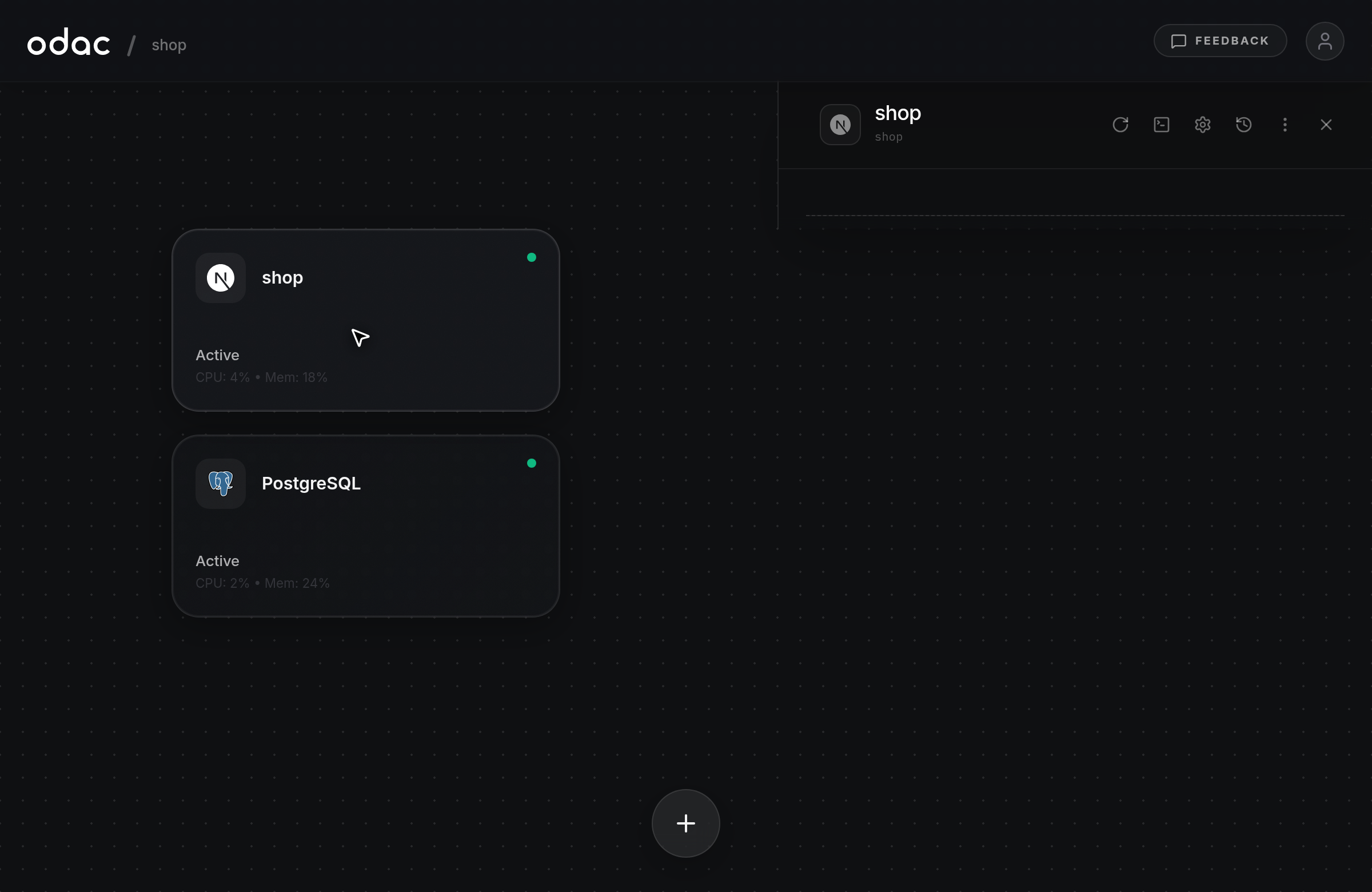
- Review the app icon, title, and container identifier in the drawer header, along with the quick action icons on the right: Restart, Terminal (see Open a container terminal), Settings (see Configure ports, networks, and volumes), Activity history and More actions (see App activity history and moving between projects), and Close (
×). Click Close or click any empty space on the Canvas grid to dismiss the drawer.
Read live CPU, RAM, and GPU metrics
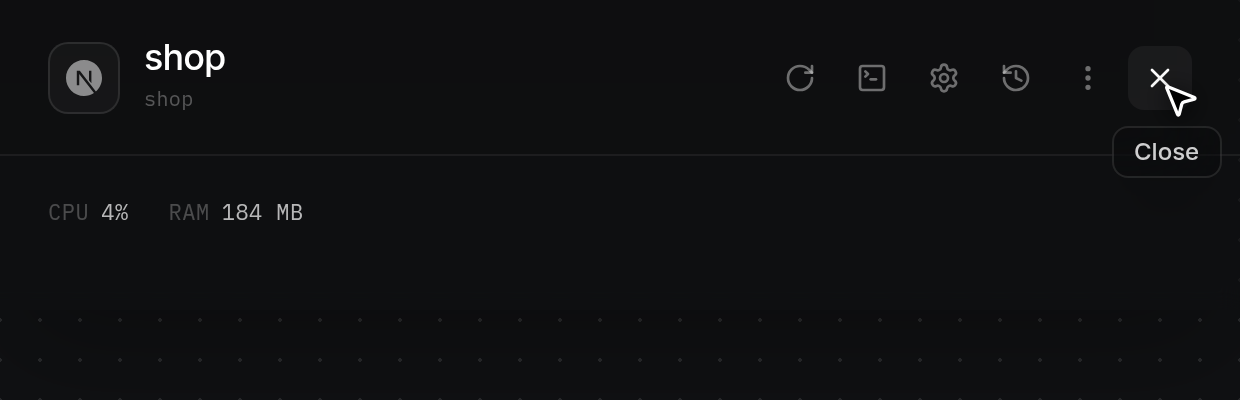
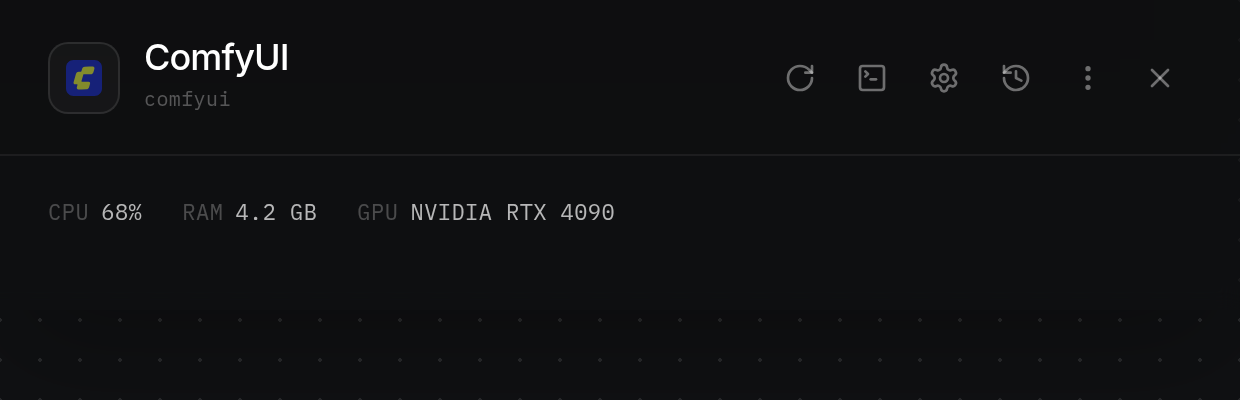
- Check the metric line directly below the inspector header for live
CPUandRAMusage.CPUdisplays as a rounded percentage, andRAMdisplays inMBbelow 1 GB or inGBwith one decimal at 1 GB and above. When an app is stopped or has no active reading yet, both metrics display-.
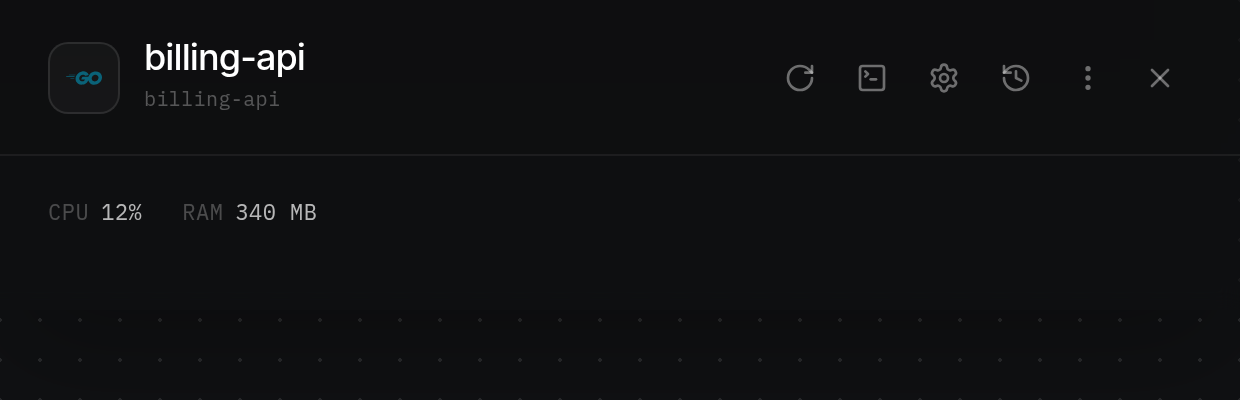
- Look at the right side of the same line for
GPUwhen an app uses GPU acceleration. ODAC displays the attached GPU model (prefixed with a count such as2xwhen multiple devices are attached, or the vendor nameNVIDIA,AMD, orIntelif no model name is reported). Apps without an attached GPU hide theGPUreadout.
Rename an app
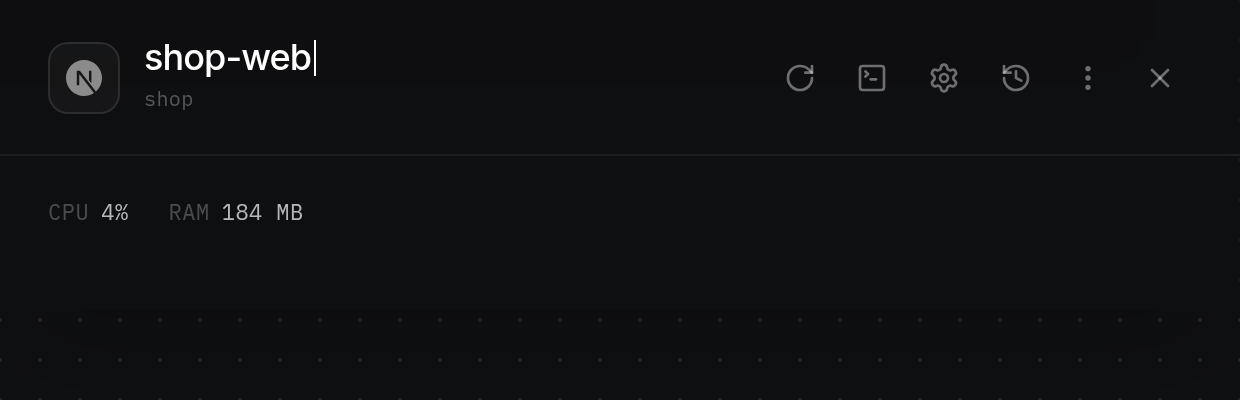
- Hover over the app title in the inspector header (
Click to renameappears) and click it to turn the title into an inline text field with the current name selected. Type the new name (up to 50 characters); pressEscapeor clear the field if you want to keep the previous name instead.
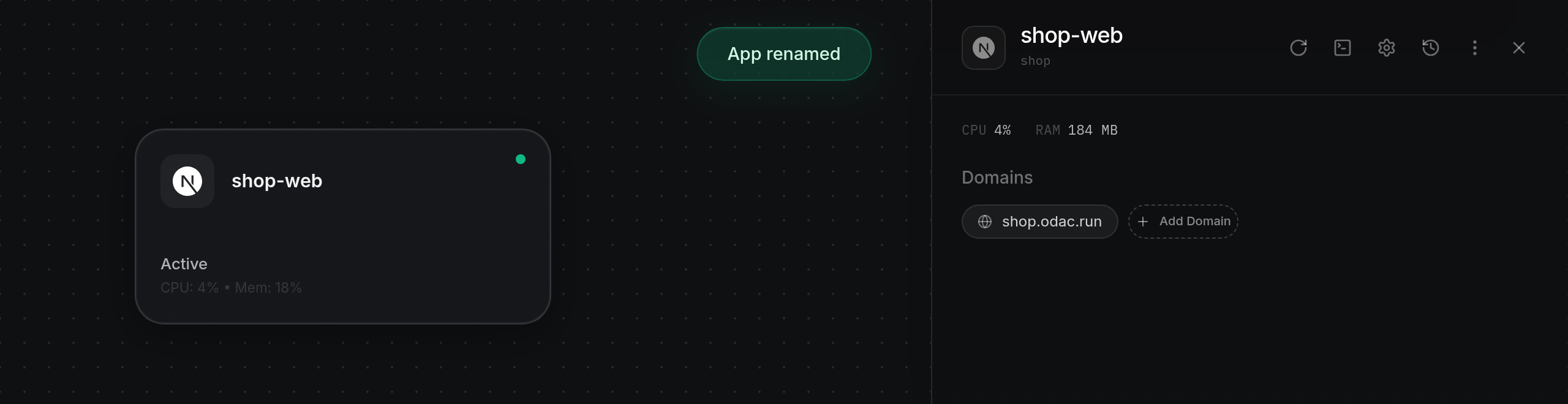
- Press
Enteror click outside the field to save. Both the inspector header and the app card on the Canvas update immediately, and ODAC displaysApp renamedat the top of the screen.
Restart the container
- Click Restart (the circular arrow icon) in the inspector header to restart the app container.
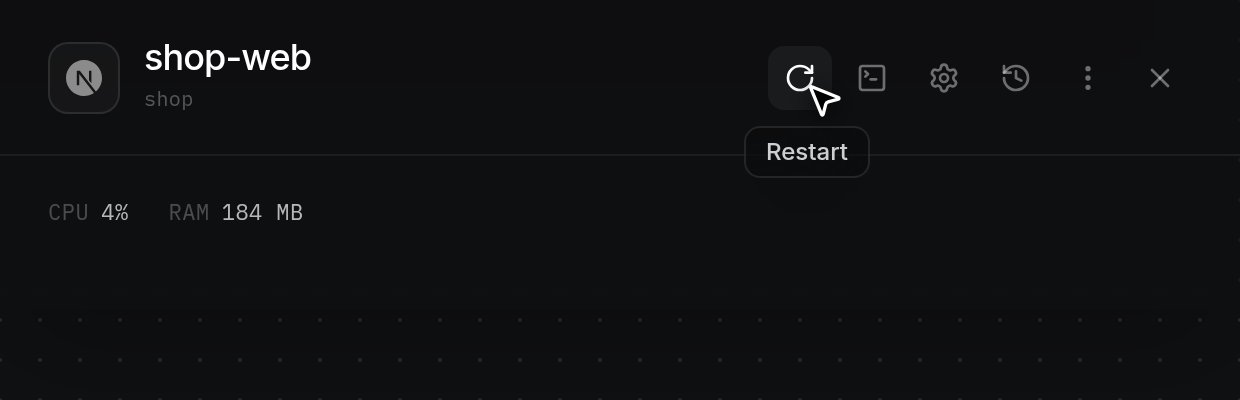
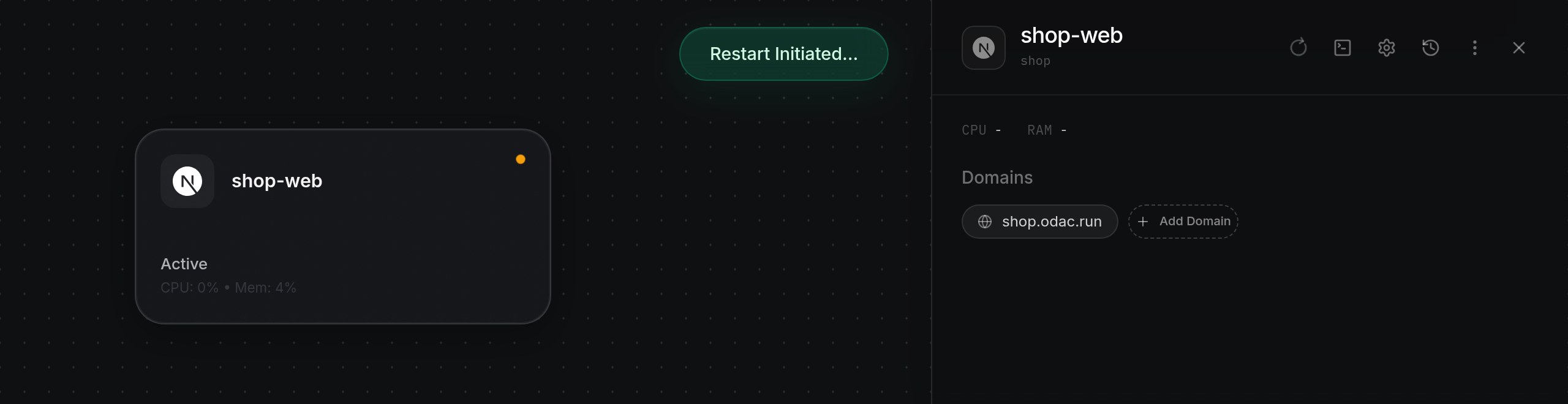
- Watch the Restart icon spin and dim while ODAC shows
Restart Initiated...at the top of the screen. On the Canvas, the card's status dot pulses yellow until the container is back up, then returns to green as the Restart button stops spinning.
Delete an app
- Scroll to Danger Zone at the bottom of the inspector drawer and click Delete App once. The button arms as a safety check, turning solid red with the label CLICK TO CONFIRM; moving your pointer away before clicking again resets it back to Delete App.
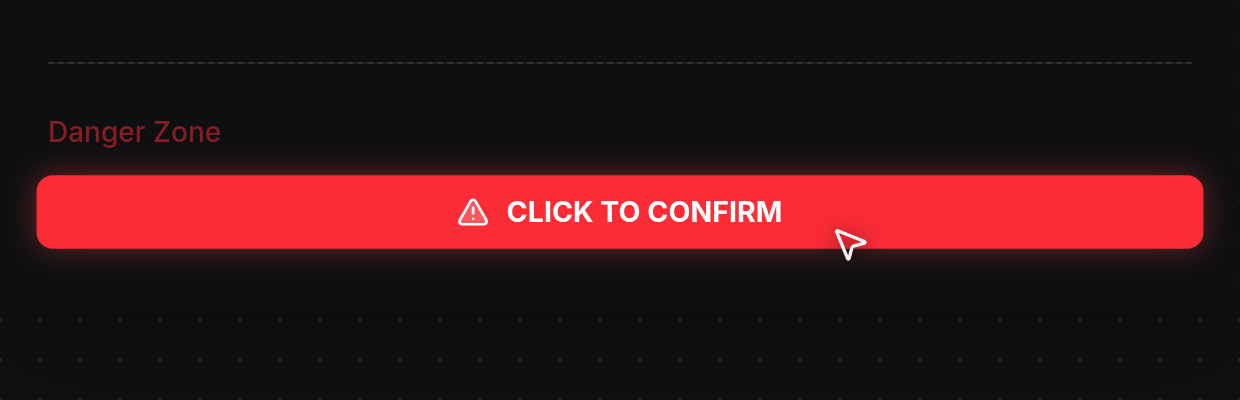
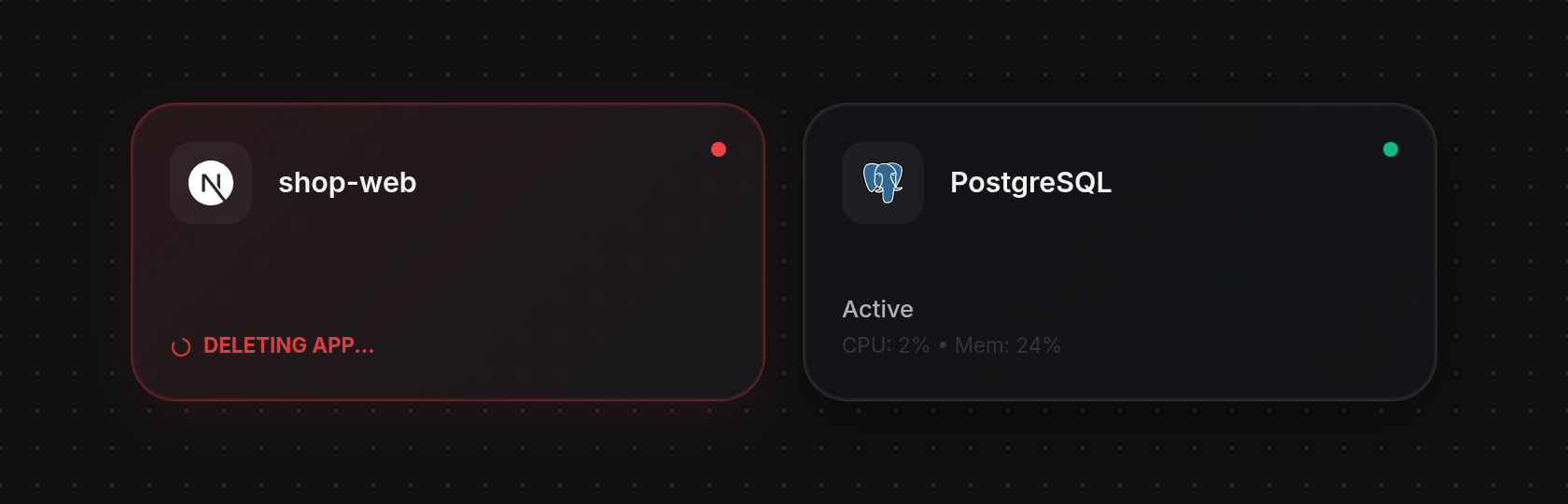
- Pause briefly and click CLICK TO CONFIRM to delete the app (rapid accidental double-clicks are ignored). The button switches to a spinner, the app card on the Canvas turns red with
Deleting App..., and the inspector drawer slides closed. Once removal finishes, the card disappears from the Canvas and ODAC showsApp removed.