Manage sessions, view activity, and send feedback
Review and revoke active sign-in sessions, browse your account-wide activity timeline on Profile, and send bug reports or suggestions with Feedback in the top header at app.odac.run.
View active sessions
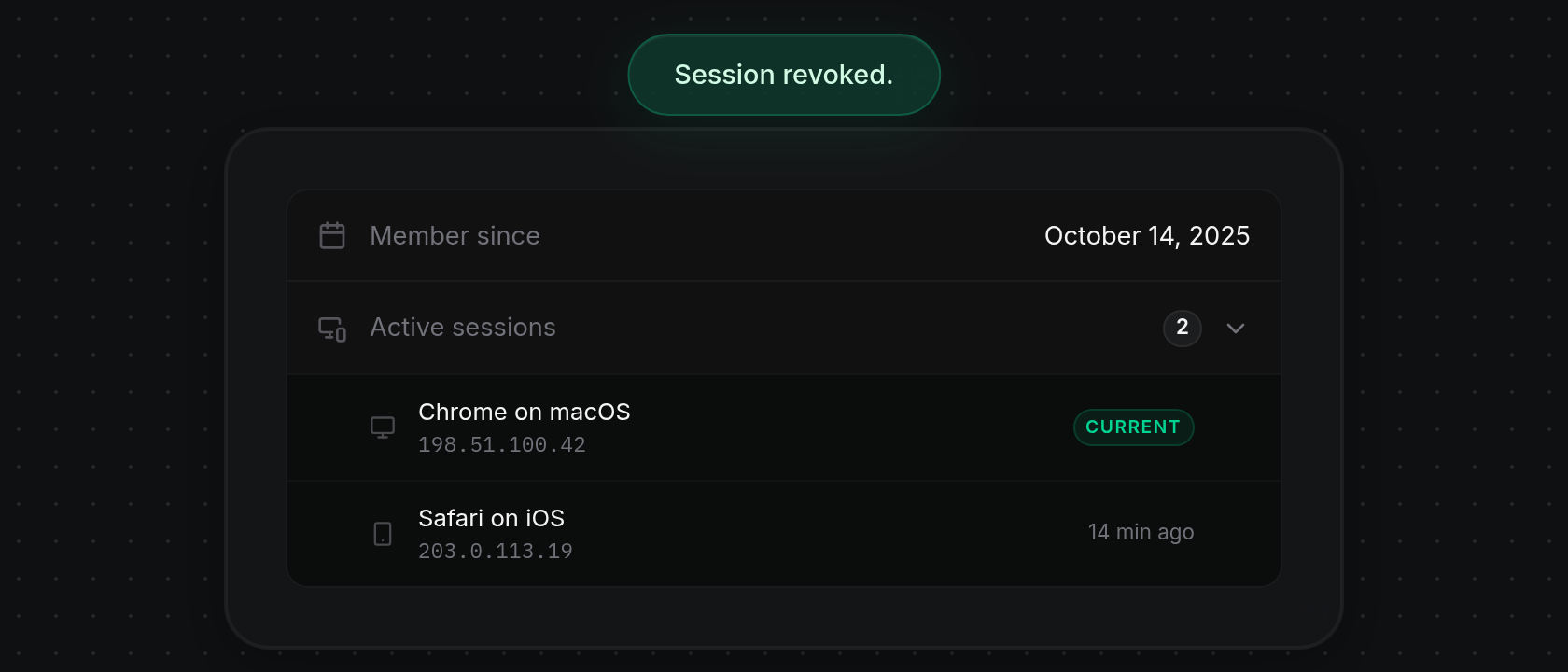
- Open Profile from the top-right header avatar menu (see Edit your profile photo, name, and language). At the bottom of the Account card, click Active sessions, which displays the number of signed-in sessions on the right.
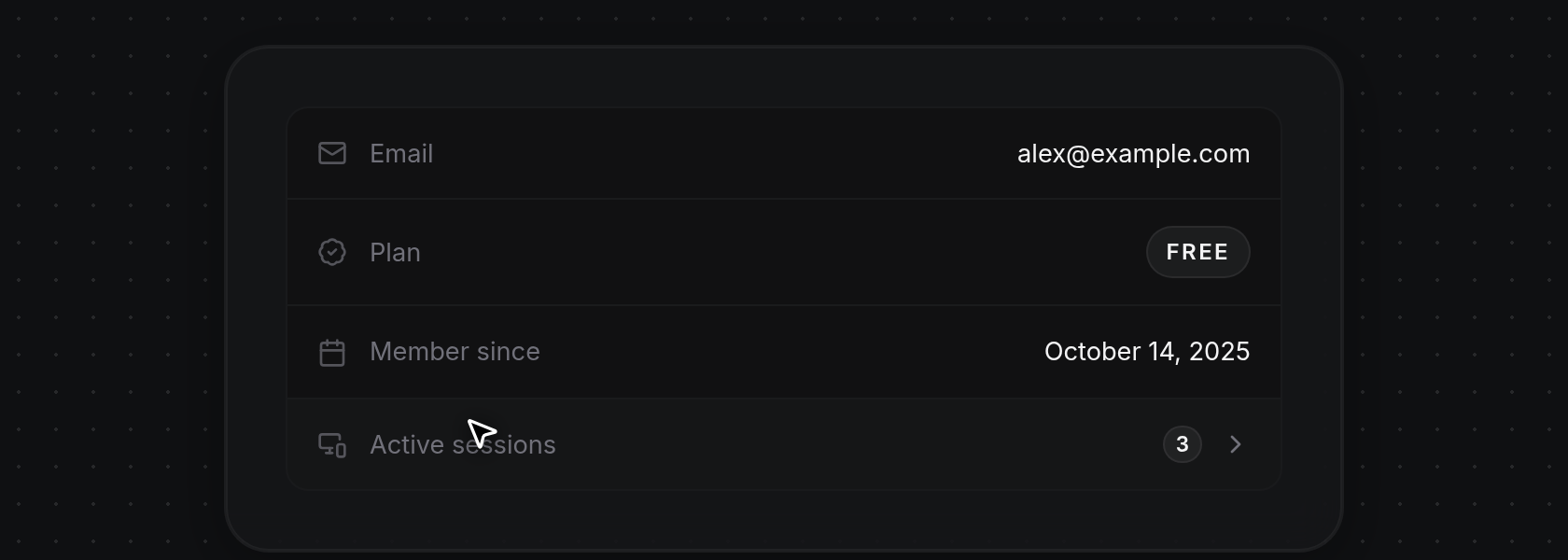
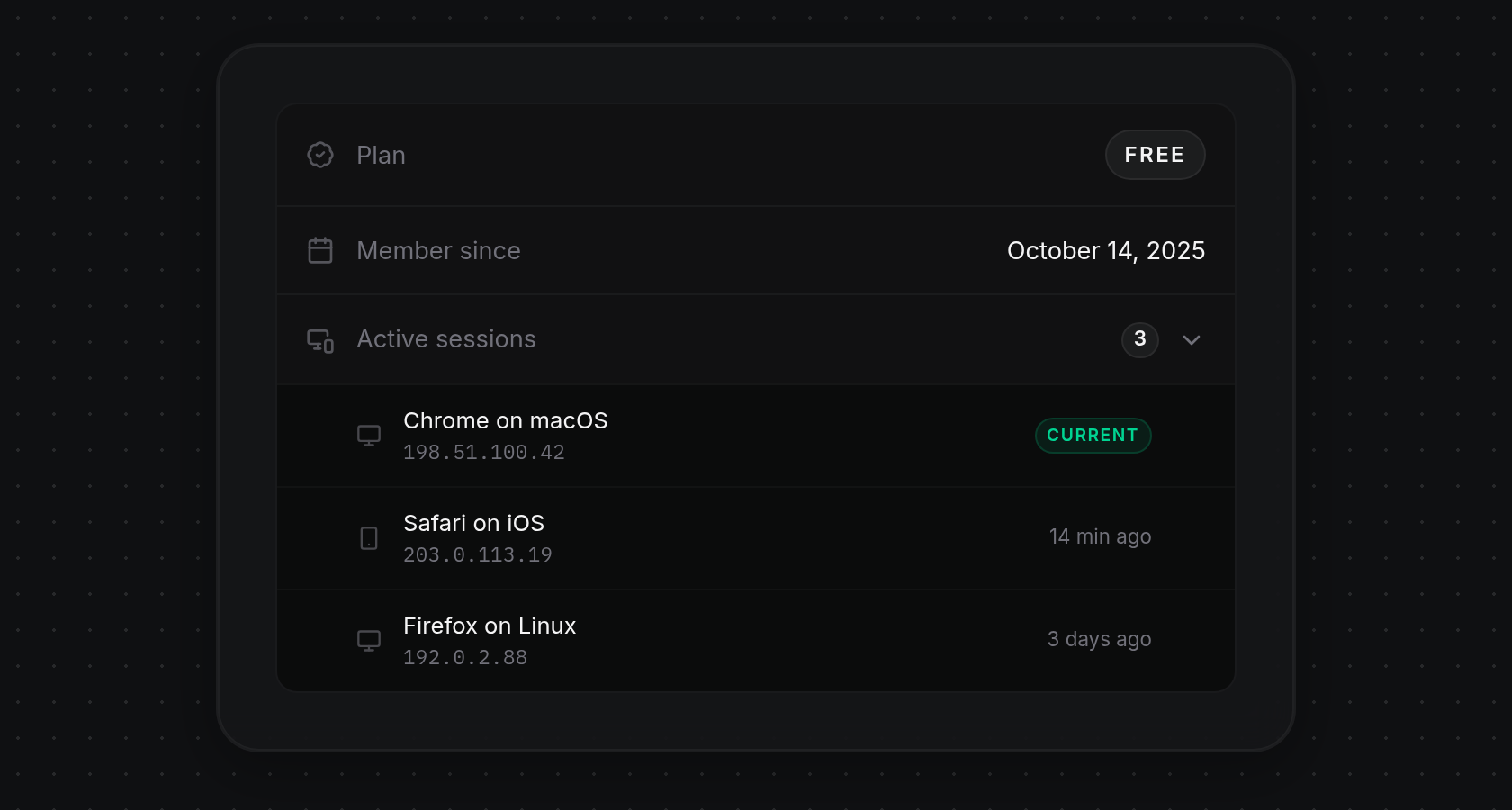
- The list expands below Active sessions, showing each signed-in session with a device icon, browser and operating system (such as Chrome on macOS, Safari on iOS, or Firefox on Linux), and IP address. Your active browser displays a green Current badge on the right, while other sessions show when they were last active (for example, 14 min ago or 3 days ago). Scroll inside the list if you have many sessions, or click Active sessions again to collapse it.
Revoke another session
- Hover over any session row that does not have a Current badge to reveal the
×button (Revoke session) on the right, then click×to end that session. Your current session cannot be revoked from this list; to sign out on your current device, use Log Out in the top-right user menu (see Sign in, waitlist, and referral codes).
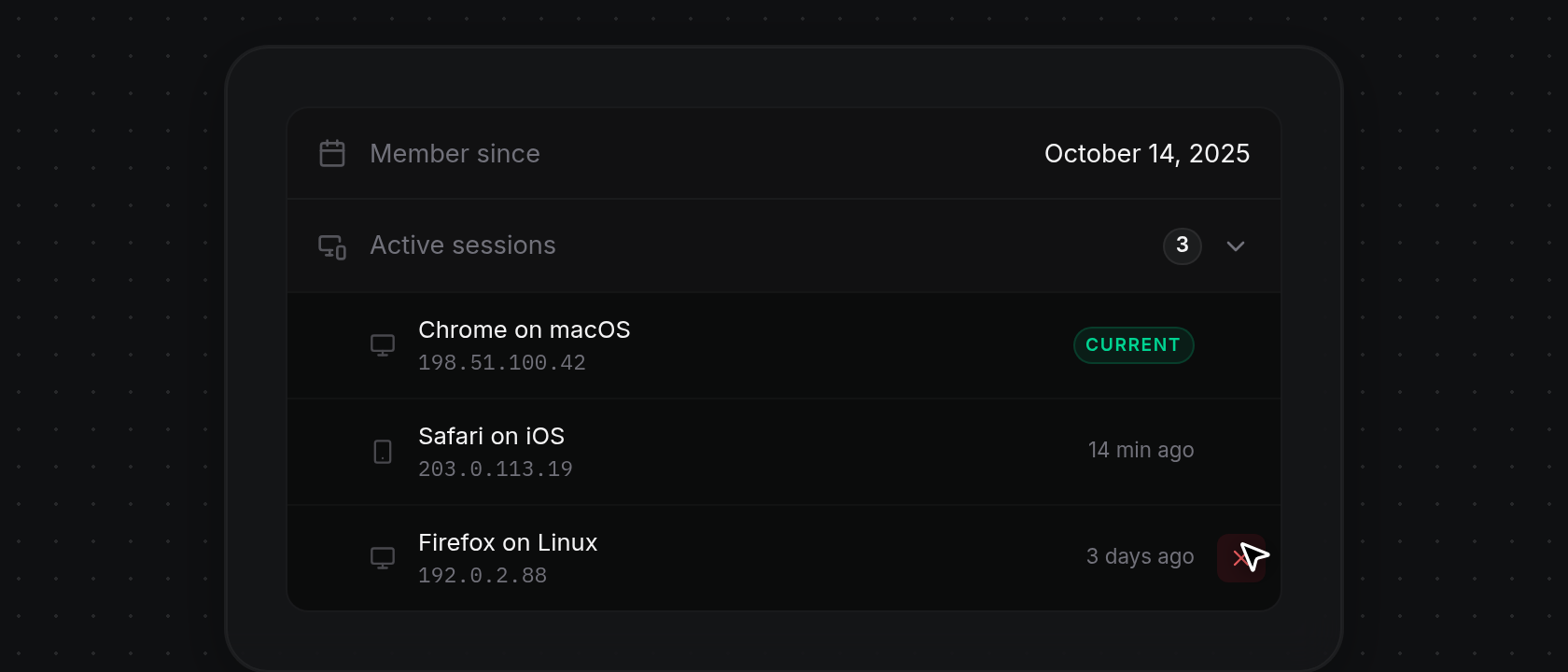
- The revoked row collapses out of the list, the Active sessions count badge decreases by one, and a green
Session revoked.notification appears at the top of the screen. If the session cannot be ended, a red notification such asCould not revoke session.,Session not found., orNetwork error. Try again.appears instead.
View account activity
- On Profile, click Activity in the tab switcher on the right side of the header card.
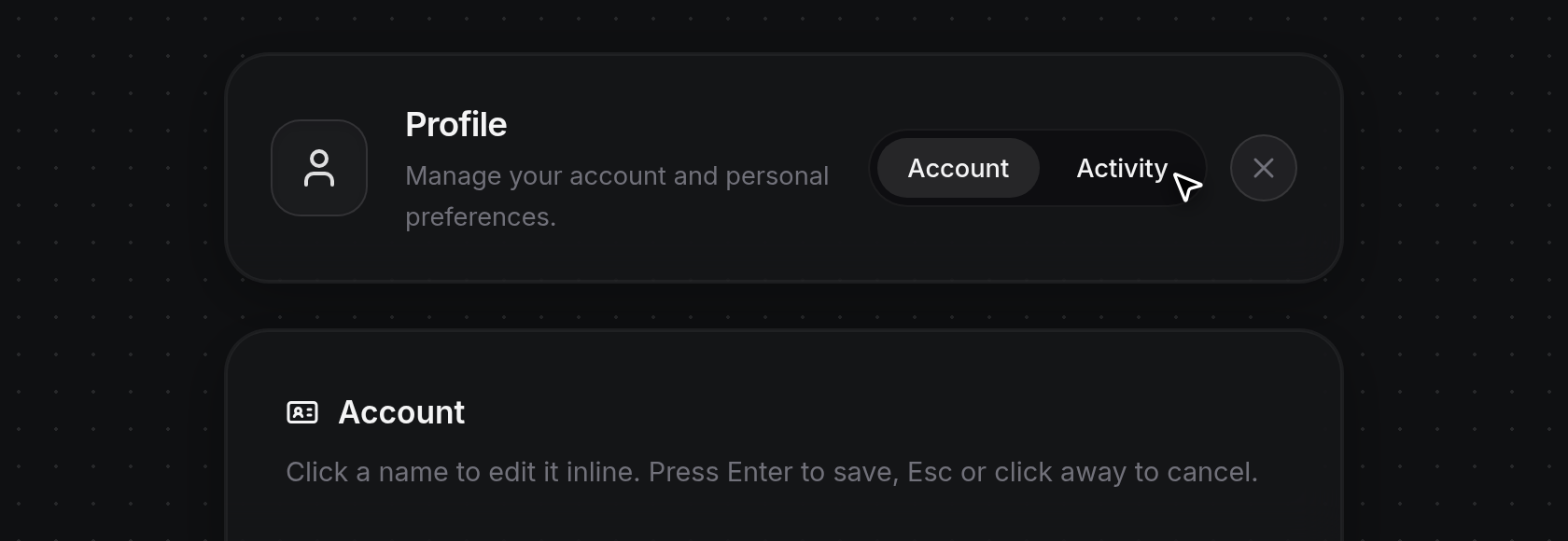
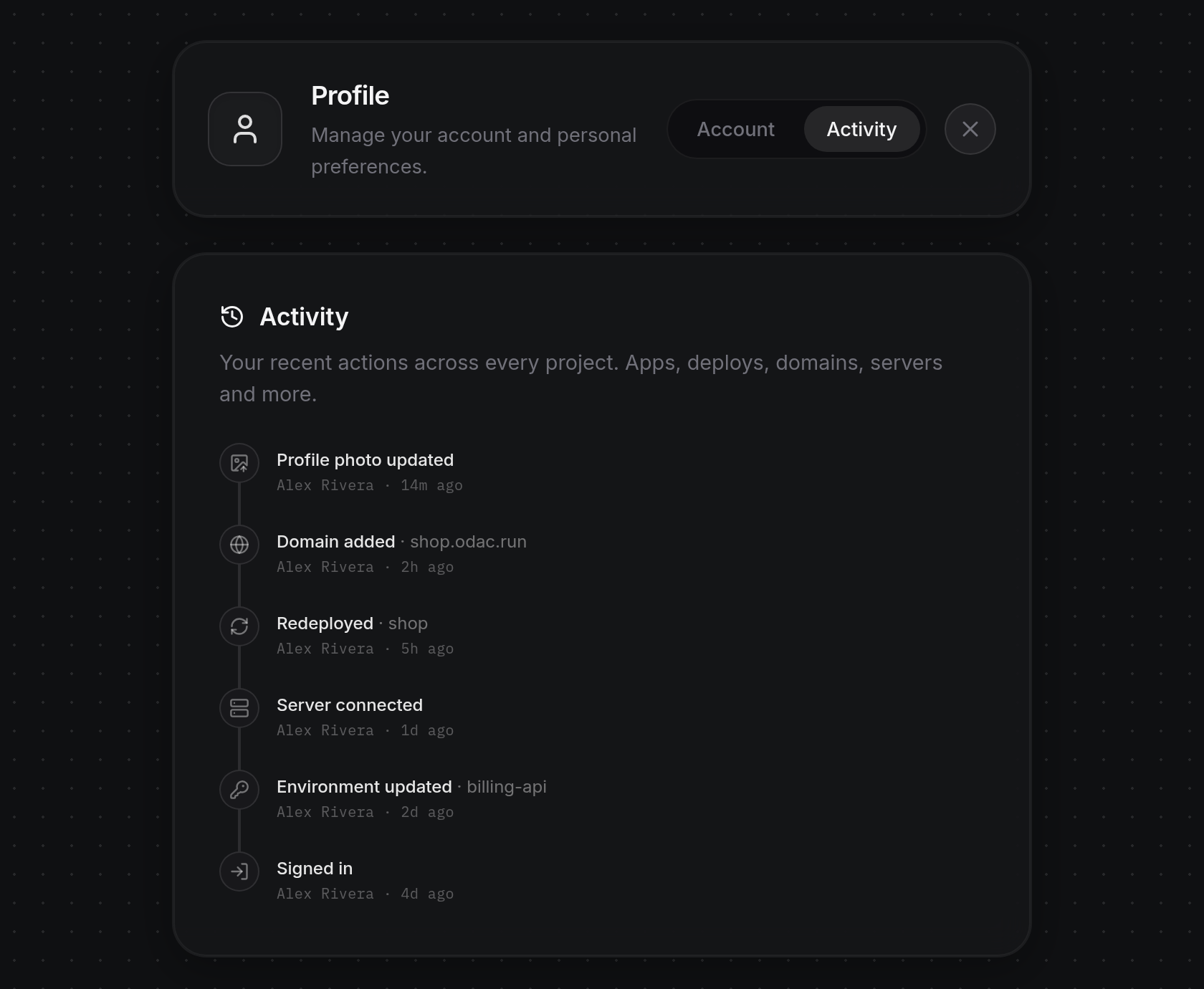
- The active indicator slides to Activity and displays the Activity card (
Your recent actions across every project. Apps, deploys, domains, servers and more.). Your actions appear newest first along a vertical timeline, each showing an icon, the action label (such asProfile photo updated,Domain added,Redeployed,Server connected,Environment updated, orSigned in), an optional detail after·for the affected app or domain, and your name (orYouwhen no profile name is set) with a relative timestamp (14m ago,2h ago,1d ago). Scroll inside the card when there are many entries, or click Account in the header card to return. If no actions have been recorded yet, the card showsNo activity yet. For project-wide activity or a single app's history, see View project activity and delete a project and App activity history and moving between projects.
Send feedback
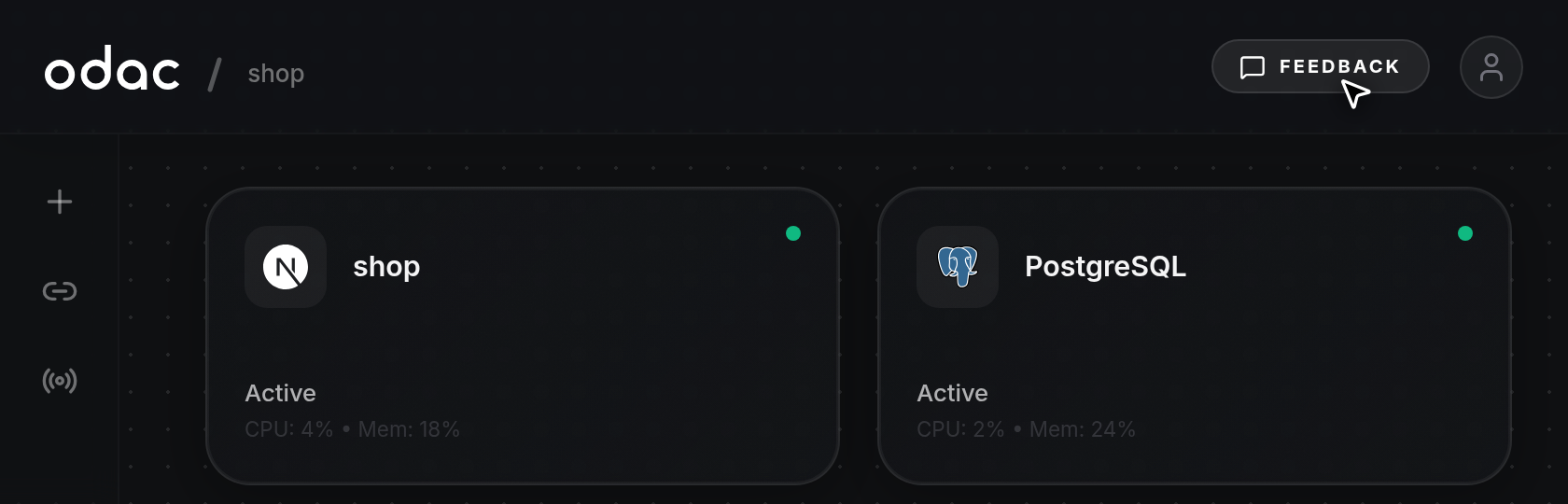
- Click Feedback in the top-right header on any dashboard page. On smaller screens, click your avatar in the top-right corner to open the user menu and click Feedback at the top of the menu.
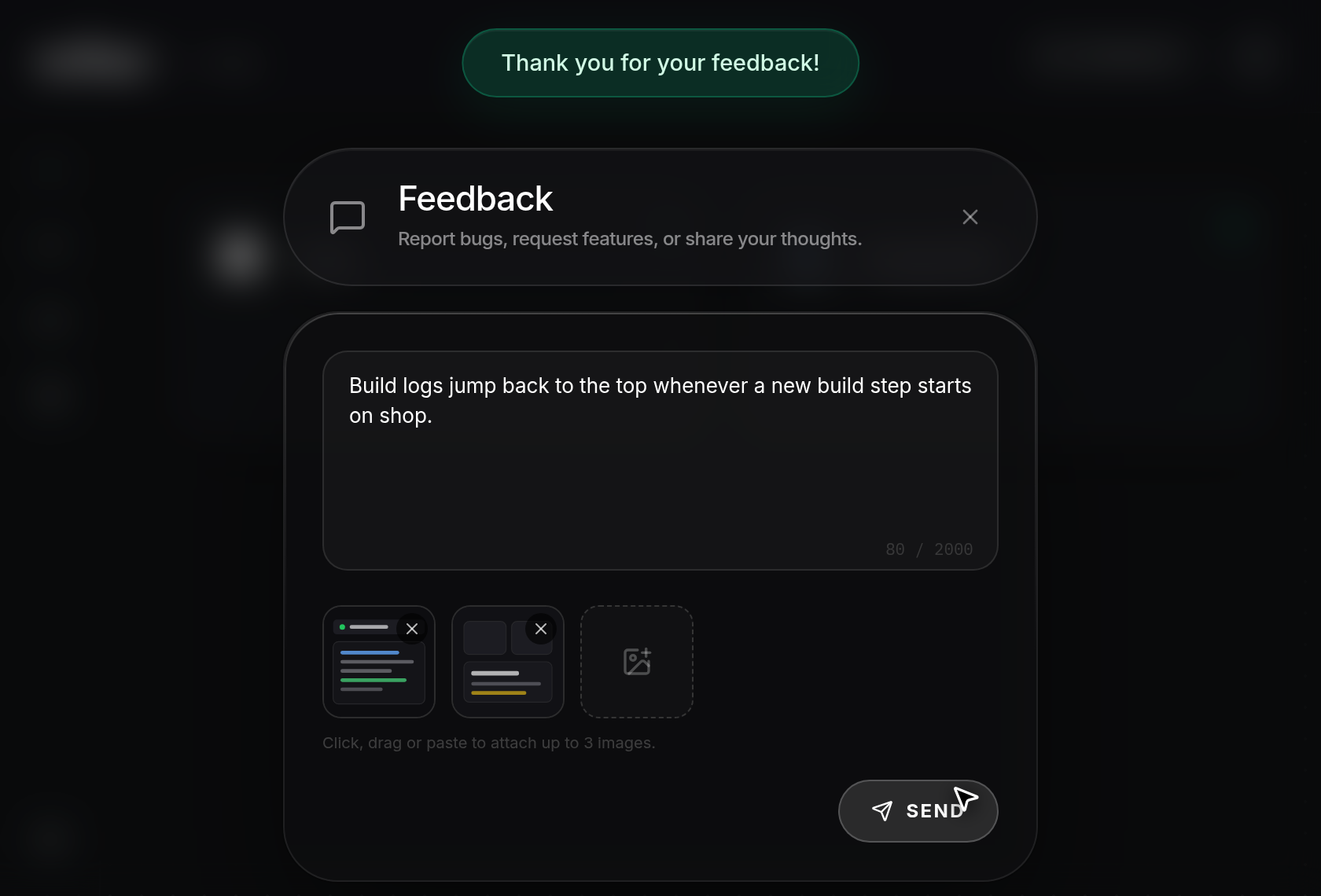
- The Feedback dialog opens with the subtitle
Report bugs, request features, or share your thoughts.. Click the message box (placeholderTell us what's on your mind...) and type your message. A counter in the bottom-right corner tracks your length up to 2,000 characters (starting at0 / 2000), and Send remains disabled until you type at least 5 characters. Click×in the top-right corner or click outside the dialog to close it at any time.
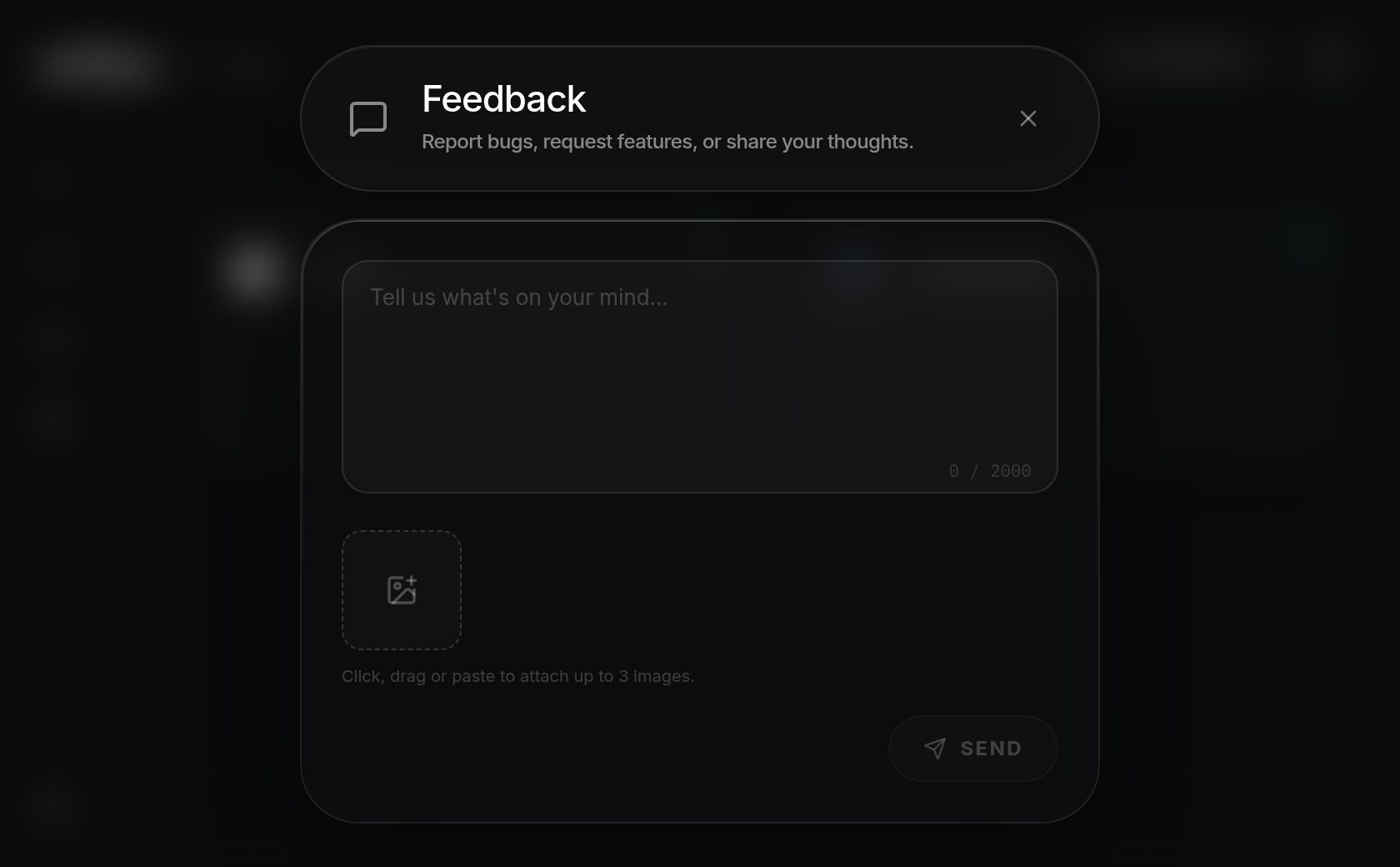
- To include screenshots, attach up to 3 PNG or JPG images (5 MB maximum per image) in any of three ways: click the dashed image button to browse files on your device, drag and drop images anywhere onto the dialog, or paste an image from your clipboard while typing. Each image appears as a square thumbnail with an
×button in its top-right corner to remove it, and the dashed button hides once 3 images are attached. If an attachment is not supported, exceeds 5 MB, or exceeds 3 images, a red message (Only PNG or JPG images are allowed.,Each image must be 5MB or smaller., or You can attach up to 3 images.) appears to the left of Send.
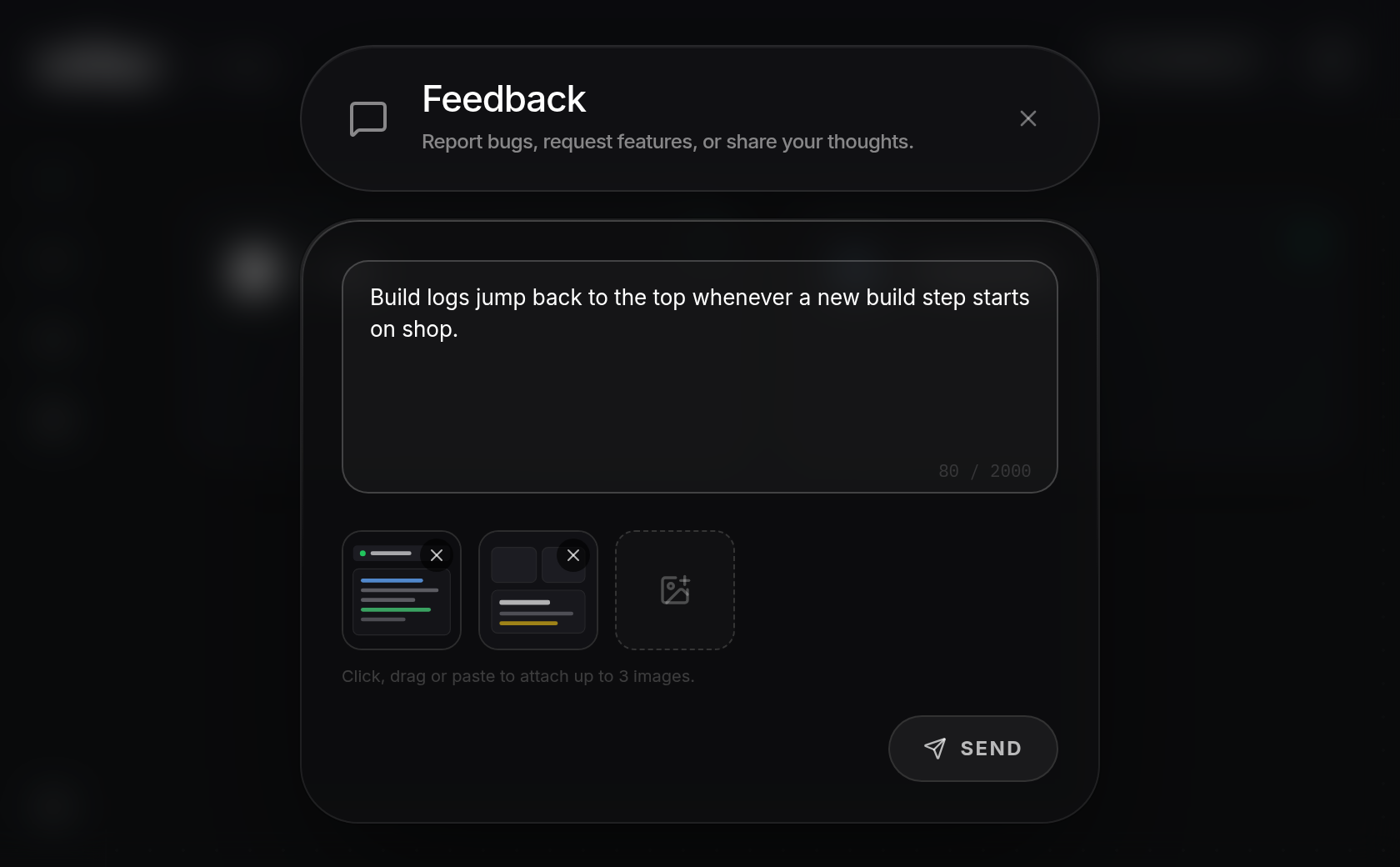
- Click Send to submit your feedback. A green
Thank you for your feedback!notification appears at the top of the screen and the dialog closes automatically. Submitting the exact same message again right after sending it displaysYou already sent this recently.beside Send.