App activity history and moving between projects
Review a chronological record of changes made to any app and relocate apps between projects on the same server from the right-hand inspector at app.odac.run. From the inspector header, you can open Activity History to trace dashboard actions, GitHub auto-deploys, and Server CLI events, or open More actions to move an app to another project without interrupting its running container.
Open and read Activity History
- Open an app's inspector drawer from the Canvas (see Inspect, rename, restart, and delete an app), then click Activity history (the history clock icon) in the inspector header.
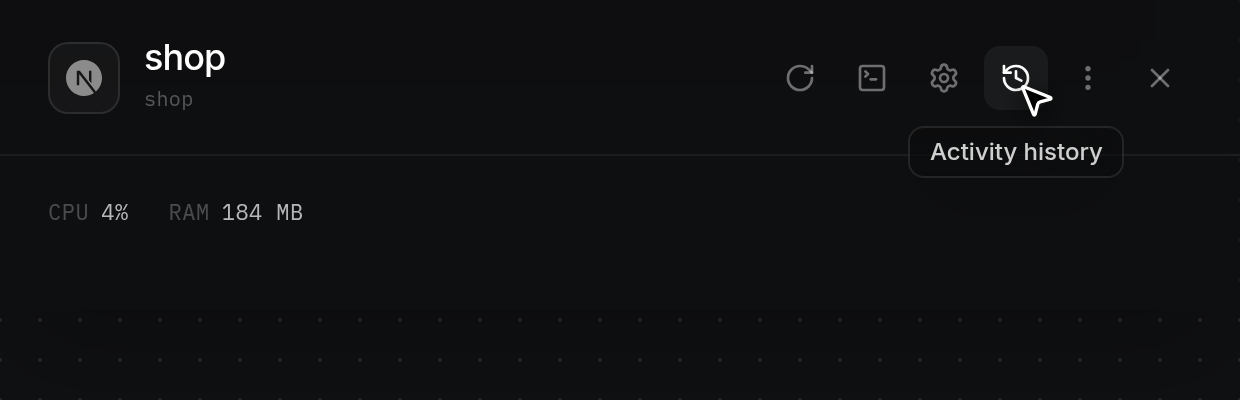
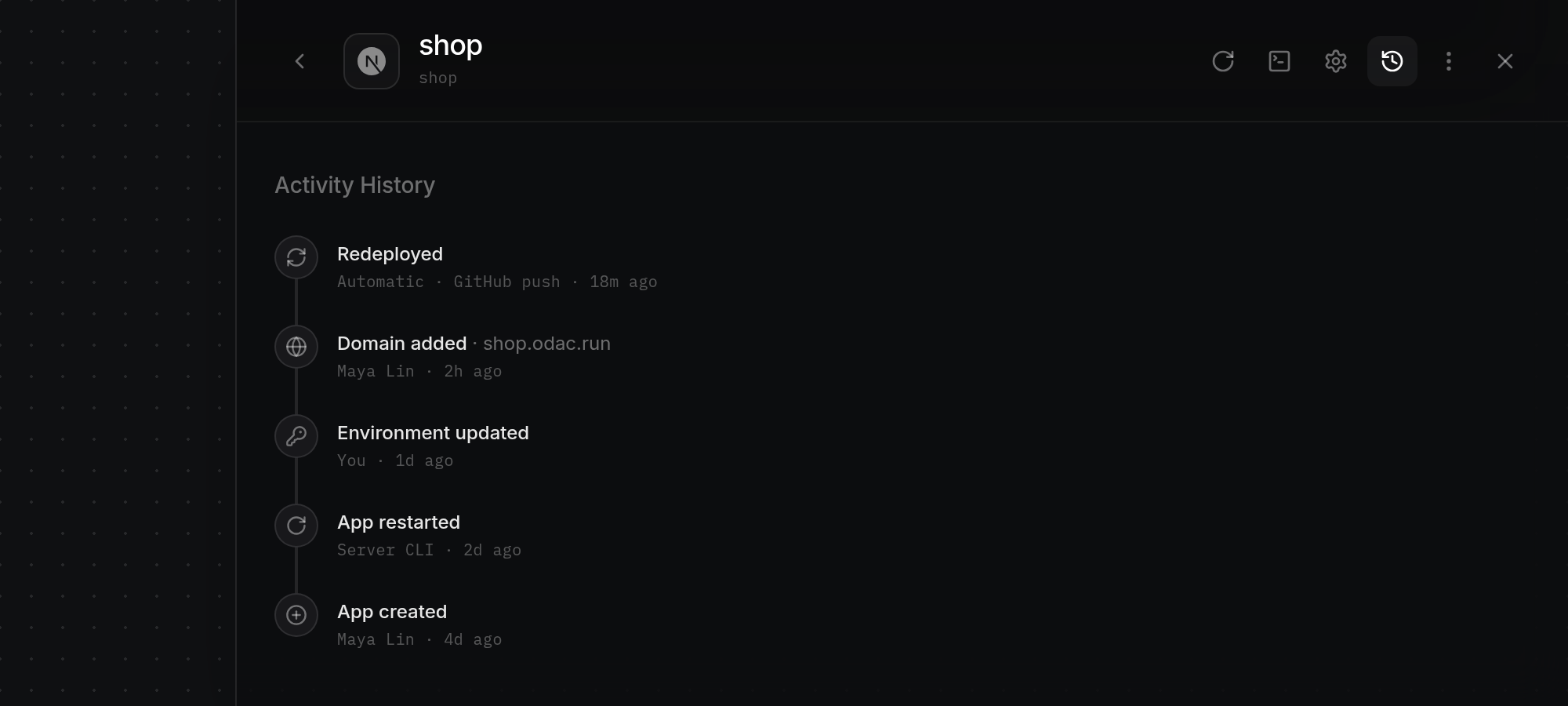
- The inspector drawer widens, collapses the overview sections out of view, reveals the Back button on the left of the header, and opens Activity History. While entries load,
Loading activity…appears briefly; if the history cannot be loaded or no events exist yet, ODAC displaysCould not load activityorNo activity yet. Events are listed newest first along a vertical timeline, each showing an icon, the event name (such asApp created,App restarted,Redeployed,Domain added,Environment updated,Configuration updated,Terminal opened, orMoved to project), an optional detail such as an attached domain after a dot (·), who or what triggered it, and a relative timestamp (18m ago,2h ago, 4d ago). User actions display the person's name (orYouwhen no profile name is set), automatic GitHub deployments display Automatic · GitHub push, and actions run on the server via the ODAC CLI displayServer CLI. Click Back in the header (or click Activity history again) to return to the inspector overview, or click Close (×) to dismiss the drawer. For project-wide activity across all apps, domains, and servers, see View project activity and delete a project.
Move an app to another project
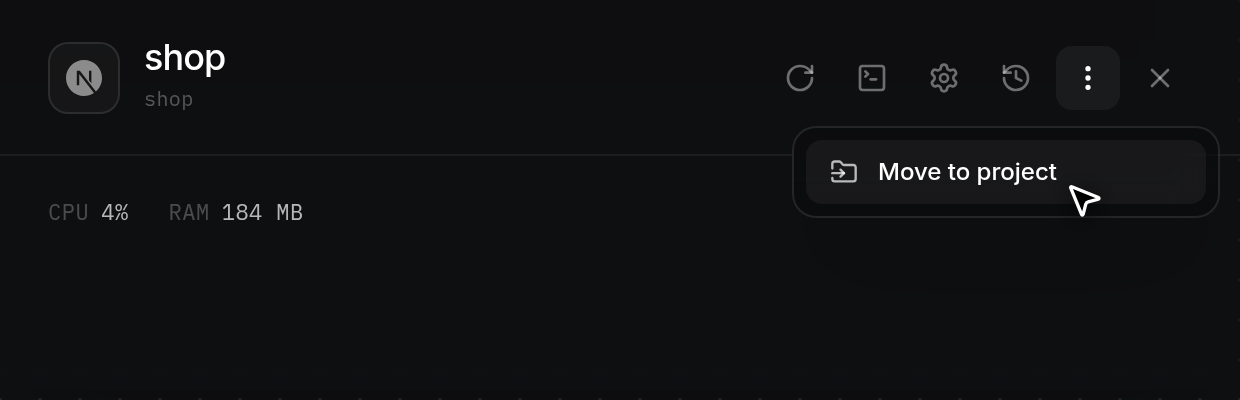
- Click More actions (the three vertical dots icon) in the inspector header to open its menu, then click Move to project.
- The inspector widens to Move to Project. Check the note below the heading, which confirms the server the app runs on (for example, This app runs on prod-eu-1. The container stays exactly where it is, only its place in the dashboard changes.). Review the list of your other projects below (
Loading projects…appears briefly while fetching, orNo other projects yetif you have only one project). Eligible projects appear first with a folder icon and right arrow: projects already targeting the same default server show only their name, projects without a server attached yet show a line such as No server yet · will adopt prod-eu-1 (moving the app attaches that server as the target project's default deploy server), and queued apps moving to a server-backed project show a line such as Still queued · will deploy on prod-eu-1. Projects whose default deploy server is a different machine appear dimmed at the bottom with a line such as Deploys to staging-us-1 and cannot be clicked; hovering a blocked project showsAn app can only live in a project that deploys to the server it runs on.
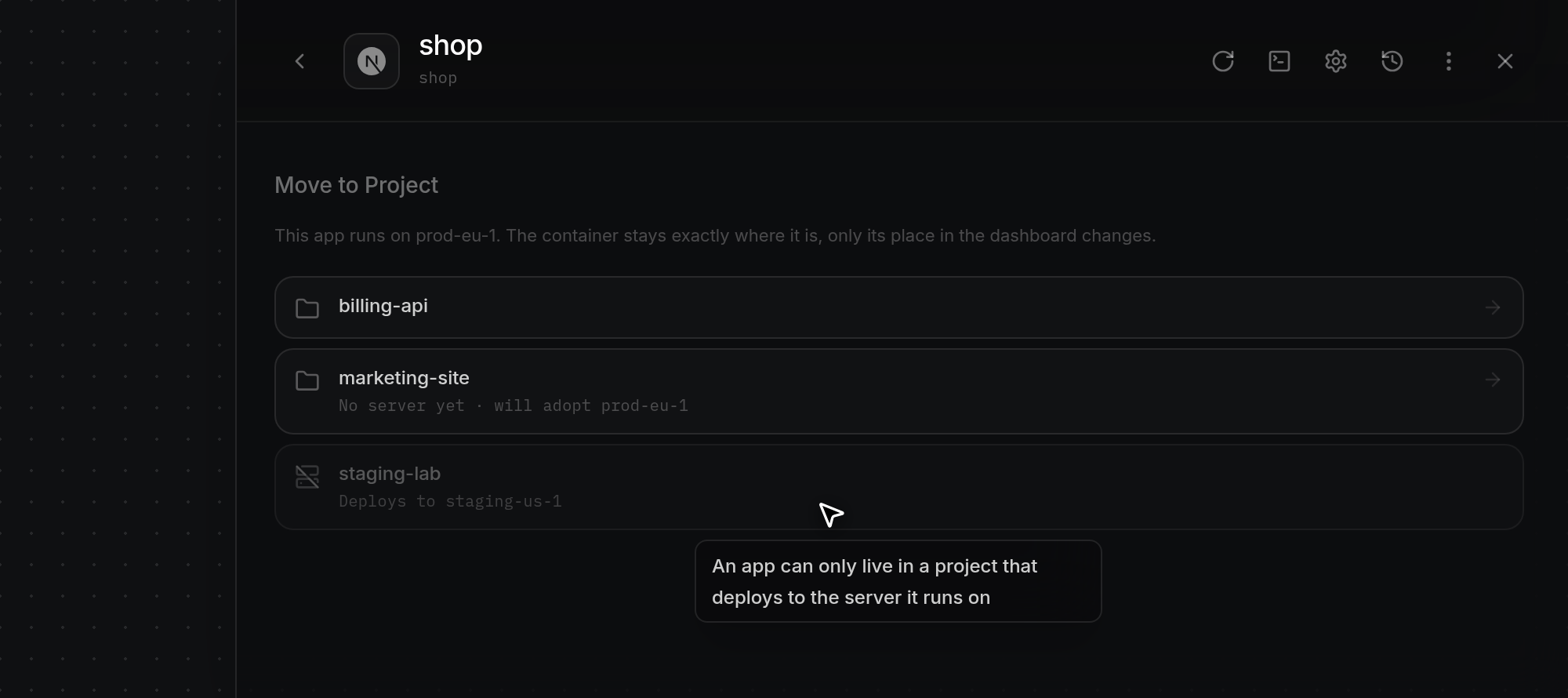
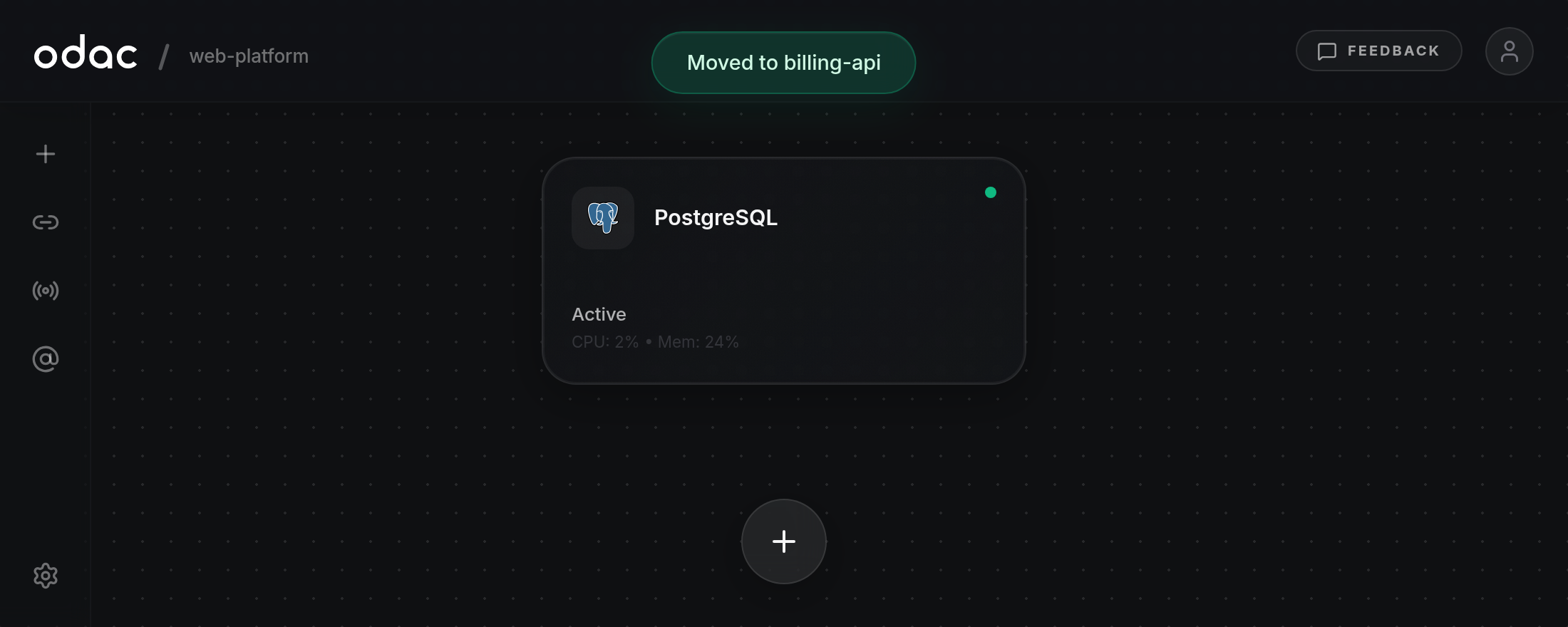
- Click an eligible project row (such as billing-api) to start the move. The panel shows Moving to billing-api…, then the inspector closes, the app card leaves the current Canvas, and ODAC displays Moved to billing-api at the top of the screen. Switch to the destination project from the top header project selector (see Projects and navigation) to see the app on its new Canvas with its domains and activity history preserved, while its container continues running uninterrupted on the same server. If the app is actively creating, starting, installing, redeploying, or being removed, ODAC cancels the move and shows
This app is still deploying. Move it once the deploy finishes.at the top of the screen.