Sign in, waitlist, and referral codes
Access your dashboard at app.odac.run with a passwordless magic sign-in link, join the waitlist or redeem an invitation code, sign out from the header user menu, and view or copy your referral codes.
Sign in or join the waitlist
- Open app.odac.run when you are signed out. The sign-in card prompts
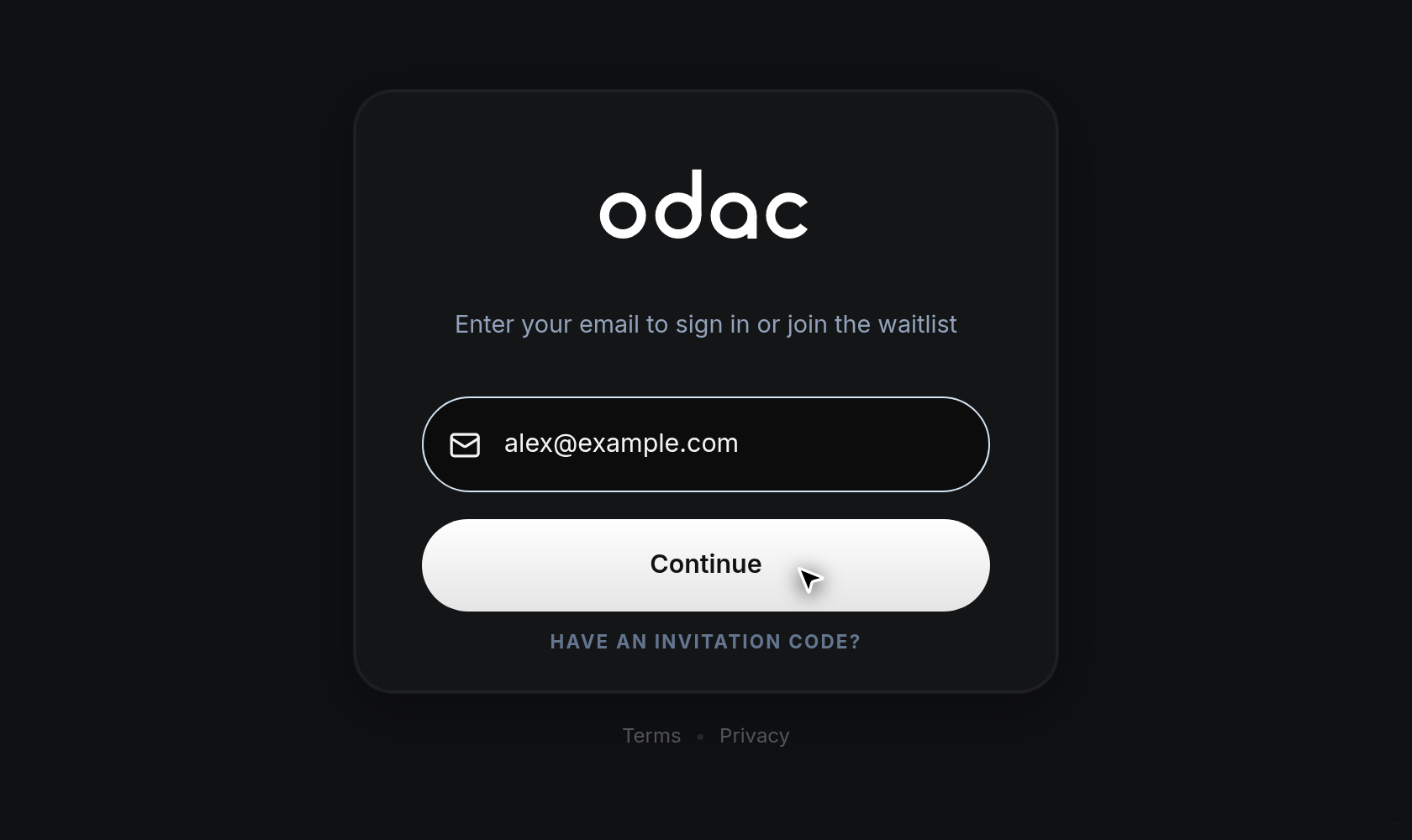
Enter your email to sign in or join the waitlist, with Terms and Privacy links below the card. Type your email address into the email field (placeholdername@work.com) and click Continue. While your request is sending, the button readsSending...and the ODAC logo animates above the card.
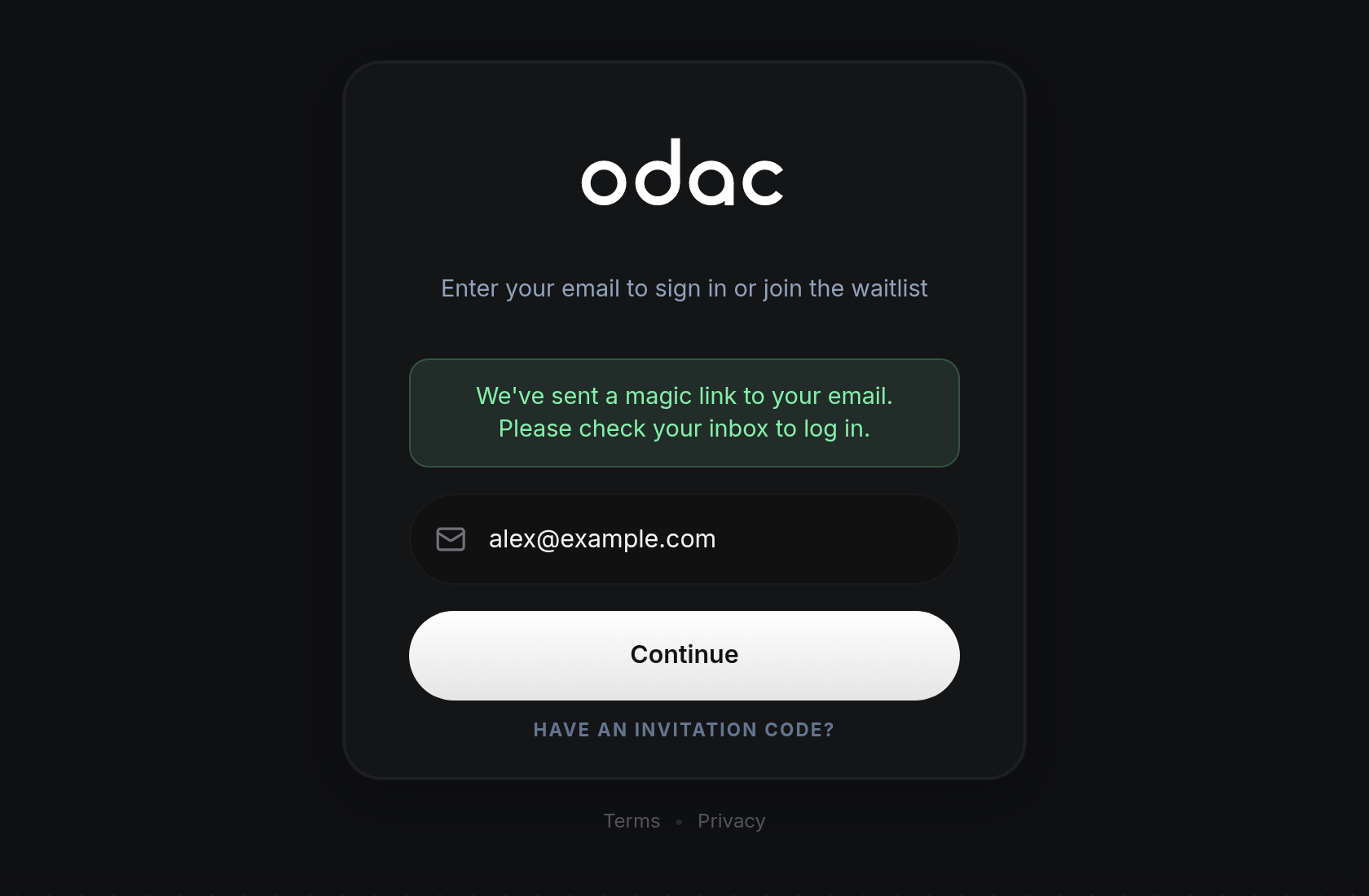
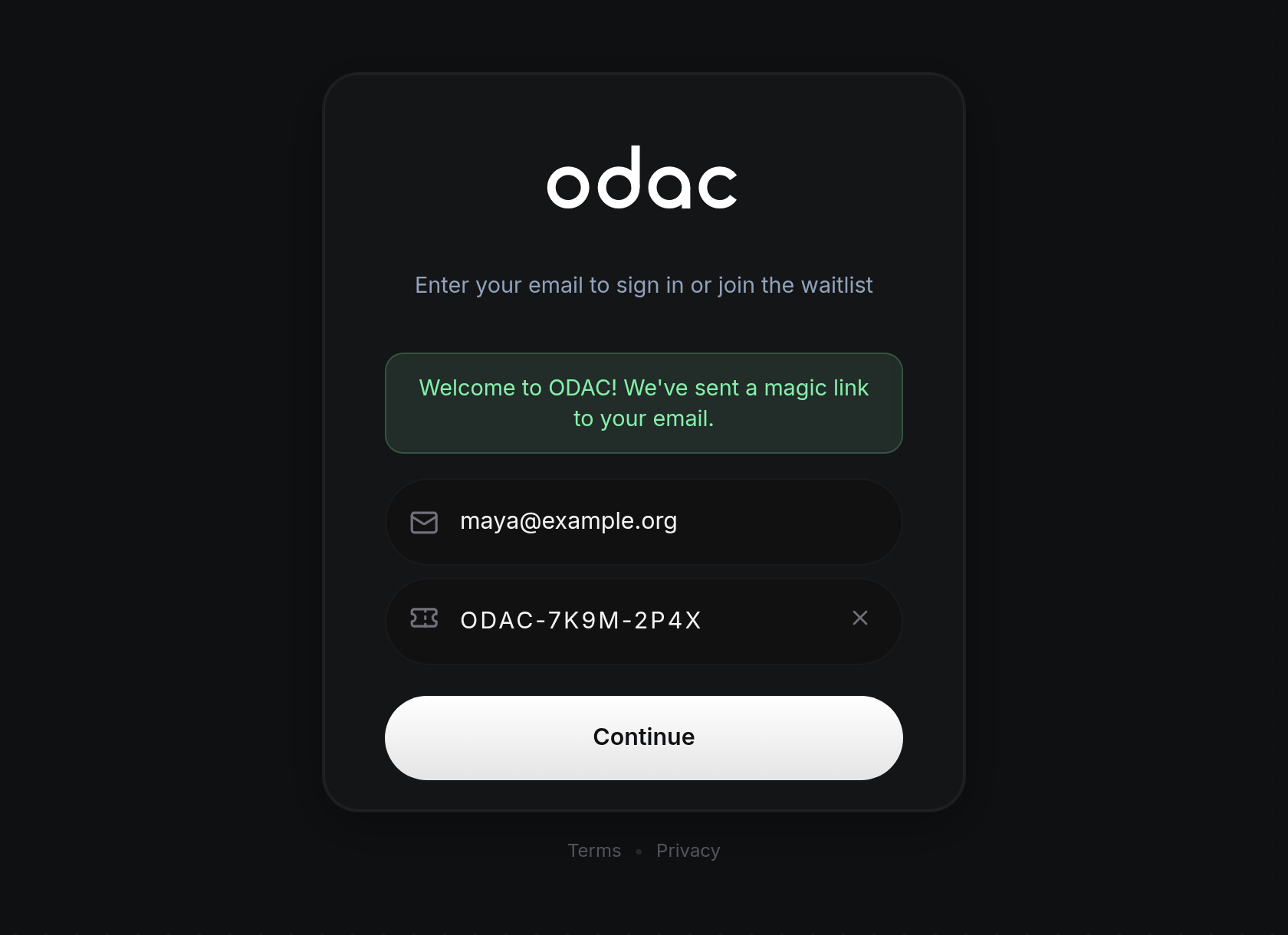
- What happens next depends on whether your email already has access. If your account is active, ODAC displays a green banner reading We've sent a magic link to your email. Please check your inbox to log in. Open the link in your email to sign in to the dashboard. If your email does not have access yet, ODAC adds it to the waitlist and displays
Successfully joined the waitlist!, orYou have already been added to the waitlist!if that email is already waiting.
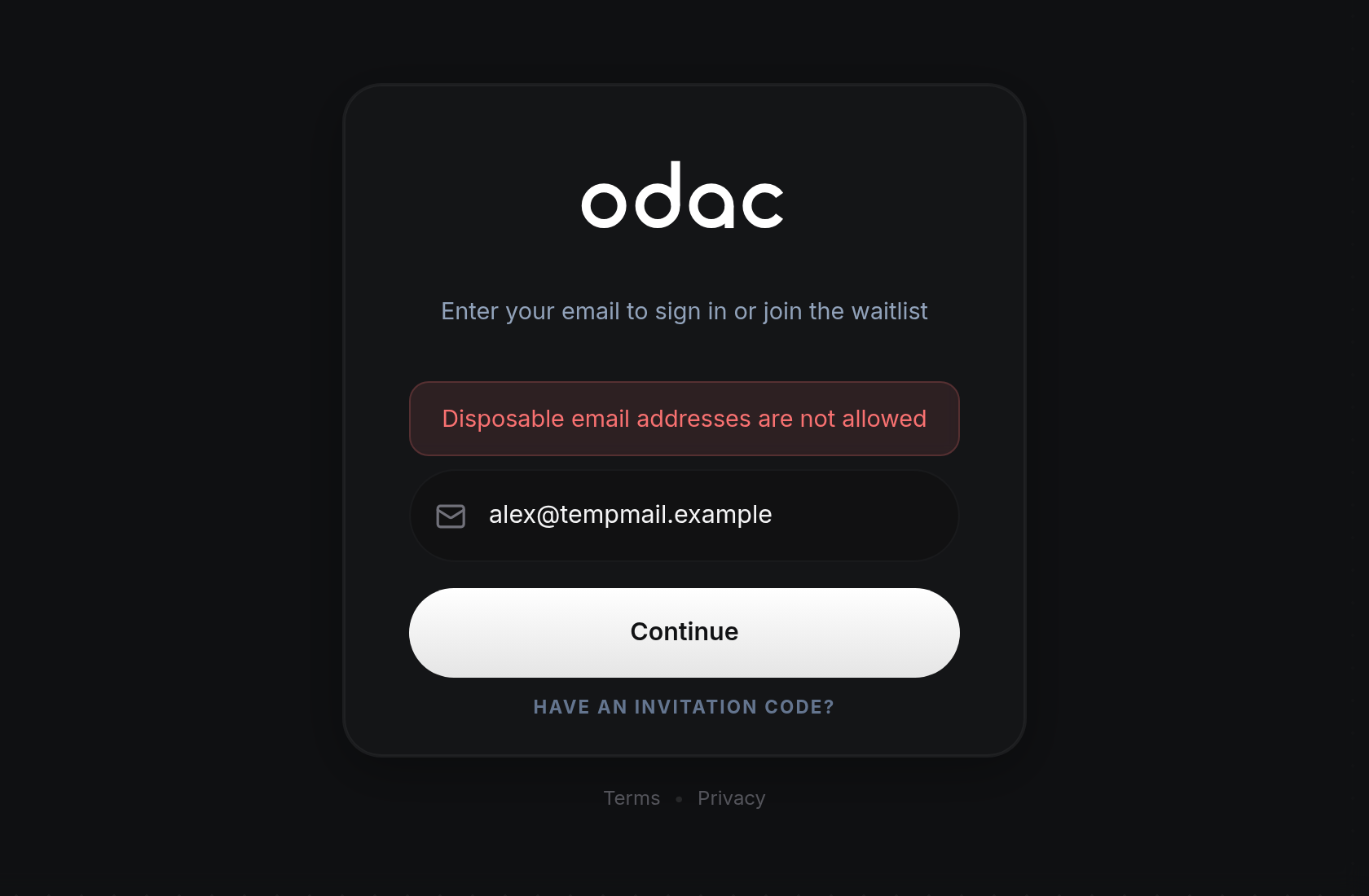
- If your email cannot be accepted, a red error banner appears above the email field instead:
Email is required,Invalid email(for malformed addresses or addresses over 50 characters),Disposable email addresses are not allowed,Invalid email provider format.(for Gmail addresses using+aliases or more than two dots),Tor/VPN usage is not allowed., orToo many attempts. Please try again later.after repeated waitlist signups from the same network in one day.
Sign in with an invitation code
- If you received an invitation code, click Have an invitation code? below Continue on the sign-in card.
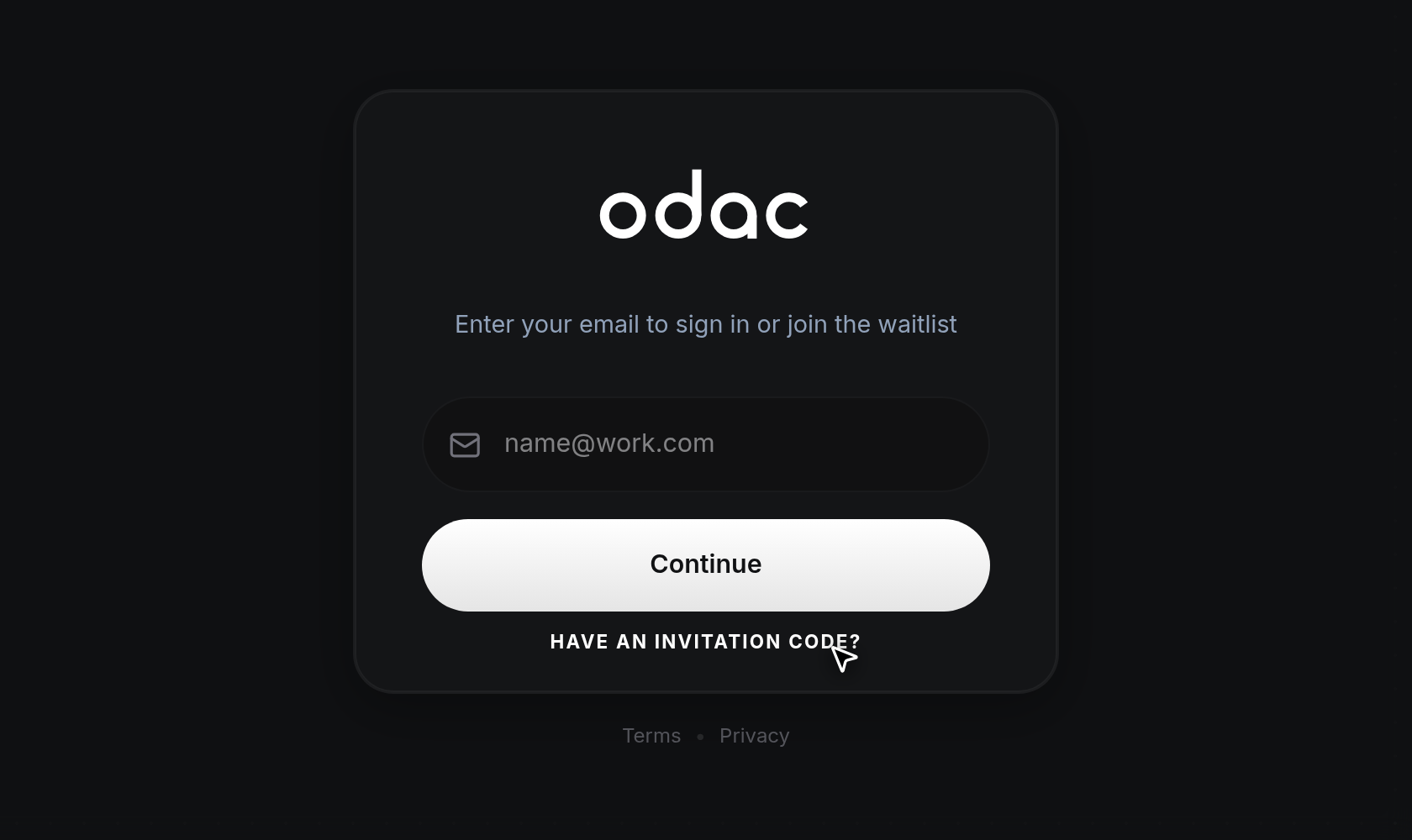
- Have an invitation code? collapses and an invitation code field slides open above Continue with the placeholder
ODAC-XXXX-XXXXand an×button on the right. Enter your email address and type or paste your invitation code: ODAC automatically converts letters to uppercase and inserts hyphens after every four characters. Click×inside the field at any time to clear it and collapse the input back to Have an invitation code?. When both fields are filled, click Continue.
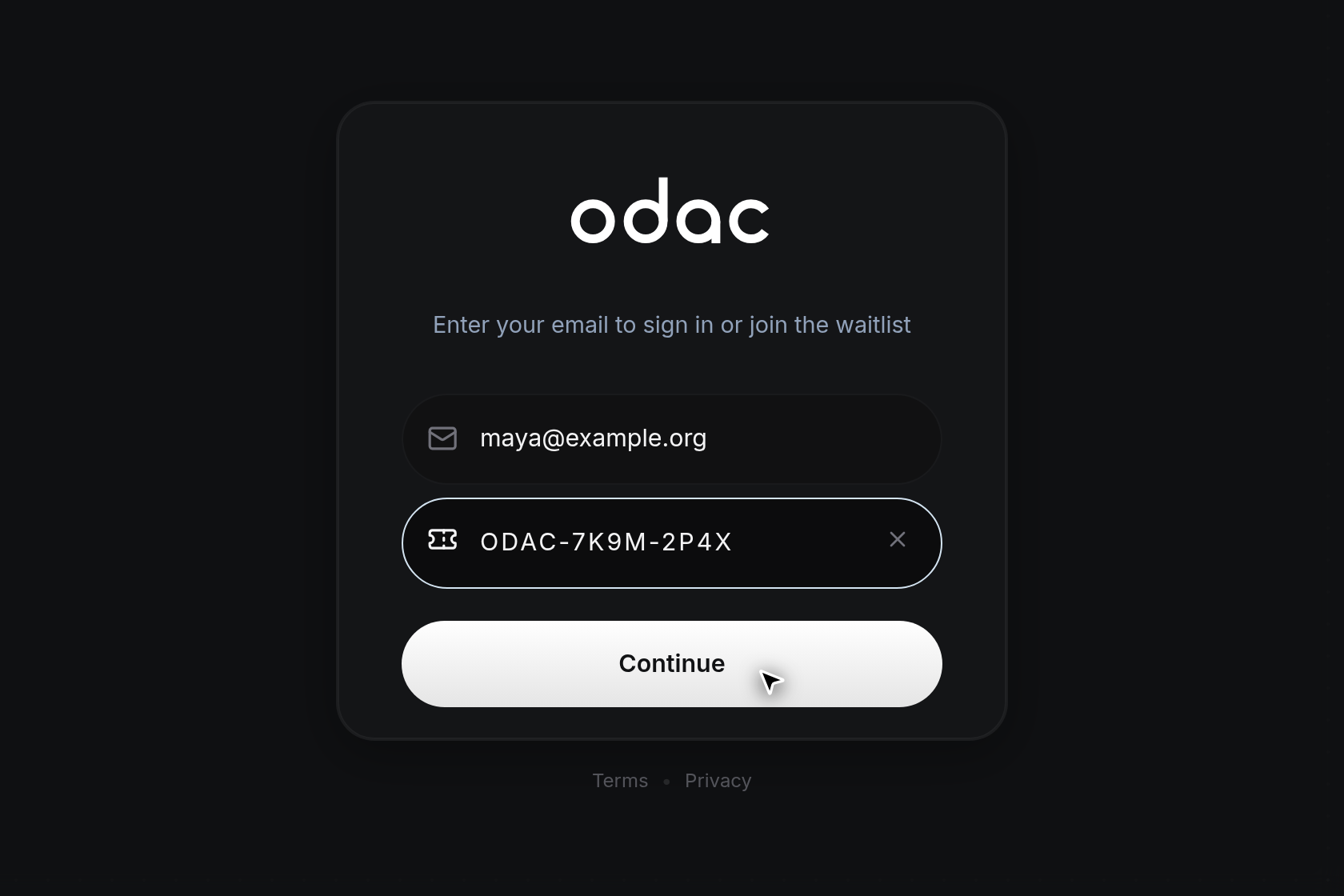
- If the code is valid, ODAC activates access for your email (including addresses previously on the waitlist) and displays Welcome to ODAC! We've sent a magic link to your email. Open the link in your inbox to enter your dashboard. If the code is incomplete, expired, or already used, a red error banner above the email field shows
Invalid invitation code,Invalid or expired invitation code., orInvalid or already used invitation code..
Sign out
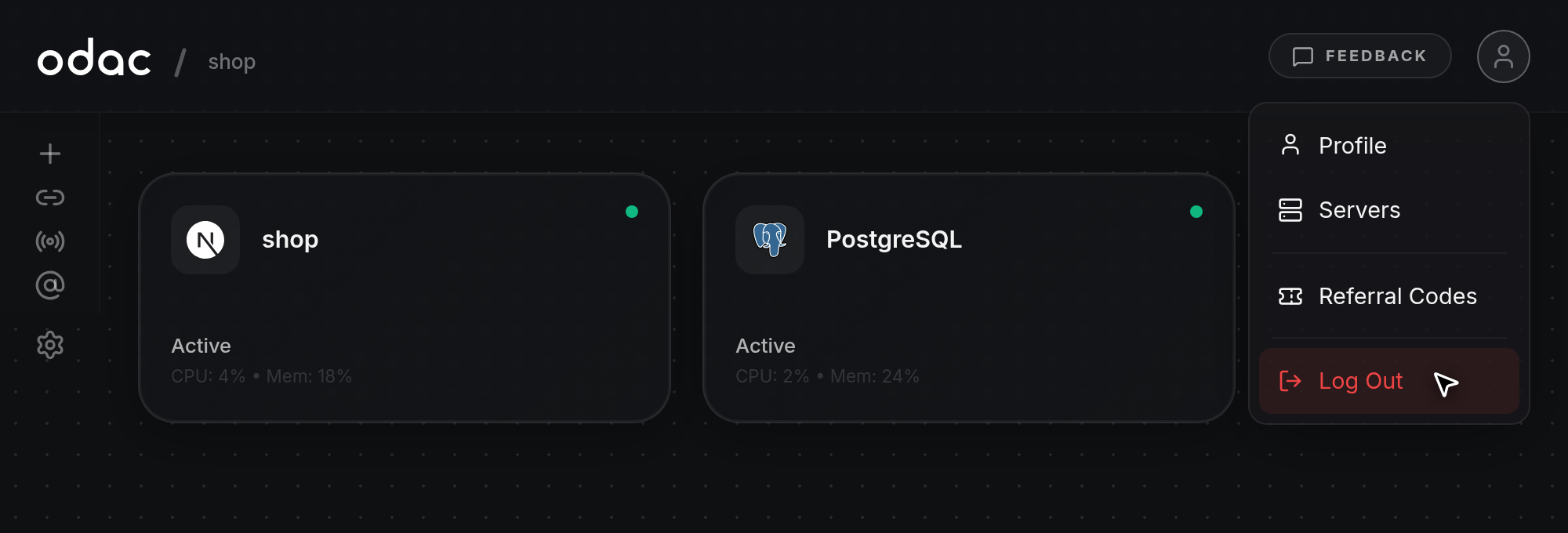
- Click your avatar in the top-right header on any dashboard page to open the user menu, then click Log Out in red at the bottom of the menu. ODAC ends your current session and returns you to the sign-in screen at app.odac.run.
View and copy referral codes
- Click your avatar in the top-right header to open the user menu, then click Referral Codes (this item appears once your account has referral slots).
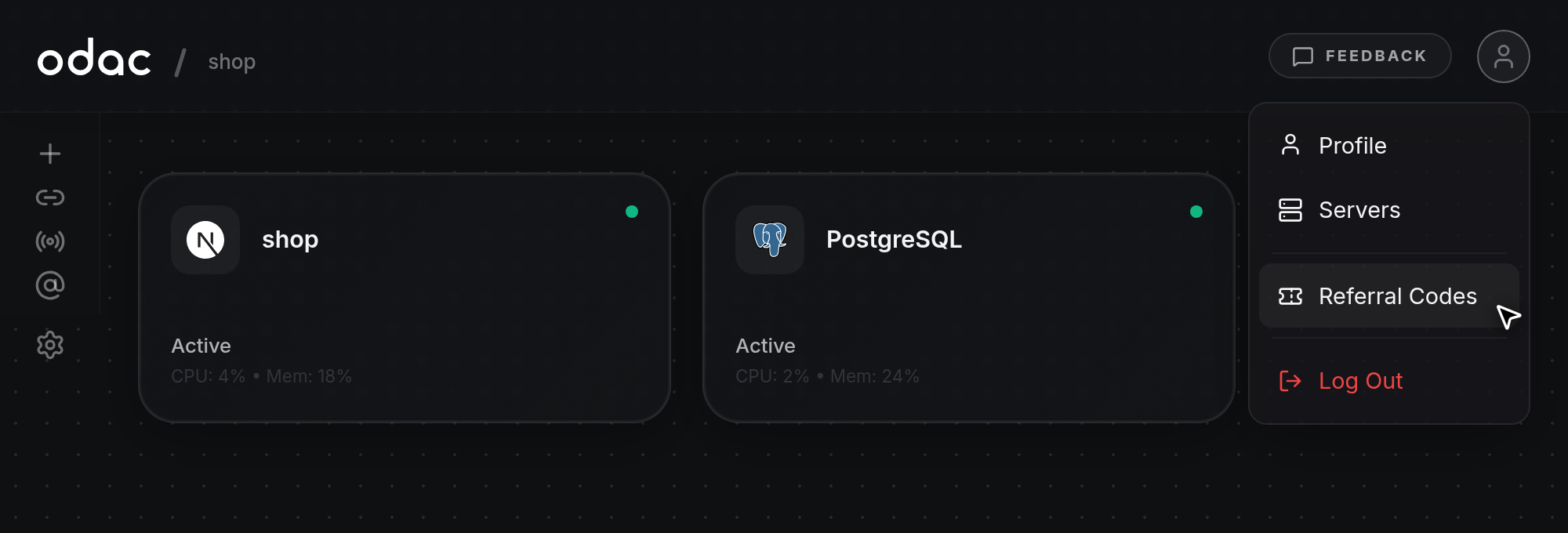
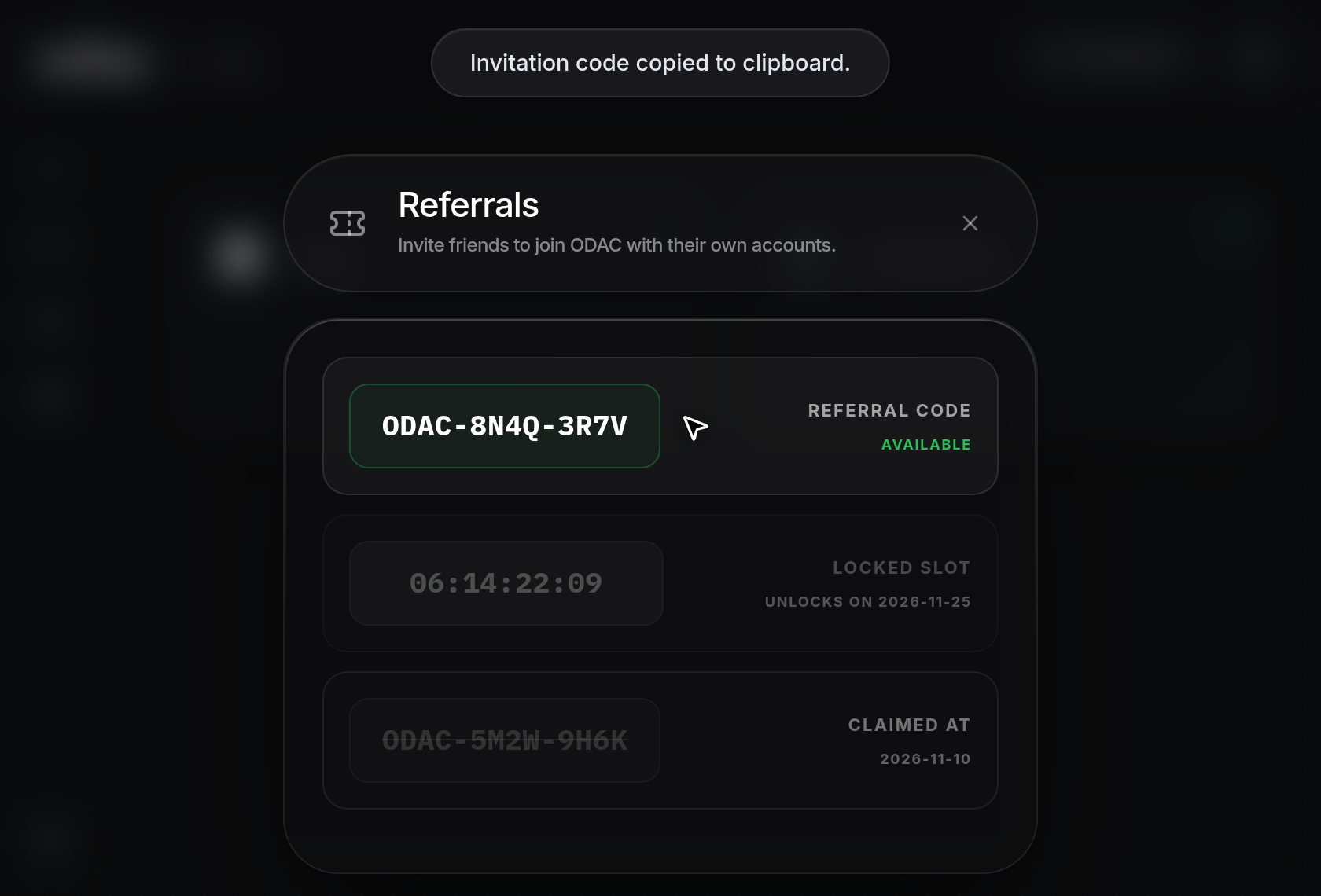
- The Referrals modal opens with the subtitle
Invite friends to join ODAC with their own accounts., briefly showingVerifying Passeswhile loading (orFailed to load referrals.if the list cannot be retrieved, andNo referral codes available right now.if empty). Codes are listed with available codes first, locked slots ordered by nearest unlock next, and claimed codes last:- Available (
Referral CodeandAvailablein green): displays anODAC-XXXX-XXXXcode ready to share. - Locked Slot (
Locked Slotwith the unlock date below, such as Unlocks on 2026-11-25): displays a live countdown timer (DD:HH:MM:SS) in a dimmed box. When a timer reaches00:00:00:00, the list refreshes automatically to reveal the unlocked code. - Claimed (
Claimed Atwith the redemption date below, orUnknown Dateif unavailable): displays the usedODAC-XXXX-XXXXcode dimmed with a strikethrough.
- Available (
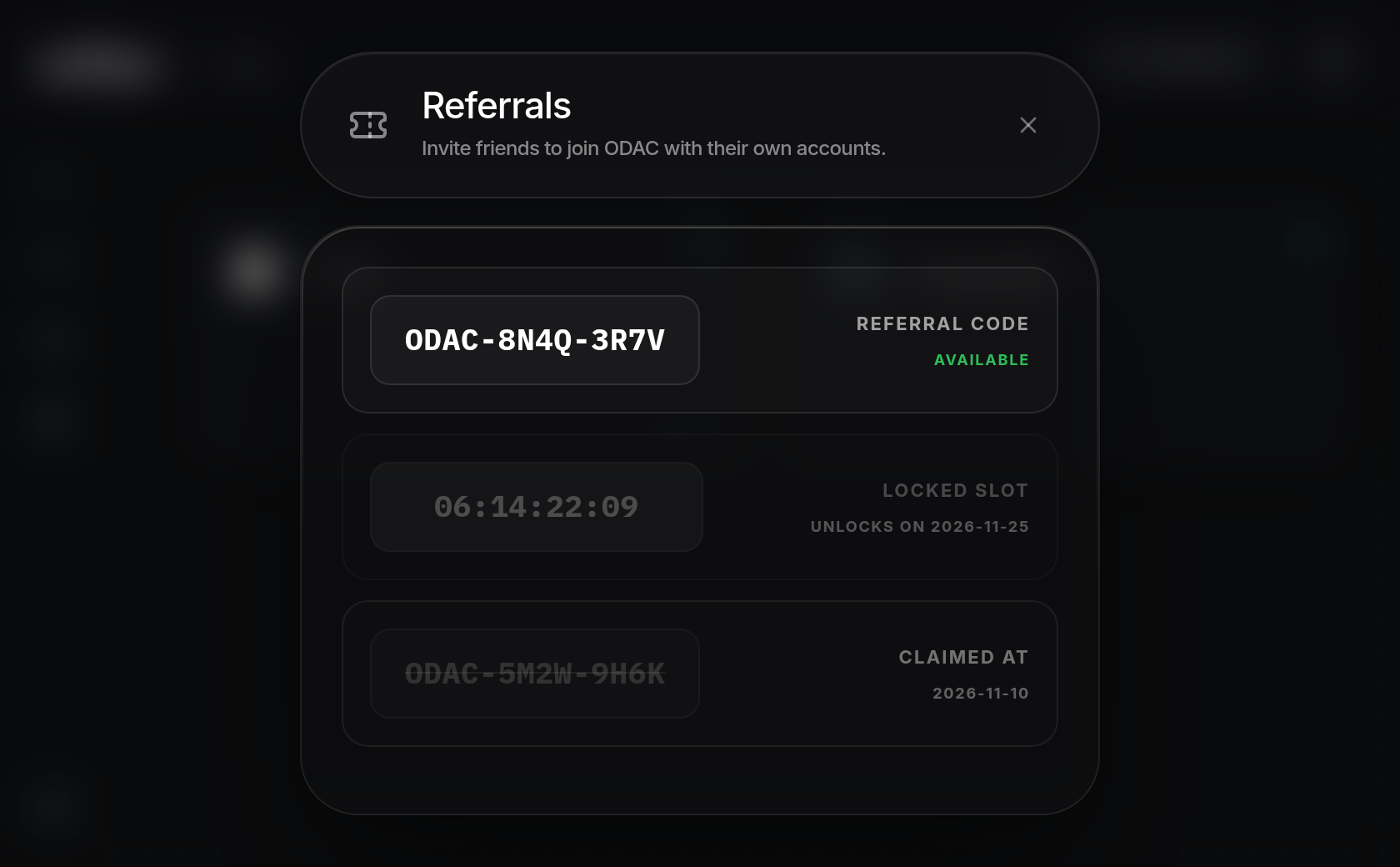
- Click anywhere on an Available referral code card to copy the code to your clipboard. The card highlights in green and an
Invitation code copied to clipboard.notification appears at the top of the screen. Click the×button in the top-right corner or click outside the modal to close Referrals.