Assign unassigned apps to a project
When apps are detected on a server that is shared by multiple projects, ODAC cannot determine which project owns them automatically. Use the unassigned apps badge in the top header at app.odac.run to open the Unassigned Apps modal, pick a target project for each app, and move it onto that project's Canvas.
Open the Unassigned Apps modal
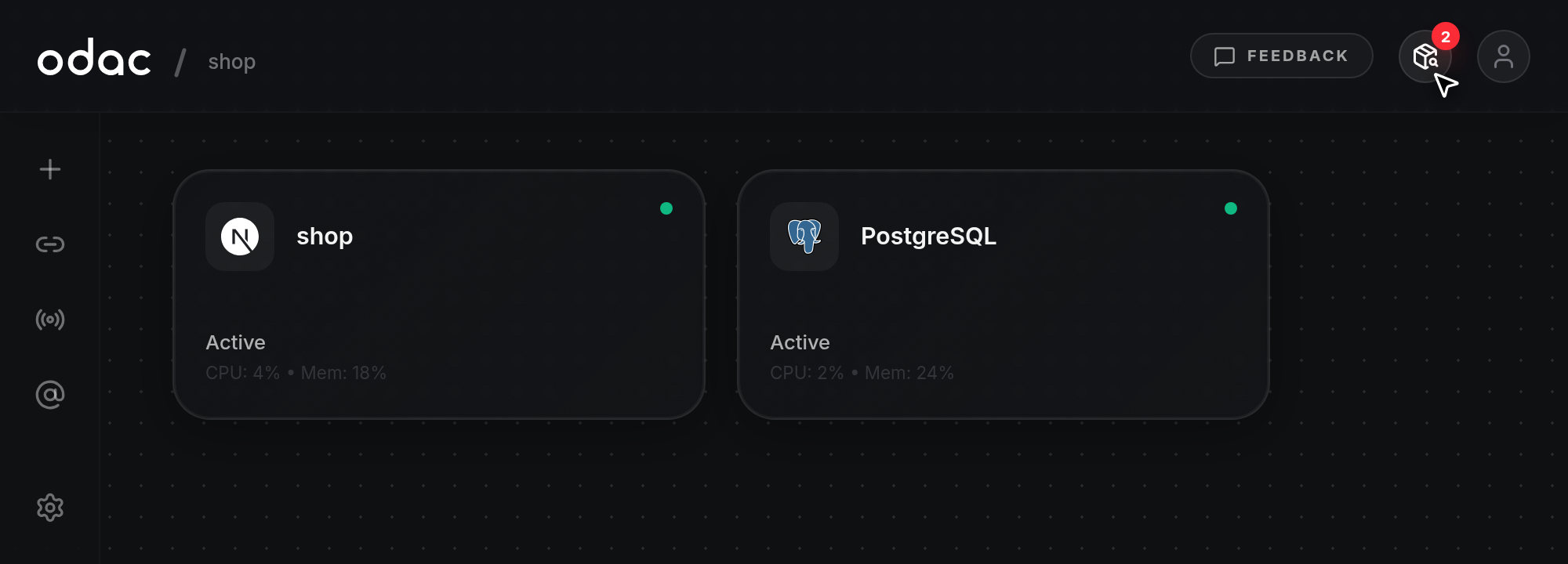
- Look at the top-right header beside Feedback and your avatar. When one or more apps on your servers do not belong to a project yet, a circular package button with a red numbered badge appears showing how many apps are waiting (when all apps are assigned, the button stays hidden). Hover over it to view
Apps detected on your servers, waiting to be assigned to a project, then click the button to open the Unassigned Apps modal.
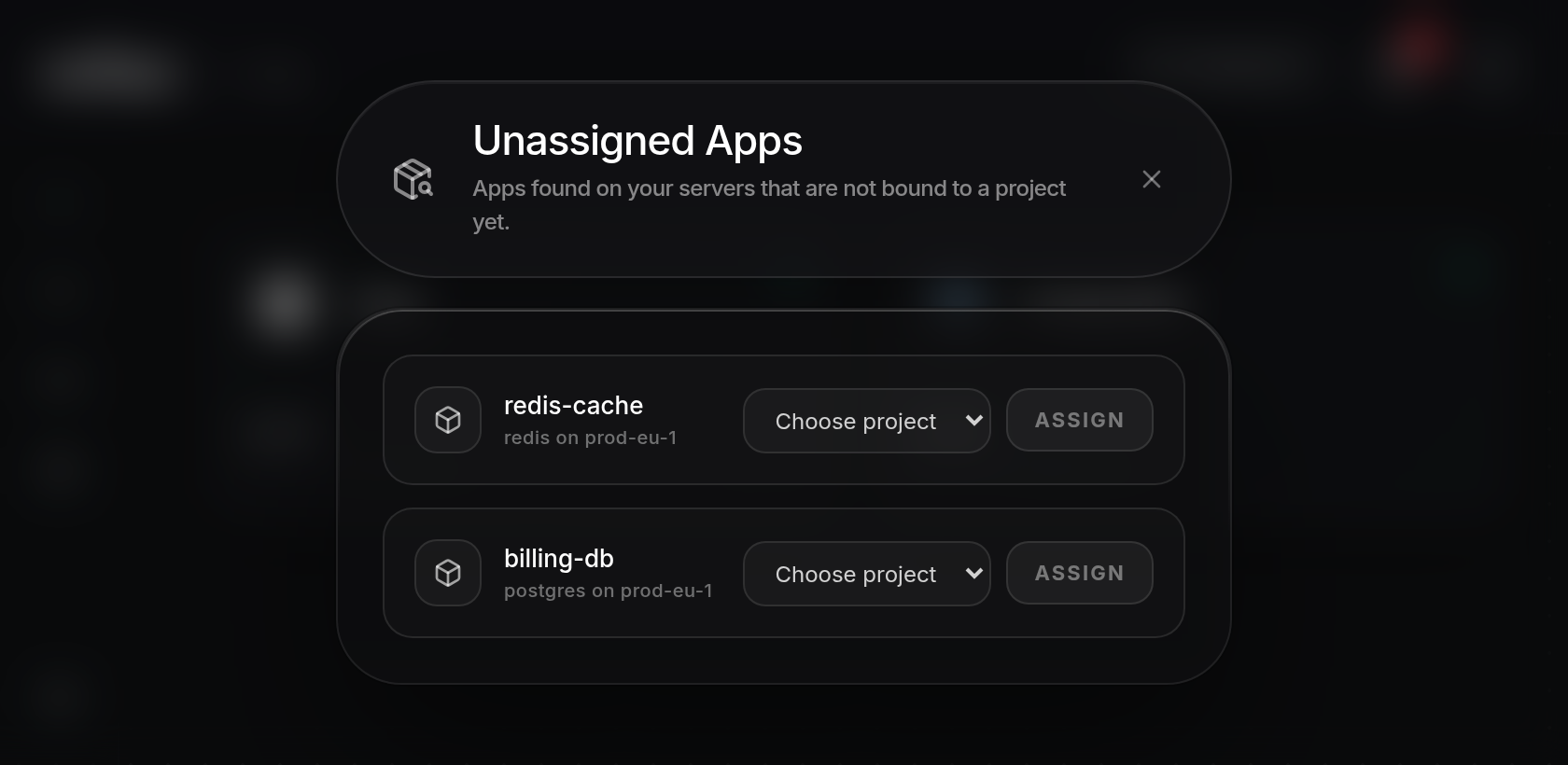
- The Unassigned Apps modal opens (
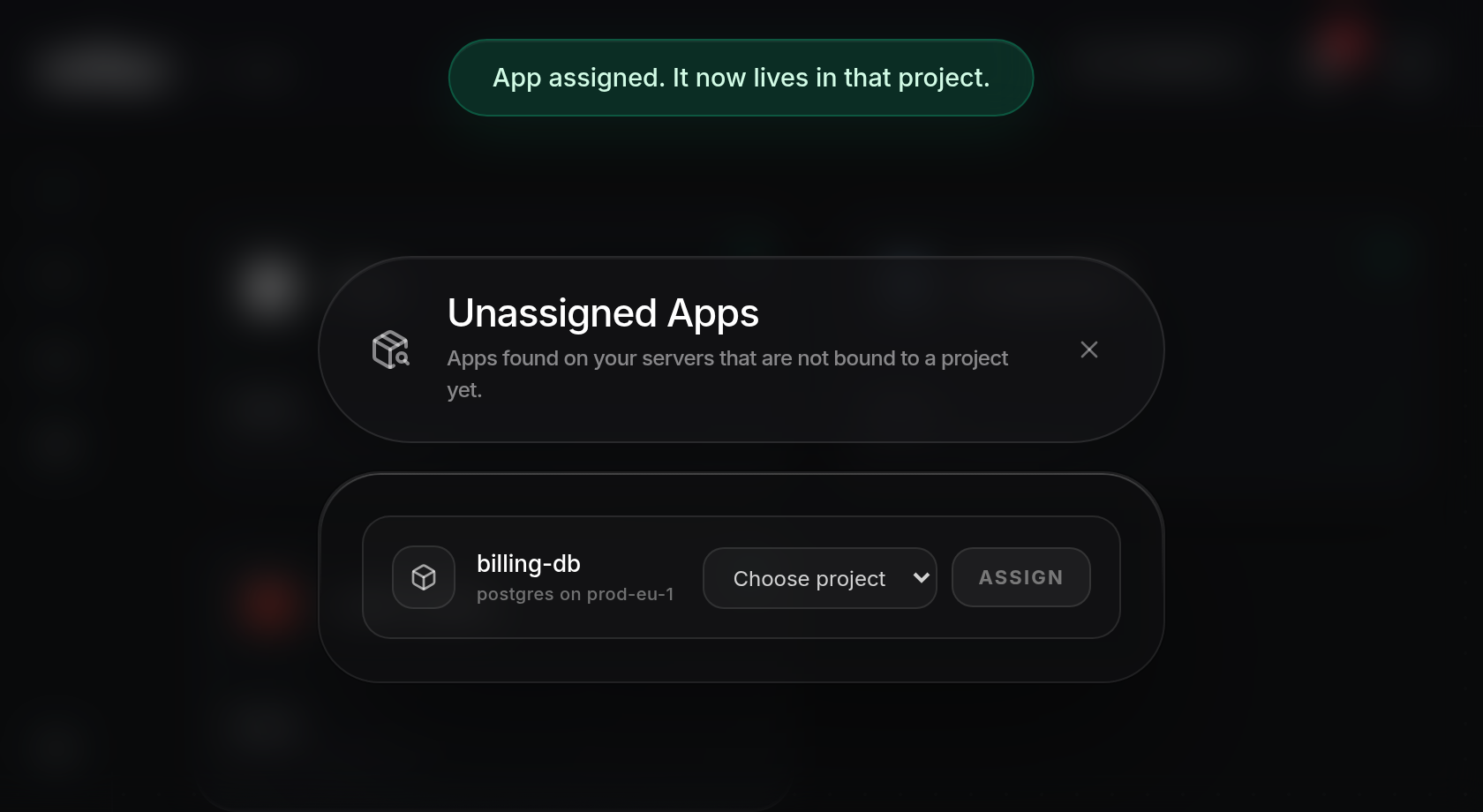
Scanning serversappears briefly while loading, orFailed to load apps.if the list cannot be loaded). Each waiting app row displays the app name, its type and server (for example, redis on prod-eu-1), a project dropdown set to Choose project, and a dimmed Assign button. If a server is attached only to projects whose default deploy server is a different machine, the row showsNo project deploys to this serverinstead of a project dropdown; update a project's default deploy server in Project Settings if you want to assign apps from that server to it (see Rename a project and manage its servers).
Assign an app to a project
- Click the Choose project dropdown on the app row you want to move and select a target project. Only projects attached to that server whose default deploy target is that server appear in the list. Once you pick a project, the Assign button on that row lights up and becomes clickable.
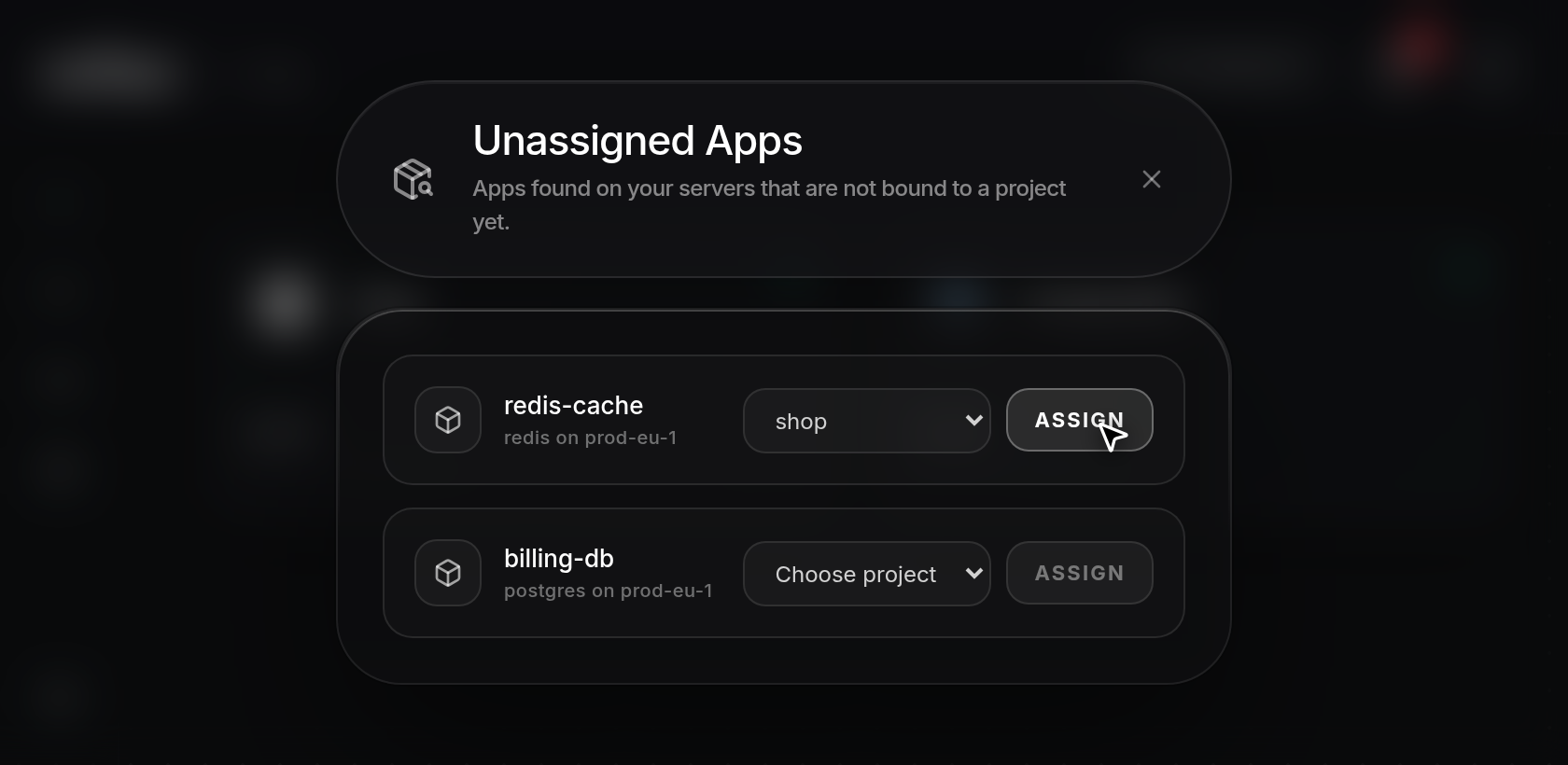
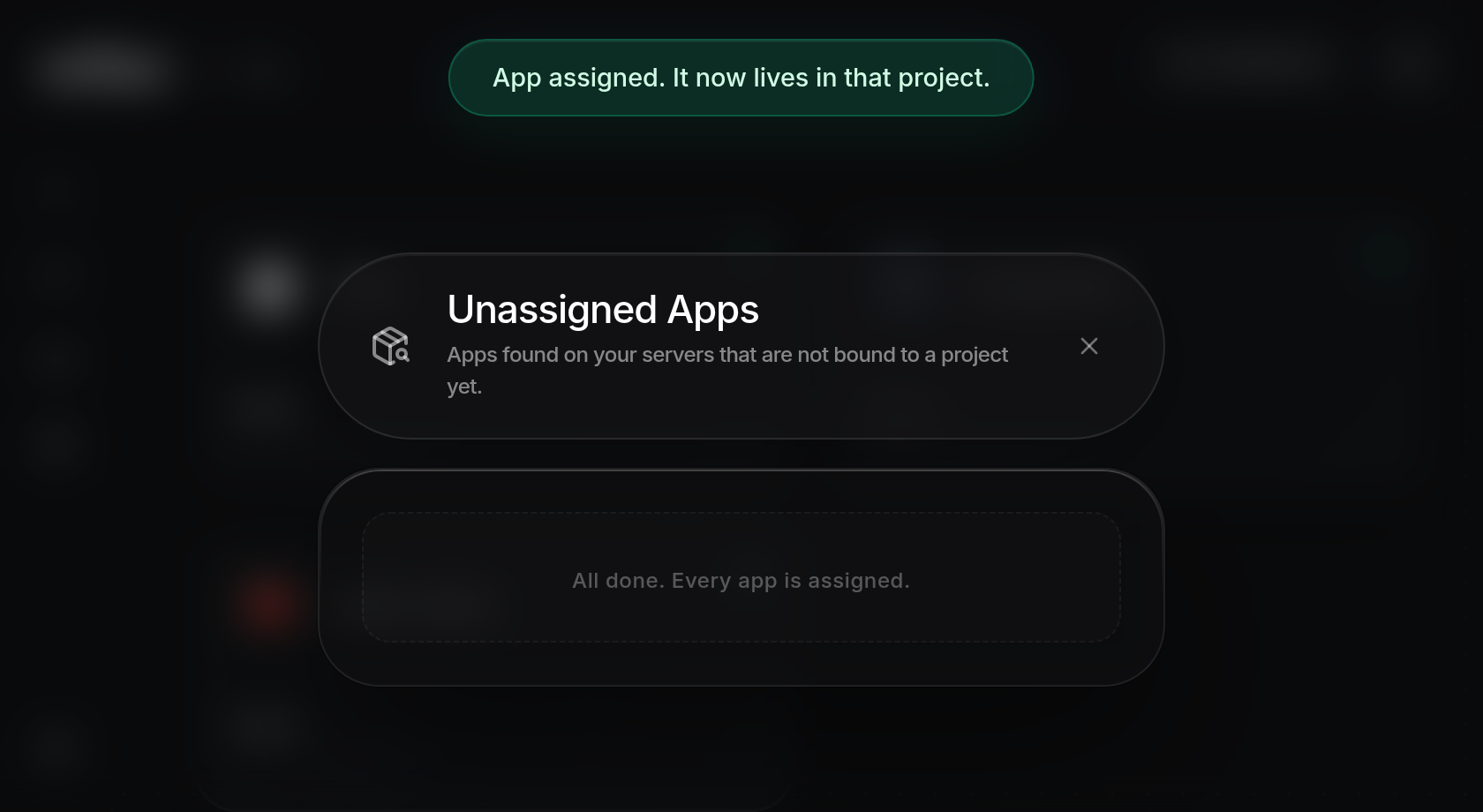
- Click Assign. When the assignment succeeds, ODAC shows the green
App assigned. It now lives in that project.notification at the top of the screen, smoothly removes the row from the modal, and reduces the red badge count in the top header by one. If you already have that project's Canvas open, the app card appears directly on the board without reloading the page; otherwise, switch to the project from the top header selector to view it (see Projects and navigation). If the target project deploys to another server or the assignment cannot be completed, ODAC displaysThat project deploys to a different server than this app runs on.orCould not assign that app. Try again.and re-enables the row.
- Repeat for any remaining apps in the list. Once you assign the last app, the modal displays
All done. Every app is assigned., removes the unassigned apps button from the top header, and closes automatically after a brief pause. If no waiting apps remain when you open the modal, it displaysNothing waiting. All apps are assigned.instead.