Add, edit, and delete DNS records
View, create, update, and remove DNS records for any zone in your active project at app.odac.run. After selecting a zone in DNS Settings, you can inspect every record in its table, add new records inline, update editable names or values in place, and delete entries on hover while system-managed records remain protected.
Read the DNS records table
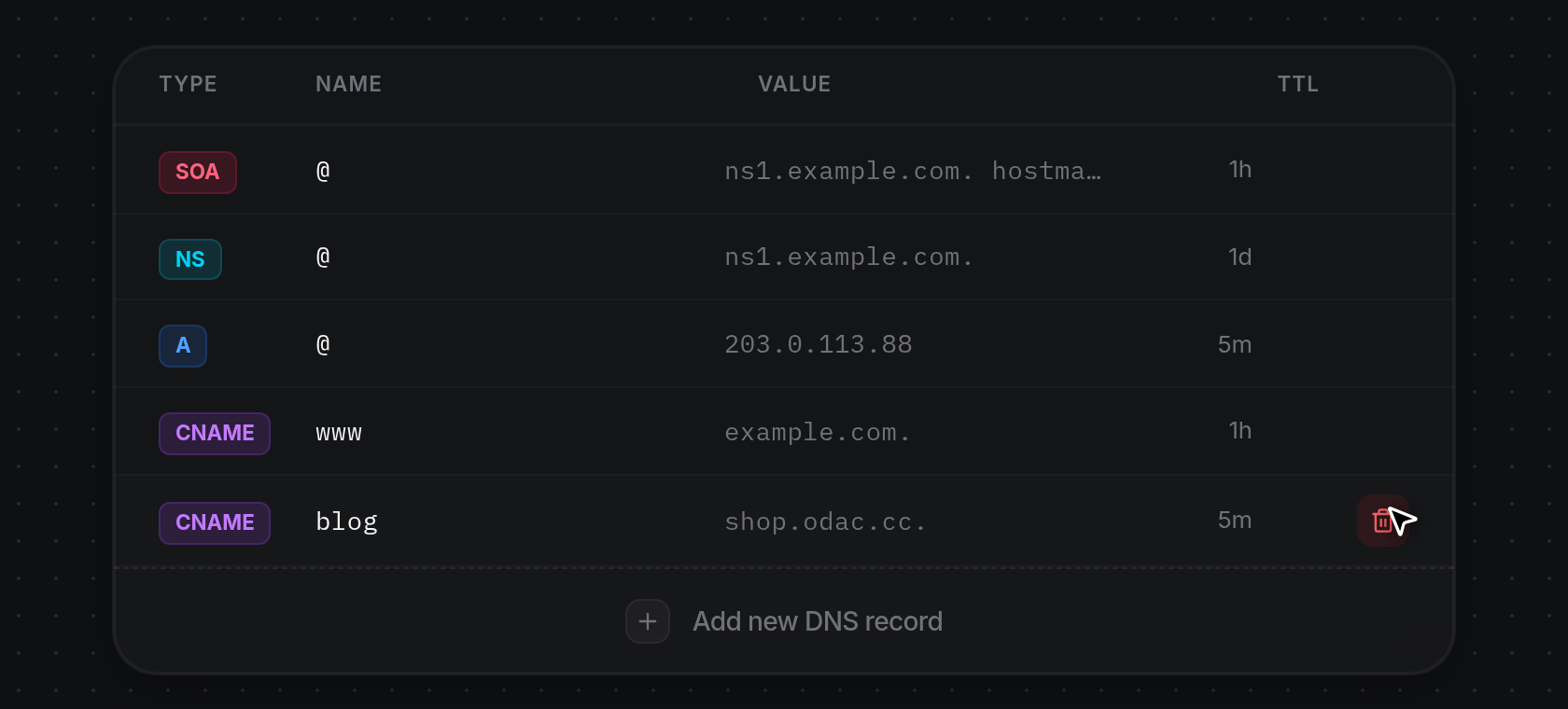
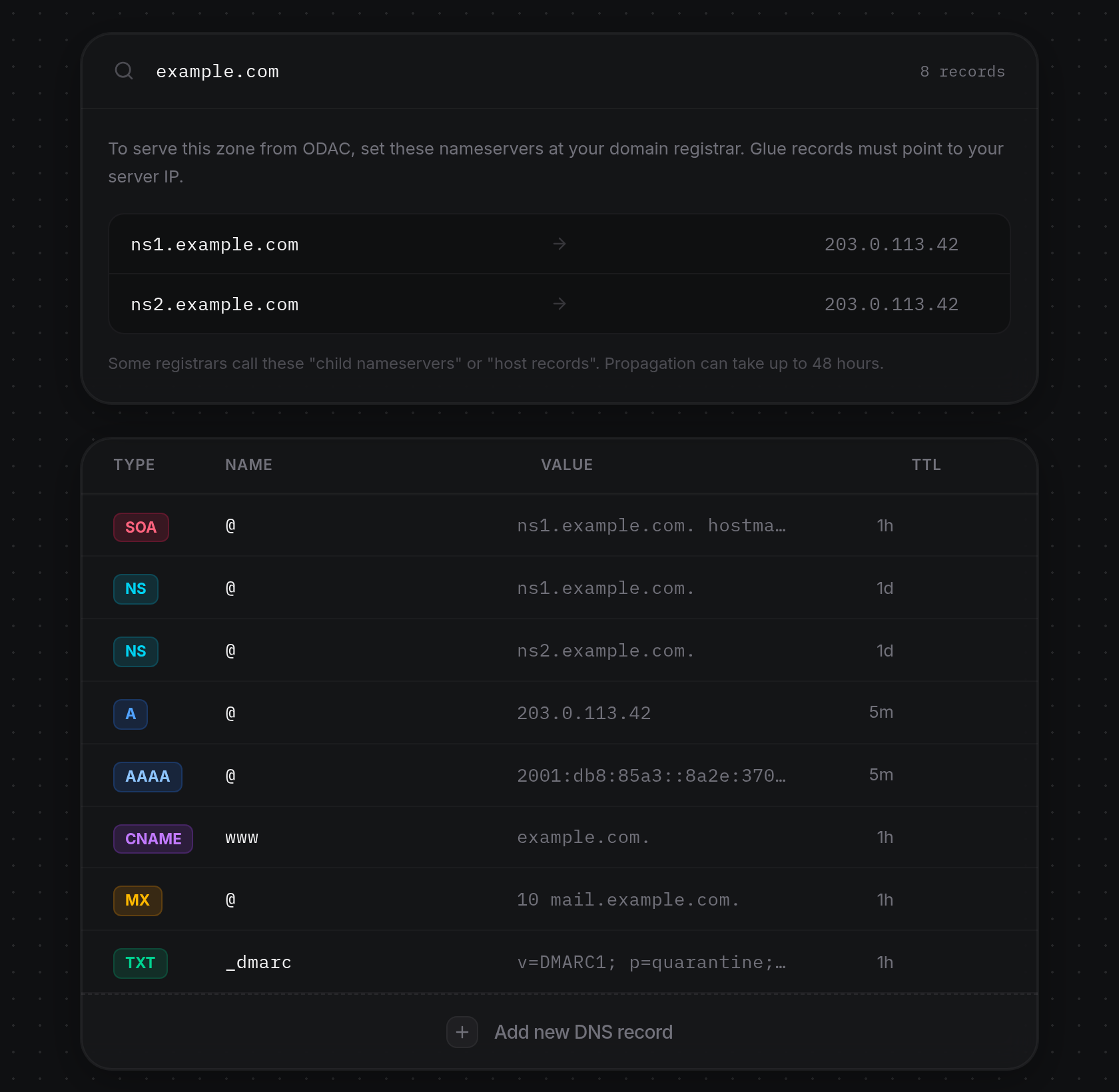
- Open DNS Settings from the left sidebar rail and choose a domain from Search domains... (see Select a DNS zone and set nameservers). Below the zone card, the records table lists every entry in the zone across four columns, or
No records in this zone.if the zone has no entries yet:- Type: A color-coded badge showing the record type (such as
SOA,NS,A,AAAA,CAA,CNAME,MX, orTXT). - Name: Displayed relative to the active zone. The root domain appears as
@, and subdomains omit the zone suffix (for example,wwwfor www.example.com, or_dmarcfor _dmarc.example.com). - Value: The target IP address, hostname, mail server, or text value for the record.
- TTL: Formatted in short time units (
sfor seconds,mfor minutes,hfor hours, anddfor days, such as5m,1h, or1d). - Editable record types (
A,AAAA,CAA,CNAME,MX, andTXT) highlight their Name and Value cells slightly on hover withClick to editand reveal a delete icon on the right. System and read-only record types (SOA,NS,DNSKEY,DS,NAPTR,PTR,SRV, andTLSA) cannot be edited inline or deleted.
- Type: A color-coded badge showing the record type (such as
Add a DNS record
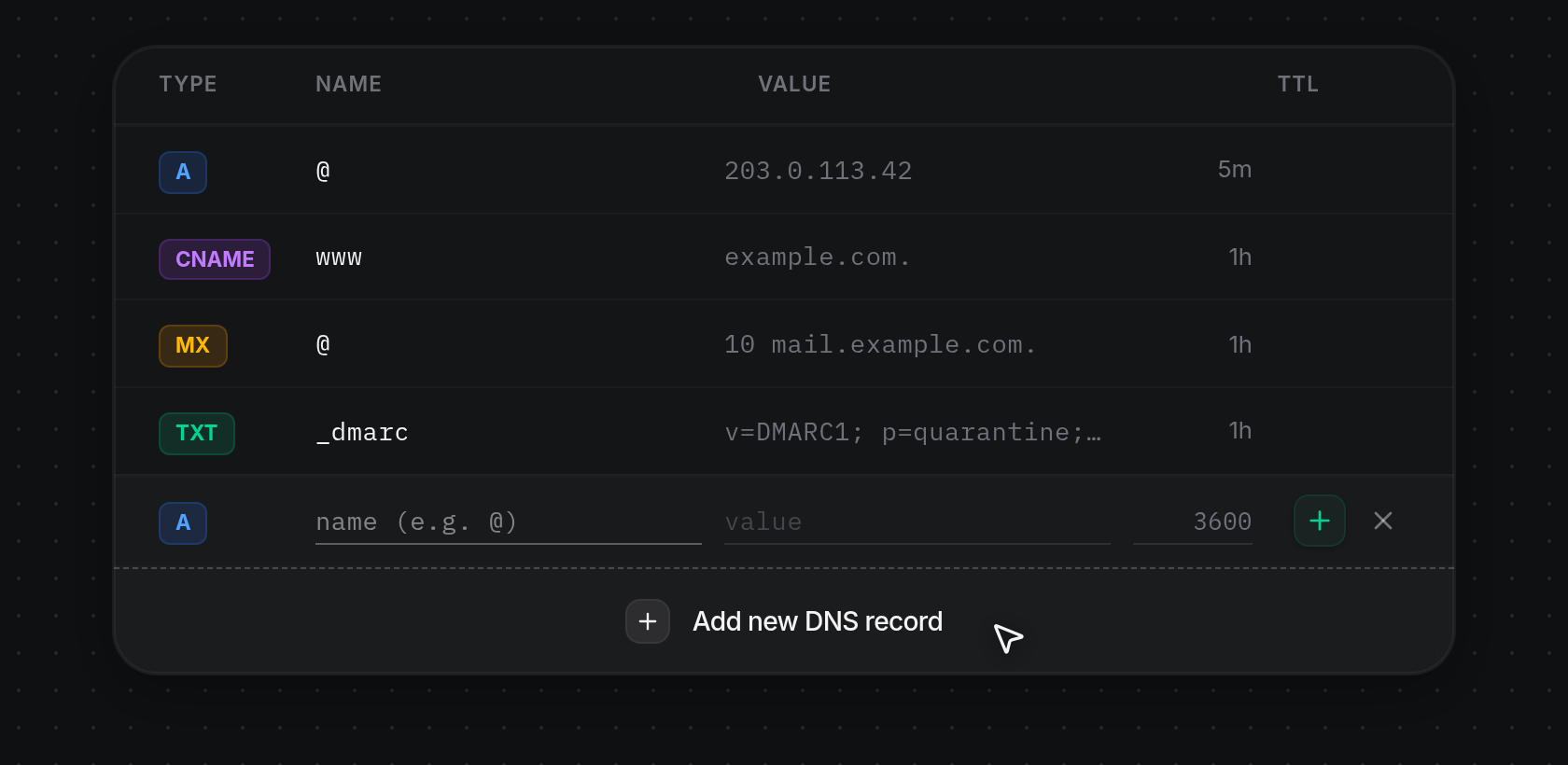
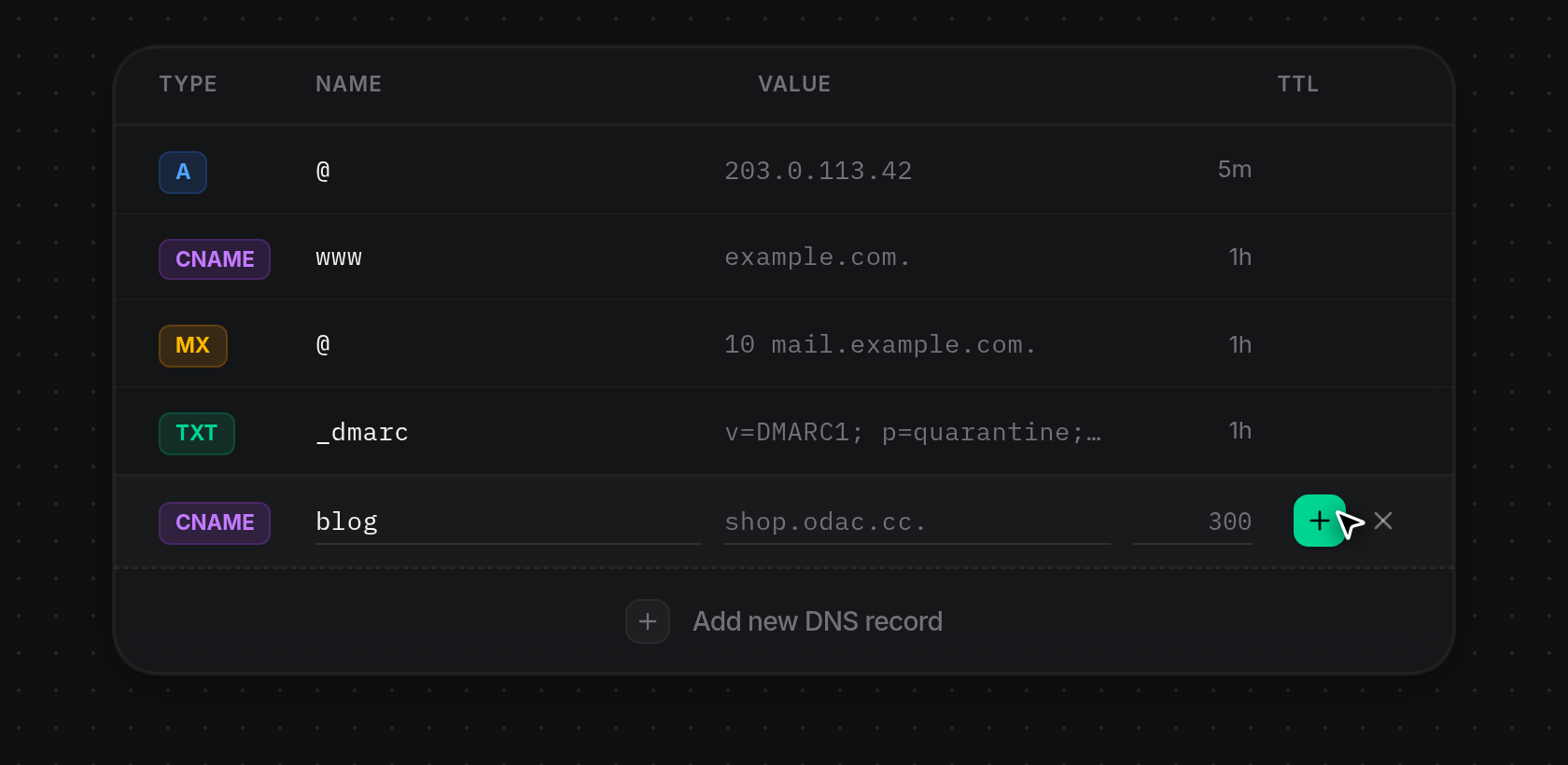
- Click Add new DNS record at the bottom of the records table. A draft row opens at the bottom of the list with a type badge button (set to
Aby default), a Name input showingname (e.g. @), a Value input showingvalue, a TTL input pre-filled with3600, a green+button, and a×button. You can click Add new DNS record again to open multiple draft rows, or click×(or pressEscape) to discard a draft row.
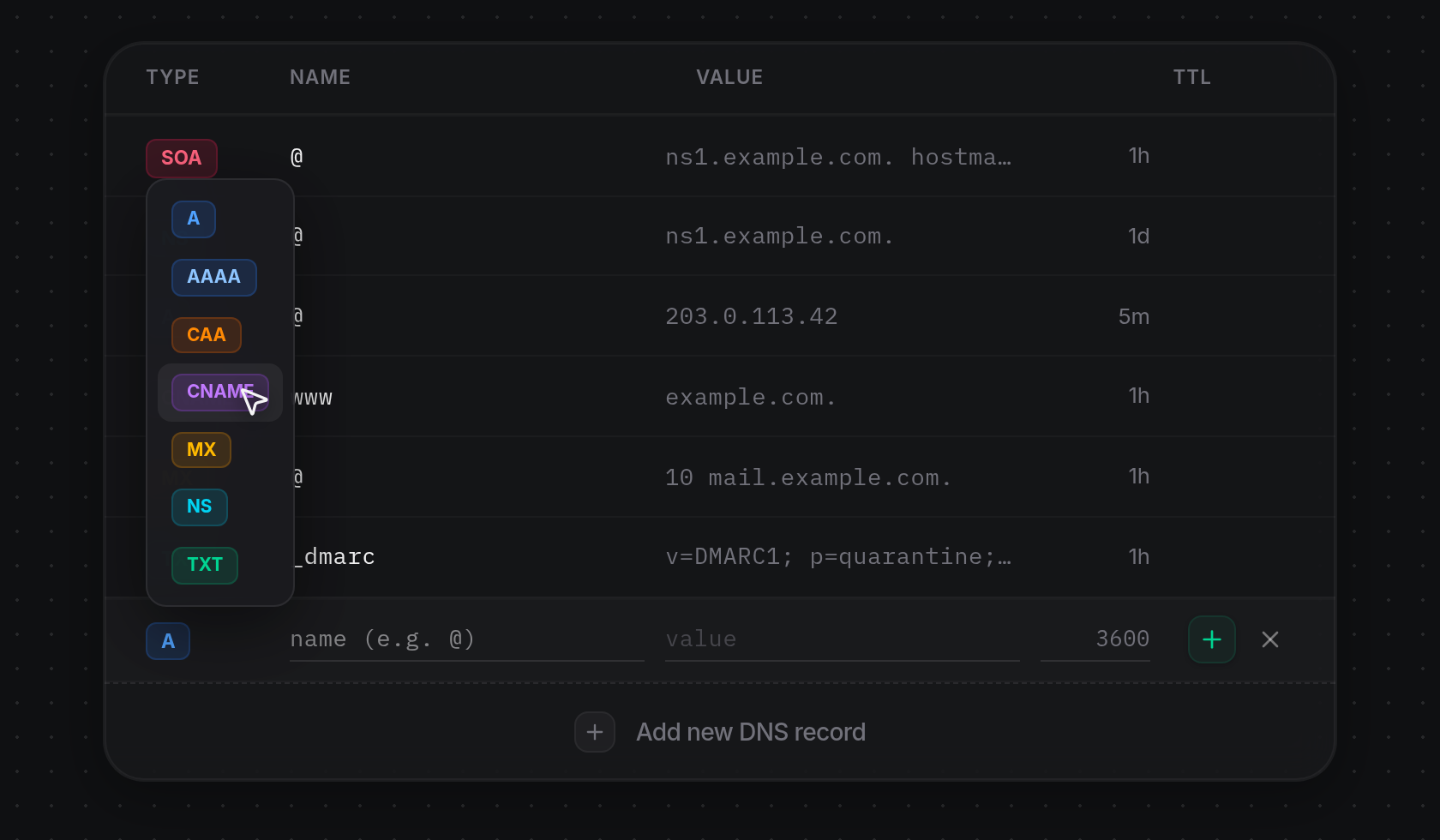
- Click the type badge (
A) on the left of the draft row to open the record type menu above it, then click the type you want to create:A,AAAA,CAA,CNAME,MX,NS, orTXT. Choosing a type updates the badge and places your cursor back in the Name field.
- Type the relative Name (
@for the root domain or a subdomain such asblog), enter the Value, and optionally change the TTL in seconds (accepted range60to 604800, defaulting to3600). Click the green+button on the right (or pressEnterin any field) to submit. ODAC displays a greenDonenotification and turns the draft row into a saved record row with its formatted TTL (such as5mfor300). If the name or value is missing or invalid, or if the zone's server is offline, a red notification appears and the draft row stays open so you can fix it.
Edit a record inline
- Hover over the Name or Value cell of any
A,AAAA,CAA,CNAME,MX, orTXTrecord (Click to edit), then click it to turn that cell into an inline text field with its current text selected. Only one cell can be edited at a time. System record types (SOA,NS,DNSKEY,DS,NAPTR,PTR,SRV, andTLSA) do not open for editing, and Type and TTL cannot be edited inline.
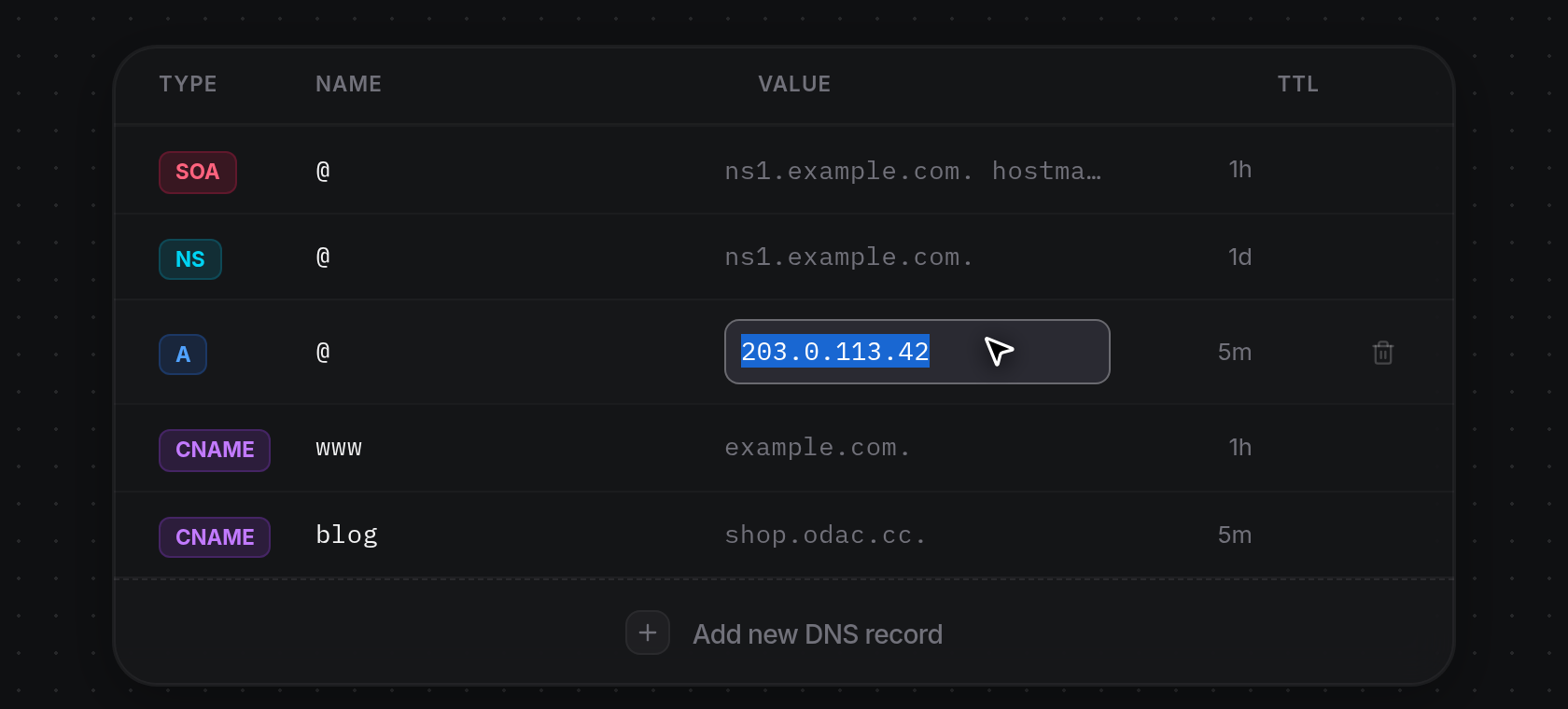
- Type the new relative name or value and press
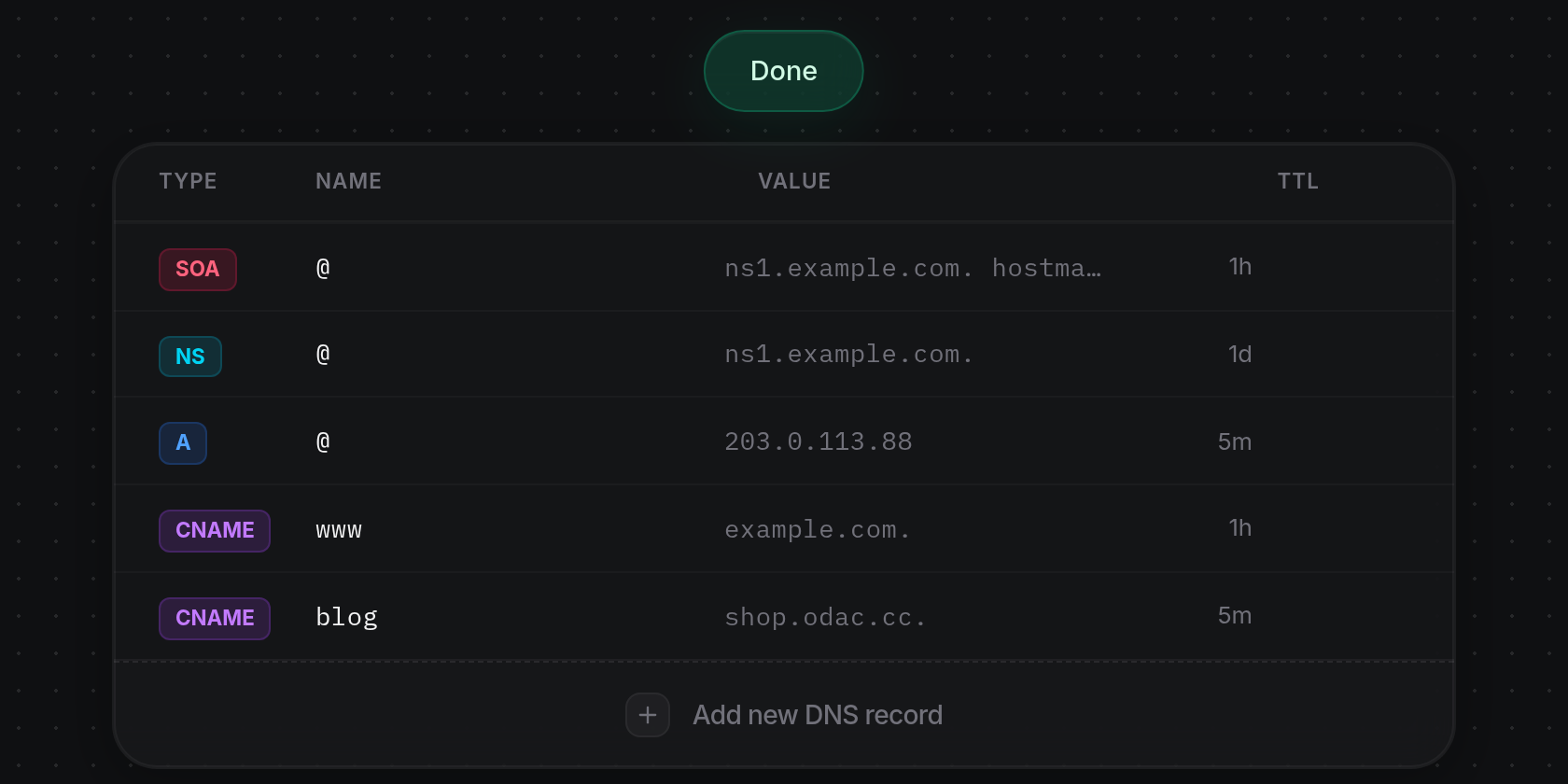
Enterto save. ODAC displays a greenDonenotification and returns the cell to plain text with the updated value. To change an existing record's Type or TTL, delete the record and add a new one.
Delete a record
- Hover over any editable record row (
A,AAAA,CAA,CNAME,MX, orTXT) to reveal the trash icon on the right, then click it to delete the record immediately. System records such asSOAandNSnever display a delete icon on hover, keeping essential zone records intact. Once deleted, the row collapses out of the table and ODAC displays a greenRecord deletednotification (if the zone's server is offline, an error notification appears and the row stays in the list).