Connect a server
Link a Linux server to your account at app.odac.run so you can deploy and manage apps on it. Open Servers from the header user menu, generate a one-time install command, and watch the live setup feed until your server joins your account.
Open Servers and start the wizard
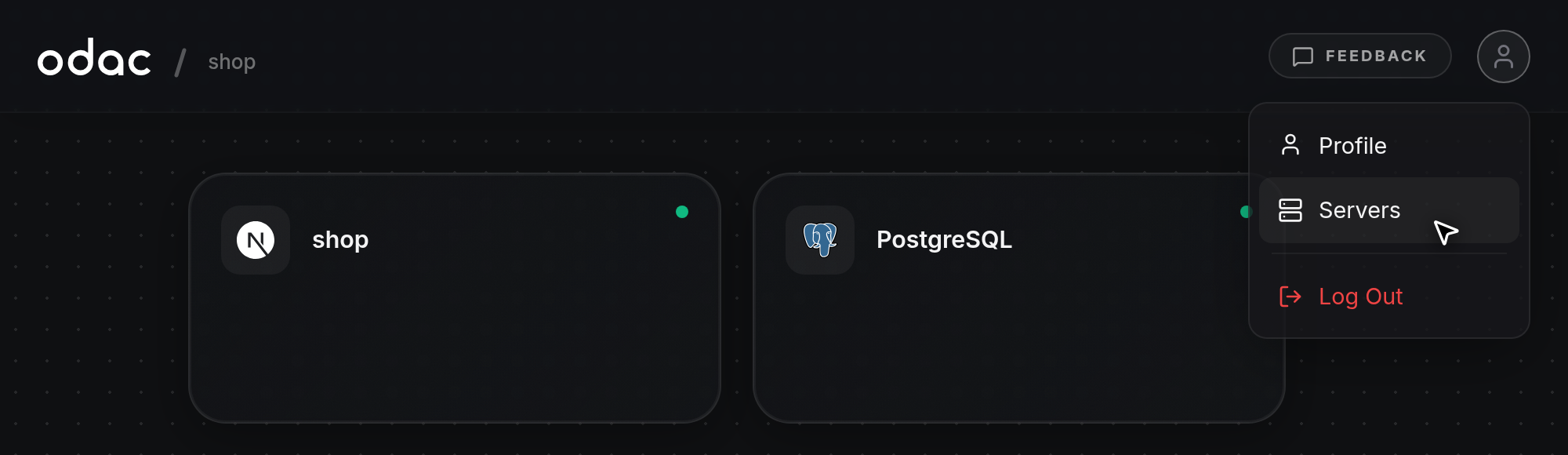
- Click your avatar in the top-right header to open the user menu, then click Servers. You can also open Servers from Add a new server when creating a project (see Projects and navigation), or connect a server directly from a project without one (see Queueing apps before connecting a server).
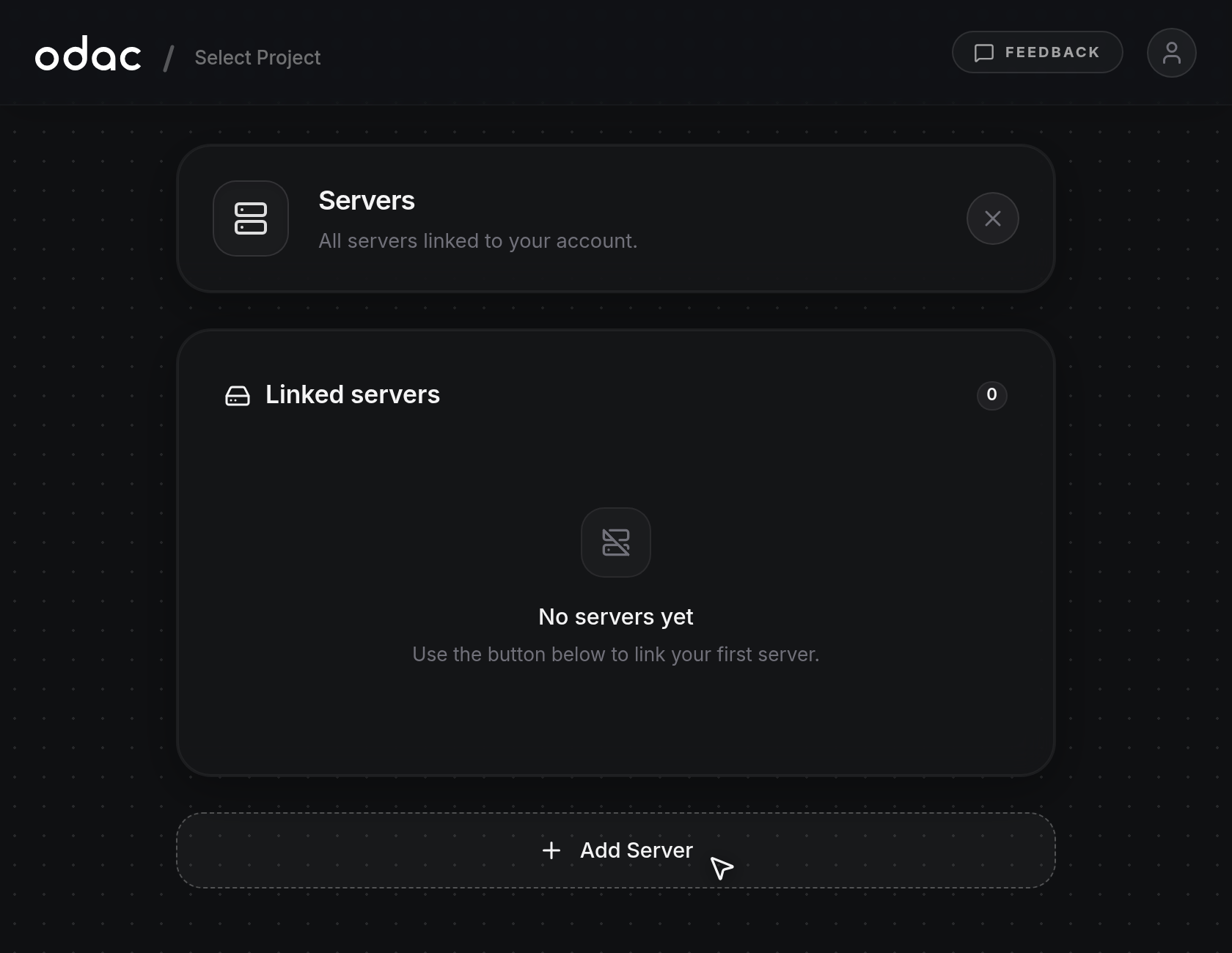
- On the Servers page, review your Linked servers card (which reads No servers yet if this is your first server) and click Add Server below it.
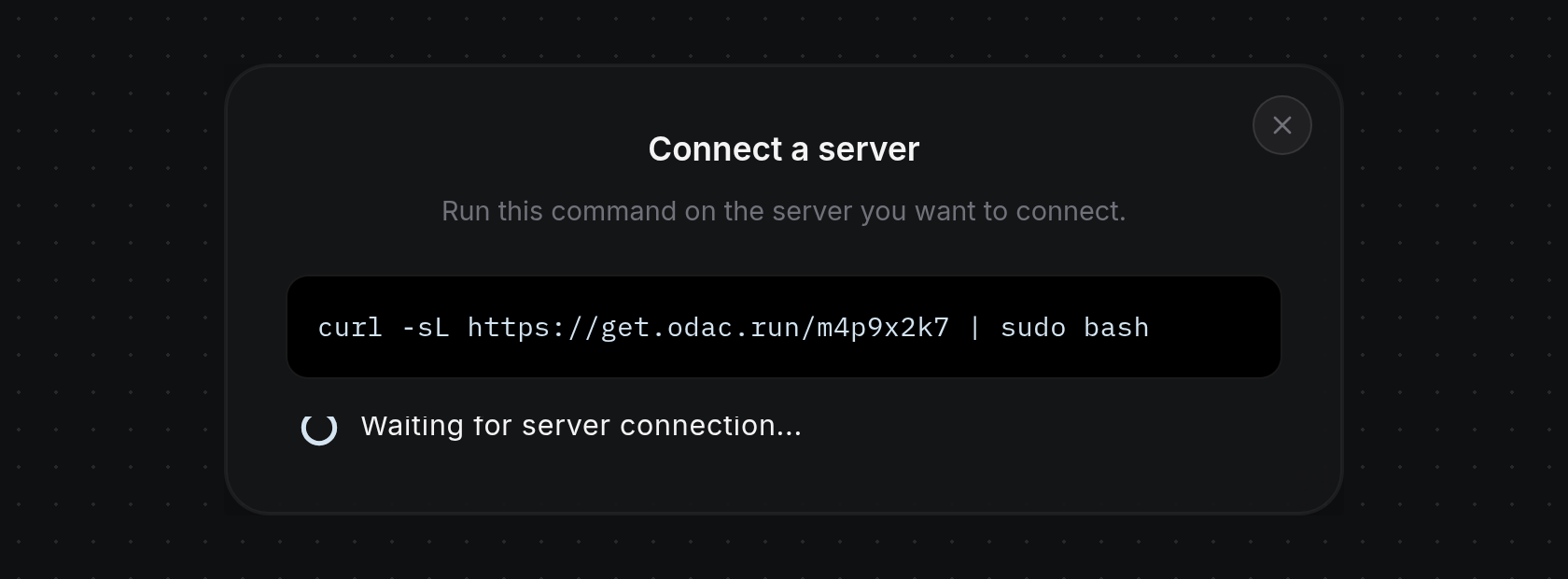
- The Add Server button collapses and expands the Connect a server card inline. It displays your
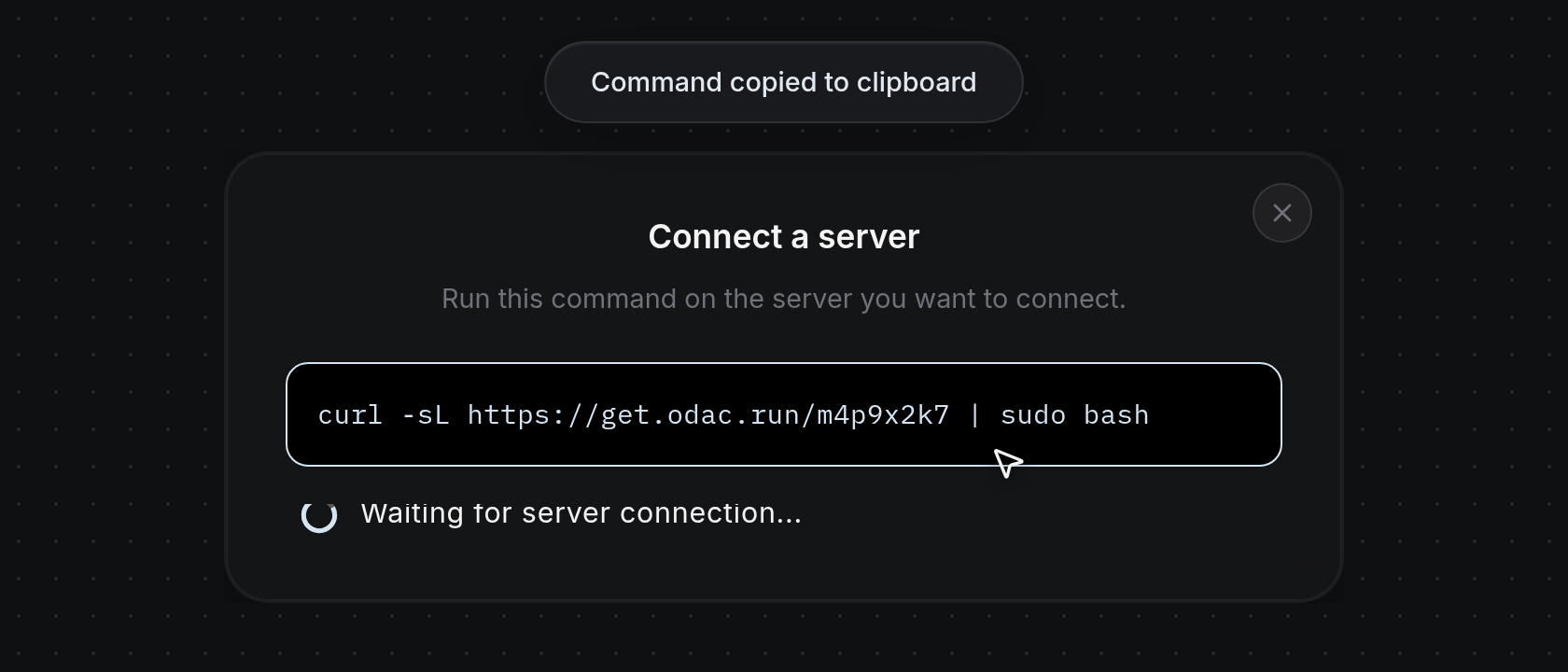
curlinstall command aboveWaiting for server connection...and a circular 10-minute countdown ring. Click the×button in the top-right corner of the card at any time to cancel and close the wizard.
Copy and run the install command
- Click the
curlcommand box to copy the command to your clipboard. The box border highlights and aCommand copied to clipboardnotification appears at the top of the screen.
- Paste and run the command in your target server's terminal (
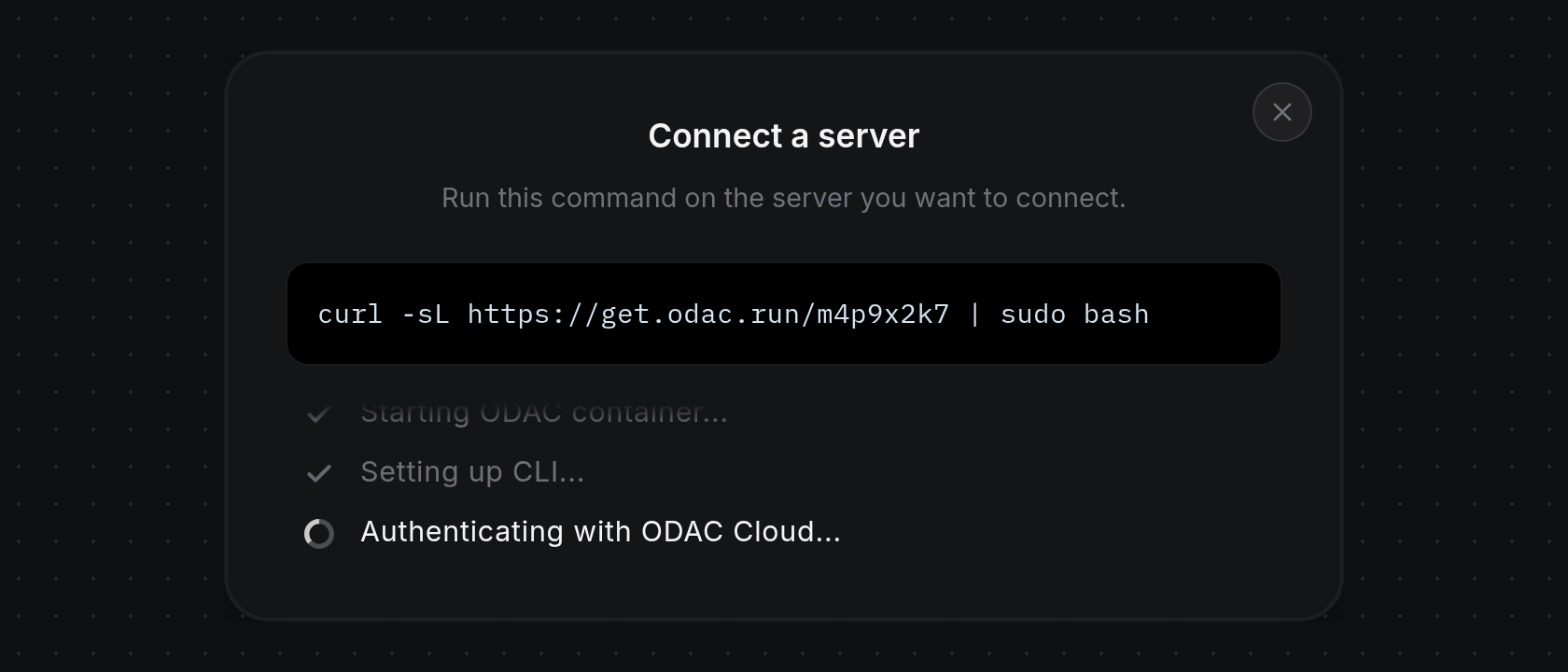
sudoaccess is required). Once installation begins,Waiting for server connection...dims with a checkmark and live progress steps stream in order:Detecting operating system...,Installing Docker...,Installing Docker Compose...,Pulling ODAC image...,Starting ODAC container...,Setting up CLI...,Authenticating with ODAC Cloud..., andEstablishing connection.... If Docker is missing and cannot be set up,Docker not found. Please install Docker.appears in red with an×icon. The active step shows a spinner while completed steps dim into checkmarks and scroll upward so the three most recent steps remain visible. If the 10-minute countdown ring runs out before a server connects, ODAC automatically generates a new command and resets the timer.
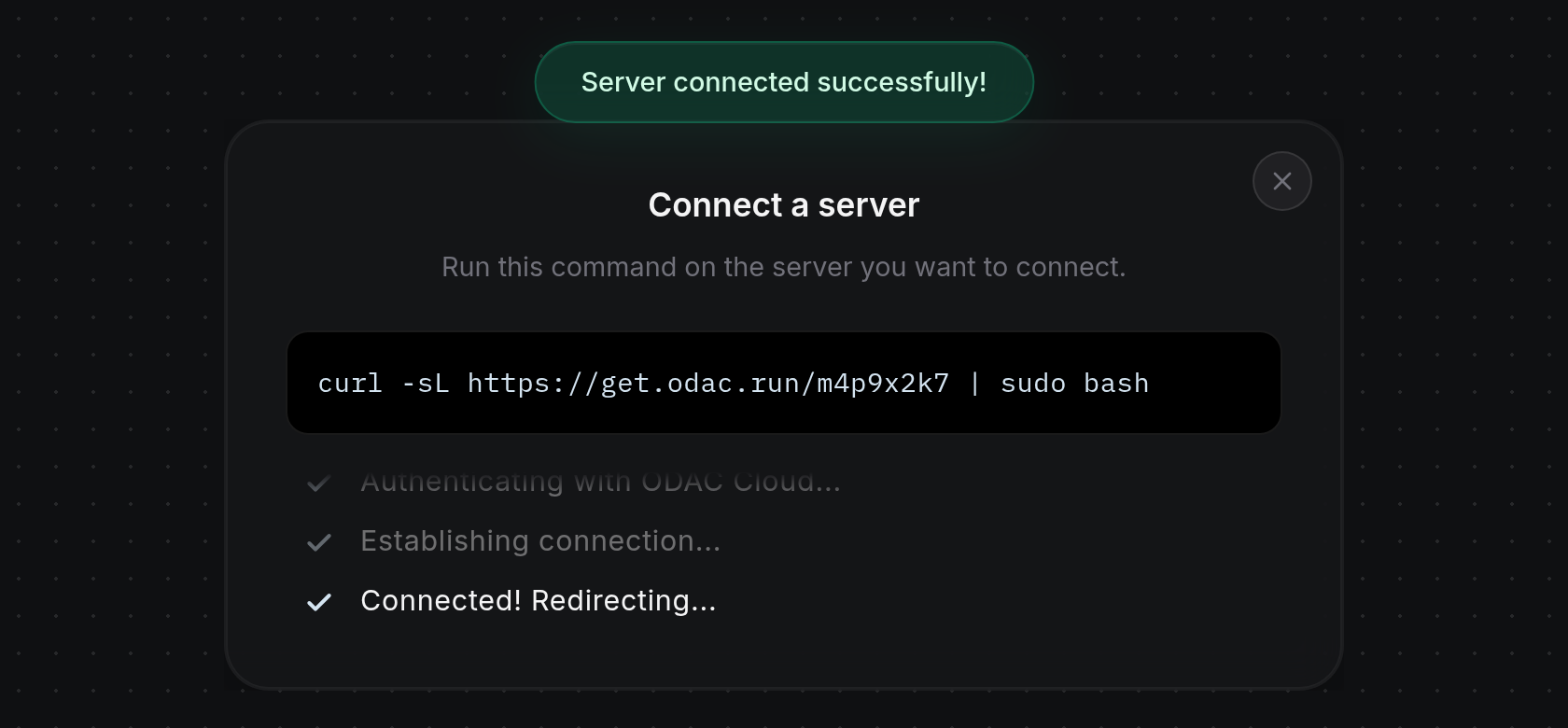
- When setup finishes, the feed shows
Connected! Redirecting...with a checkmark and a greenServer connected successfully!notification appears at the top. After a brief pause, the Servers page refreshes automatically with your new server listed under Linked servers (see Monitor, rename, and unlink a server).
When the server limit is reached
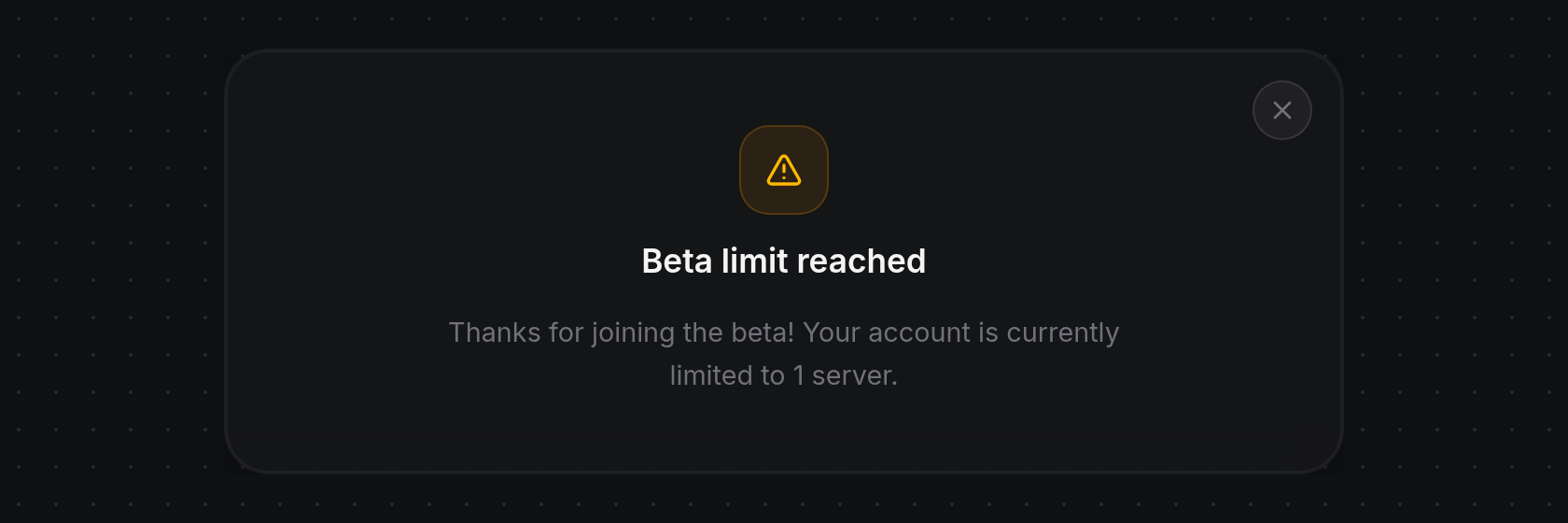
- If your account has already reached its plan's server limit, clicking Add Server hides the install command and live feed and shows Beta limit reached instead, along with
Thanks for joining the beta! Your account is currently limited to 1 server.Click the×button in the top-right corner of the card to close the notice.