Connect and deploy from GitHub
Deploy repositories directly from GitHub onto your project's Canvas at app.odac.run. You can paste any public repository URL straight into the launcher search bar without connecting GitHub, or connect your GitHub account to browse and deploy your personal and organization repositories.
Deploy a public repository by URL
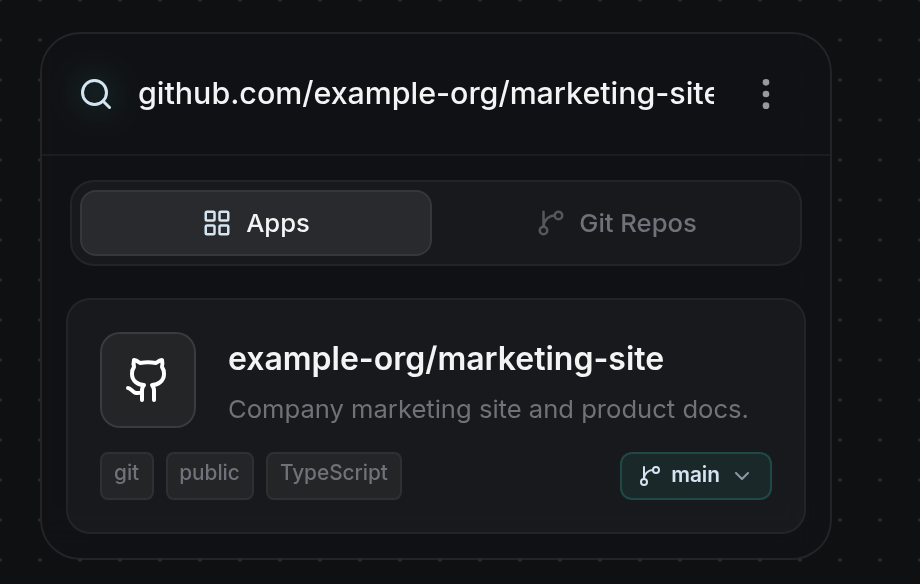
- Open the app launcher on your Canvas (see Browse and deploy from the launcher) and click the Search apps or paste a public GitHub URL (github.com/owner/repo)... bar. On either the Apps tab or the Git Repos tab, paste a public repository URL (https://github.com/owner/repo),
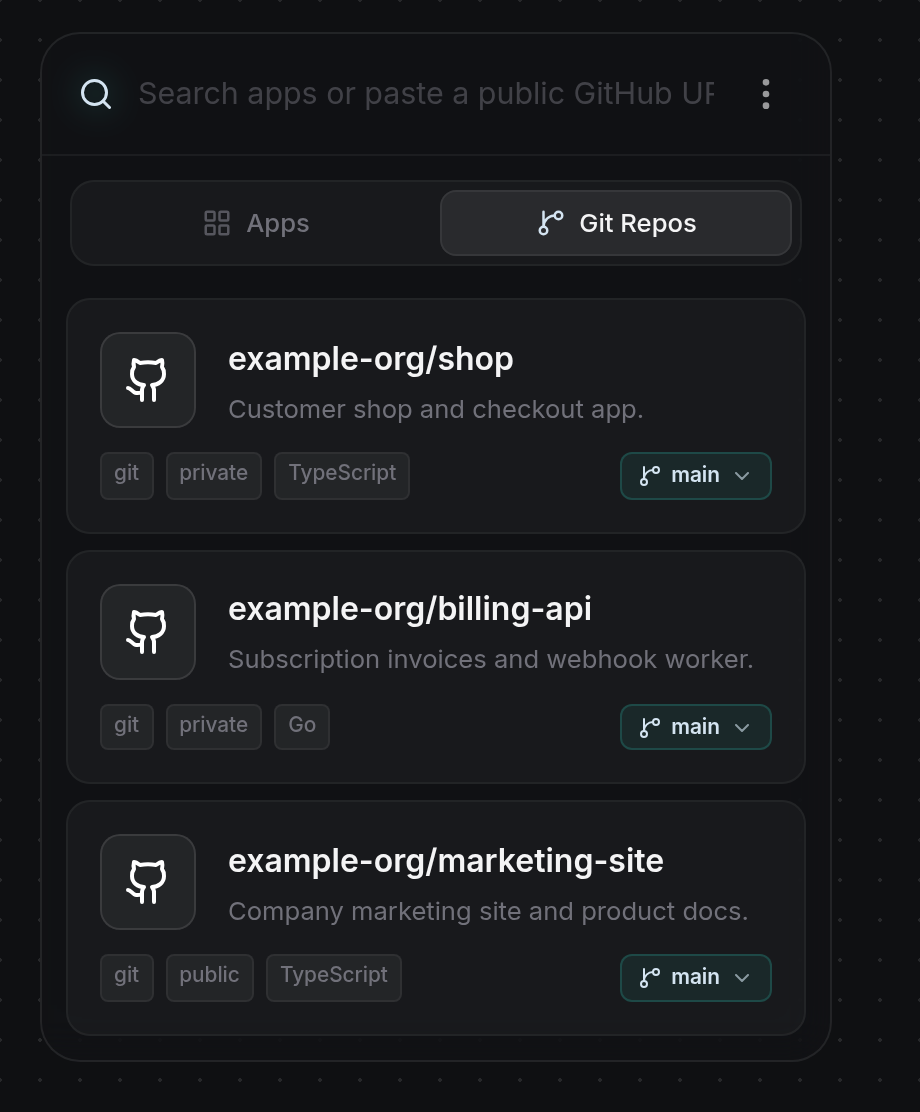
github.com/owner/repo, orowner/repo. ODAC looks up the repository and displays its card at the top of the results with a GitHub icon, the repository name and description,git,public, and language tags, and a branch pill set to its default branch. Private or nonexistent repositories do not appear here until you connect your GitHub account.
Connect your GitHub account
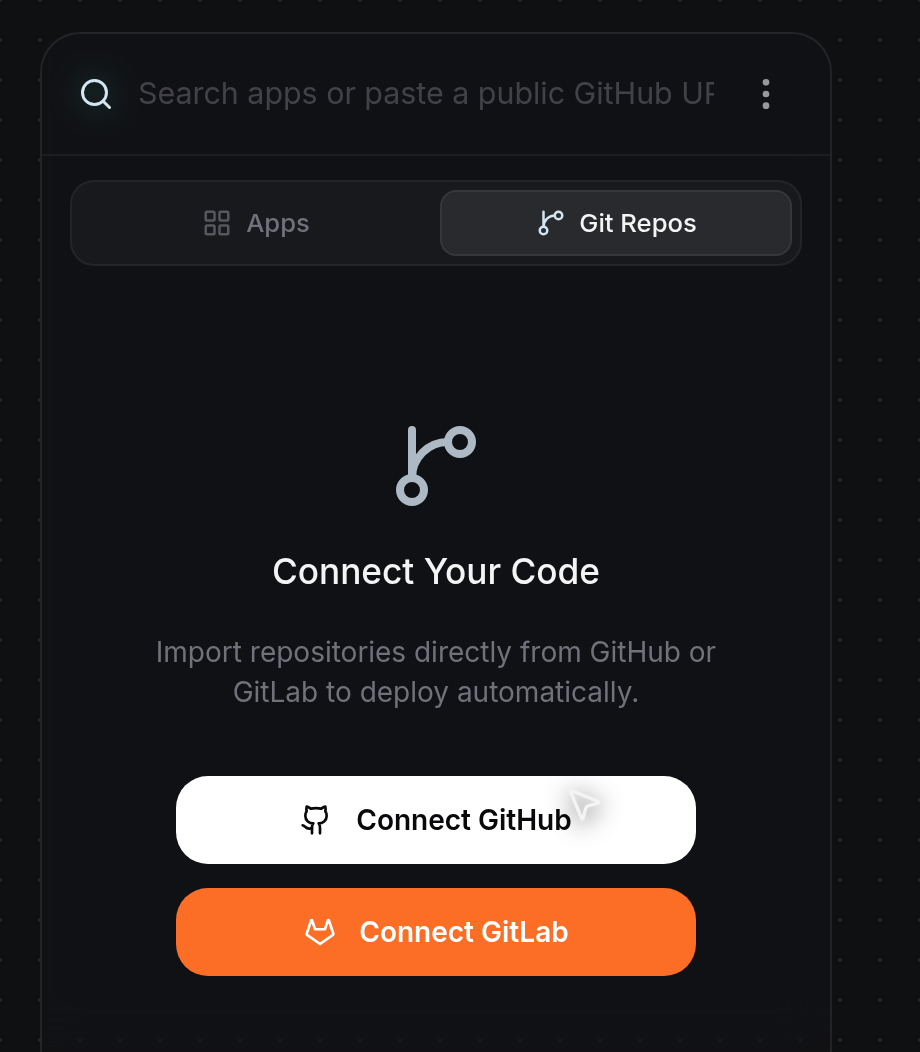
- Switch to the Git Repos tab in the launcher. If you have not connected GitHub yet, ODAC displays Connect Your Code with Connect GitHub and Connect GitLab buttons (
GitLab integration coming soon!appears if you click Connect GitLab).
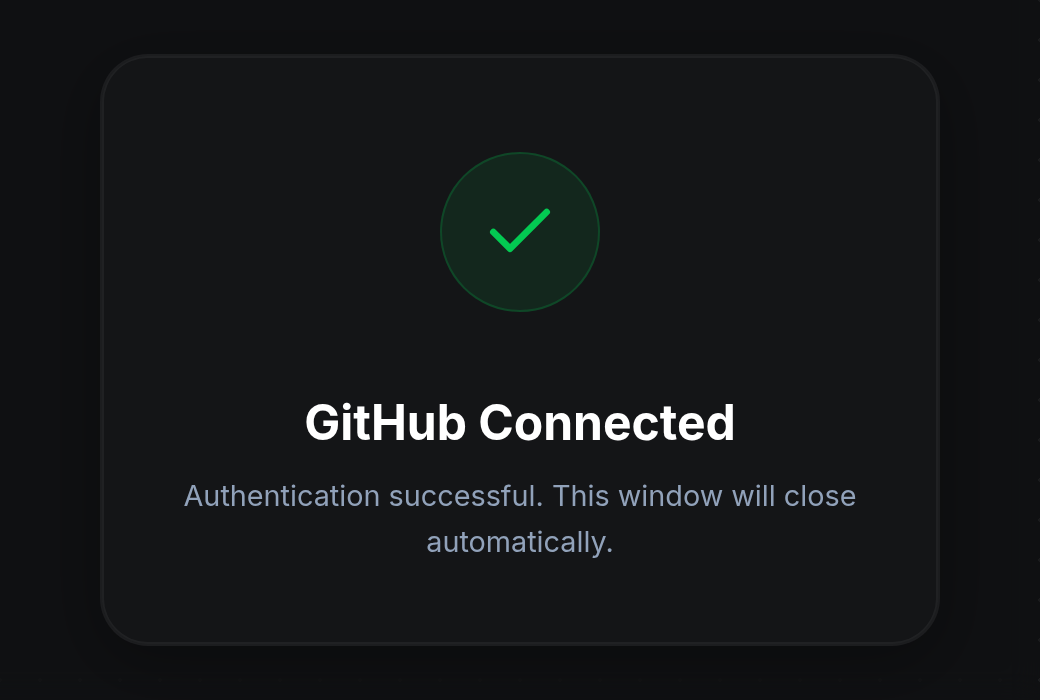
- Click Connect GitHub to open GitHub in a new window and authorize ODAC. When authorization finishes, the confirmation window displays GitHub Connected and
Authentication successful. This window will close automatically.If authorization is cancelled or fails, it displays Authentication Error with a Close Window button.
- Return to the dashboard window with Git Repos open. The repository list refreshes automatically and displays your accessible repositories with
publicorprivatetags, language tags, and branch pills. Type in the search bar to filter repositories by name or description.
Choose a branch
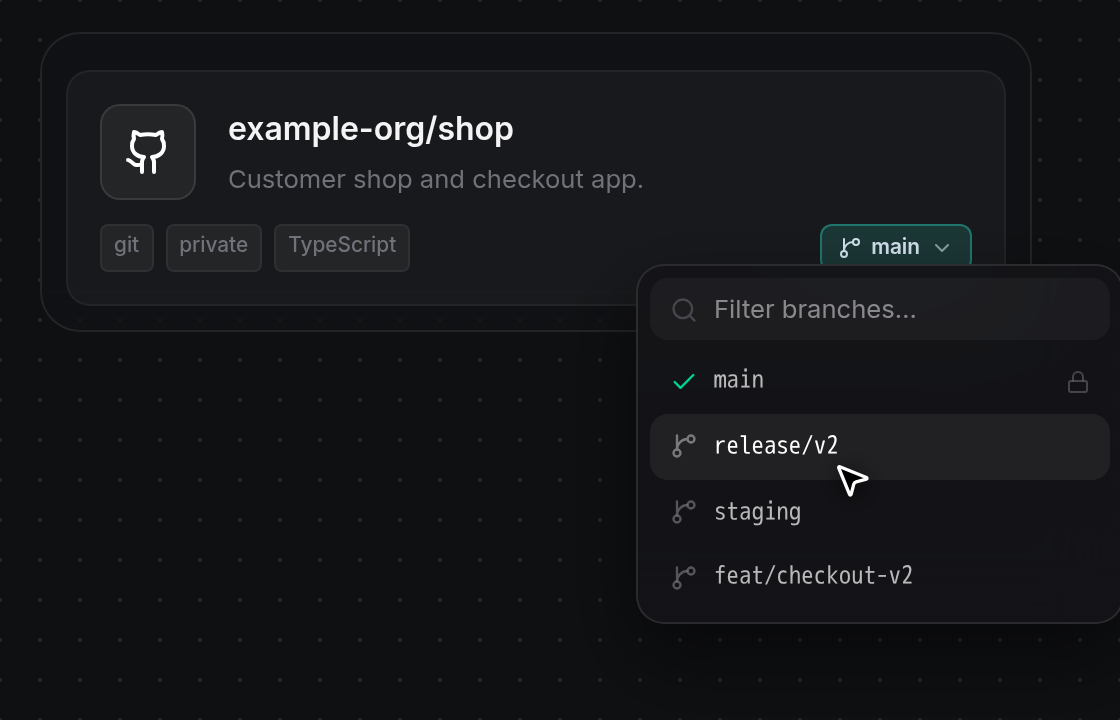
- Click the teal branch pill on the right side of any repository card (showing its default branch, such as
main) to open the branch dropdown without placing the card. Wait briefly ifLoading branches…appears, then type in Filter branches… to narrow the list. The active branch is marked with a green checkmark, and protected branches show a lock icon on the right. Click a branch such as release/v2 to update the pill, or click outside the menu or press Escape to keep the current branch. If branches cannot be fetched, the menu displaysCould not load branches, orNo brancheswhen none are returned.
Manage repository access in GitHub Settings
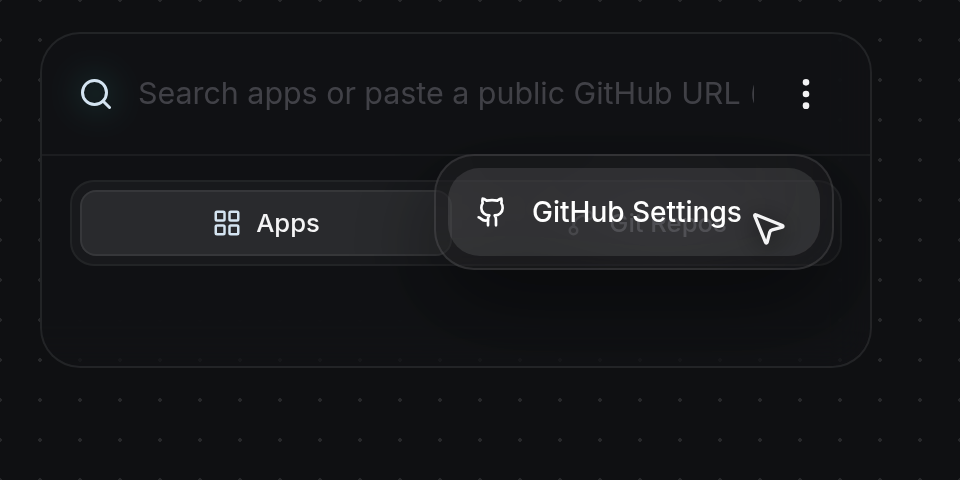
- Click the three-dot Settings icon on the right side of the launcher search bar and click GitHub Settings. GitHub opens in a new tab so you can install the ODAC GitHub App or adjust which personal and organization repositories ODAC can access. Save your changes on GitHub and return to Git Repos in app.odac.run to refresh the list. Private repositories require the ODAC GitHub App to be installed on that repository before they can deploy; otherwise, ODAC shows
Install the ODAC GitHub App on this repository to deploy it.
Place and deploy the repository
- Click a repository card (outside its branch pill) to auto-place it in the nearest open grid spot, or drag it out of the launcher onto a specific grid cell on the Canvas. See Browse and deploy from the launcher for dragging onto the bottom trash button or pressing Escape to cancel placement.
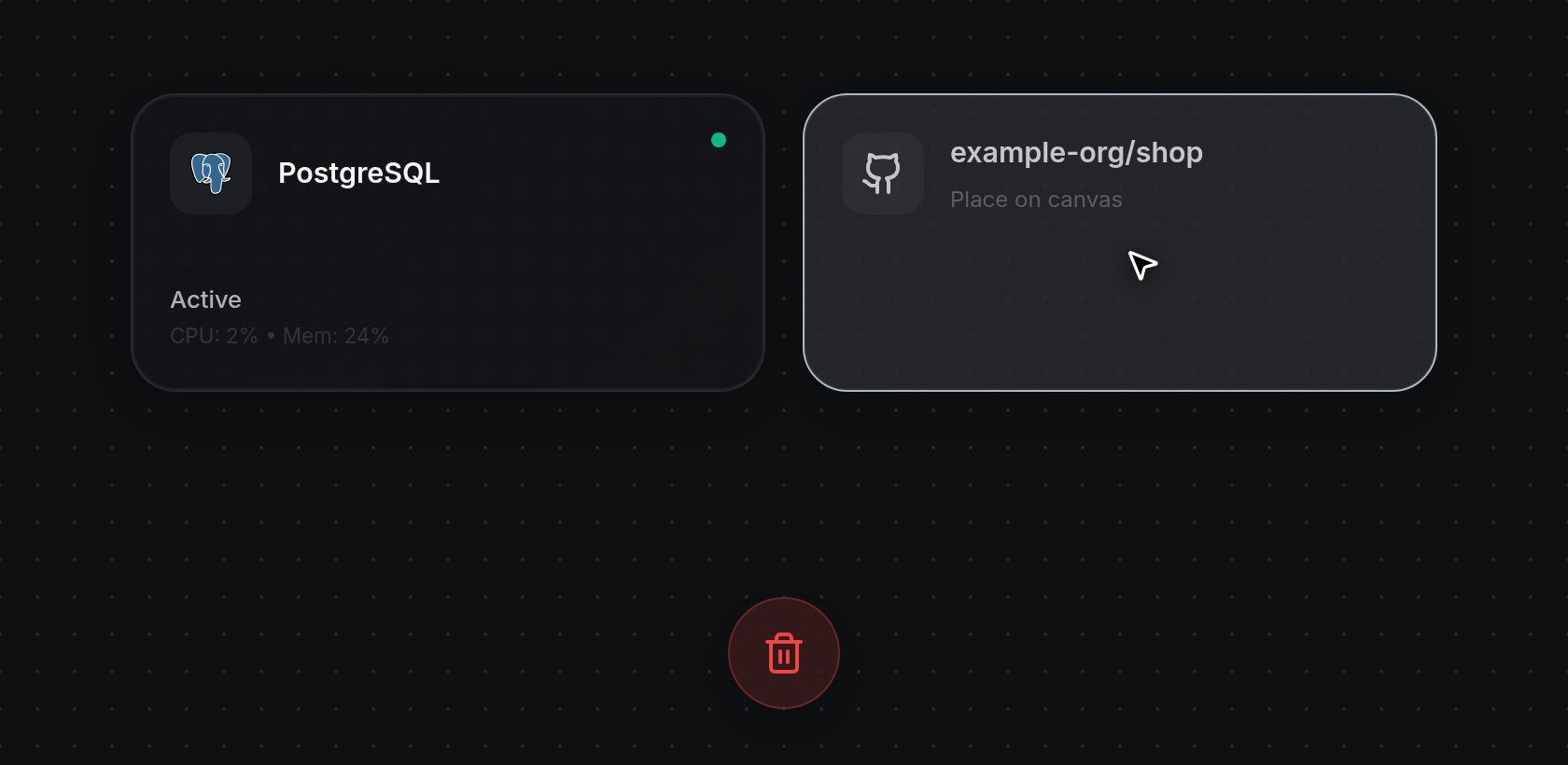
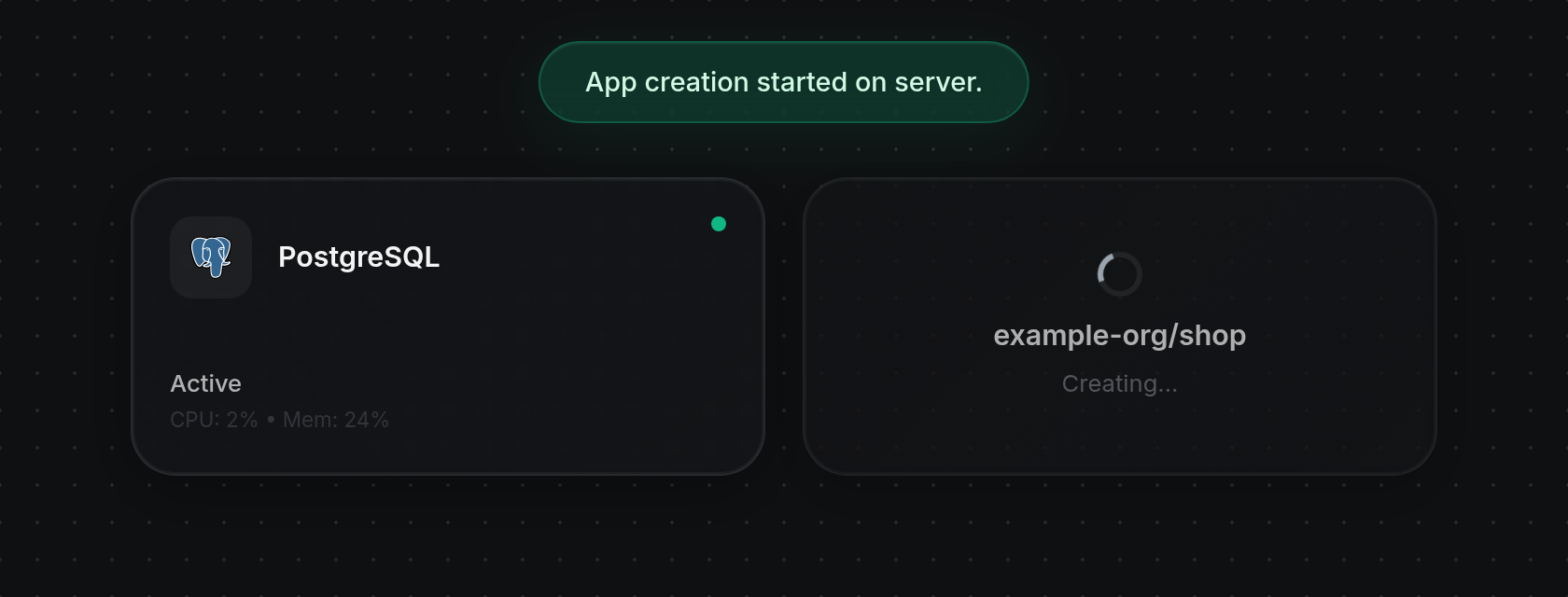
- Once placed on an online server, ODAC displays
App creation started on server.and adds the repository card dimmed with a spinner andCreating...while cloning and building (orQUEUEDif your project has no server attached yet; see Queueing apps before connecting a server). Click a building card to open Build Logs directly (see Read build and runtime logs), and use Source in the app inspector once deployed to review commits or switch branches (see View Git branches and commits).