Attach domains and tunnels to an app
Manage custom domains, subdomains, IP addresses, and .odac.cc tunnel addresses for any web-enabled app from its right-hand inspector drawer at app.odac.run. From the Domains section, you can attach new addresses, open live links, inspect or remove individual subdomains, and delete domains or tunnels.
Add a domain, subdomain, IP address, or tunnel
- Open the app's inspector drawer from the Canvas (see Inspect, rename, restart, and delete an app) and look under Domains at the top of the configuration sections. Apps that expose a web port or already have an attached domain or tunnel show Domains, while non-web services hide it. Click Add Domain.
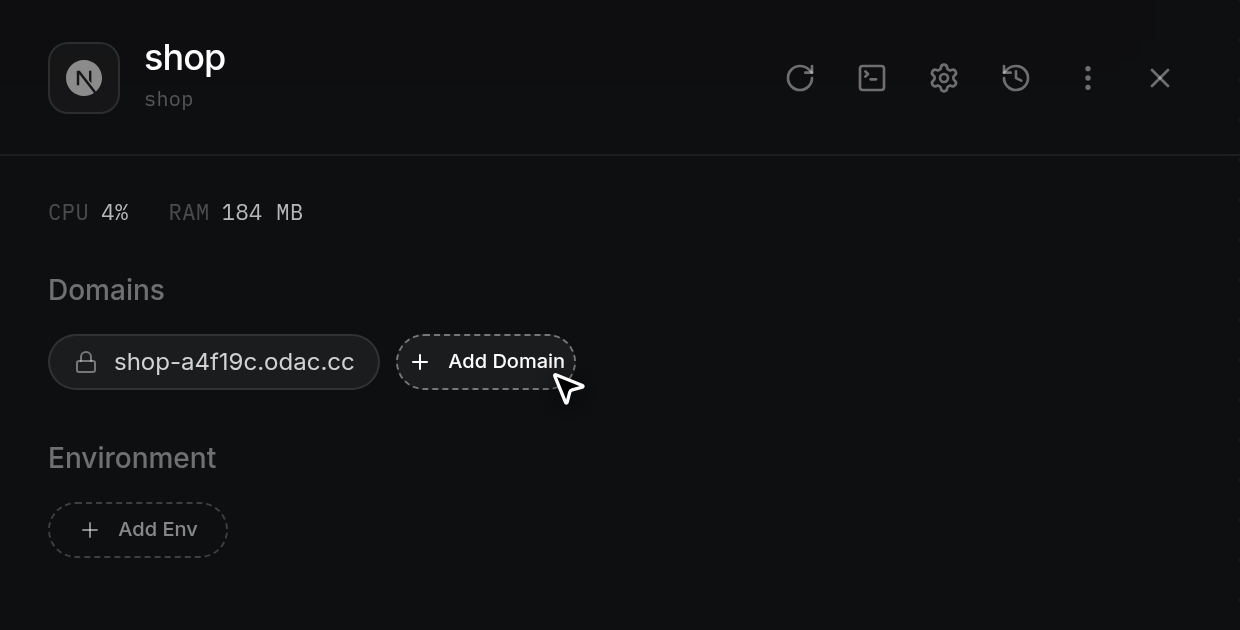
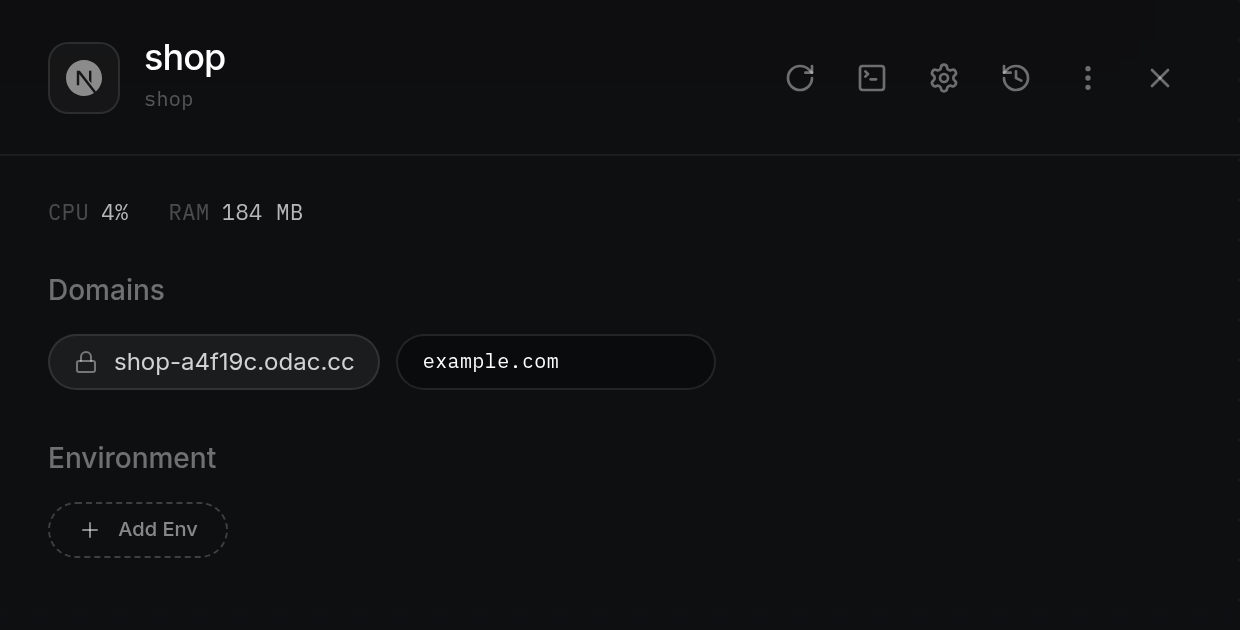
- The Add Domain button expands into an inline text field with the placeholder
domain.com. Type a custom domain (such asexample.com), a subdomain (such as api.example.com or a wildcard *.example.com), an IPv4 or IPv6 address (such as 203.0.113.10),localhost, or a.odac.cctunnel subdomain (such as shop-demo.odac.cc), then pressEnter. PressEscapeor click outside the field to cancel without saving. If the format is not valid, the field shakes and ODAC showsInvalid domain or IP format. For.odac.cctunnels, only single-level subdomains of at least 4 characters (lowercase letters, numbers, and hyphens starting and ending with a letter or number) are allowed, and each app can have one tunnel at a time.
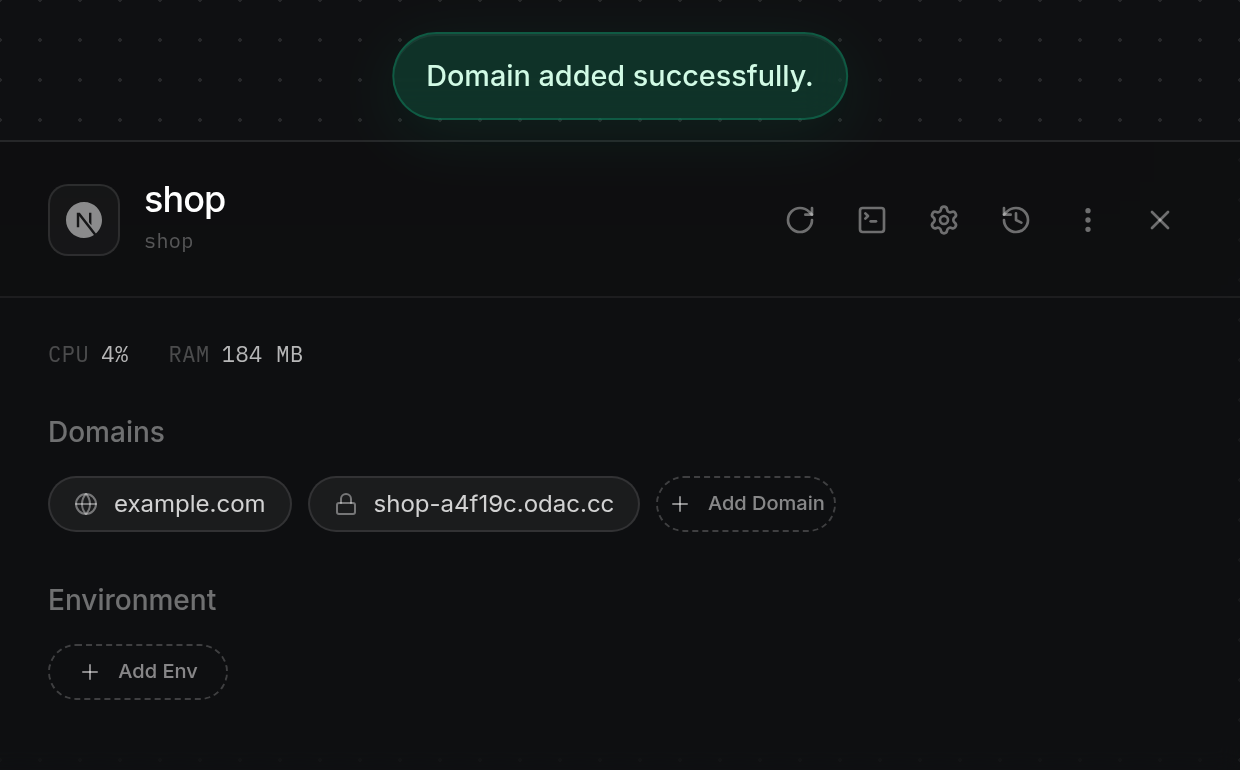
- While ODAC applies the change, a pulsing pending pill with a spinner appears in Domains (or an existing parent domain pill pulses while a new subdomain is added). When complete, ODAC displays
Domain added successfully.for domains, subdomains, and IPs, orTunnel created.for.odac.cctunnels, and shows the pill in Domains with a globe icon for standard domains or a lock icon for tunnels. If the app uses Host network mode, ODAC showsThis app runs on the host network, switch it to bridge to serve a domain(switch the app to Bridge in Settings first; see Configure ports, networks, and volumes). If the server is disconnected, ODAC showsCannot add domain while server is disconnected..
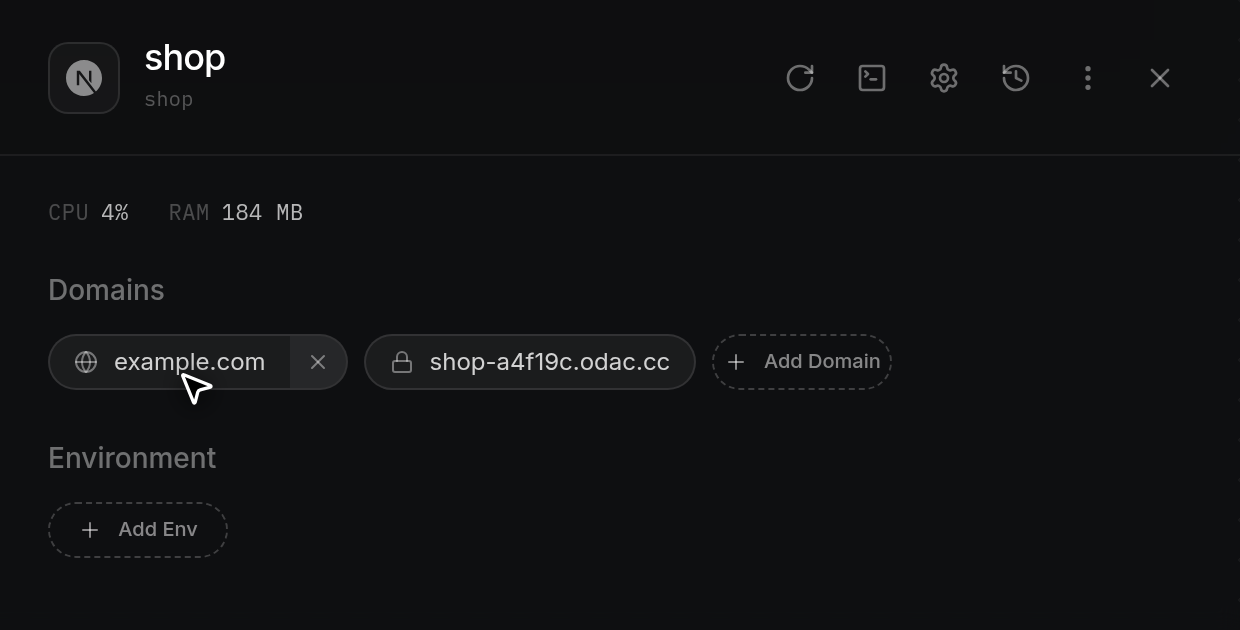
Open an attached domain or tunnel
- Click any domain name or lock-badged
.odac.ccaddress in Domains to open itshttps://address in a new browser tab. To review uptime history, SSL certificate expiration, and visitor access rules (such as client certificates for custom domains or account sign-in and device certificates for tunnels), open Domains from the left sidebar (see View domains, tunnel usage, and uptime and Tunnel sign-in and device certificates).
Inspect and delete individual subdomains
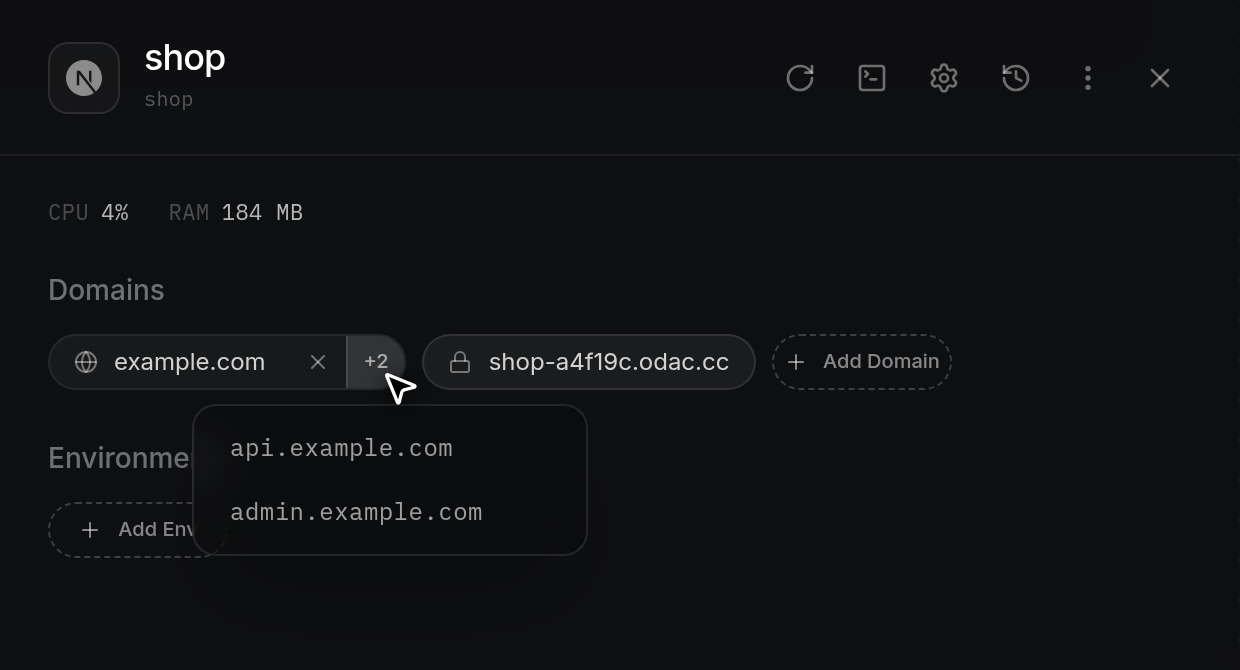
- When a domain has attached subdomains (other than
wwwalone), its pill displays a count badge on the right, such as+2. Hover over the count badge to open a popover listing each full subdomain host, where you can select any address to copy it.
- To delete a single subdomain without removing the root domain, hover over its row in the popover to reveal the
×button on the right and click it. The row turns red with a SURE? confirmation overlay; moving your pointer off the row cancels the confirmation.
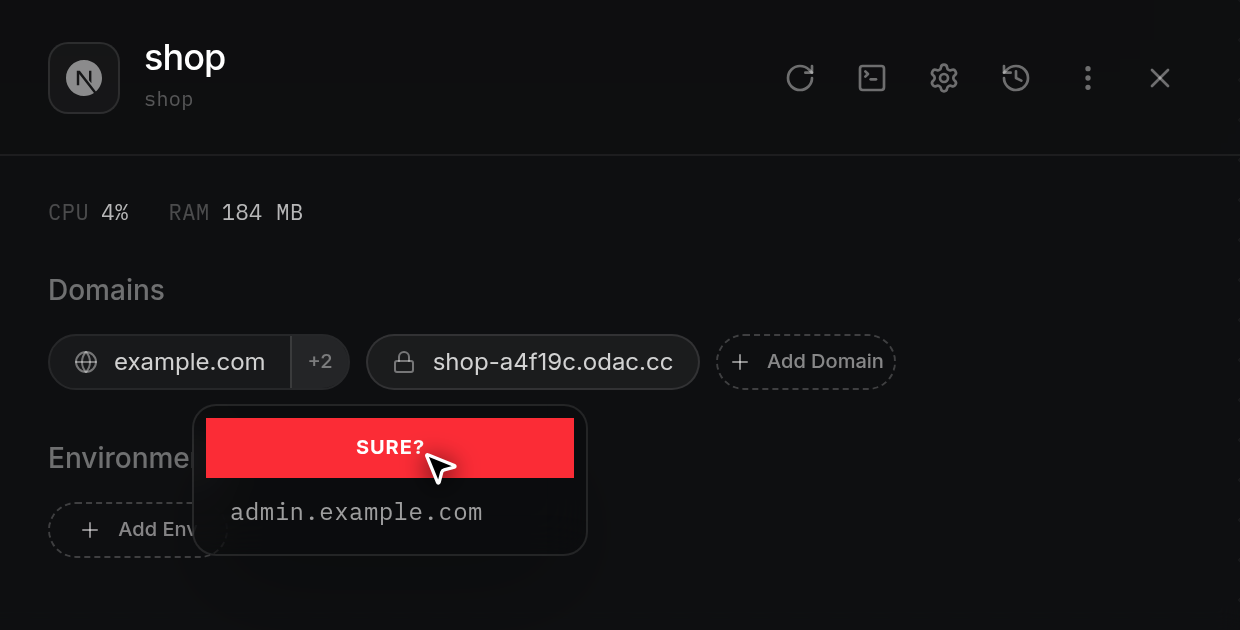
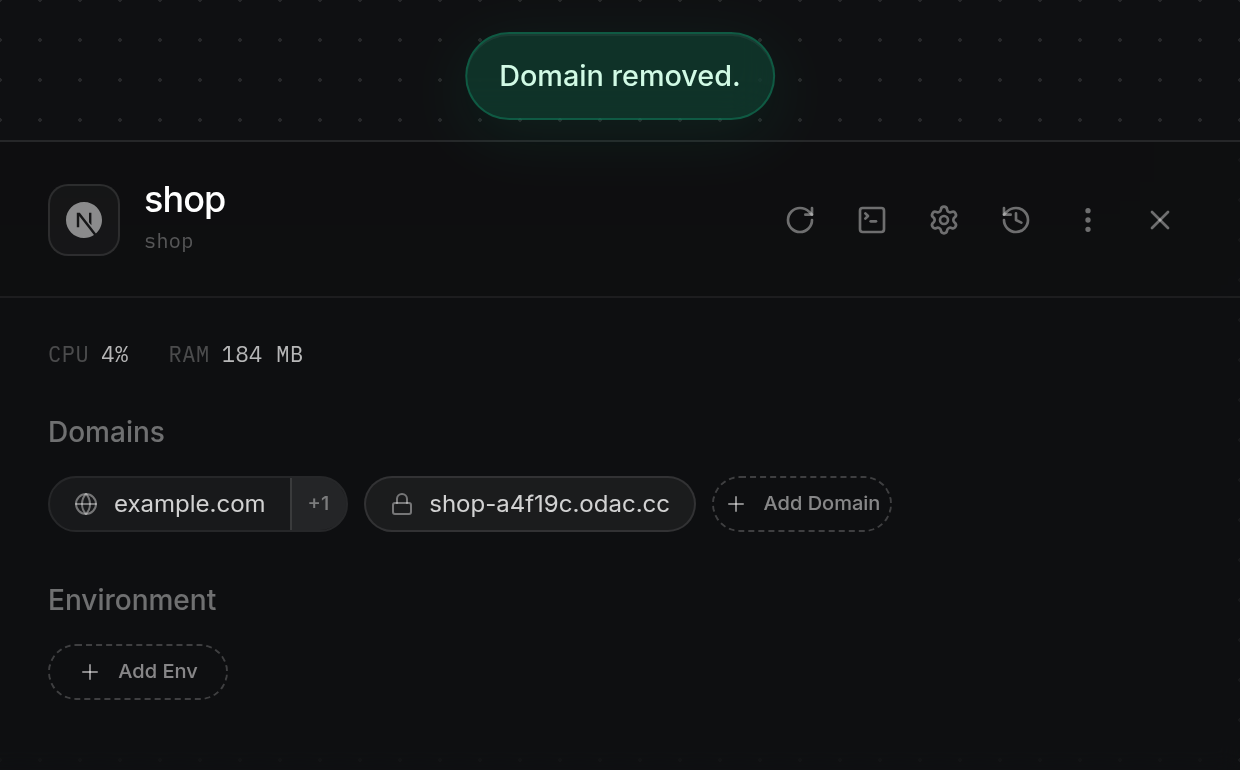
- Click SURE? to confirm. The row collapses out of the popover, the parent domain pill dims briefly, ODAC displays
Domain removed., and the pill updates its subdomain count badge (or removes the badge if no other subdomains remain).
Remove a domain or tunnel
- Hover over a domain pill or a lock-badged
.odac.cctunnel pill to reveal the×delete button on its right side (Delete DomainorDelete Tunnel), then click×.
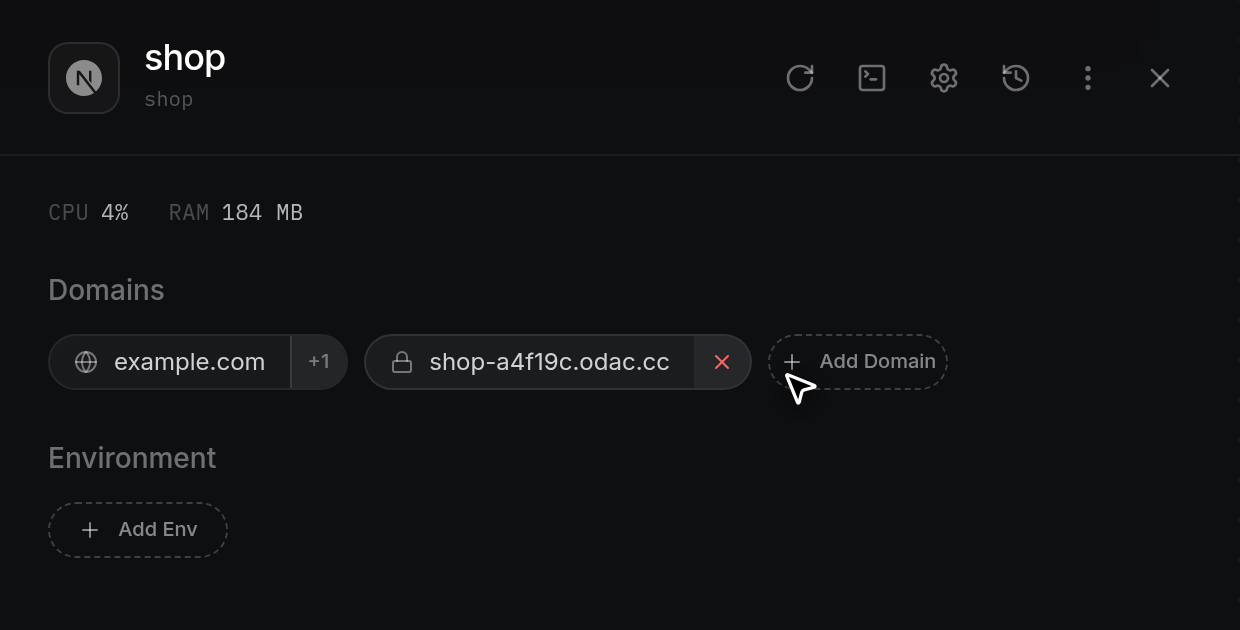
- The pill flips to a solid red SURE? confirmation state. Moving your pointer away from the pill cancels the action and restores the pill.
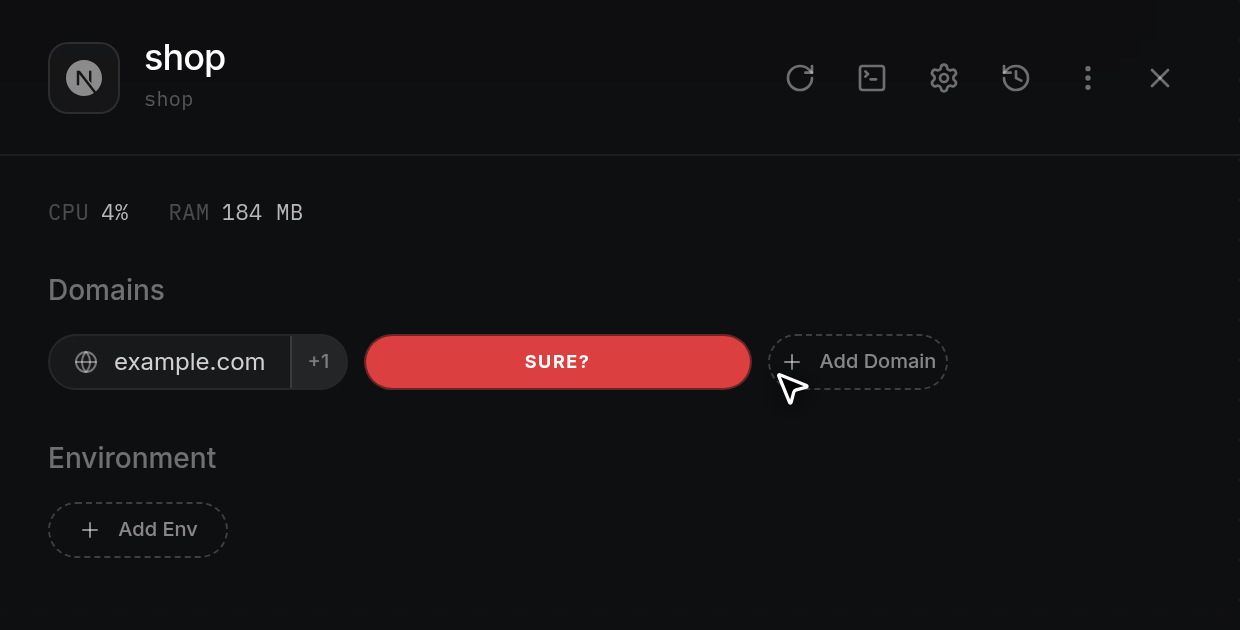
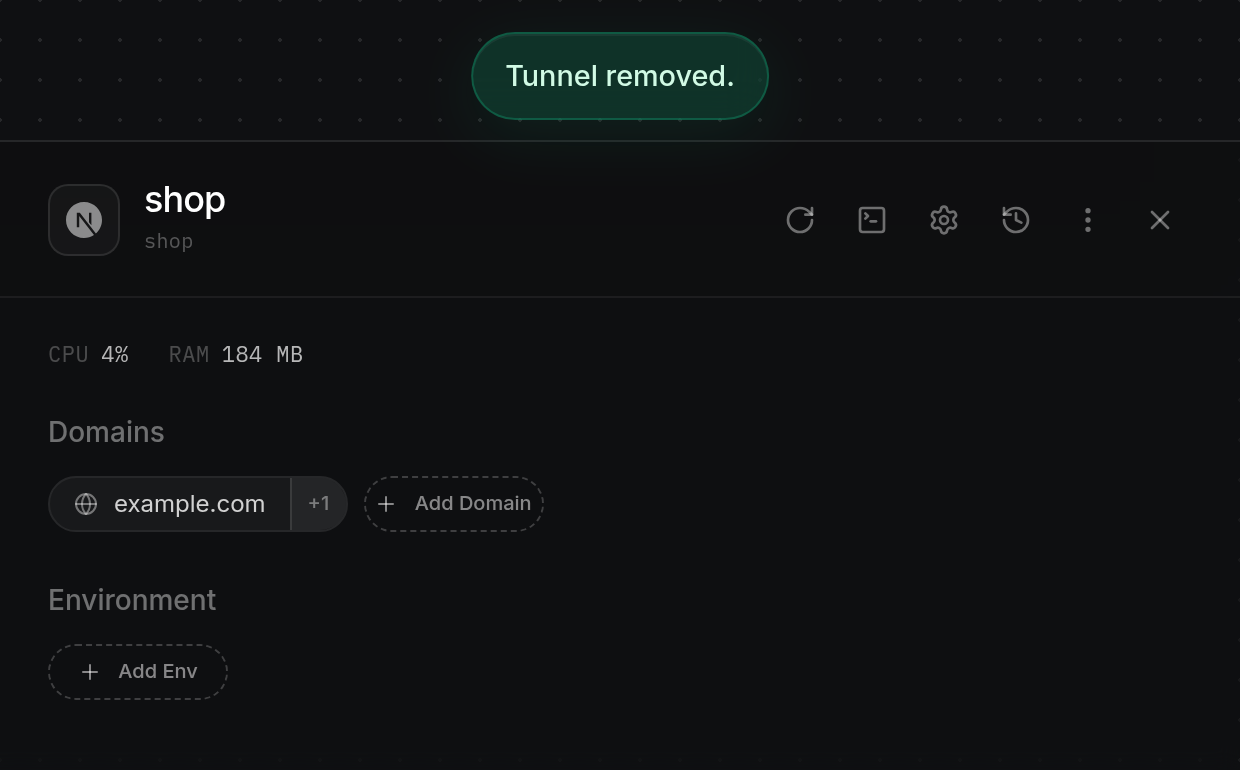
- Click SURE? to remove the domain or tunnel. The pill dims while ODAC applies the change, then disappears from Domains as ODAC displays
Domain removed.for a domain orTunnel removed.for a tunnel.