View project activity and delete a project
Review a chronological record of changes across a project and permanently delete projects you no longer need from Project Settings at app.odac.run. You can switch to the Activity tab to trace deploys, domain updates, and server changes across every app in the project, or open Danger Zone on the Settings tab to delete an empty project, relocate its apps to another project first, or remove the project together with all of its apps.
View project activity
- Open Project Settings from the left sidebar or the top-left project menu (see Rename a project and manage its servers), then click Activity in the tab switcher on the right side of the Project Settings header card.
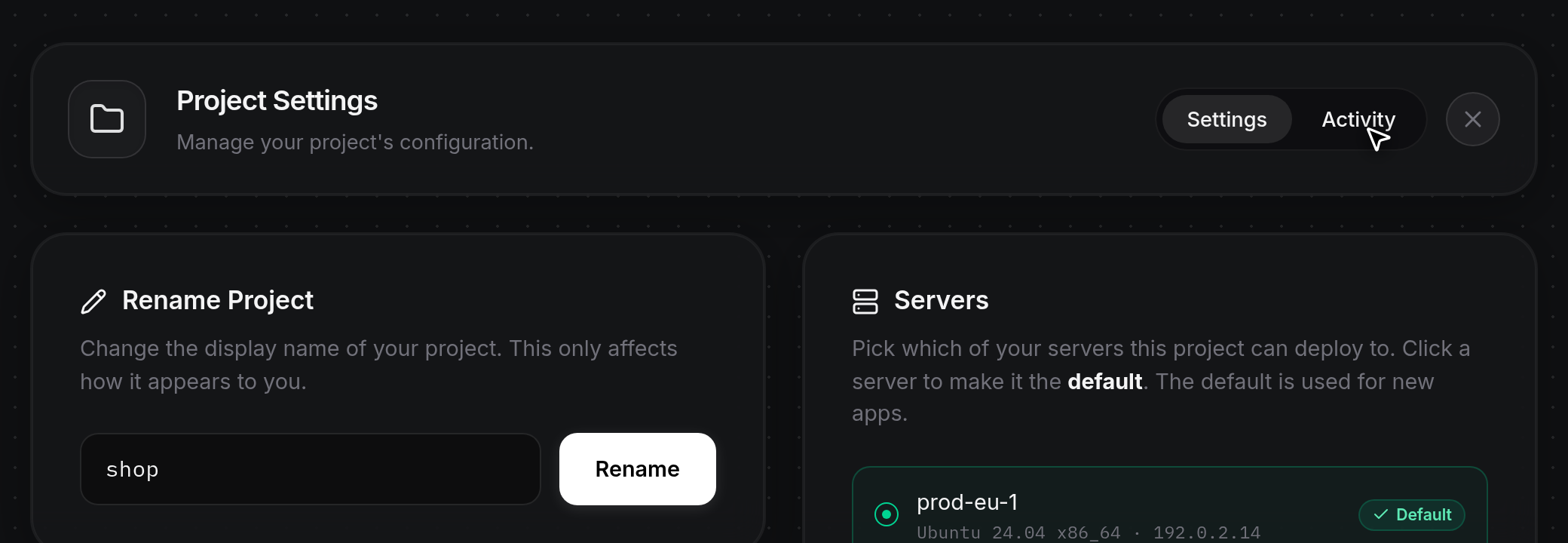
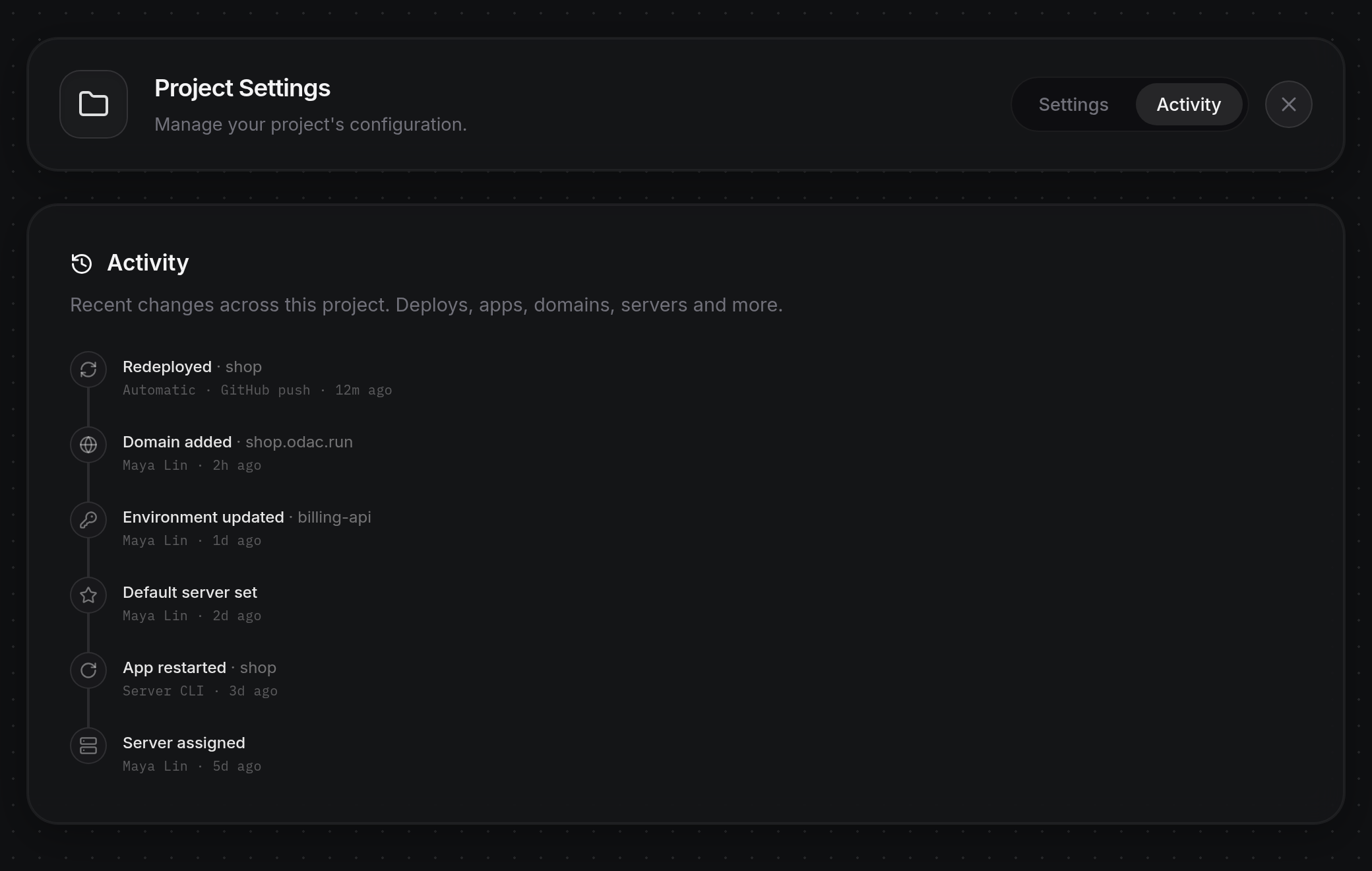
- The active indicator slides to Activity and opens the Activity card (
Recent changes across this project. Deploys, apps, domains, servers and more.). Events appear newest first along a vertical timeline, each showing an icon, the event label (such asRedeployed,Domain added,Environment updated,Default server set,App restarted,Server assigned, orProject renamed), an optional detail after a dot (·) for the affected domain, port, or app name, and a line below showing who or what triggered it with a relative timestamp (12m ago,2h ago,1d ago). User actions display the person's name (orYouwhen no profile name is set), automatic GitHub deployments display Automatic · GitHub push, and actions run directly on the server displayServer CLI. Scroll inside the list when there are many entries, or click Settings in the header card to return to project configuration. If no events have been recorded yet, the card showsNo activity yet. For a single app's own timeline, see App activity history and moving between projects.
Delete an empty project
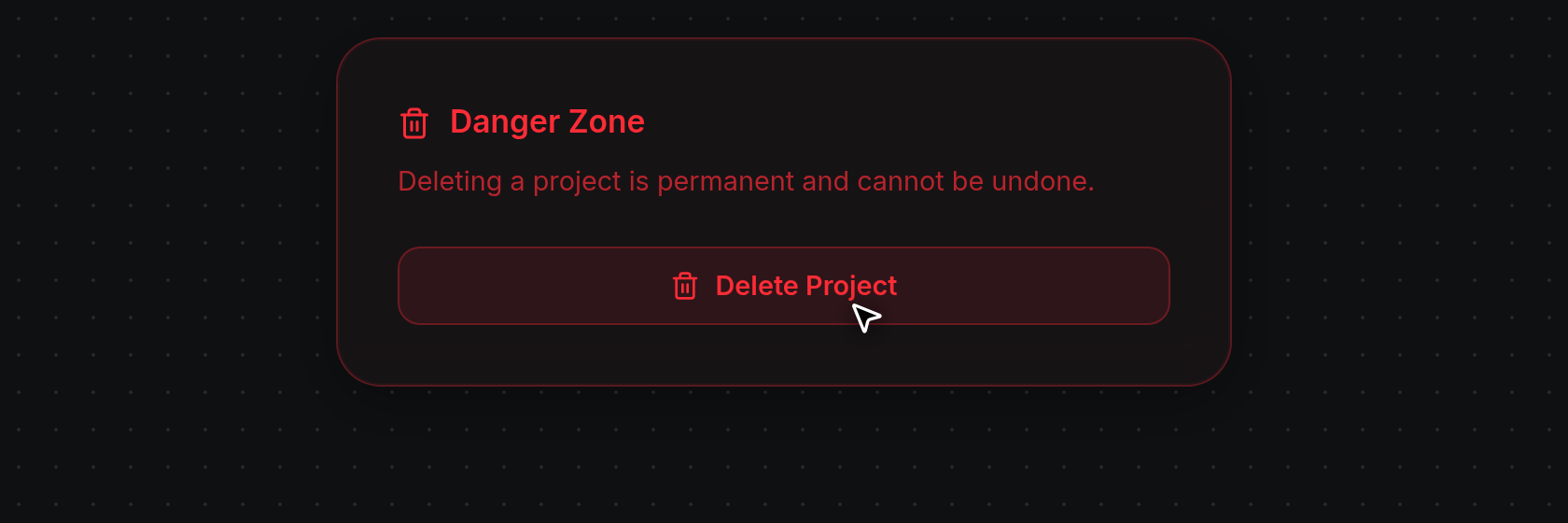
- On the Settings tab of Project Settings, locate the Danger Zone card in the bottom-left column (
Deleting a project is permanent and cannot be undone.) and click Delete Project.
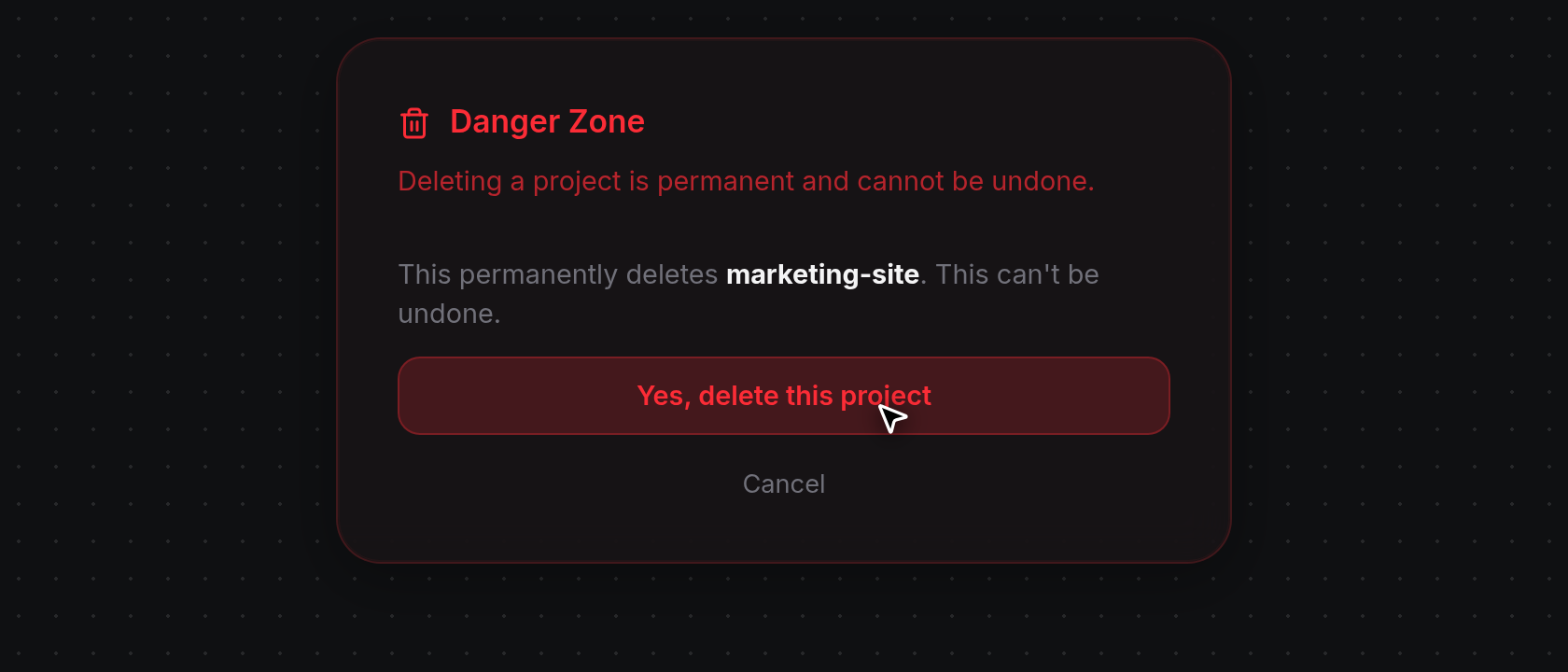
- When the project has no apps, Danger Zone expands a single confirmation prompt (This permanently deletes marketing-site. This can't be undone.). Click Yes, delete this project to remove it, or click Cancel below the button to keep the project. While removing, the button reads
Deleting..., then ODAC displaysProject deletedand opens the dashboard.
Move apps before deleting a project
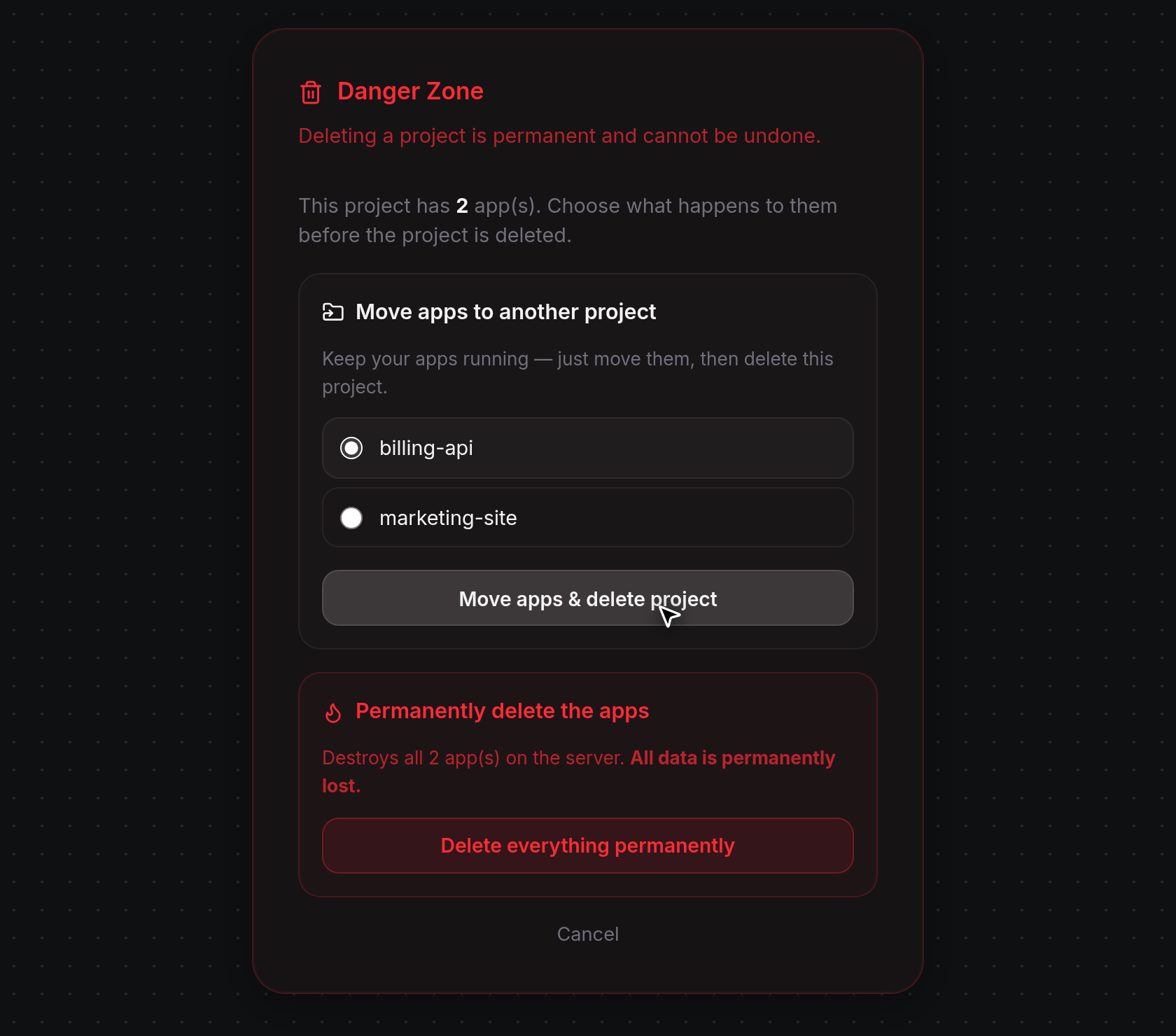
When the project still has apps, clicking Delete Project expands Danger Zone with the number of apps in the project (This project has 2 app(s). Choose what happens to them before the project is deleted.) and two options. In the Move apps to another project card, select a destination project from the list.
Click Move apps & delete project. While moving, the button reads
Moving.... Your apps continue running uninterrupted on their server while ODAC moves them and any attached tunnels into the destination project, deletes the old project, showsApps moved and project deleted, and opens the destination project's Canvas.
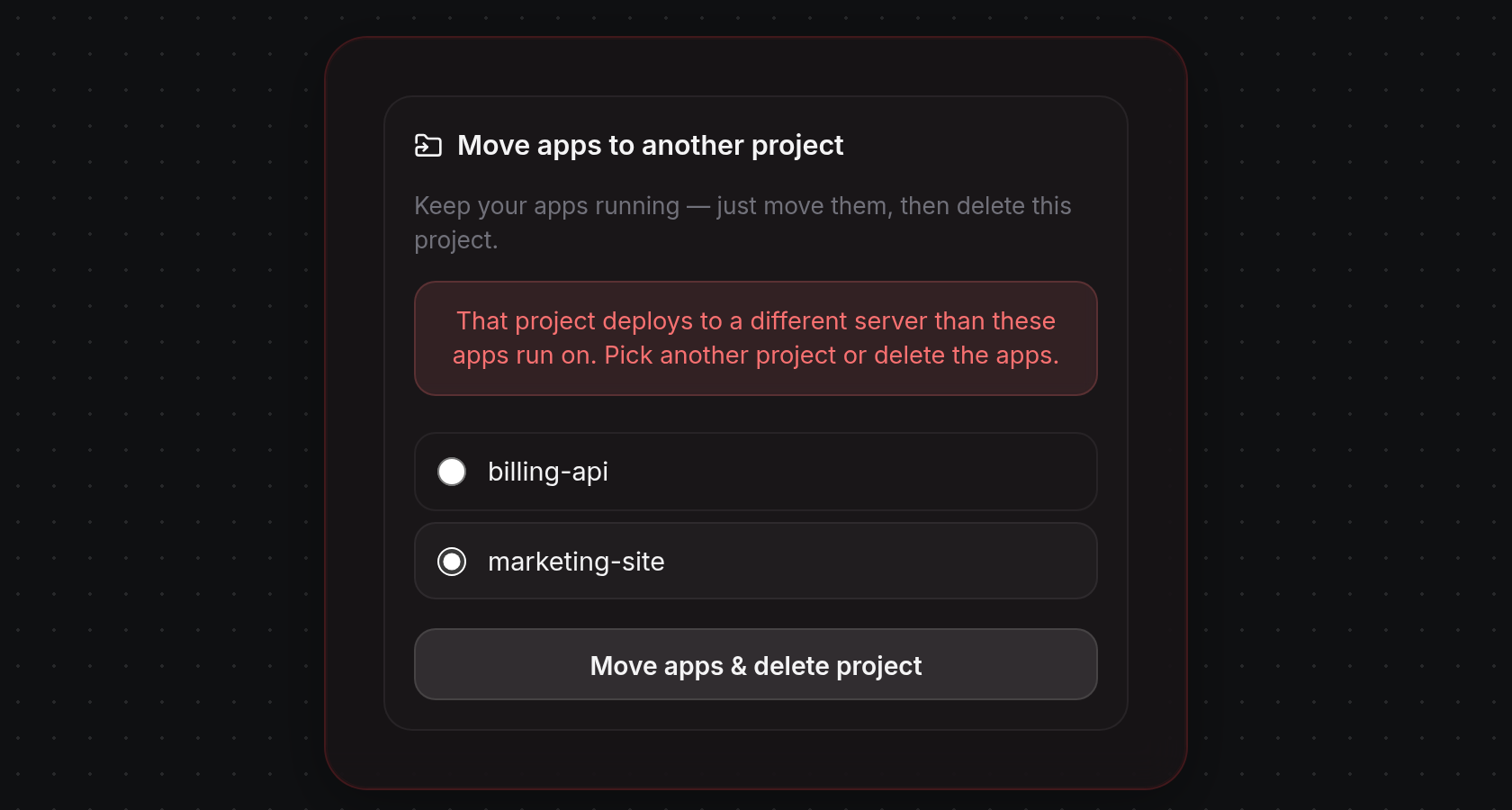
- Check above the project list if an error banner prevents the move. Clicking Move apps & delete project without selecting a project displays
Choose a project to move the apps into.. Selecting a project whose default deploy server is a different machine from where your running apps live displaysThat project deploys to a different server than these apps run on. Pick another project or delete the apps.. If the destination project has no server attached yet and all running apps are on one server, moving them adopts that server as the destination project's default deploy target; queued apps deploy on the destination project's default server.
Permanently delete a project and its apps
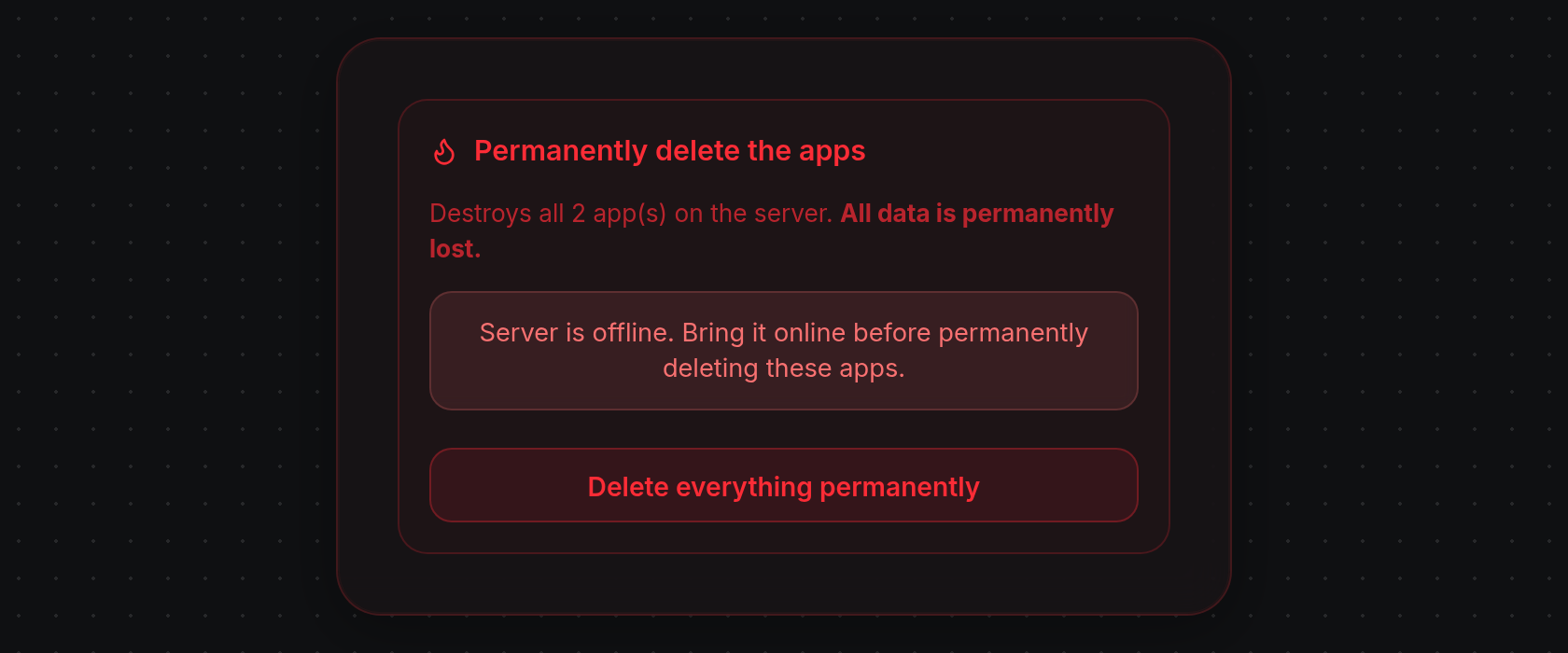
- To remove the project along with every app inside it, expand Danger Zone with Delete Project, locate the red Permanently delete the apps card (Destroys all 2 app(s) on the server. All data is permanently lost.), and click Delete everything permanently.
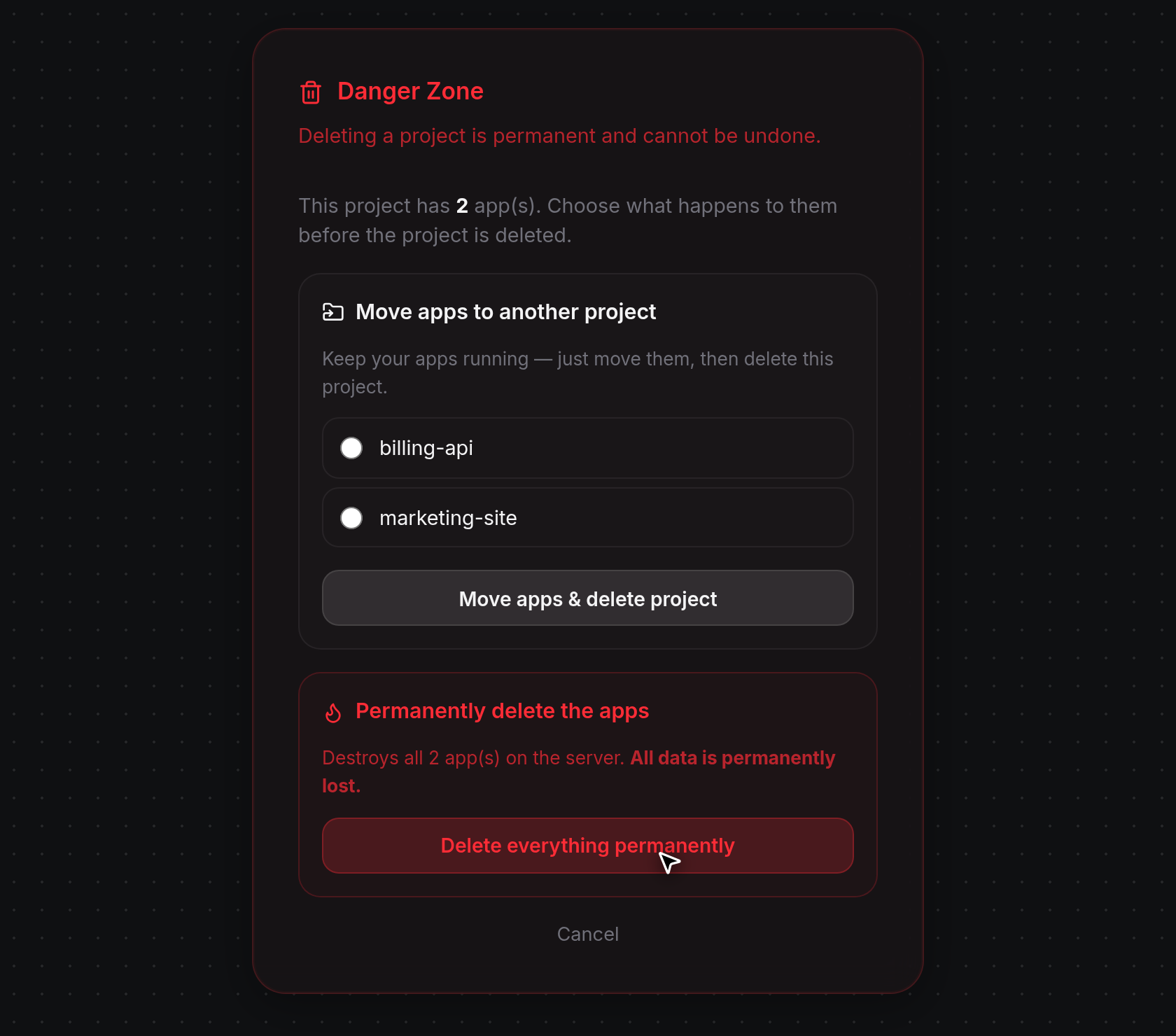
- While tearing down containers, the button reads
Deleting.... Once complete, ODAC removes all apps and the project, showsAll apps deleted and project removed, and opens the dashboard. If any running app's server is disconnected, ODAC cancels the deletion and showsServer is offline. Bring it online before permanently deleting these apps.above the button until that server is back online (queued apps that have not been deployed to a server yet do not require an online server).
When you only have one project
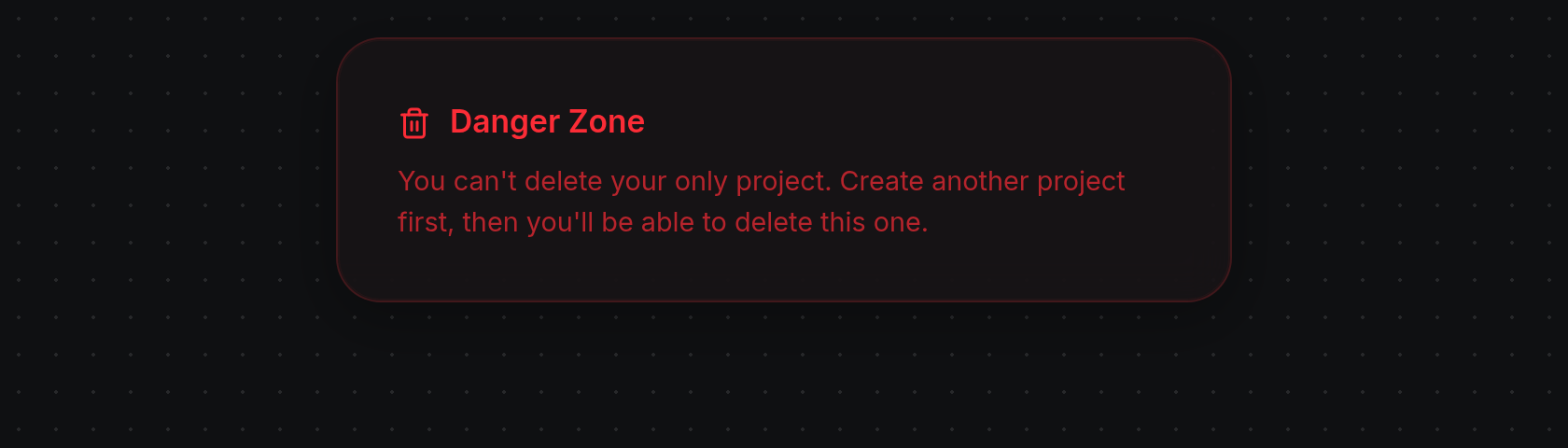
- Every account must keep at least one project. When you view Project Settings on your only remaining project, Danger Zone hides Delete Project and displays
You can't delete your only project. Create another project first, then you'll be able to delete this one.. Create another project from the top-left header menu first (see Projects and navigation), then return to Danger Zone to delete this project.