Change app versions and automatic updates
Switch a catalog app to a newer release, pull an updated build of a rolling tag, configure nightly automatic updates, or roll back a recent version change from the right-hand inspector at app.odac.run.
Open the Version panel
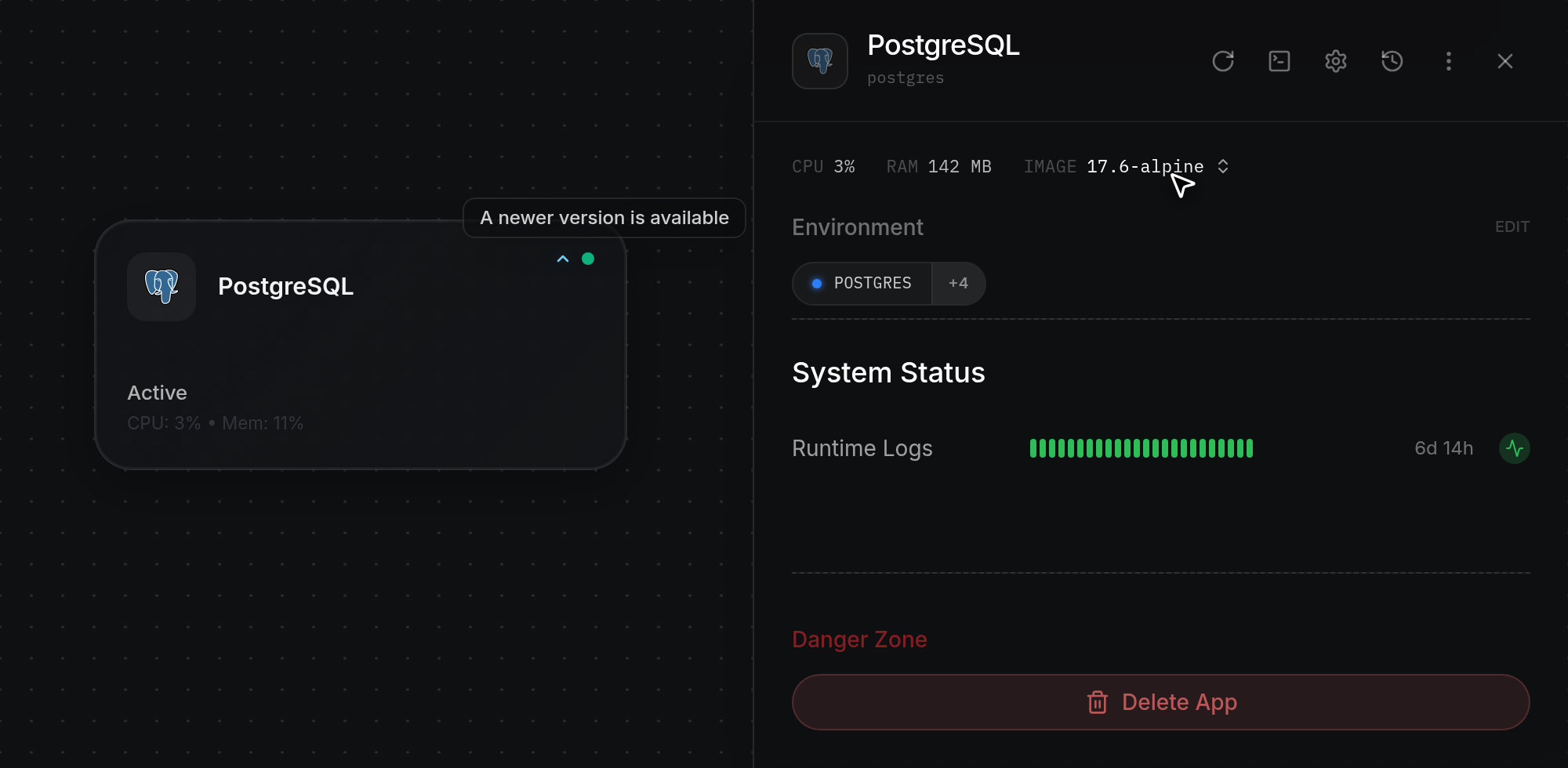
- On your Canvas, catalog apps with an available update display a blue up chevron to the left of the status dot (hovering over it shows
A newer version is available). Click the app card to open its inspector drawer, then click theIMAGEentry in the metric line (or click More actions and choose Change version).
- Read the top of the Version panel to see the current tag (alongside
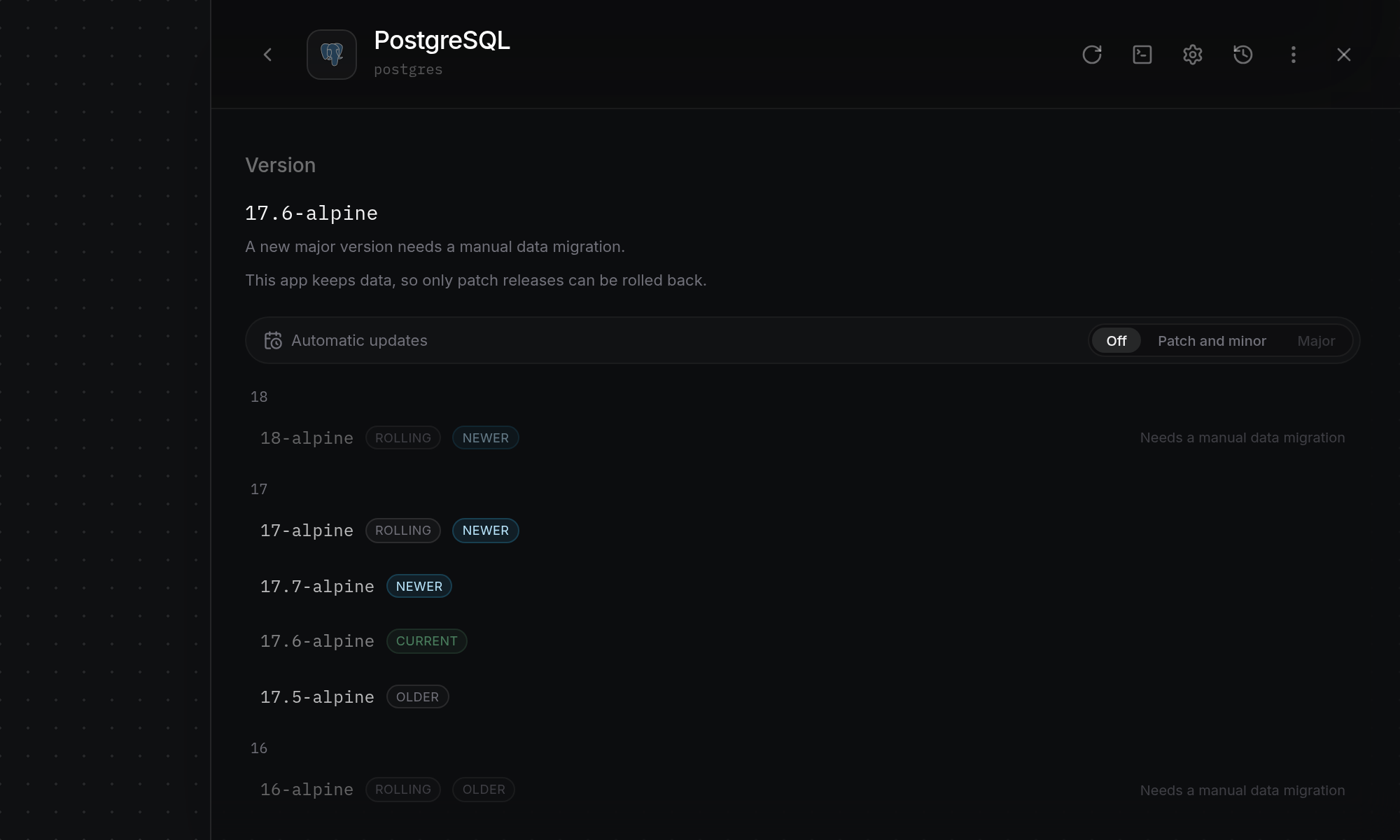
runsand the resolved release version when a rolling tag orlatestresolves to a more specific build), any data-safety notes (for example,This app keeps data, so only patch releases can be rolled back.), and an end-of-life warning if the running release no longer receives security fixes. If the app belongs to a multi-app template, an In the ... stack section lists each member app and its version with a reminder that versions in a stack change one app at a time.
Switch to another version or pull a rolling tag
- Browse available versions grouped by major release, newest first. Badges mark
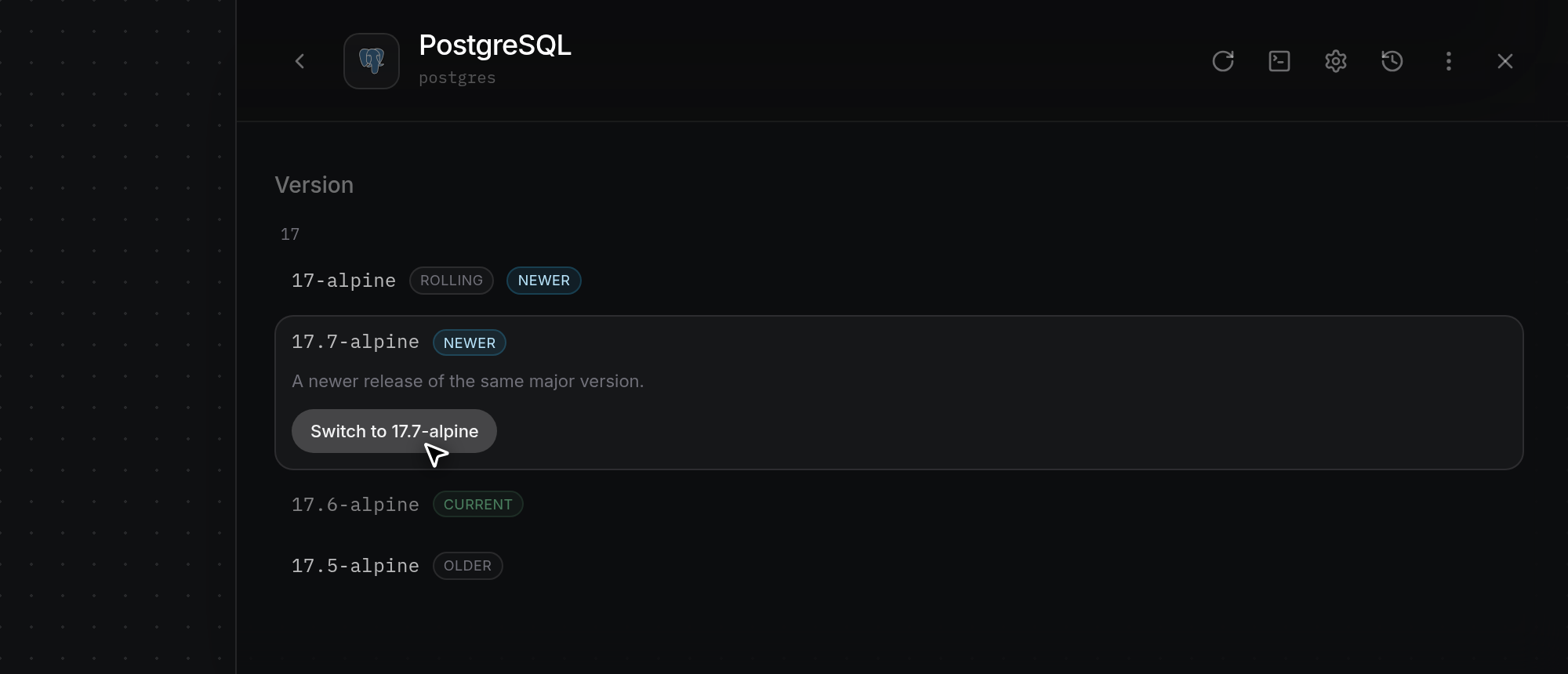
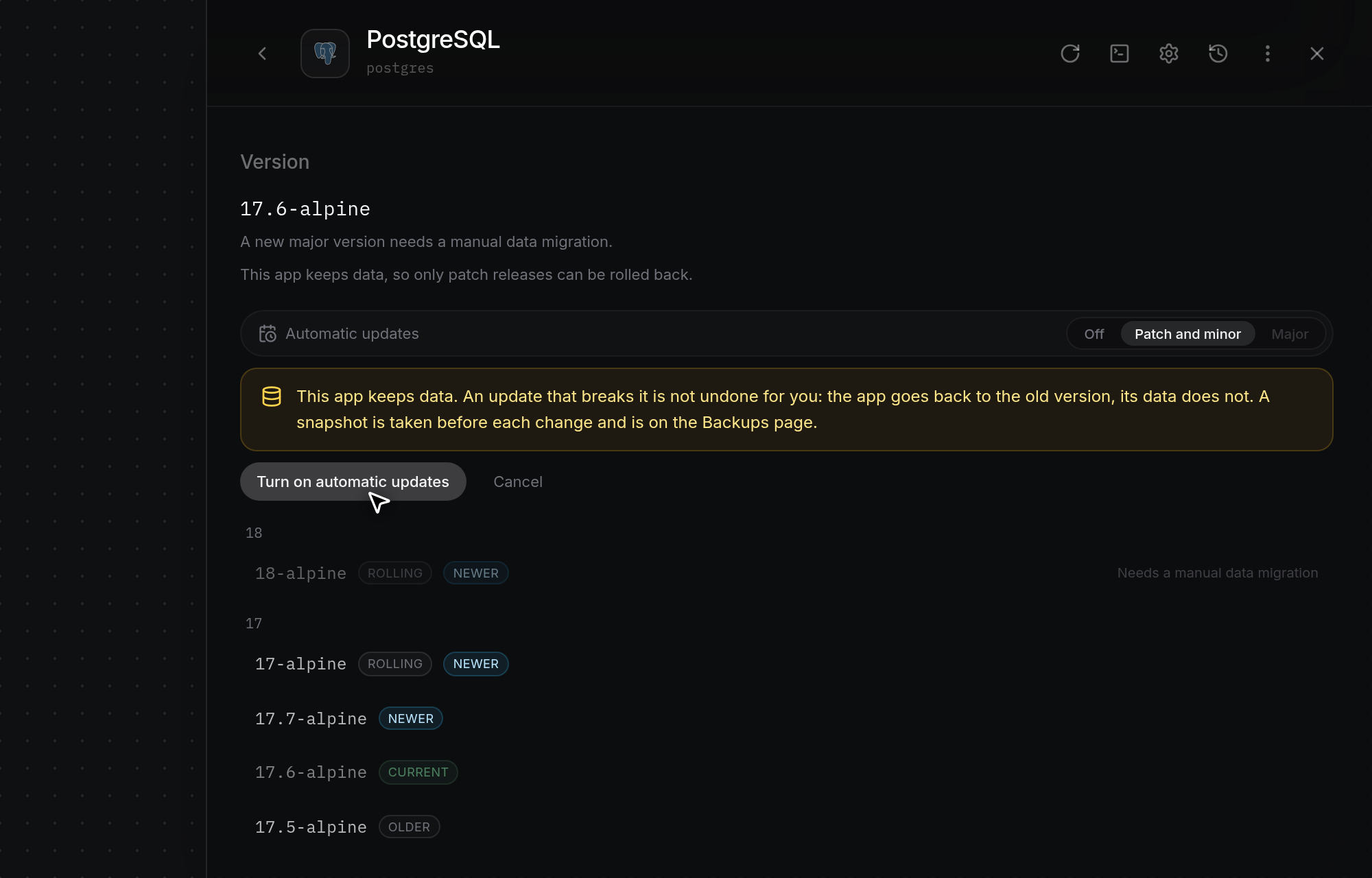
Current(running now),Rolling(tags that follow new releases on that line, such as17-alpine),Newer,Older,LTS(long-term support), andEOL(end of life). Blocked versions appear dimmed with the reason shown inline, such asNeeds a manual data migration,Going back could damage the data, orThis version stores its data in a different place. Click an available row (such as 17.7-alpine) to expand its confirmation note (and any end-of-life warning if choosing anEOLversion), then click Switch to 17.7-alpine (or Pull and restart on aCurrentrolling tag).
- ODAC displays Switching to 17.7-alpine… (or Server is offline. The switch to 17.7-alpine runs when it reconnects. when the server is offline), locks the inspector onto the active deployment until it settles, and updates the
IMAGEreadout when the container restarts. If the new version fails to start or fails its health check, ODAC automatically rolls the app back to the previous version.
Turn on automatic updates
At the top of the Version panel, use the Automatic updates control to choose how far updates may advance during the nightly window (
03:00to 05:00 UTC): Off, Patch, Minor (or Patch and minor when combined), or Major. Choices that cannot run automatically for the app appear dimmed with the reason on hover.For apps that keep data or levels above the app's default safe tier, clicking a level expands a warning notice explaining that ODAC takes a snapshot before each change (available on Backups; see Restore data from backups and snapshots) and that data is not automatically undone if an update breaks it. Click Turn on automatic updates to save, or Cancel to keep the previous setting. Below the control, a status line shows what the next nightly window will do (such as The next window (03:00 to 05:00 UTC) moves this app to 17.7-alpine. or
Up to date. Nothing to do in the next window.).
Review history and roll back a change
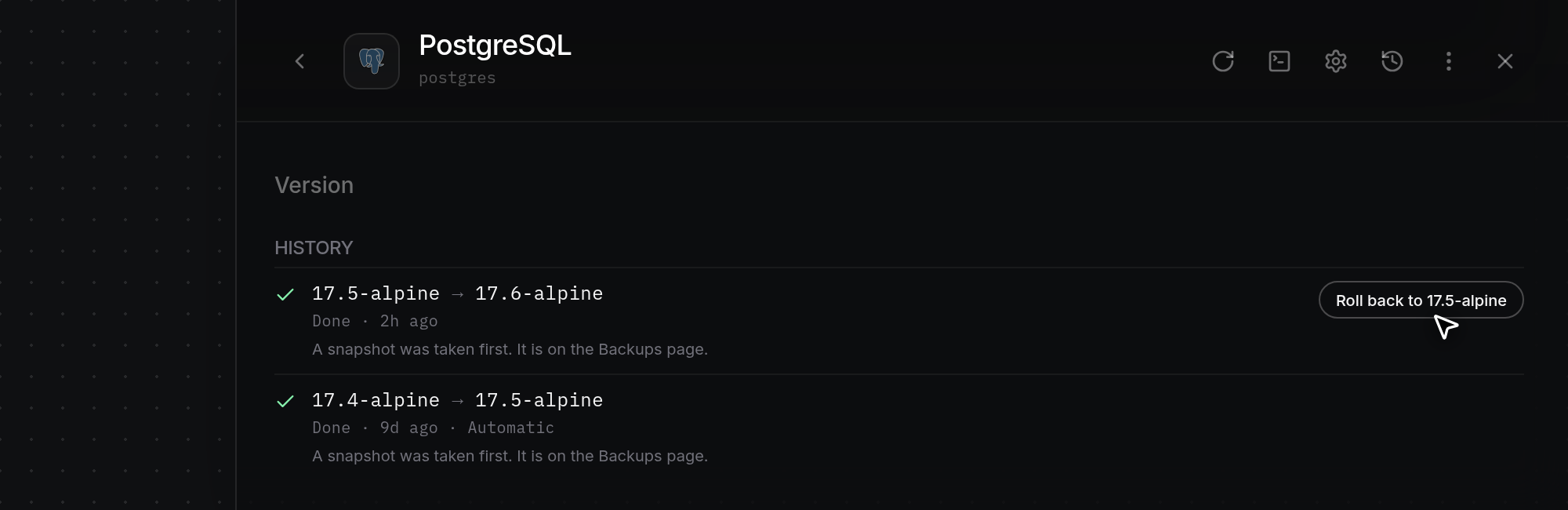
Scroll to History at the bottom of the Version panel to review past manual and automatic updates (from → to), their outcome (
Waiting for server,In progress,Done,Rolled back,Failed,Replaced by a newer change, orLeft for the next window), relative timestamps, anAutomaticlabel for nightly updates, andA snapshot was taken first. It is on the Backups page.when a pre-change snapshot was created.On the most recent successful change, click Roll back to ... to scroll to and expand that earlier version's confirmation row, then click Switch to ... to start the rollback. When a rollback is blocked by app policy or an active backup or restore, the rollback button appears dimmed with the reason on hover.