Create and run backup jobs
Set up scheduled backups for your project's apps and run backups on demand from Backups at app.odac.run. You can inspect existing jobs, trigger an immediate backup, create a new job targeting local or off-server storage, and edit or delete jobs created for the project.
Open and read Backup jobs
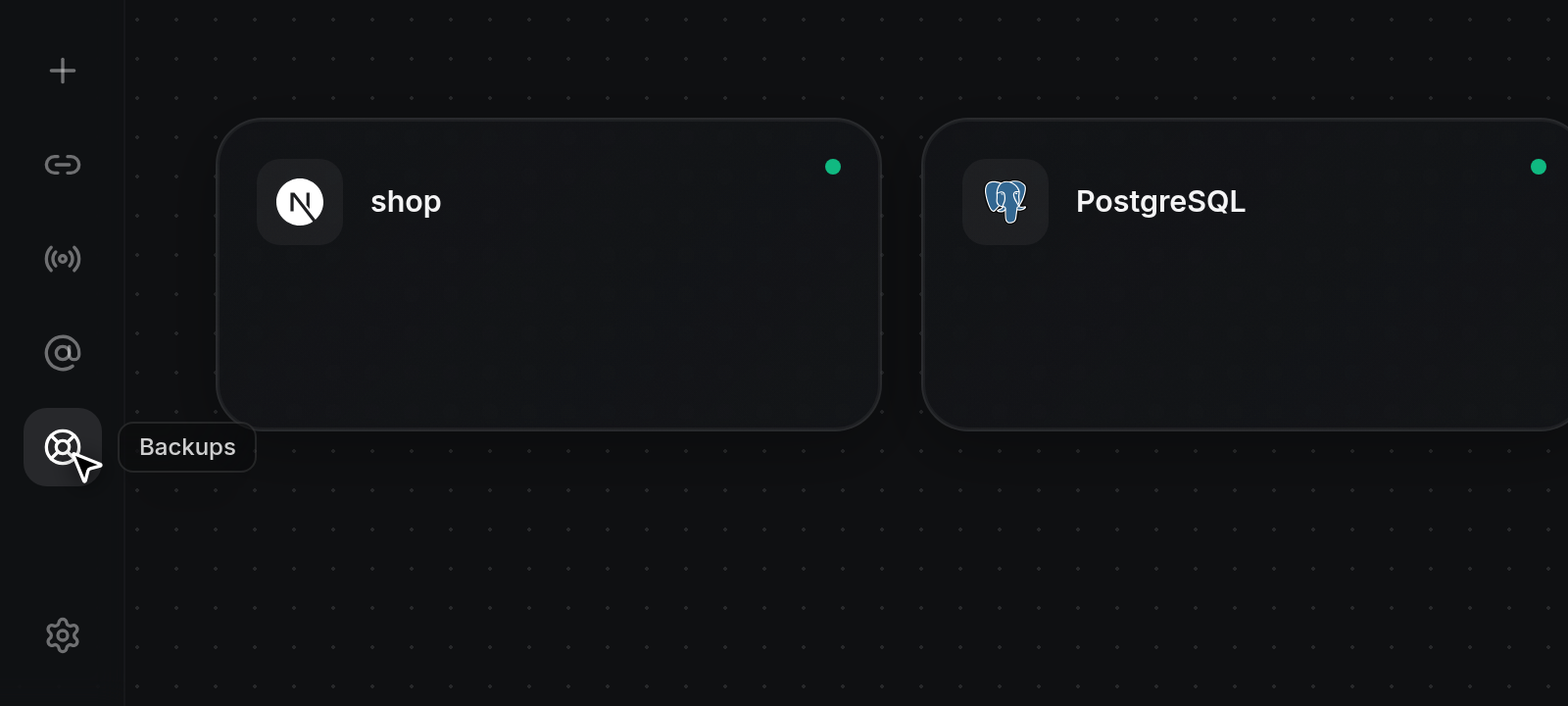
- Click the lifebuoy (Backups) icon in the left sidebar rail on any project page. Hovering over the icon displays the
Backupslabel.
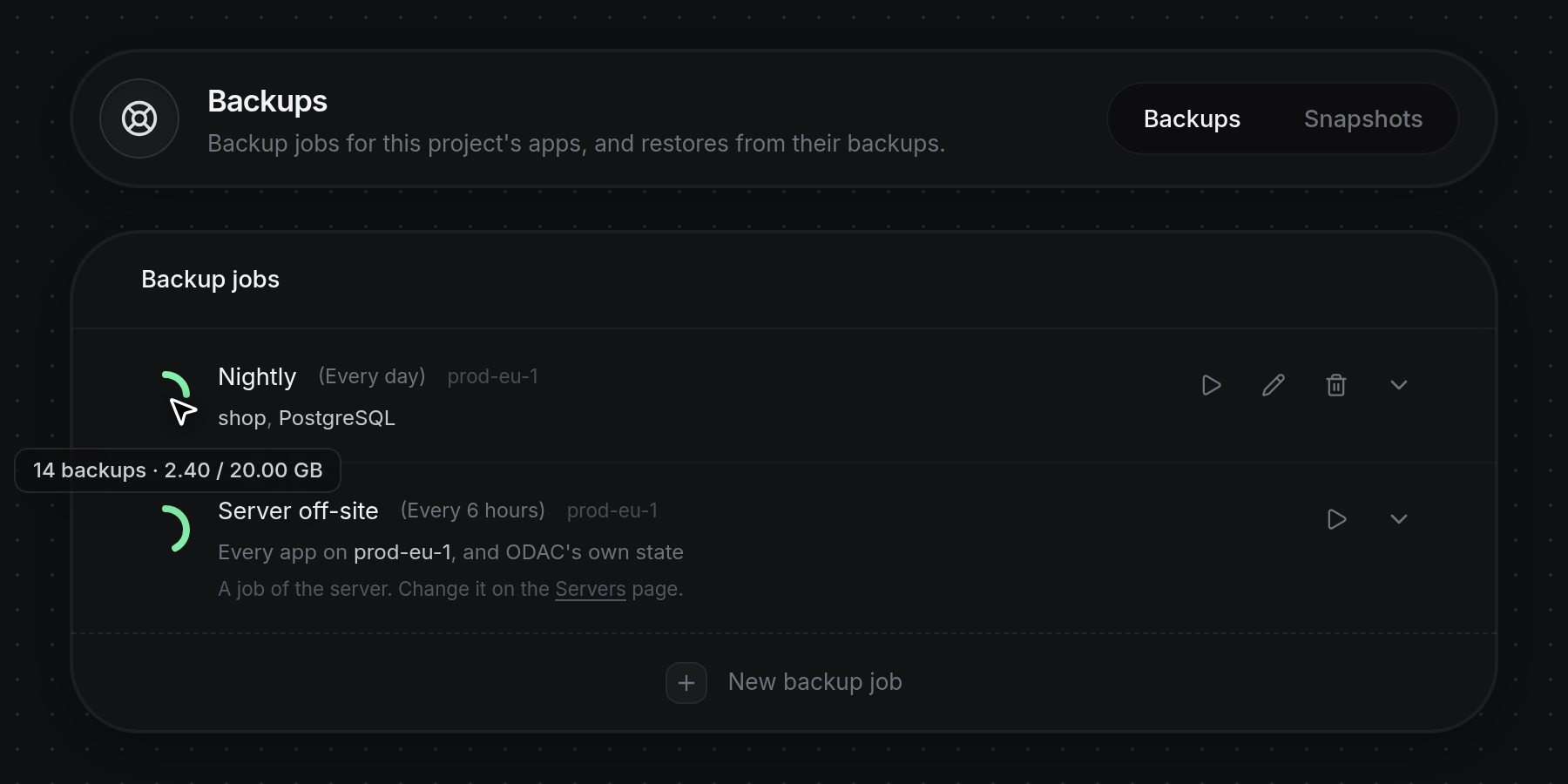
- Backups opens on the Backups tab, listing every job under Backup jobs that covers apps in this project (or
No backup job takes this project's apps yet.when none exist yet). Each row displays a circular capacity ring (green when healthy, red on failure, spinning blue while a backup is running, or a gray dot for retired jobs whose backups are still kept), the job name, its schedule (such as (Every day)), the server name when the project spans multiple servers, and the covered apps below. Jobs configured for the whole server show A job of the server. Change it on the Servers page. and are read-only here. Hover over a job's ring to view its backup count and space usage (for example, 14 backups · 2.40 / 20.00 GB).
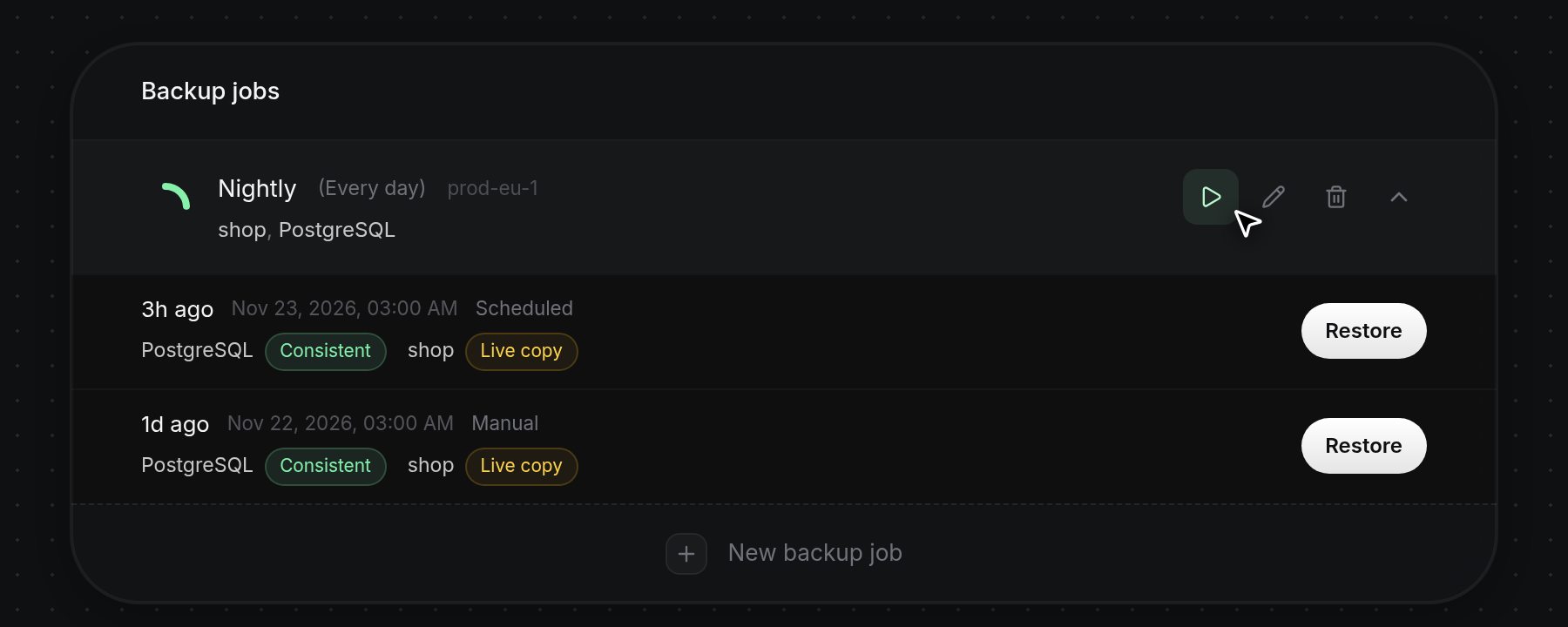
- Click any job row to expand its recorded backups, newest first (up to 10 at a time, with Show 10 more at the bottom when more exist). Each entry shows when it was taken, the trigger (
Scheduled,Manual, orAfter a deploy), each backed-up app with its consistency badge (Consistent,Crash-consistent, orLive copy), and a Restore button (see Restore data from backups and snapshots). Click Back up now (the play button) on the right side of a job row to start a backup immediately.
Create a new backup job
Click the dashed New backup job row at the bottom of the Backup jobs card. The job list folds away, the card title switches to New backup job, and the job form opens inline.
Enter a Name (such as
Nightly), choose a Server if your project uses more than one, pick How often (Every hour,Every 6 hours,Every 12 hours,Every day, orEvery week), and open Apps to select which apps in the project to include. Under Target, select a storage type (Folder, SMB, NFS, S3, or WebDAV) and either pick an existing target or choose New target and fill in the connection fields (for S3, you can also check Connect without TLS, and for any new target you can optionally expand Use a key of my own to supply an existing encryption key). Choose How many old backups to keep (Fewer,Balanced, orMore) and an optional Size limit (GB), then click Create job.
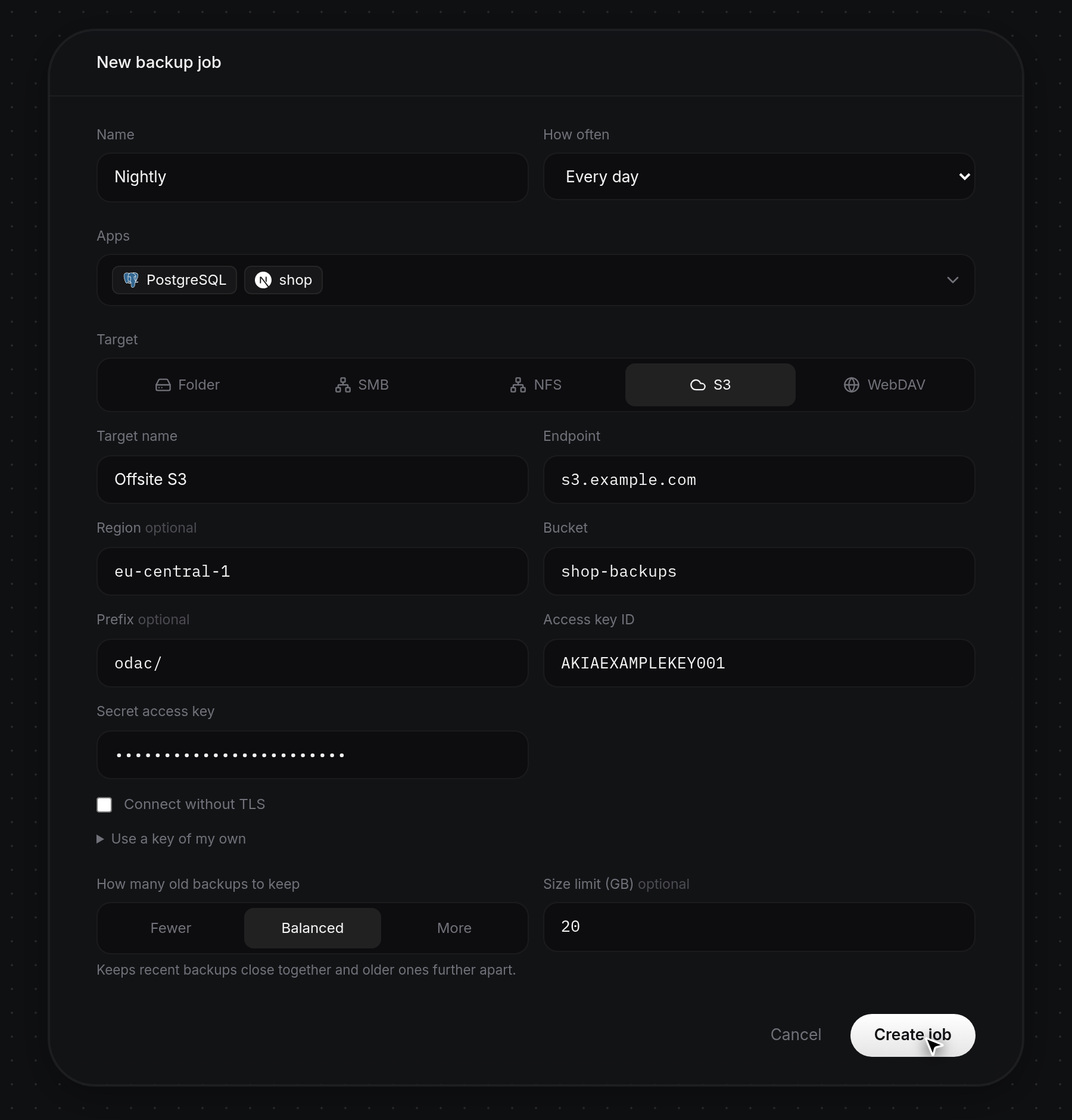
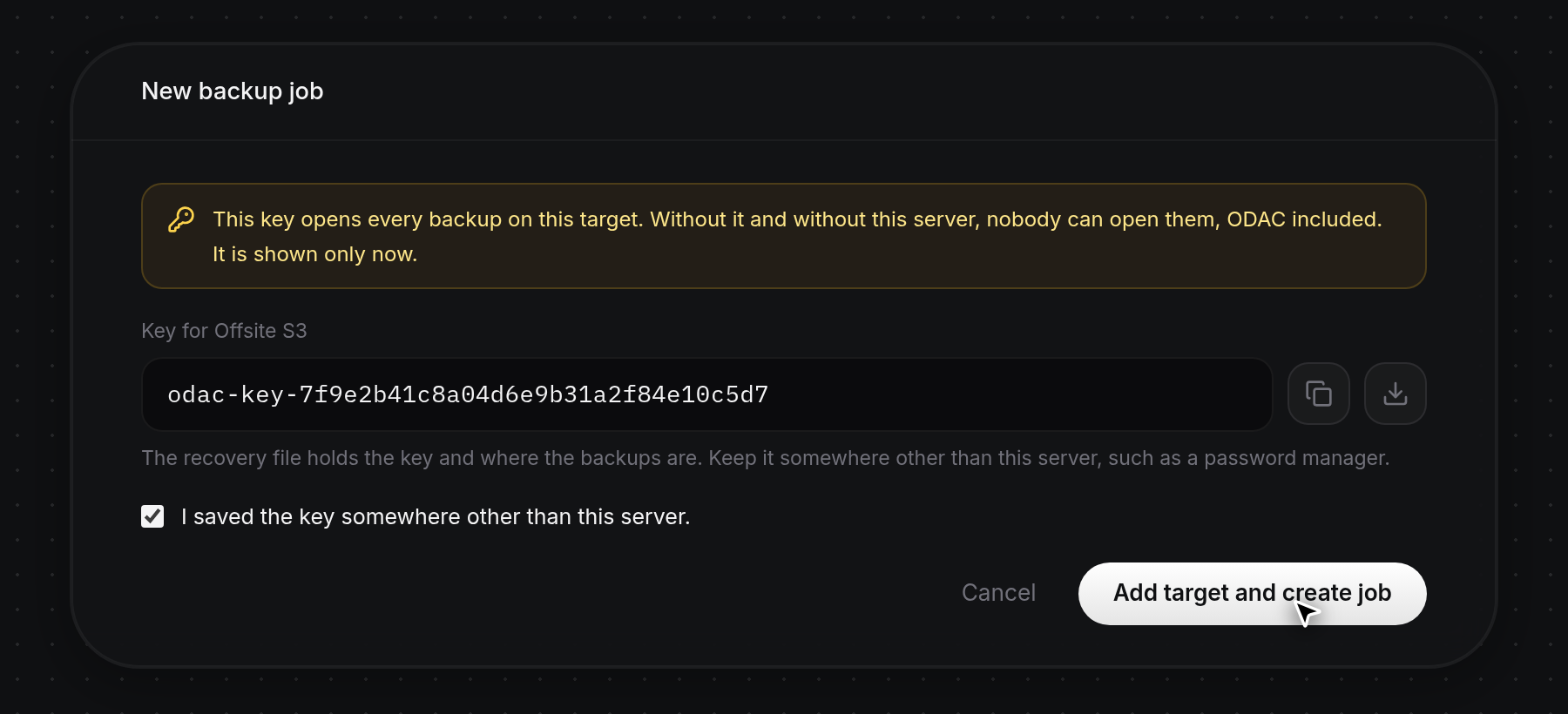
- If you chose New target, ODAC checks the connection and displays the one-time encryption Key for the target (
This key opens every backup on this target. Without it and without this server, nobody can open them, ODAC included. It is shown only now.). Click Copy to copy the key or Download the recovery file to save it outside the server, check I saved the key somewhere other than this server., and click Add target and create job.
Edit or delete a backup job
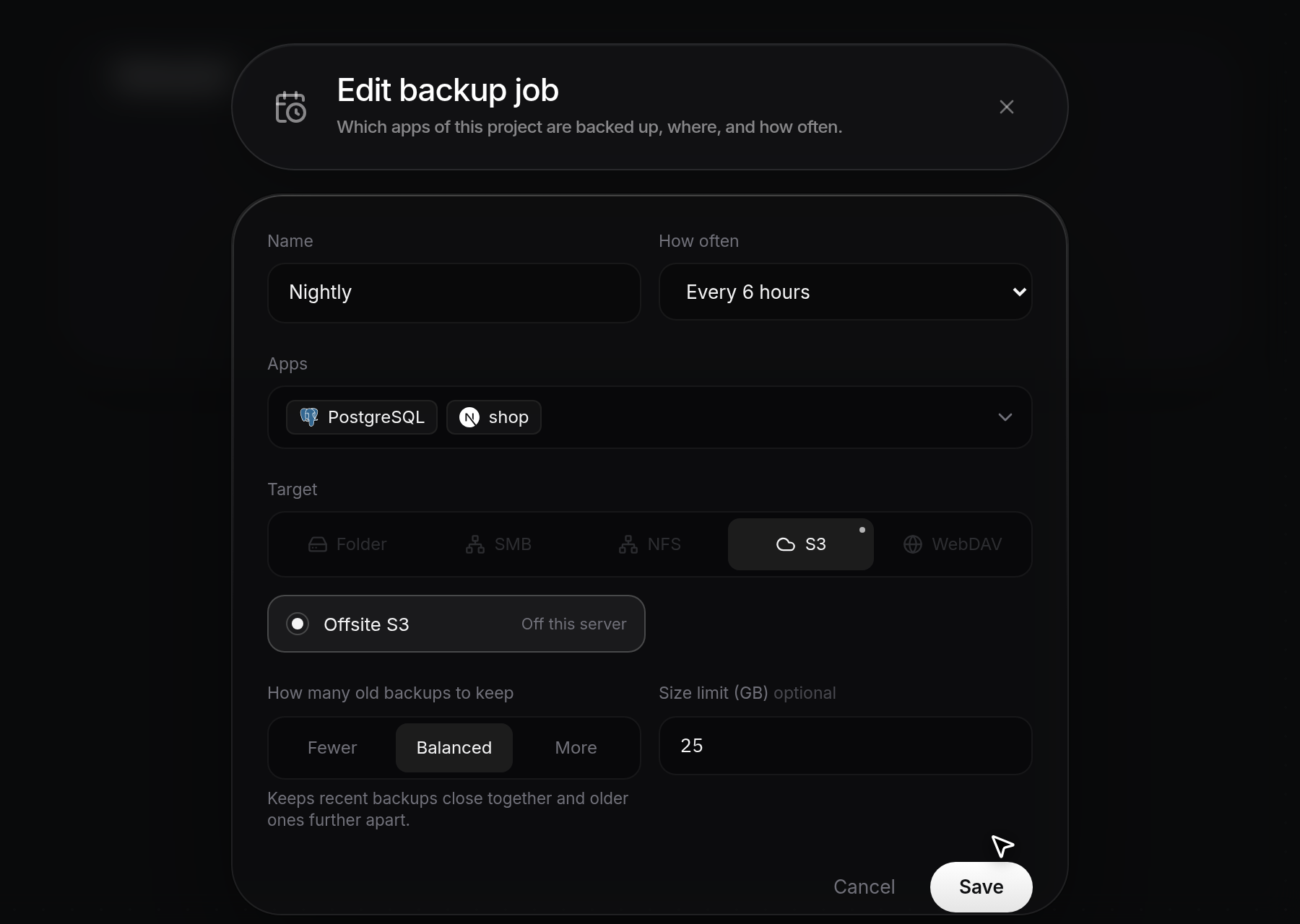
- For any job created in the project, click Edit (the pencil icon) on the right side of the job row to open the Edit backup job dialog. Update Name, How often, Apps, Target, How many old backups to keep, or Size limit (GB), then click Save.
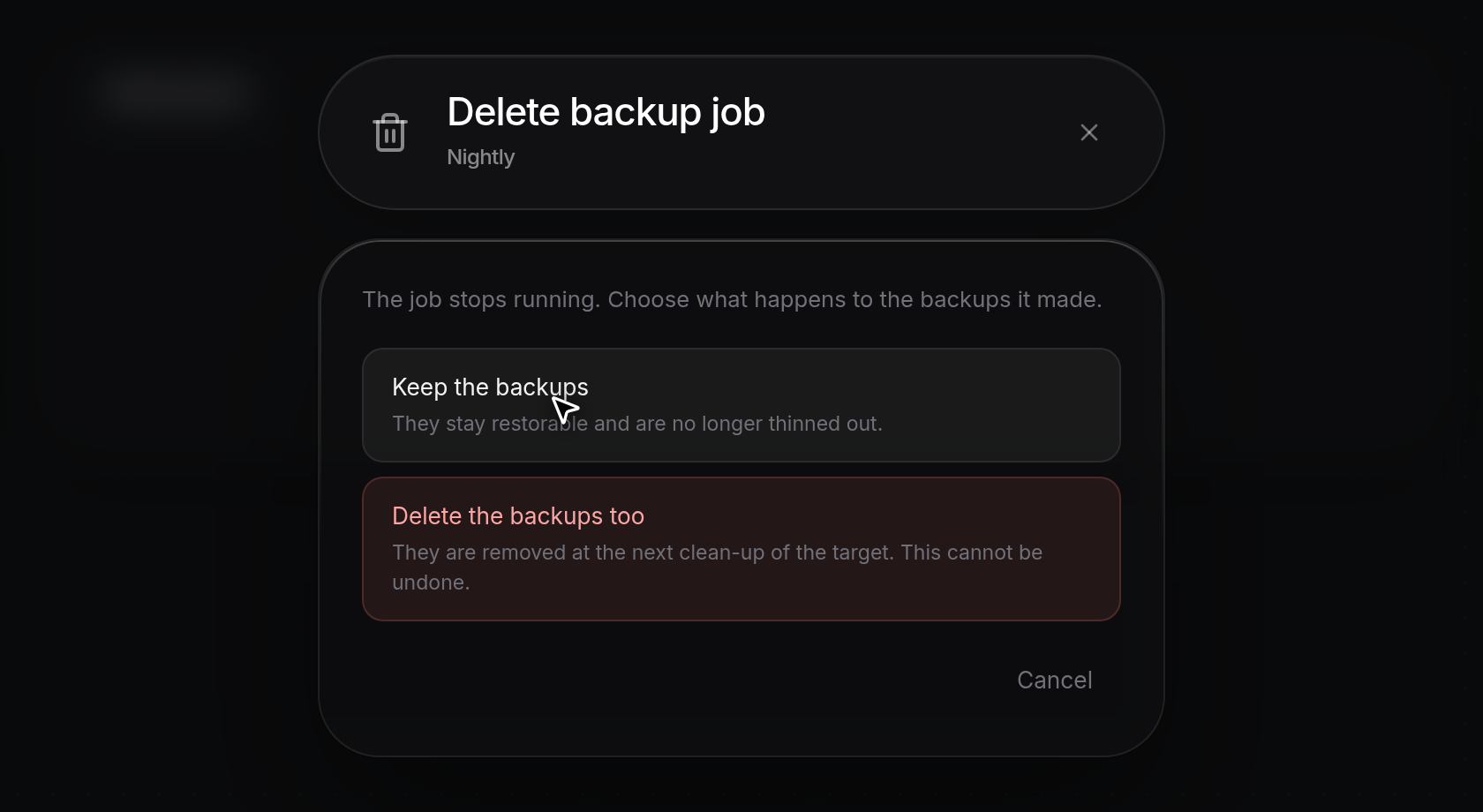
- To remove a project backup job, click Delete (the trash icon) on the right side of the job row to open Delete backup job. Click Keep the backups to stop the schedule while keeping existing backups restorable, or click Delete the backups too once and then Click again to delete the backups to mark the backups for removal at the next target clean-up.