Manage Git runtimes and rollbacks
Check which language runtime a Git-deployed app uses, pin a specific runtime version or keep it automatic, and roll back to a kept build without rebuilding from the right-hand inspector at app.odac.run.
Open Runtime and deploys
- Click a Git app card on your Canvas to open its inspector drawer, then click the language runtime entry in the metric line (such as NODE 20.18.1 or GO 1.24.2) or click More actions and choose Runtime and deploys.
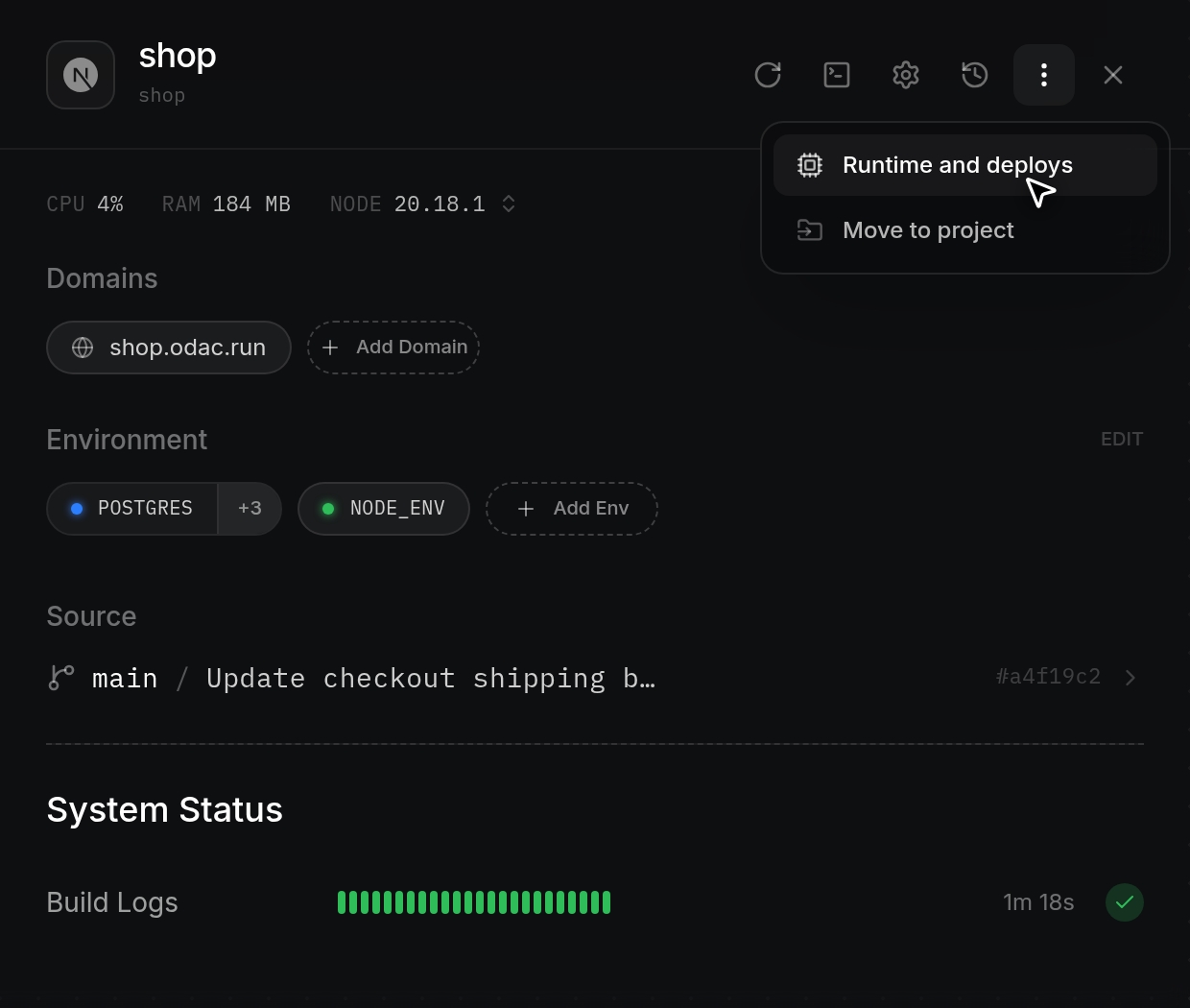
- Read the top of the Version panel to see the active language and version alongside the runtime image and where the version came from (
Set here,Set by the Dockerfile,Default (LTS),Default, or a repository file such as From .nvmrc).
Pin or reset the runtime version
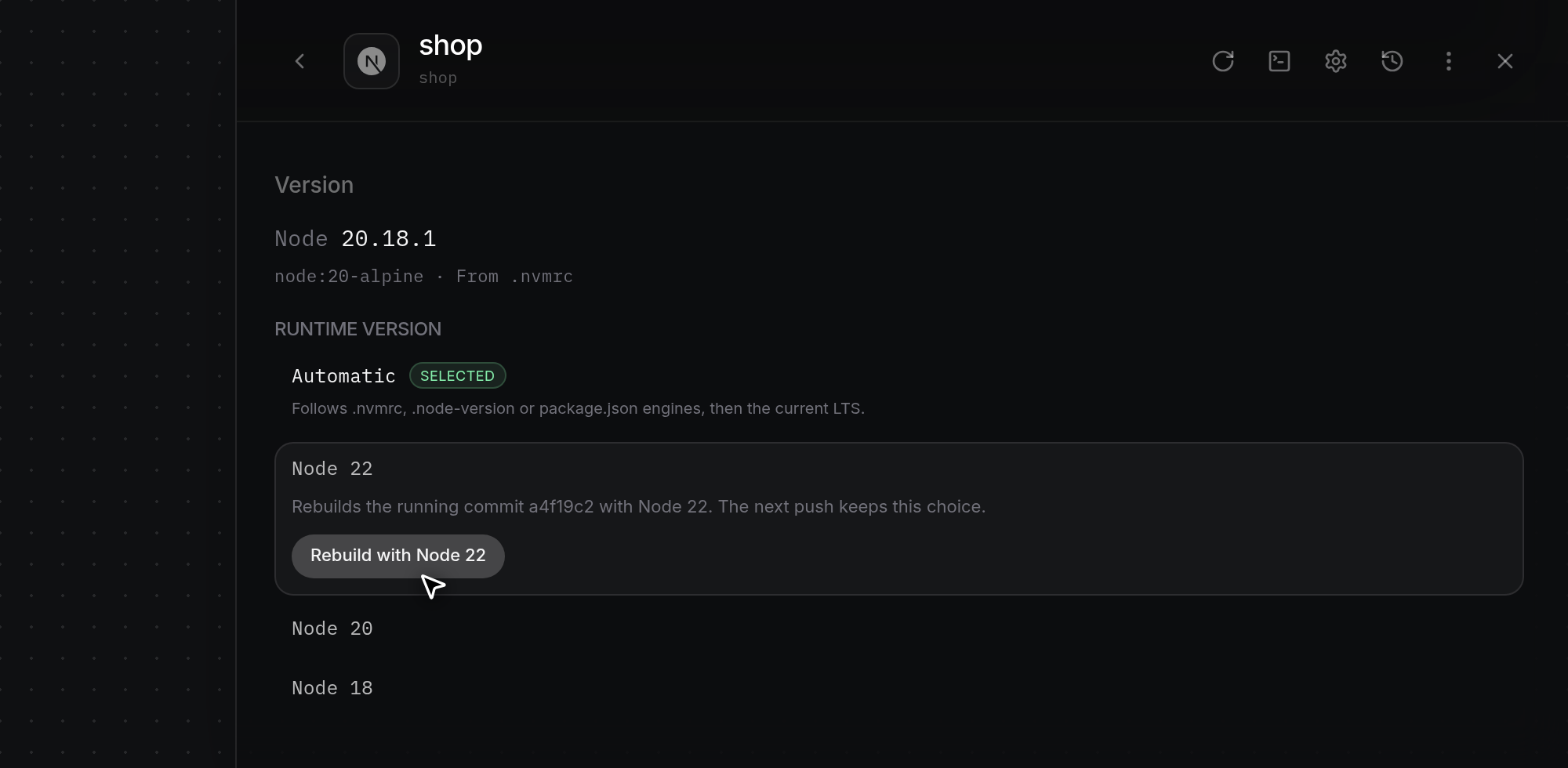
Under Runtime version, Automatic is selected by default so builds follow files in your repository (such as
.nvmrc,.node-version, orpackage.jsonfor Node, or.python-version,pyproject.toml, orruntime.txtfor Python) and fall back to the default release. Apps built with aDockerfile,Bun, or staticNginxsite display a note explaining why there is no language version picker here (forDockerfileapps, change theFROMline in your repository).Click Automatic or any listed version (such as Node 22) to expand its confirmation note (
Rebuilds the running commit ... The next push keeps this choice.), then click Rebuild with Node 22 (or Rebuild on automatic). ODAC rebuilds the running commit on that runtime and keeps your choice for future pushes.
Roll back to a kept build or rebuild a commit
Scroll to Deploys to review recent deployments, each showing the commit message, short commit hash, runtime version, status (
Waiting for server,In progress,Switching,Deployed,Rolled back,Failed, orReplaced by a newer deploy), relative timestamp, and badges (Running,Rollback,Runtime: ...,Picked commit,Push,Created,Server, orManual).For recent builds whose images are still kept on the server, click Instant rollback to expand the confirmation message explaining that ODAC switches back without rebuilding and that the next push deploys the branch head again, then click Roll back to ....
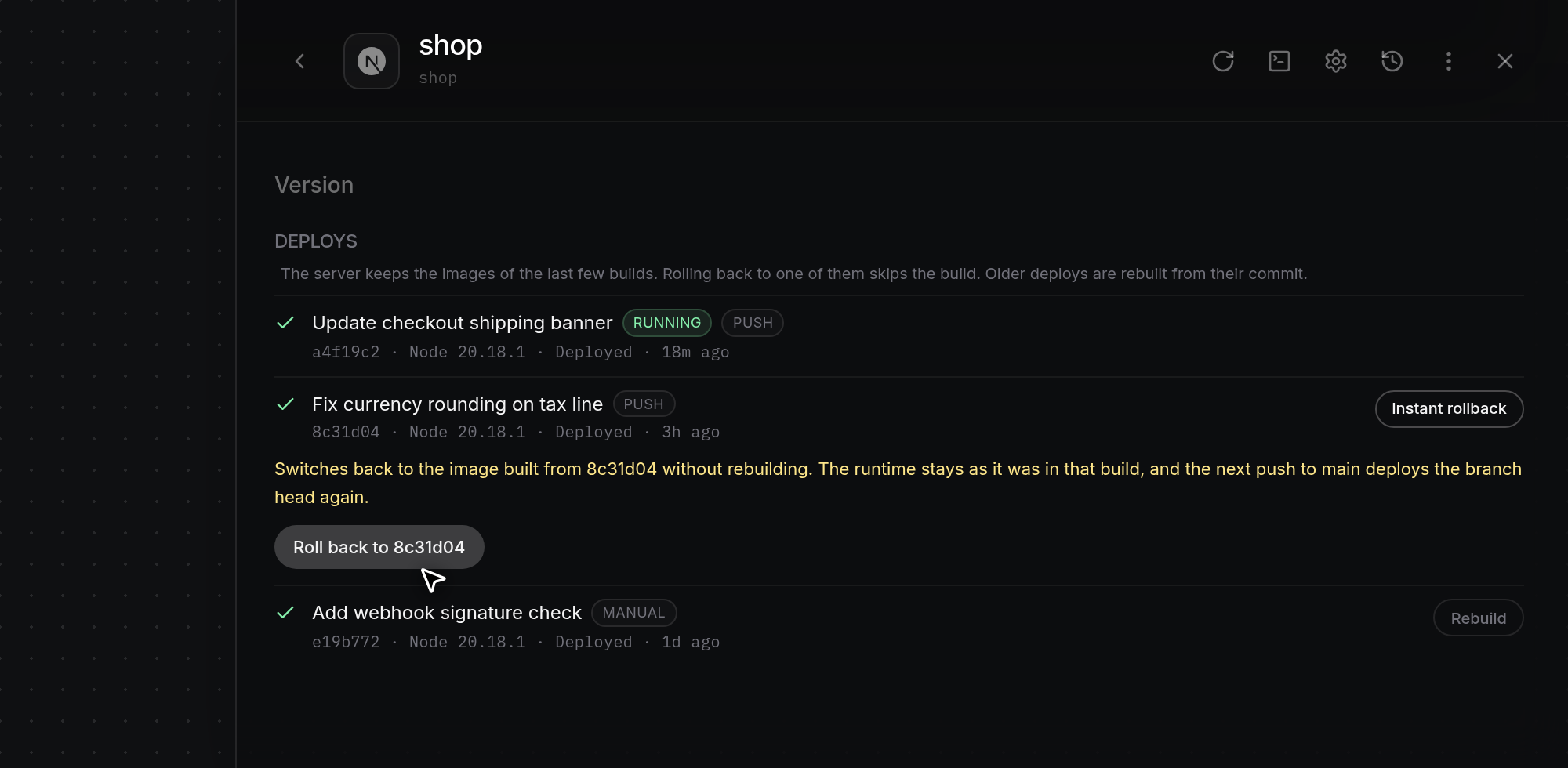
- For older builds whose images are no longer kept on the server, click Rebuild (or Deploy this commit) and confirm with Deploy ... to rebuild and deploy that commit. You can also deploy any commit on your tracked branch from the Commits timeline in Source: see View Git branches and commits.