Delete and restore your account
Request permanent deletion of your ODAC account from Danger Zone on Profile at app.odac.run, confirm deletion through an emailed link within an hour, handle expired or invalid link screens, and restore your account during the 30-day grace period if you change your mind.
Request account deletion
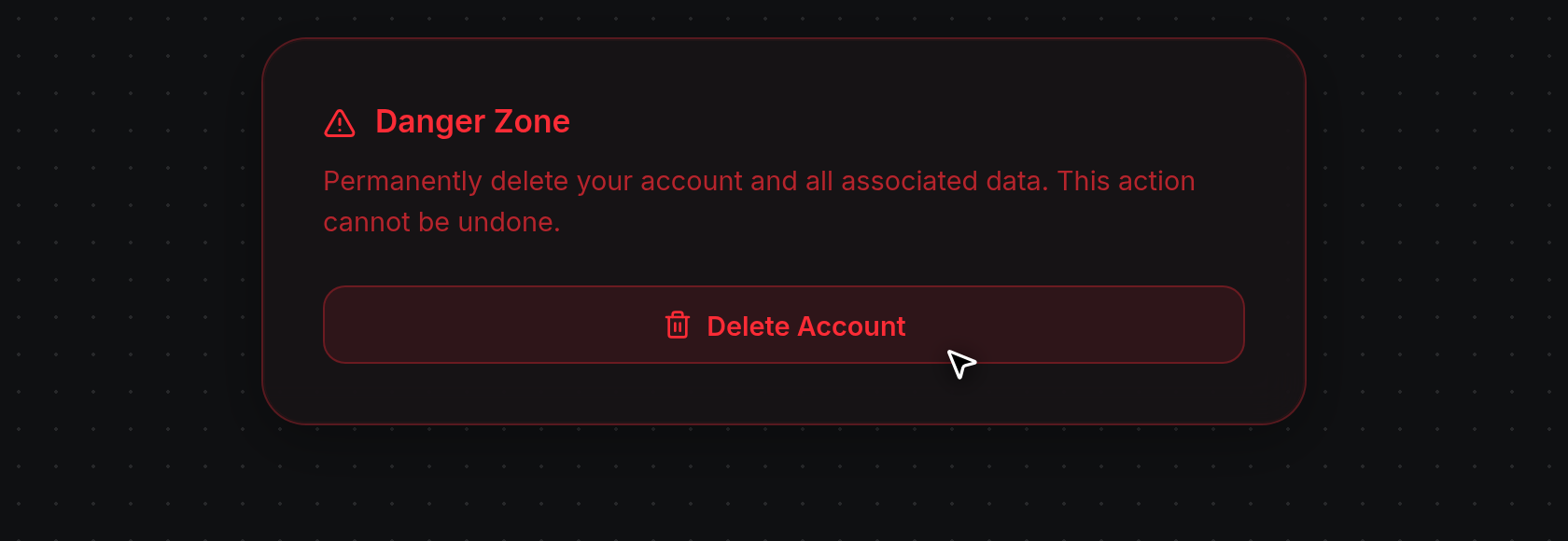
- Open Profile from the top-right header avatar menu (see Edit your profile photo, name, and language). On the Account tab, scroll to the Danger Zone card (
Permanently delete your account and all associated data. This action cannot be undone.) and click Delete Account.
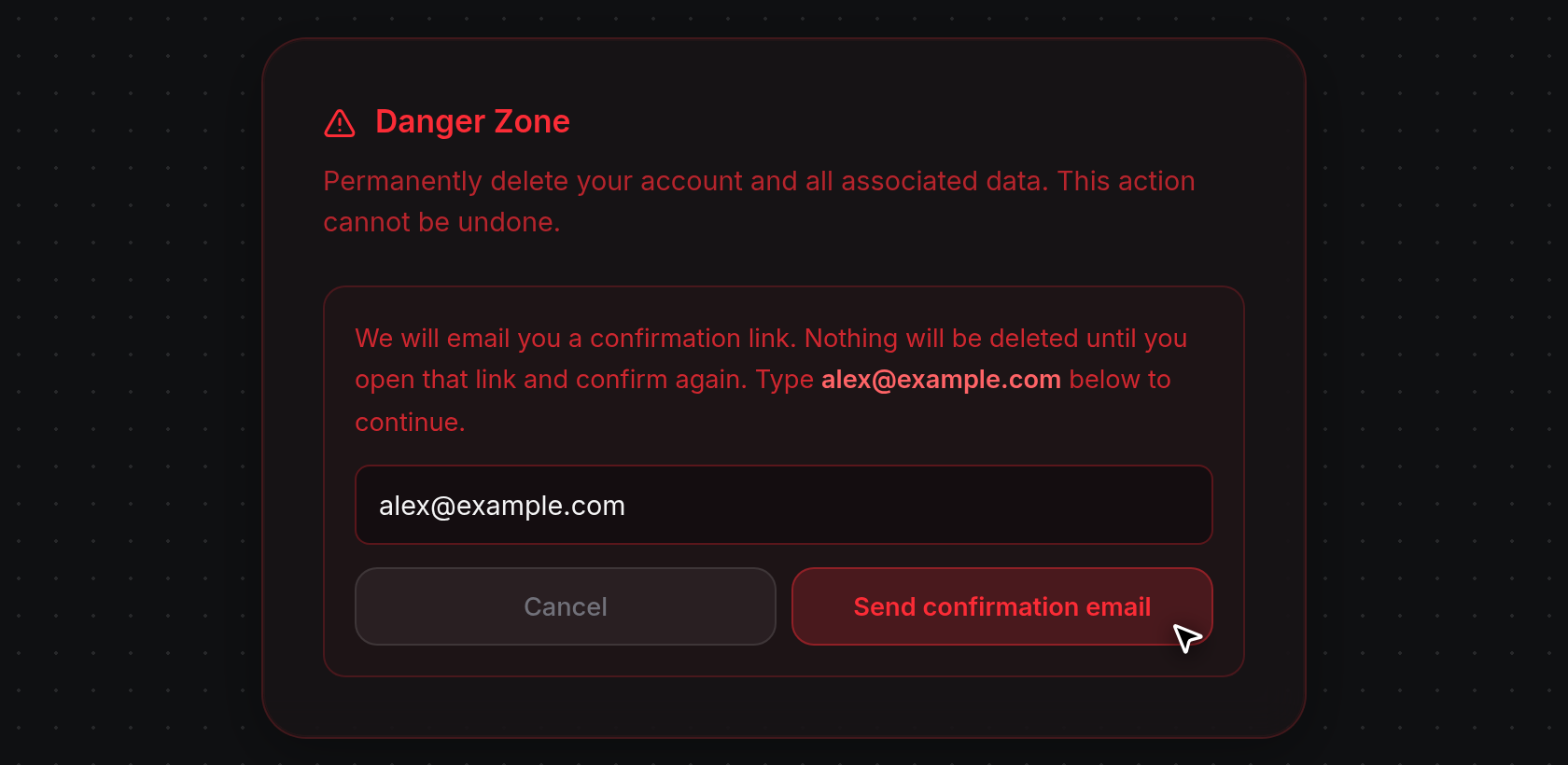
- Delete Account collapses and an inline confirmation form opens inside Danger Zone, displaying your account email address (We will email you a confirmation link. Nothing will be deleted until you open that link and confirm again. Type alex@example.com below to continue.). Type your account email into the field (placeholder
Type your email to confirm) and click Send confirmation email, or click Cancel to clear the field and return to Delete Account.
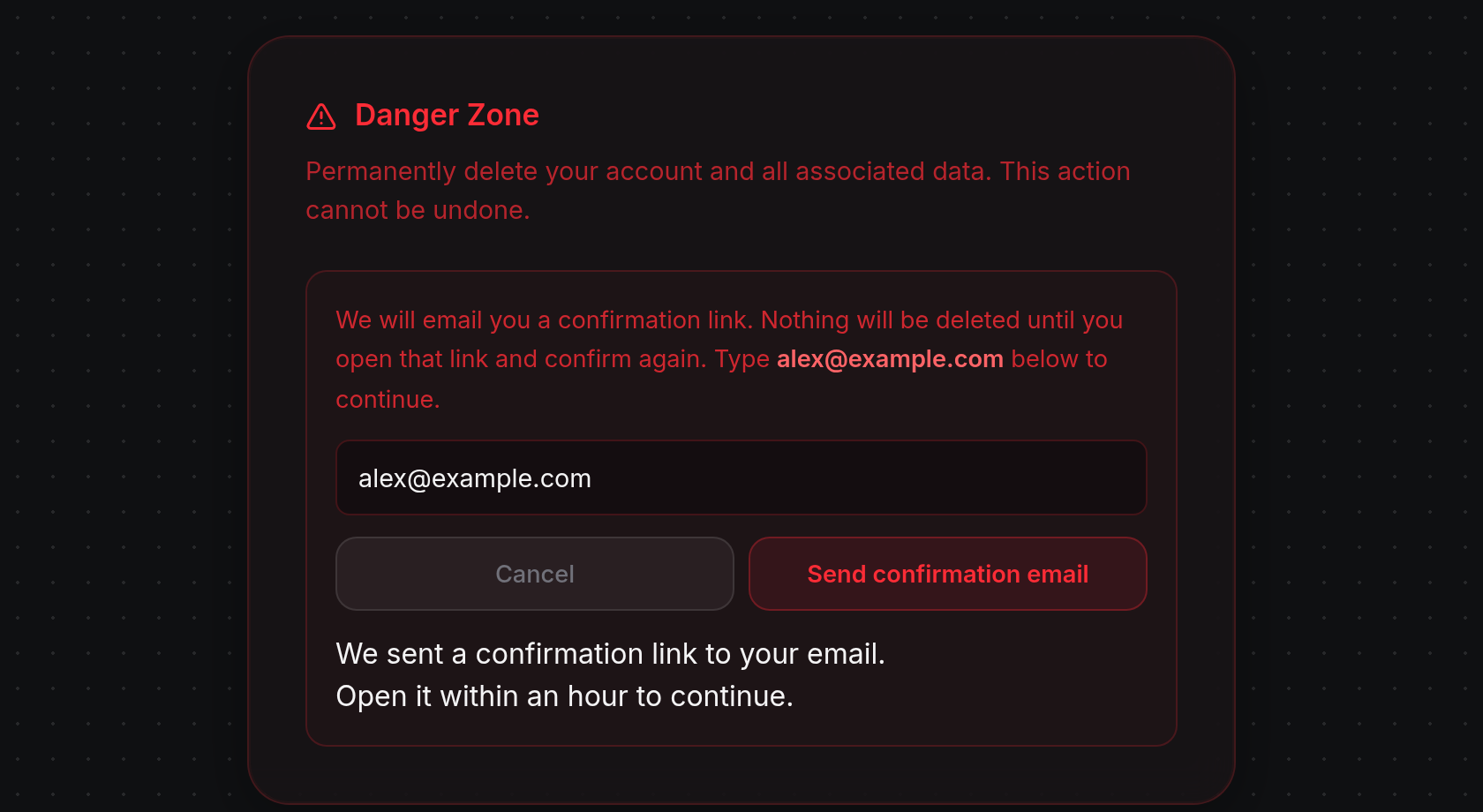
- While sending, the button reads
Sending.... Once sent, ODAC displays We sent a confirmation link to your email. Open it within an hour to continue. below the buttons and emails a confirmation link (Continue to deletion) valid for 1 hour. If the field is empty, does not match your account email, or you requested a link within the last minute, a red error message (Please type your email to confirm.,Email does not match your account., orA confirmation email was just sent. Please wait a minute before requesting again.) appears below the input. Requesting a new link invalidates any earlier unused link.
Confirm permanent deletion
- Open the Confirm your account deletion email in your inbox and click Continue to deletion within 1 hour. If you are signed out on that browser, ODAC opens the sign-in screen at app.odac.run first so you can sign in with a magic link before continuing (see Sign in, waitlist, and referral codes). Once signed in as the matching account, Delete your account? opens with a summary card listing Account, Requested (how many minutes ago the request was made and from which IP address), and Link expires (minutes remaining).
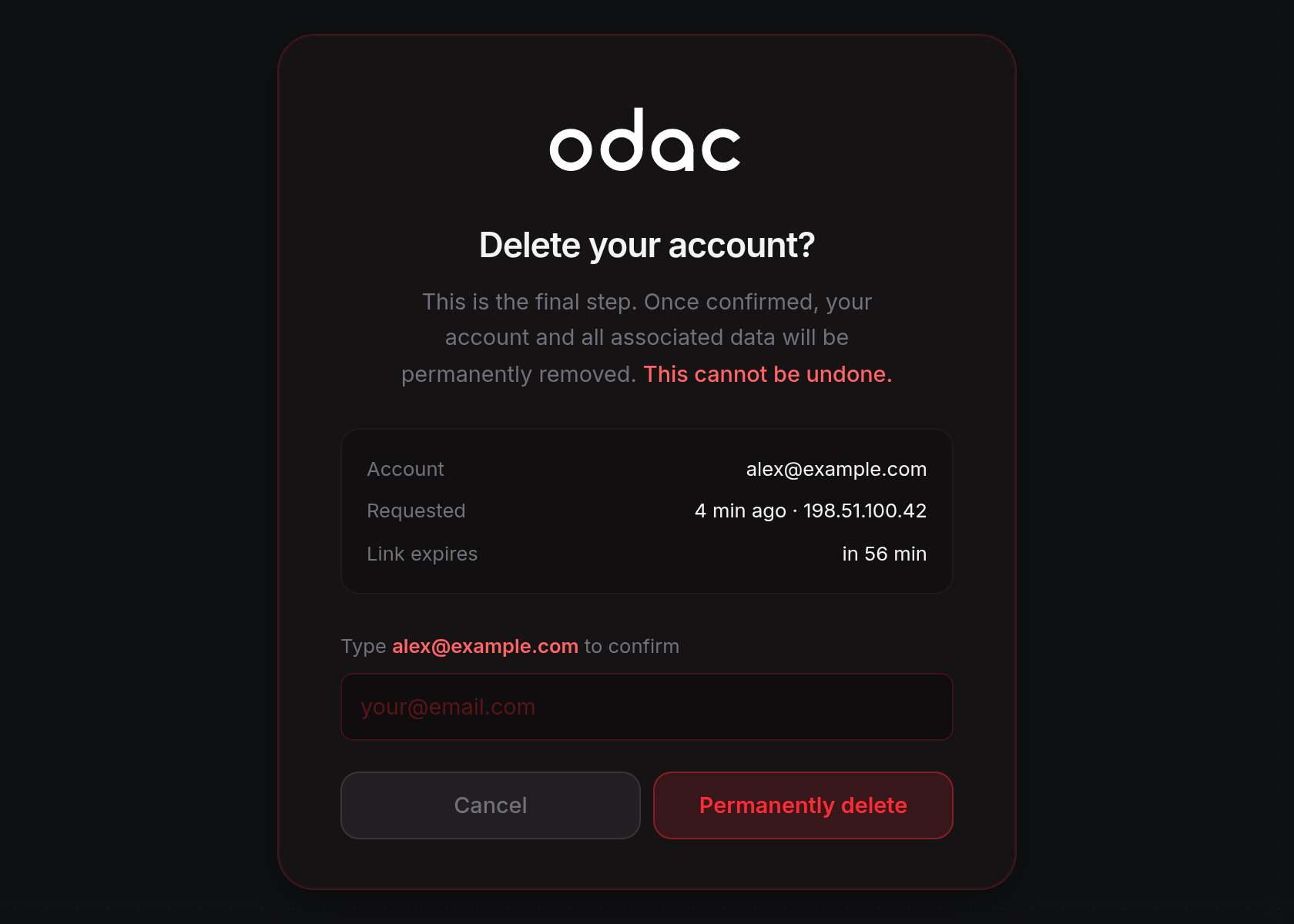
- Type your account email address into the confirmation field (placeholder
your@email.com) and click Permanently delete, or click Cancel to return to Profile without deleting your account. While confirming, the button readsDeleting.... If the field is empty or wrong, or your session or link expired while the screen was open, a red banner appears above the prompt (Please type your email to confirm.,Email does not match your account.,Your session has expired. Please log in again and reopen the confirmation link., orThis confirmation link has expired or already been used. Please request a new one from your profile.).
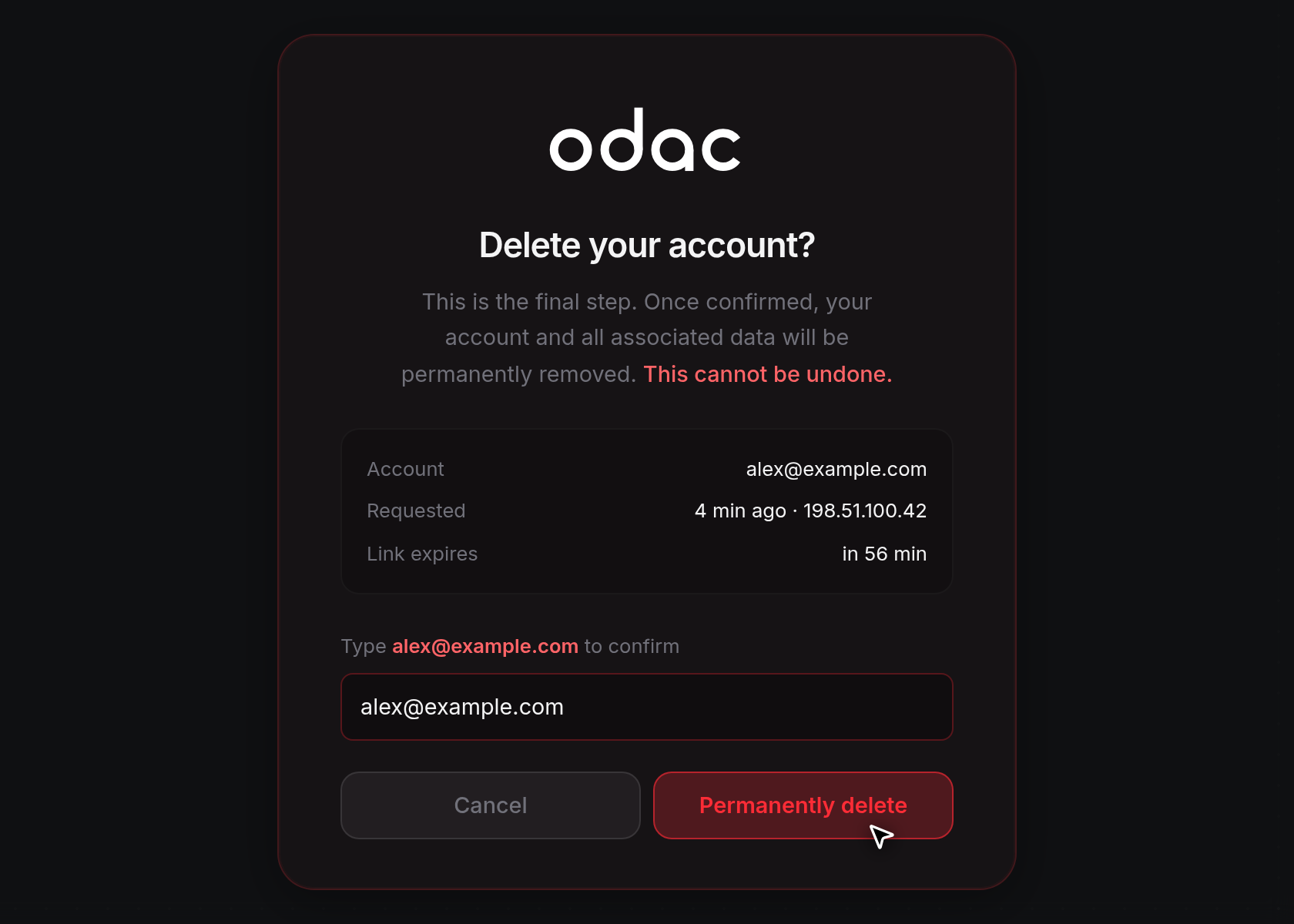
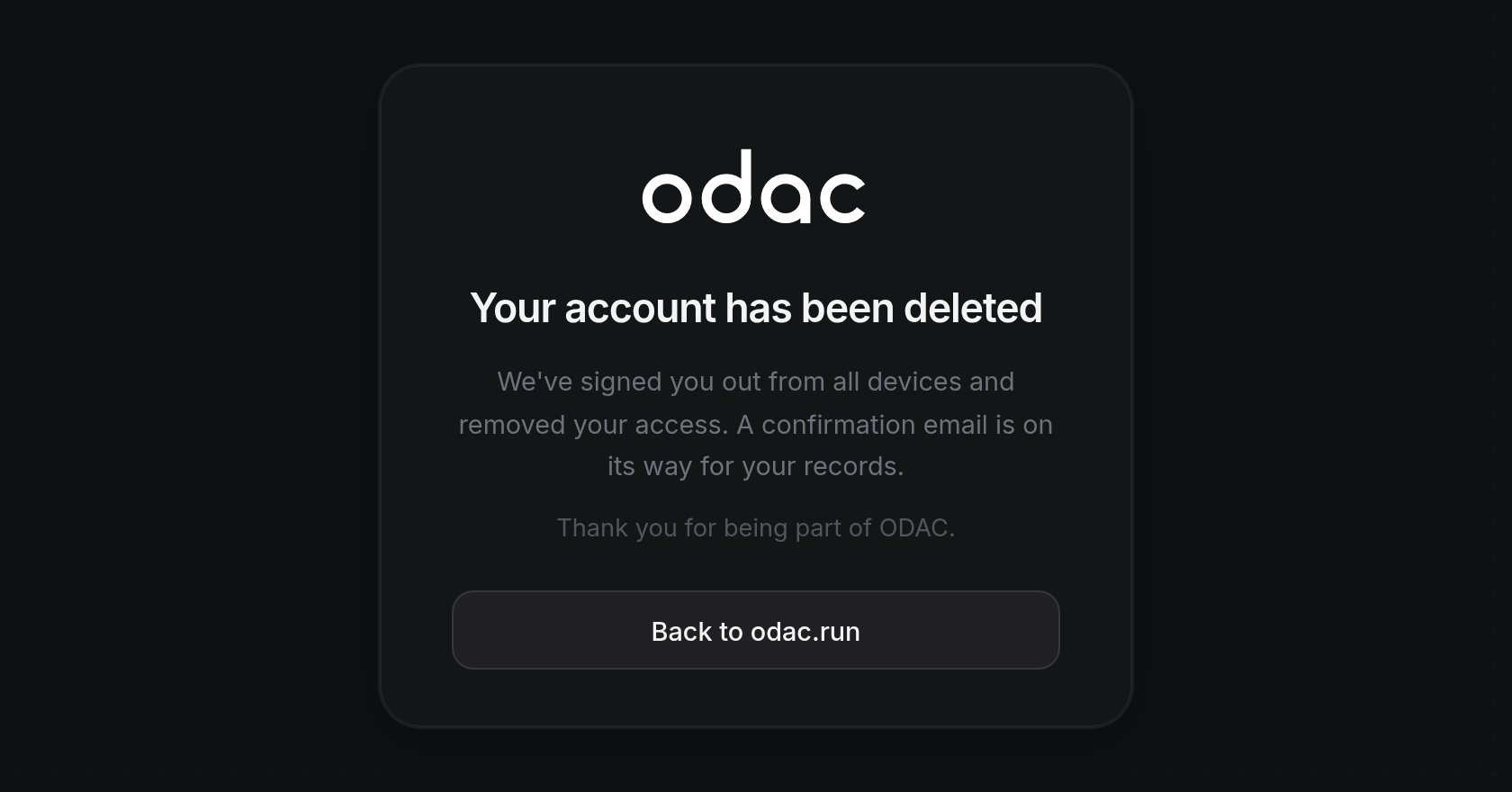
- ODAC signs you out from all devices, schedules your account for permanent deletion after a 30-day grace period, sends a
Your account is being deletedconfirmation email for your records, and opens Your account has been deleted. Click Back to odac.run to leave the dashboard.
Handle expired or invalid links
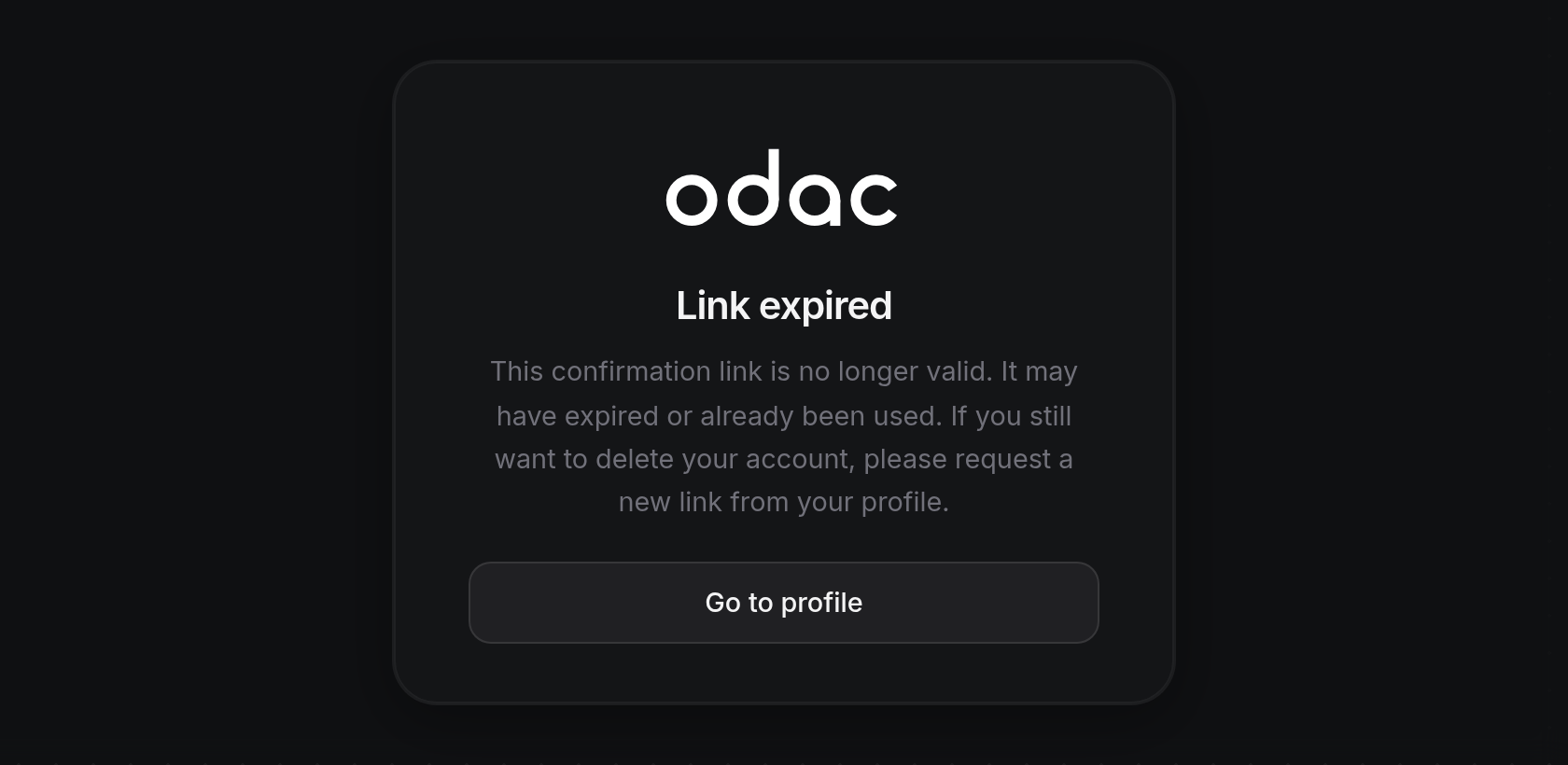
- If the emailed link cannot be used, ODAC opens an error card with a Go to profile button instead of Delete your account?:
- Link expired: Appears when more than 1 hour has passed, the link was already used, or a newer deletion request replaced it (
This confirmation link is no longer valid. It may have expired or already been used. If you still want to delete your account, please request a new link from your profile.). Click Go to profile to request a new link from Danger Zone. - Invalid link: Appears when the link is malformed or unrecognized (
This link is malformed or unrecognized. Please use the most recent confirmation email we sent you, or request a new one from your profile.). Open your most recent confirmation email or click Go to profile to request another. - Wrong account: Appears when you are signed in to a different ODAC account than the one that requested deletion (
This deletion link was issued for a different account. Sign out and sign back in as the correct account, then click the link from your email again.). Sign out, sign in with the account you want to delete, and open the email link again.
- Link expired: Appears when more than 1 hour has passed, the link was already used, or a newer deletion request replaced it (
Restore your account during the 30-day grace period
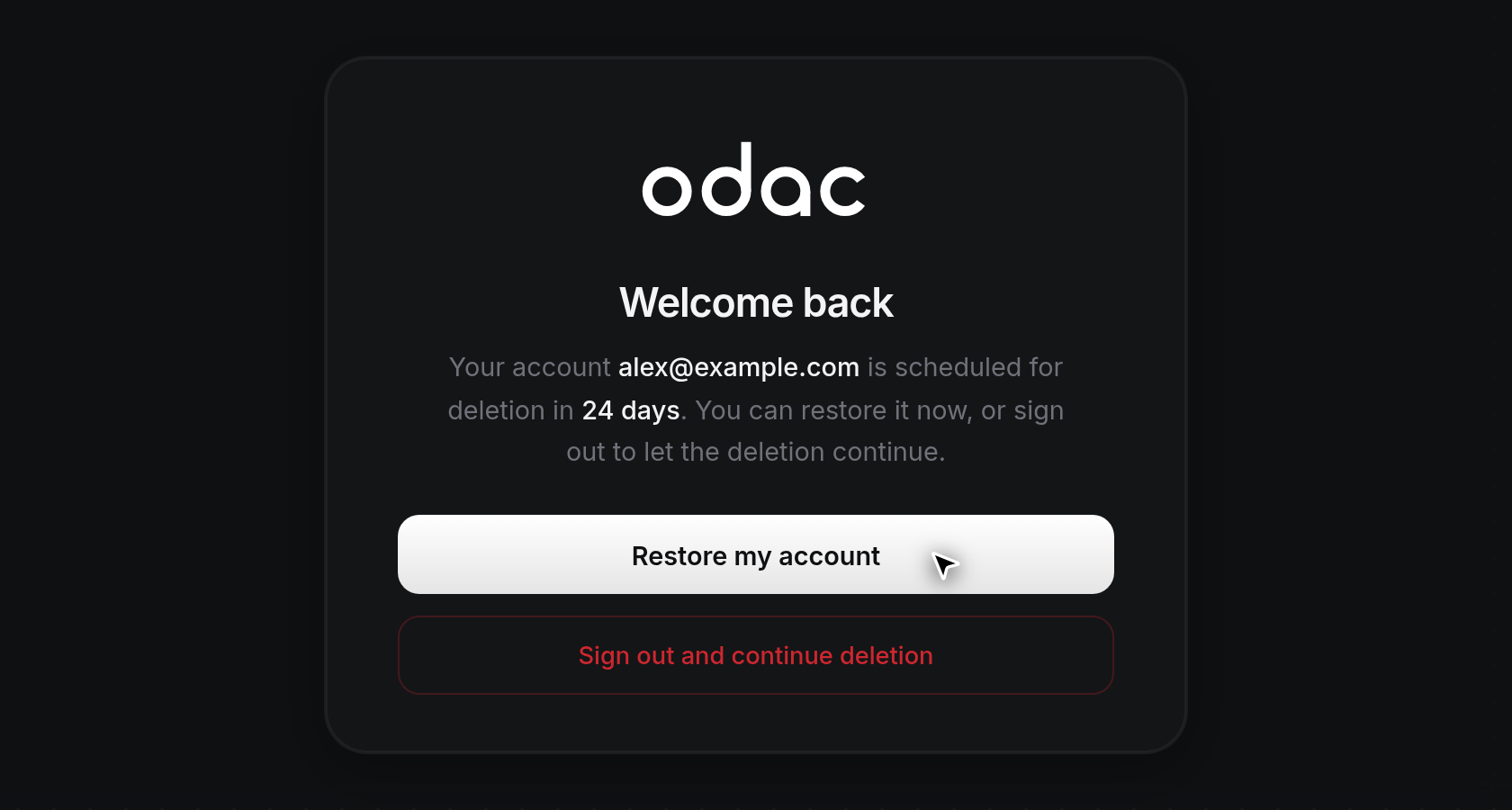
- For 30 days after you confirm deletion, your projects, servers, apps, domains, and account data remain recoverable. To cancel deletion before the grace period ends, sign back in at app.odac.run with that account's email address and open the magic sign-in link from your inbox (see Sign in, waitlist, and referral codes). Instead of opening your dashboard, ODAC opens Welcome back, showing your email address and the days remaining until permanent removal (Your account alex@example.com is scheduled for deletion in 24 days. You can restore it now, or sign out to let the deletion continue.). Click Restore my account (while restoring, the button reads
Restoring...) to cancel the scheduled deletion, receive aYour account is backconfirmation email, and return to your dashboard with all resources intact. Click Sign out and continue deletion instead if you want to leave the deletion scheduled and return to the sign-in screen. Once the 30-day grace period expires, your account and all associated servers, projects, apps, domains, DNS zones, and mail accounts are permanently deleted and cannot be recovered.