Manage environment variables
View, add, edit, generate, and share environment variables for any app from its right-hand inspector drawer at app.odac.run. From the Environment section, you can inspect grouped variable prefixes and linked apps at a glance, paste .env text to populate multiple rows, generate 16-character secrets, reveal or copy locked initial credentials, link variables from another app, and save changes with or without restarting.
View environment variables and open the editor
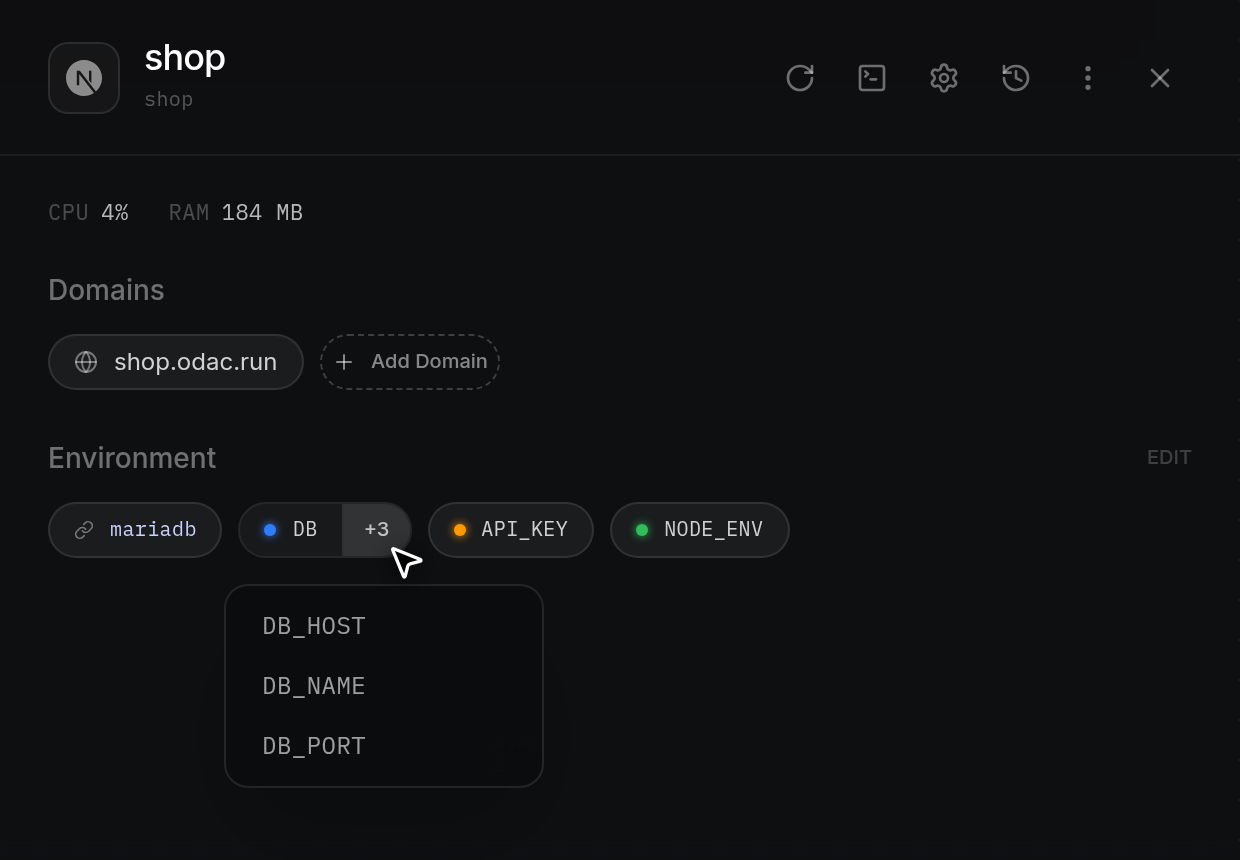
- Open the app's inspector drawer from the Canvas (see Inspect, rename, restart, and delete an app) and look at the Environment section. If the app has no variables yet, the row shows only the dashed Add Env button. Once variables or linked apps exist, Edit appears at the top right of the section and the row displays pills in three groups: linked-app badges with a link icon (such as
mariadb), grouped prefix pills for two or more keys sharing the same prefix before the first underscore (such asDBwith a +3 count badge), and individual pills for single variables (such asNODE_ENV). Colored dots distinguish variable types, such as blue for database keys, red for cache, green for runtime, amber for secrets and keys, purple forODACvariables, and gray for other keys. Hover over a prefix pill's count badge (such as +3) to open a popover listing every full key name in that group, where you can select any key to copy it.
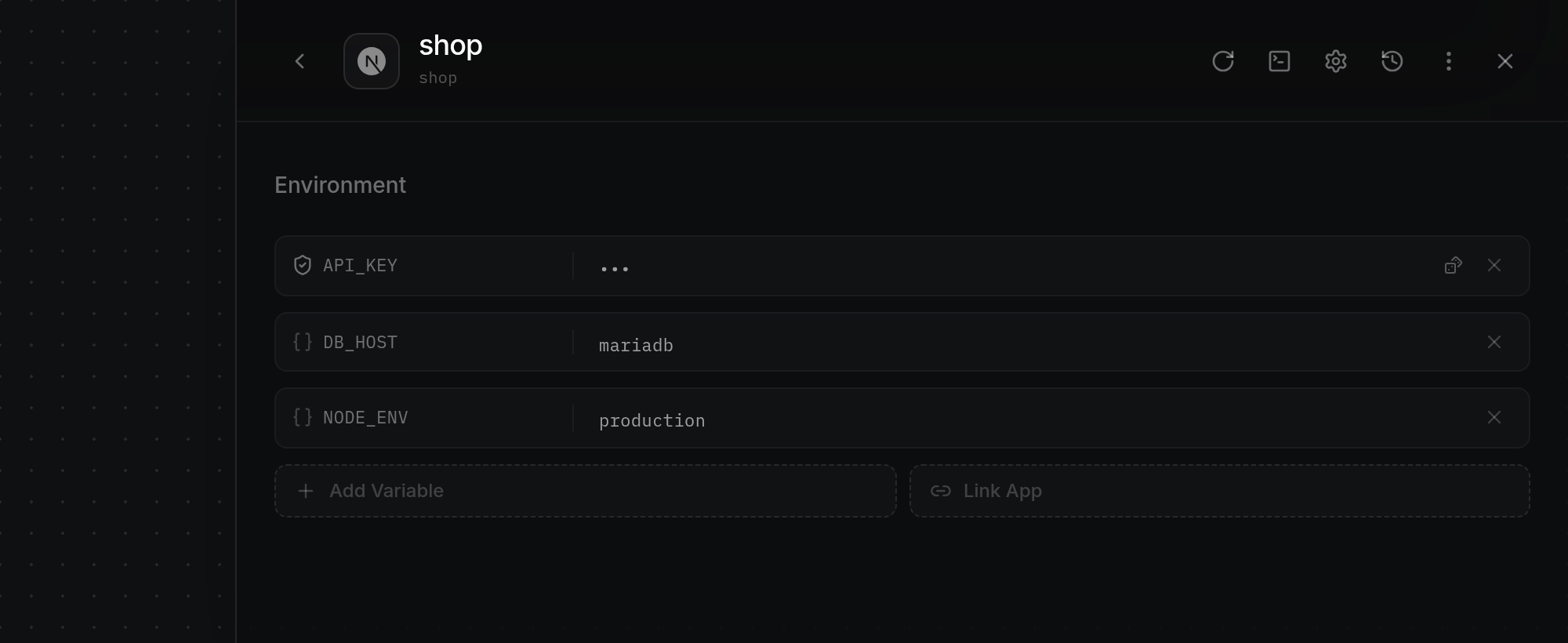
- Click Edit, any pill in the Environment row, or Add Env to open the Environment editor. The inspector drawer widens, collapses the other overview sections, and reveals the Back button (
<) in the header. AfterLoading...finishes, any linked apps appear in read-only cards at the top, followed by your manual variables in alphabetical order (orNo environment variablesif none exist yet), with Add Variable and Link App at the bottom.
Add variables or paste a .env file
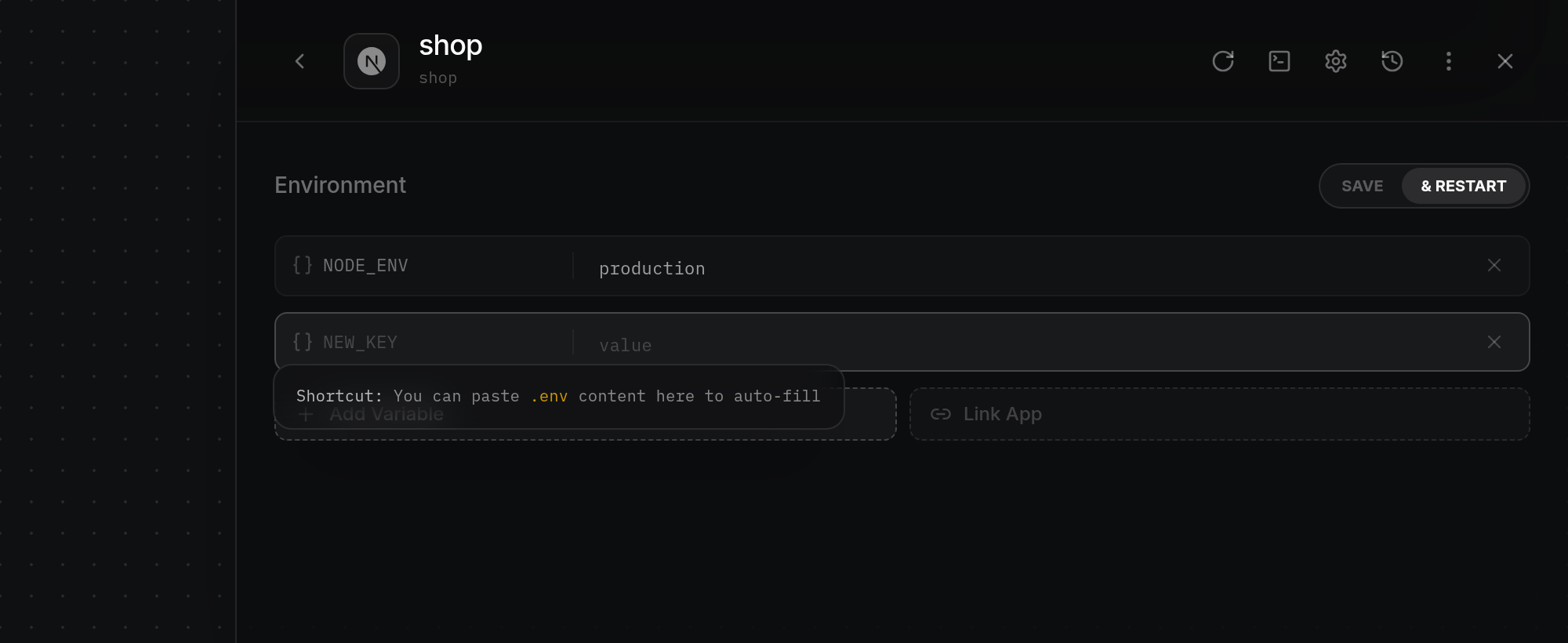
- Click Add Variable at the bottom left of the Environment editor. A new row appears with a
NEW_KEYfield on the left, avaluefield on the right, and a remove×button, with your cursor placed inNEW_KEY. Focusing an emptyNEW_KEYfield displays the tip Shortcut: You can paste .env content here to auto-fill. Type a key name (keys display in uppercase) and enter its value on the right. To edit an existing variable, click its value field and type the replacement; fields whose current value is hidden display dots (•••) that clear when focused so you can type a new value (leaving the field blank restores the hidden value unchanged). Click×on the right of any manual row to remove it.
- To import multiple variables at once, paste
.envtext (lines formatted as KEY=value) directly into theNEW_KEYfield. ODAC ignores blank lines and#comment lines, strips surrounding single or double quotes from values, fills the current row with the first valid entry, and adds new rows below for the remaining entries. If a manual variable uses the same key as another row or a linked app, the duplicate row highlights in red (and conflicting keys inside linked cards turn red) so you can resolve the clash before saving.
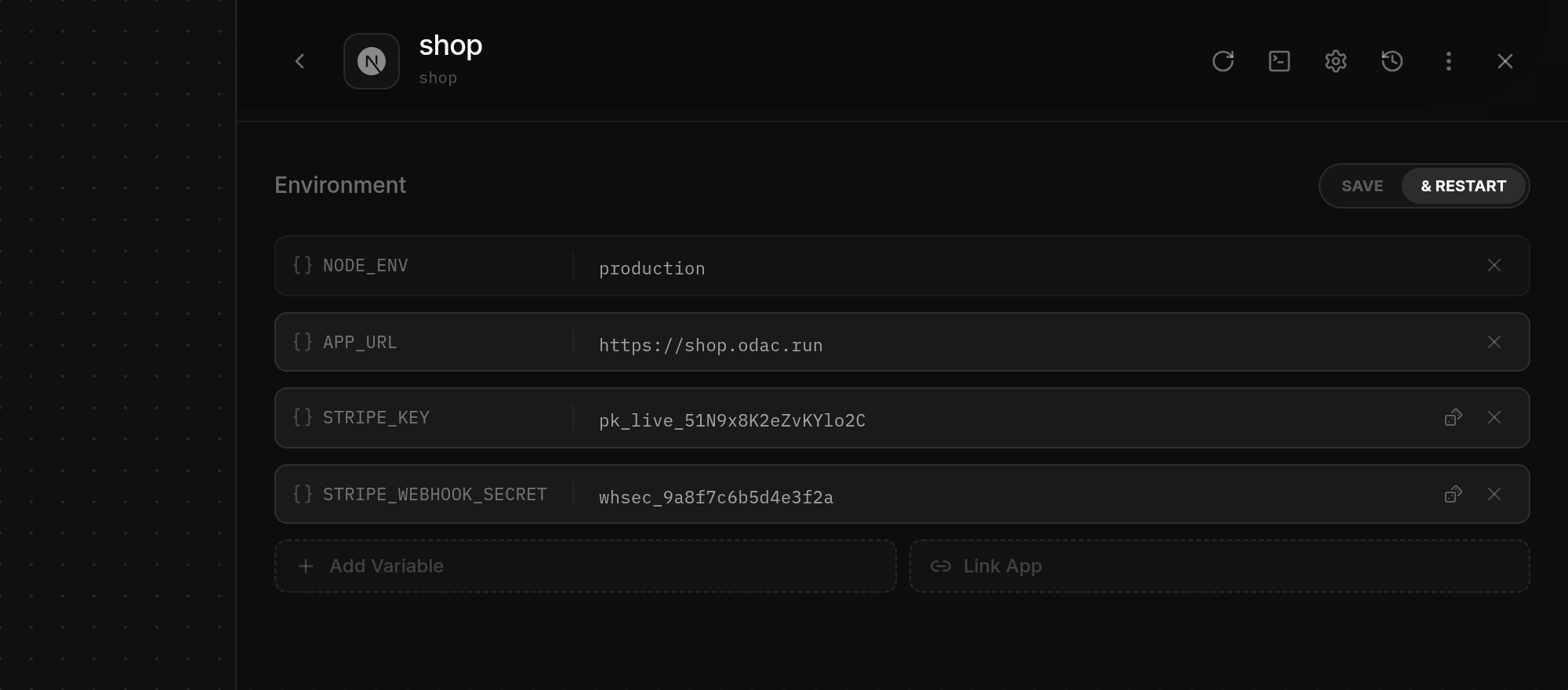
Generate a secret with the dice button
- Whenever a new or editable variable key contains
pass,pwd,secret,key,token,credential, orsalt(such asJWT_SECRET,API_KEY, or WEBHOOK_TOKEN), a dice button appears inside the right edge of its value field. For newly added rows, the dice button fades in as soon as the key name matches one of these words. Click the dice button to spin the icon, fill the field with a random 16-character alphanumeric secret, switch any previously hidden value to plain text with the new secret selected so you can copy it if needed, and reveal the SAVE and & RESTART buttons.
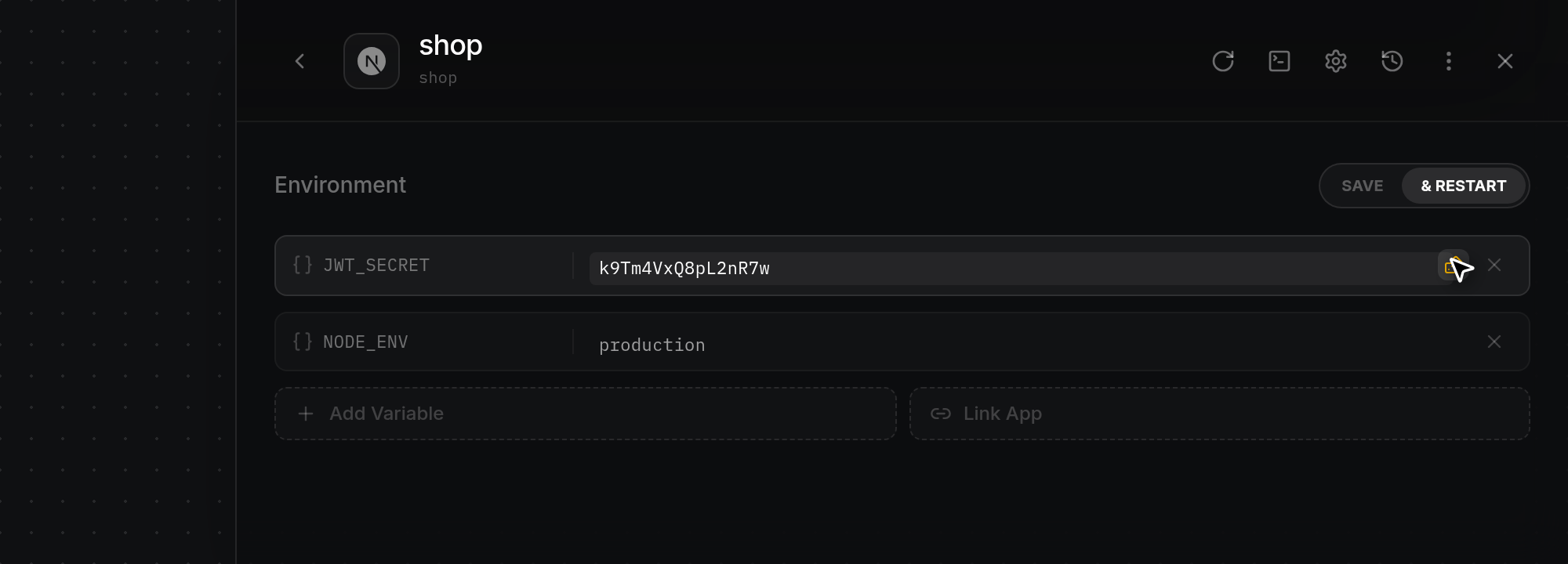
Reveal and copy locked initial credentials
- Databases and stateful apps that mint initial credentials on first startup (such as
MARIADB_ROOT_PASSWORD) display an amber notice above the manual variables:Locked values were created when this app first started. The image only reads them while setting up an empty data directory, so changing one here would not change the credential itself.Locked rows appear with an amber border, a lock icon, and a read-only masked value with no delete button. Click the eye button on the right of a locked row to reveal the credential in plain text (click again to hide it), or click the copy button to copy the value to your clipboard. When copied, the button briefly turns into a green checkmark and ODAC displaysValue copied to clipboard.
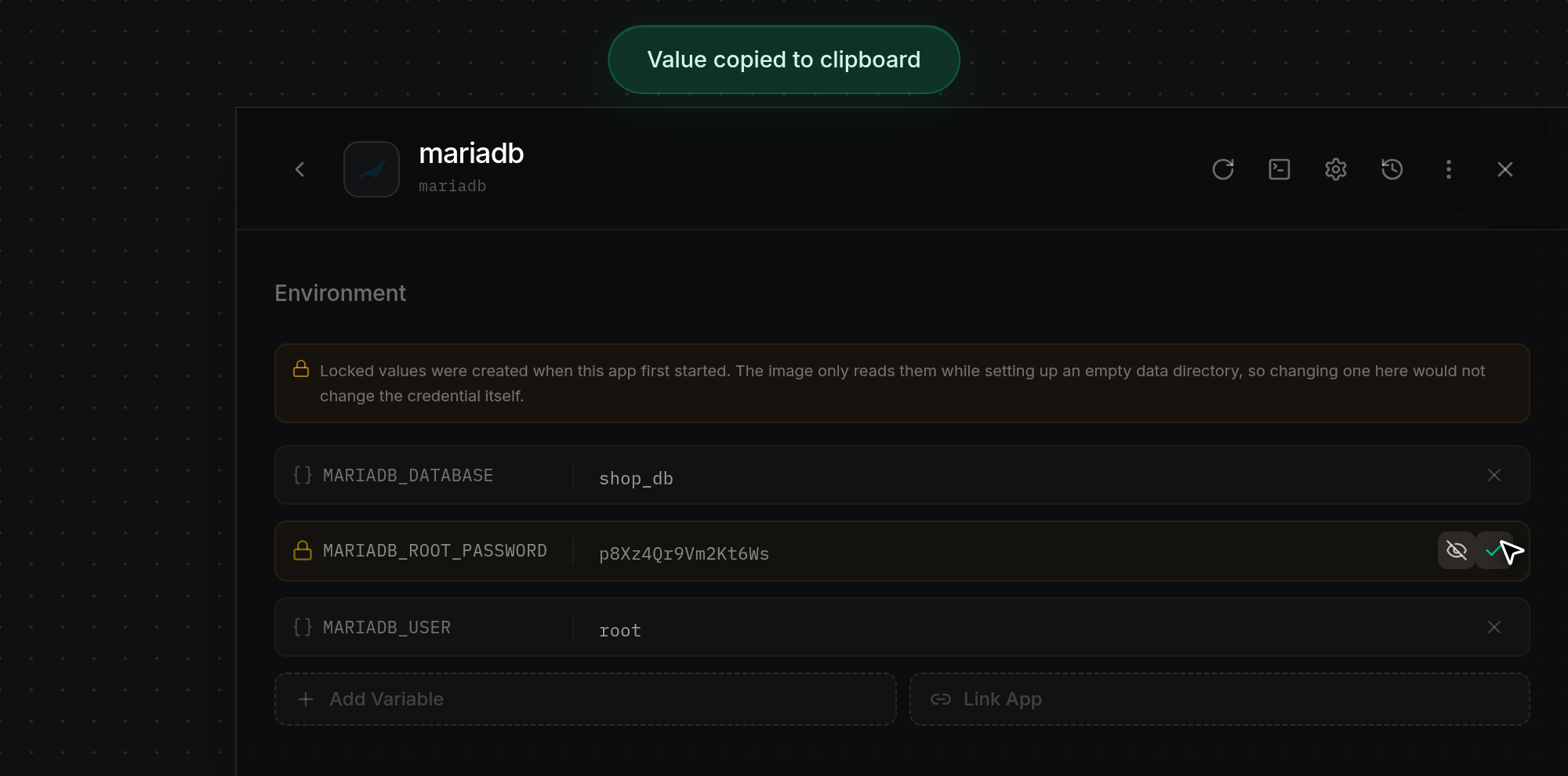
Link another app's variables
- Click Link App at the bottom right of the Environment editor to open a popover listing other apps in the same project that have environment variables (if no other apps in the project have variables, ODAC shows
No other apps with environment variables found). Click an app in the list (such asmariadb) to attach its environment to the current app.
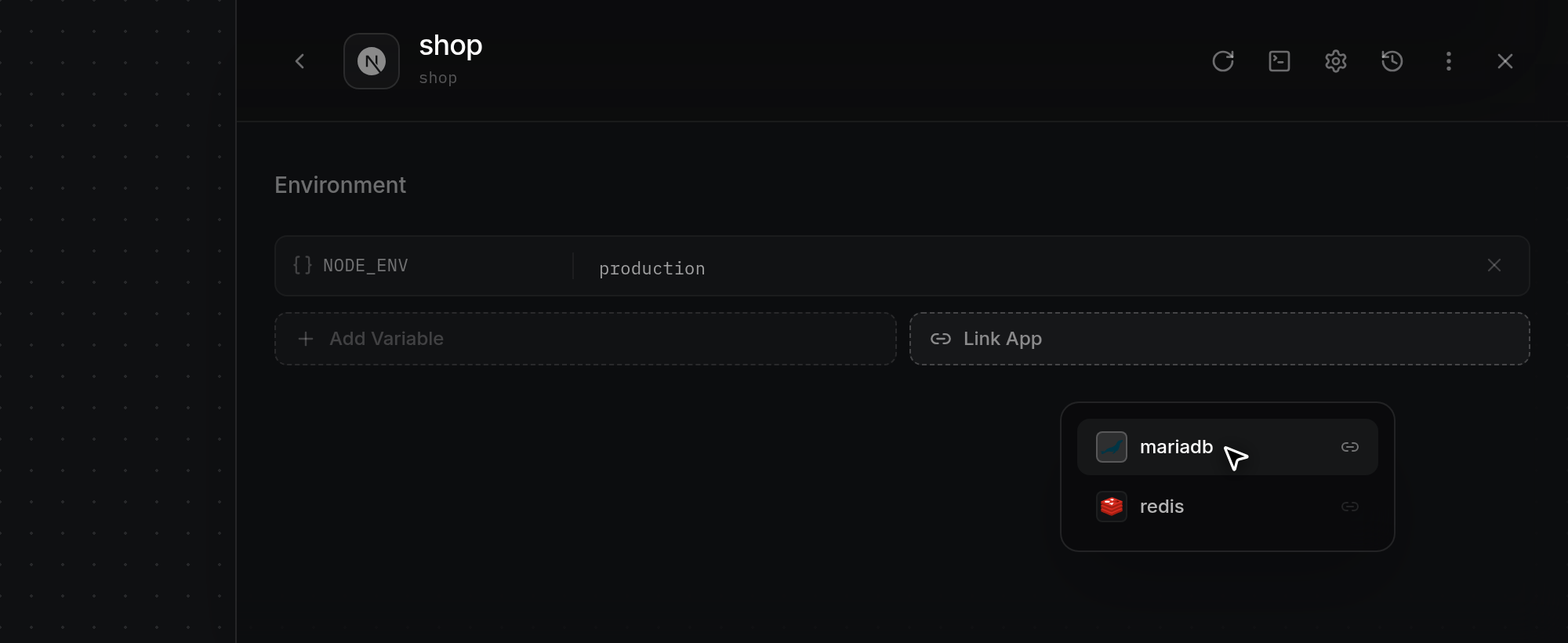
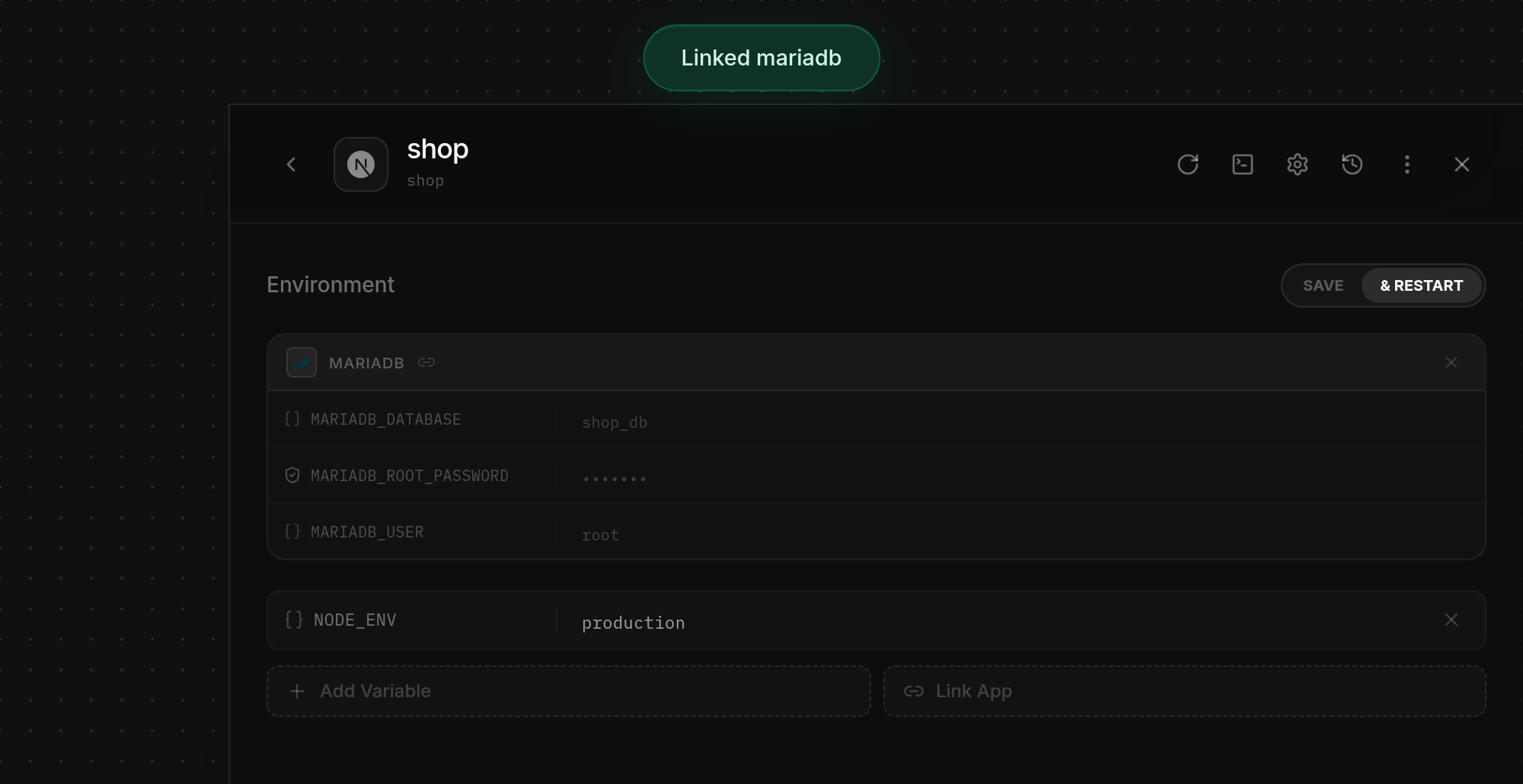
- ODAC displays Linked mariadb (or
Already linkedif that app is already attached), reveals SAVE and & RESTART, and adds a read-only card for the linked app at the top of the editor above your manual variables. Secret values inside a linked card remain masked (•••••••); open that app's own Environment panel if you need to view or change them. To detach a linked app, click×in the top-right corner of its card.
Save or save and restart
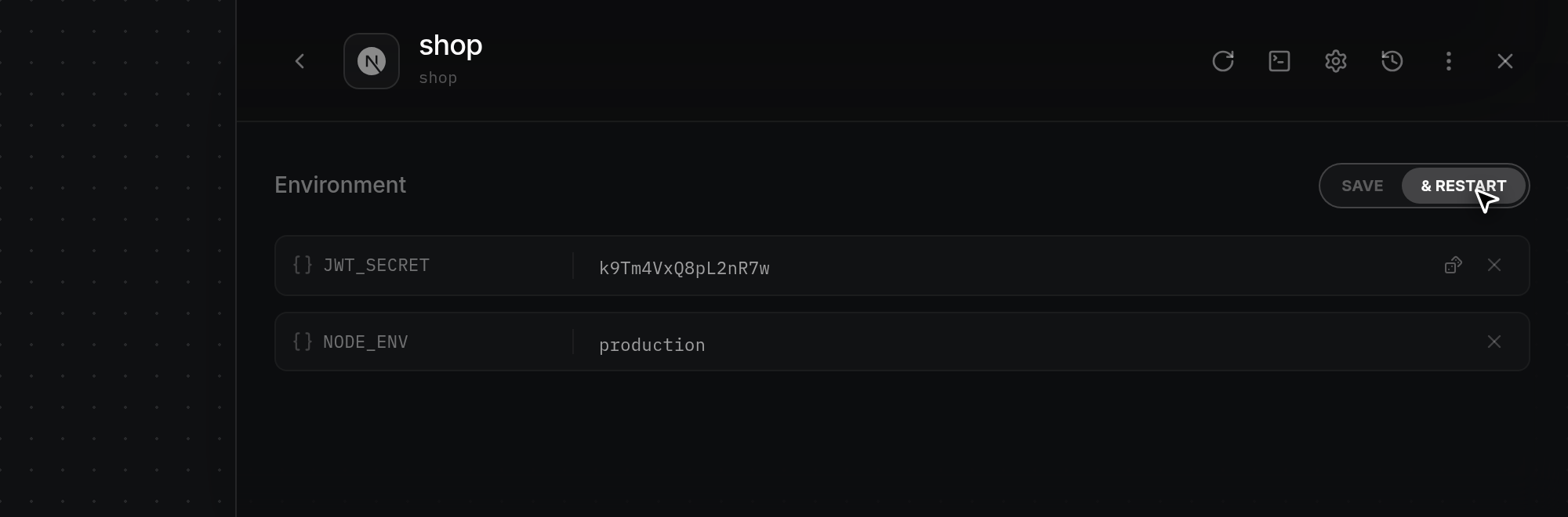
- Whenever you have unsaved additions, edits, removals, or app links, the SAVE and & RESTART pill appears at the top right of the Environment panel. Click SAVE to write your changes without restarting the running container (changes apply the next time the app restarts), or click & RESTART to save your changes and immediately restart the app so it picks up the new variables right away. ODAC confirms with
Environment saved(orServer is offlineif the server is disconnected) and hides the action pill. Click Back (<) in the header, or Close (×), when you are done.