Protect a domain with client certificates
Require or accept client certificates on any custom domain and its subdomains at app.odac.run. From a domain's Access sheet, you can switch the root domain or individual subdomains between Off, Optional, and Required, reset subdomain overrides, and review security warnings or custom CA notices.
Open a domain's Access sheet
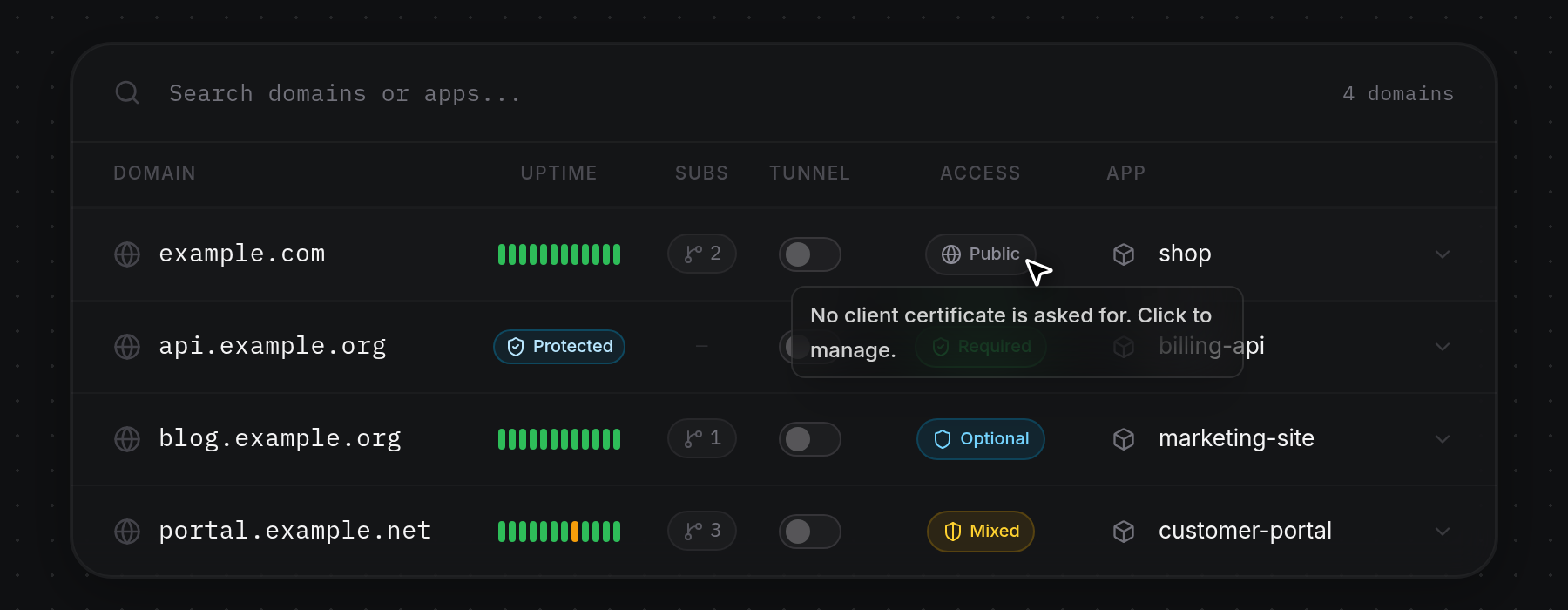
- Open Domains from the left sidebar (see View domains, tunnel usage, and uptime) and check the Access column on a custom domain row. Each badge summarizes the domain's current policy and shows a tooltip on hover:
- Public:
No client certificate is asked for. Click to manage. - Optional:
Client certificates are accepted but not required. Click to manage. - Required:
A client certificate is required. Click to manage. - Mixed:
Hosts of this domain use different settings. Click to manage.
Click the Access badge on the domain you want to configure (clicking elsewhere on the row expands its uptime panel instead). For.odac.cctunnels, see Tunnel sign-in and device certificates.
- Public:
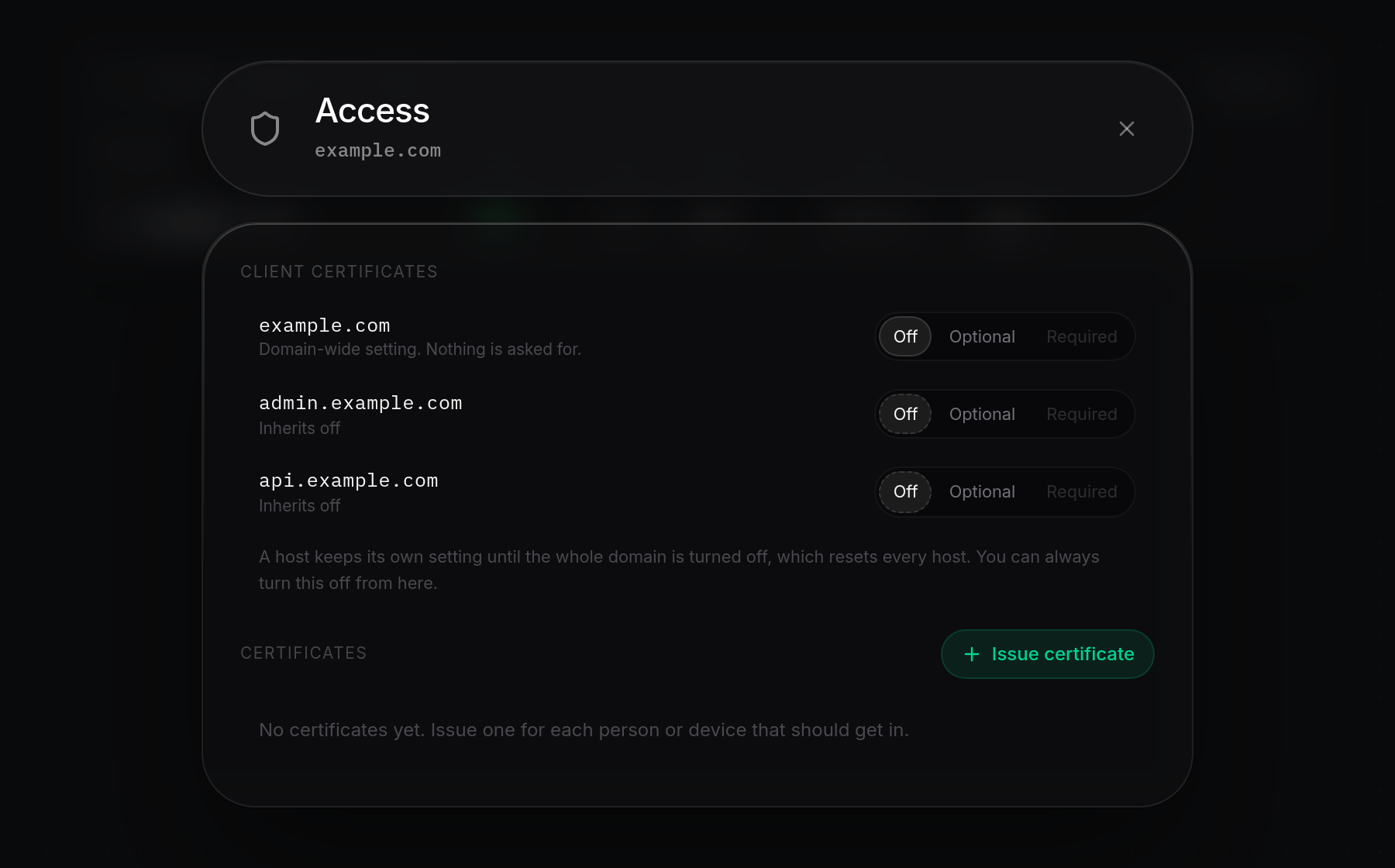
- The Access sheet opens over the page with the domain name in the subtitle, the Client certificates host list at the top, and the Certificates section below. If the domain is an ODAC infrastructure domain, runs on a different server than the project's default, or its server is offline, a lock banner appears at the top and all mode switches and certificate actions stay disabled until the restriction clears.
Switch between Off, Optional, and Required
- Under Client certificates, the first row is always the root domain (for example,
example.com). When subdomains exist, its description starts withDomain-wide setting.followed by the hint for the active mode:- Off:
Nothing is asked for. - Optional:
Visitors without a certificate still reach the app, marked as unverified. - Required:
Connections without a valid certificate are refused.
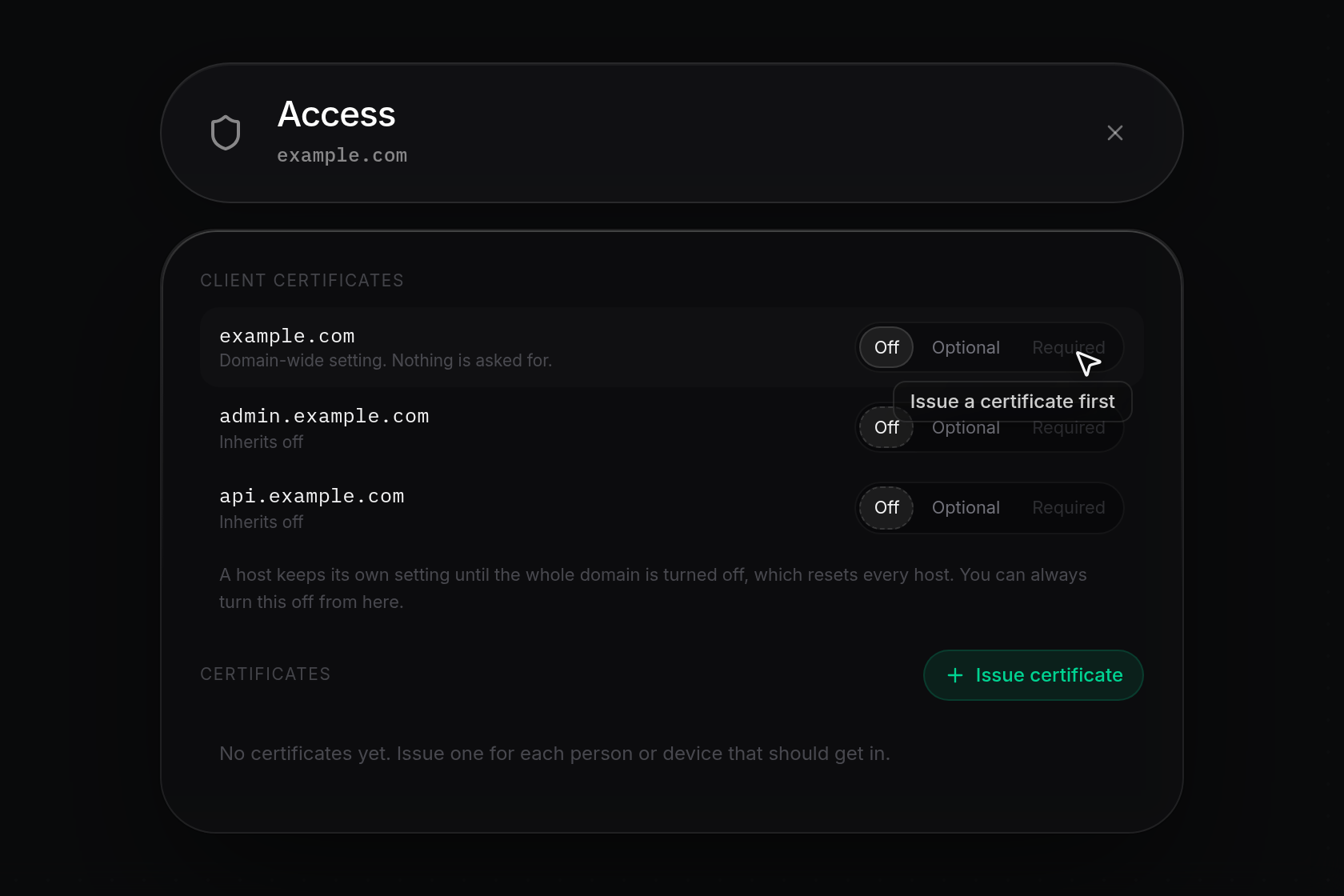
Before you can select Required for a host, at least one active certificate must cover it (or a custom CA must be configured from the server CLI). Until then, Required appears dimmed and hovering over it displaysIssue a certificate first(see Issue and install a client certificate).
- Off:
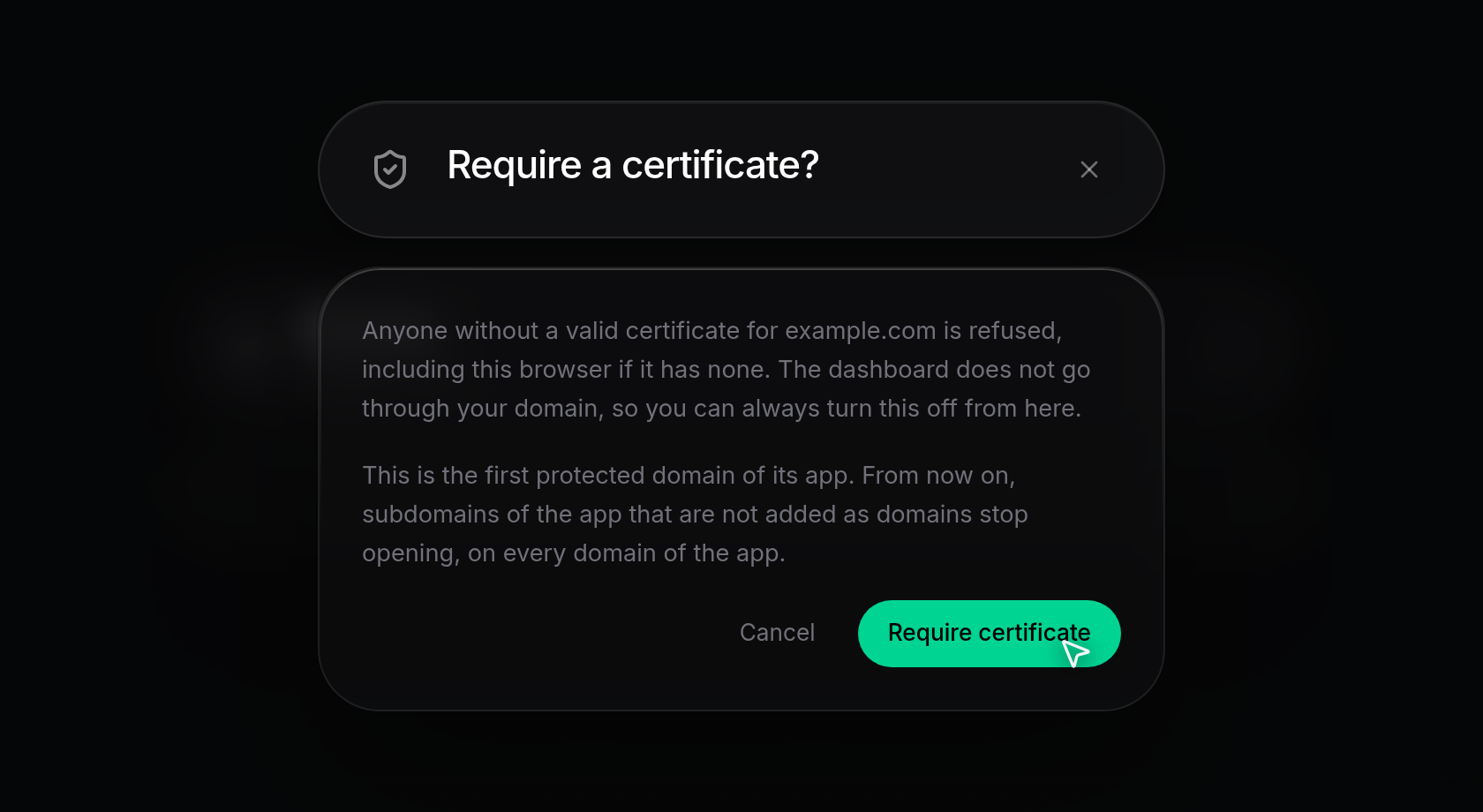
- Click Optional or Required on the root domain row to change the mode. A confirmation dialog appears whenever you switch any host to Required, or when you turn on client certificates for the first time on an app:
- Turn on client certificates?: Warns that
This is the first protected domain of its app. From now on, subdomains of the app that are not added as domains stop opening, on every domain of the app.Click Turn on to continue. - Require a certificate?: Warns that anyone without a valid certificate for that host is refused (including your current browser if it does not have one), and notes that the dashboard does not route through your domain so you can always turn it off from the sheet. When this is also the app's first protected domain, both warnings appear together. Click Require certificate to confirm.
Once confirmed, a notification (such as Required on example.com) appears, the Access badge updates, and when Required is active the domain's Uptime cell switches to Protected because monitoring pauses while client certificates are required.
- Turn on client certificates?: Warns that
Override or reset subdomain modes
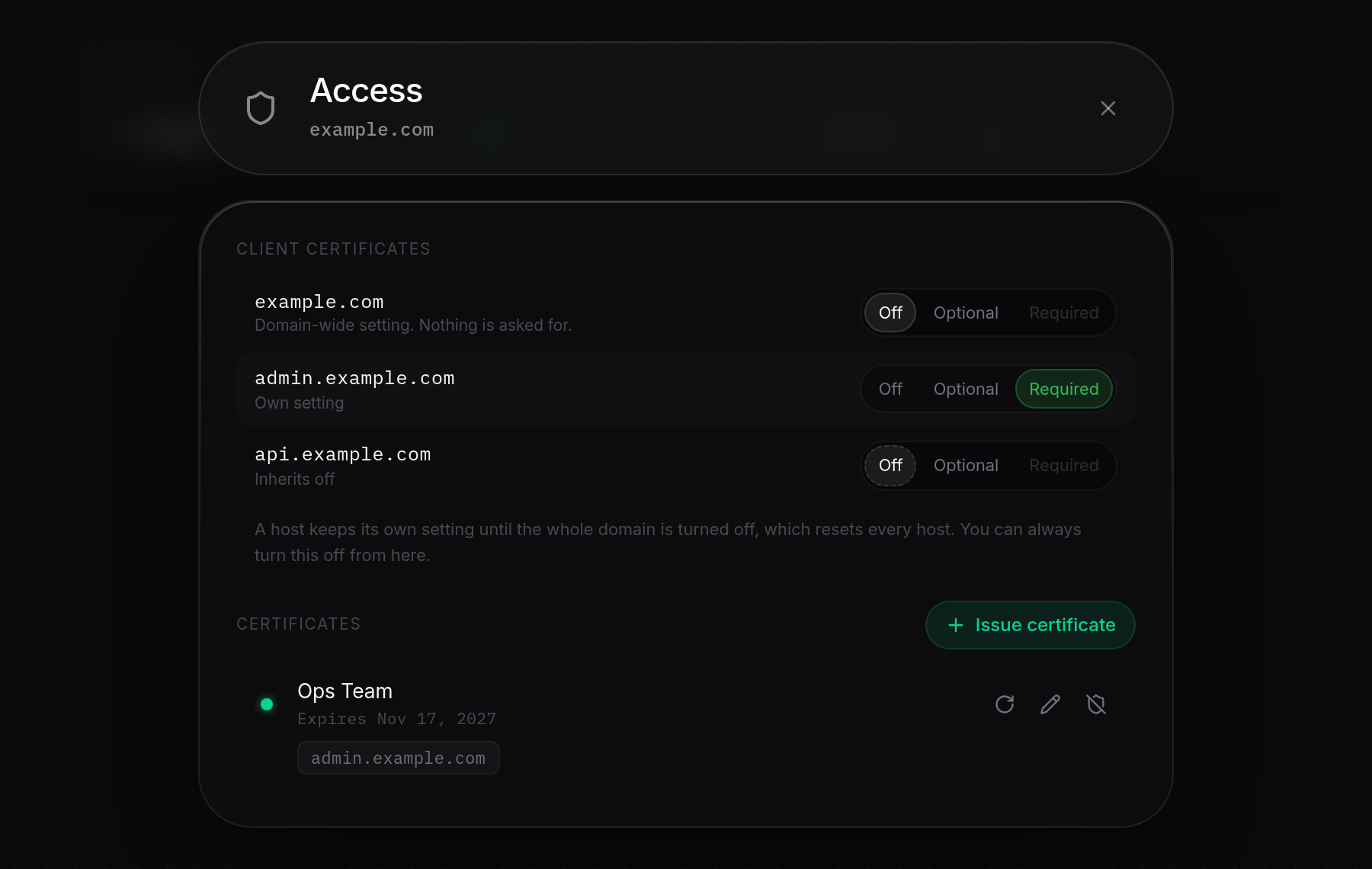
- To give a specific subdomain its own rule, click Off, Optional, or Required directly on that subdomain's row. Subdomains that still follow the root domain show Inherits off, Inherits optional, or Inherits required with a dashed border around their active button. Once you choose a mode on a subdomain row, its label changes to
Own settingwith a solid border, and it keeps that setting even if you change the root domain between Optional and Required.
- Whenever hosts under the same domain use different modes (for example,
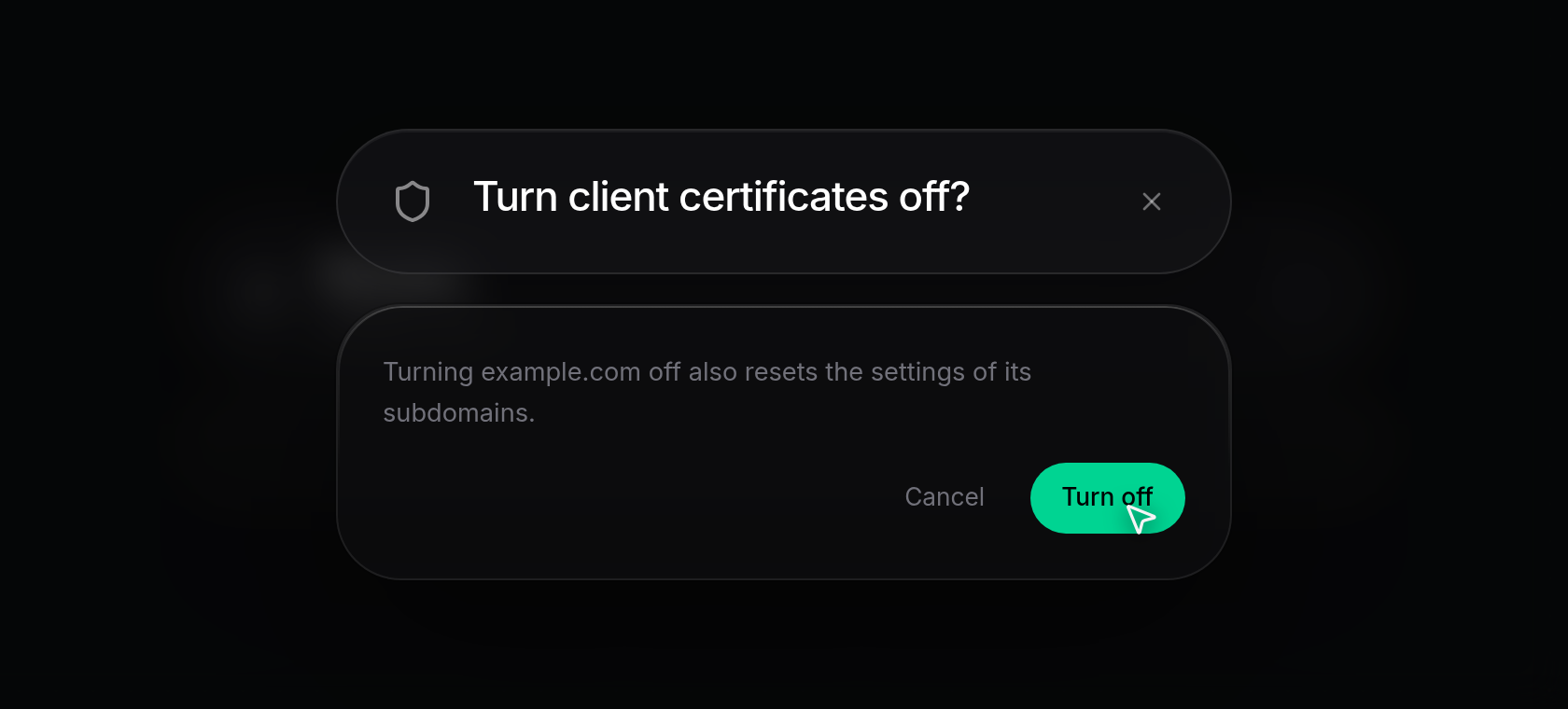
example.comis Off while admin.example.com is Required), the domain's Access badge in the Domains table changes to Mixed (like the portal.example.net row shown earlier). - To clear all subdomain overrides at once, click Off on the root domain row. When any subdomain has its
Own setting, a Turn client certificates off? dialog confirms that turning the root domain off also resets the settings of its subdomains. Click Turn off to reset every host back to Off.
Read warning callouts and custom CA notices
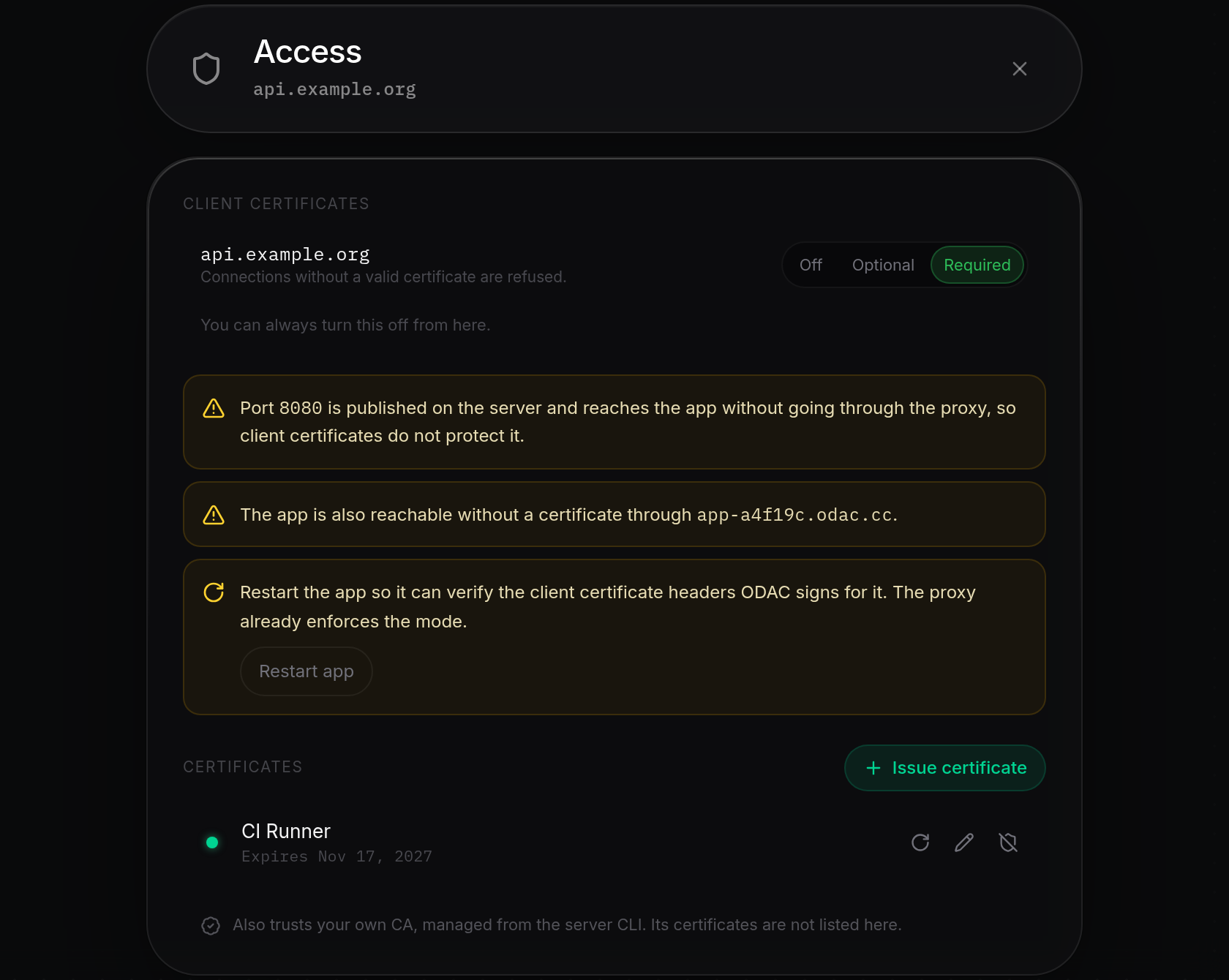
- When you enable Optional or Required, ODAC checks for exposed endpoints or app configuration steps and displays amber callouts directly below the Client certificates list:
- Published server ports:
Port <port> is published on the server and reaches the app without going through the proxy, so client certificates do not protect it.Review or remove unneeded published ports in the app's Settings panel (see Configure ports, networks, and volumes). - Sibling hosts:
The app is also reachable without a certificate through <hosts>.Lists other domains or tunnels attached to the same app that remain open without a client certificate. - Restart app:
Restart the app so it can verify the client certificate headers ODAC signs for it. The proxy already enforces the mode.Click Restart app in the callout to restart the app right away; ODAC showsThe app is restartingand clears the prompt.
- Published server ports:
- If you added your own Certificate Authority from the server CLI, a notice at the bottom of the Access sheet reads
Also trusts your own CA, managed from the server CLI. Its certificates are not listed here.Hosts covered by a custom CA can be set to Required even when no dashboard-issued certificates appear under Certificates (see Edit scope, renew, and revoke certificates to manage issued certificates).