Edit scope, renew, and revoke certificates
Manage issued client certificates for a custom domain at app.odac.run. From a domain's Access sheet, you can change which hosts a certificate unlocks without issuing a new file, create a replacement certificate while existing devices transition, revoke a certificate immediately, and inspect expired or revoked certificates. For .odac.cc tunnel device certificates, see Tunnel sign-in and device certificates.
Edit which hosts a certificate opens
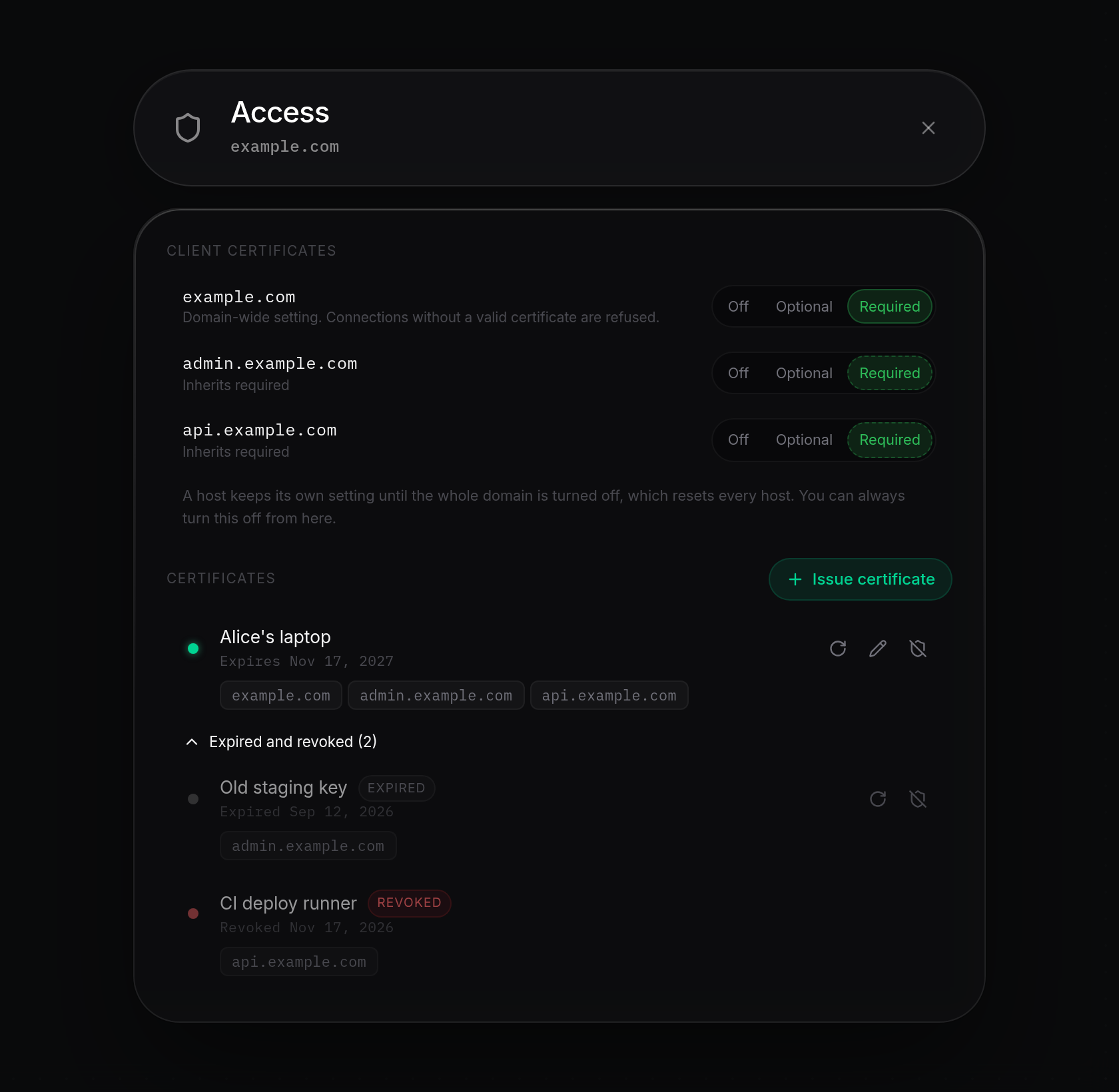
- Open a custom domain's Access sheet from Domains (see Protect a domain with client certificates) and look under Certificates. Each active or expiring row shows its status dot (green when active, amber with an Expiring badge when nearing expiration), expiration date, allowed host chips (certificates that open only the sheet's root domain omit the chip), and up to three action icons on the right: Renew, Edit scope, and Revoke. If the domain is restricted or its server is offline, these buttons appear disabled. Click Edit scope (the pencil icon) on the certificate you want to update.
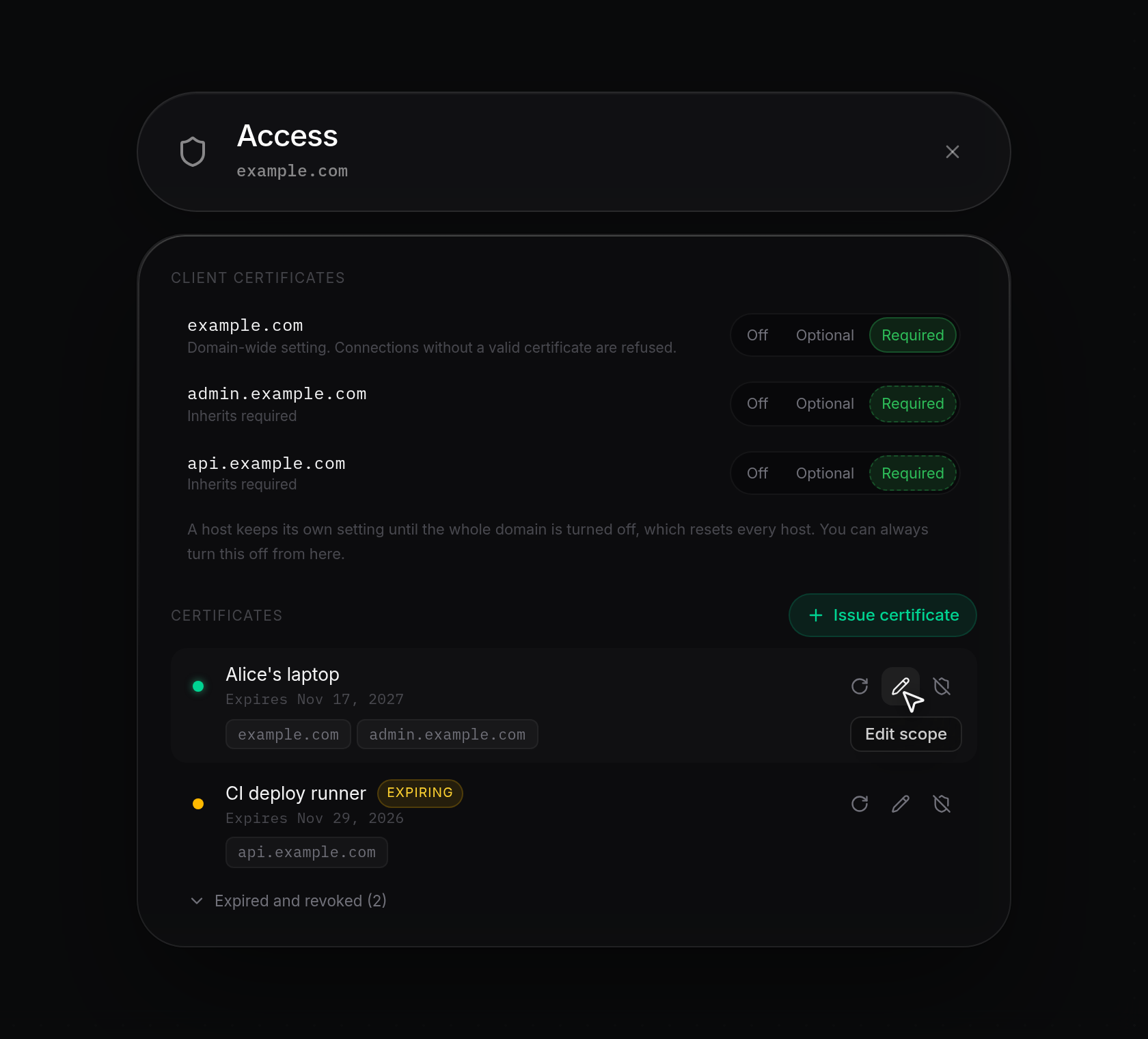
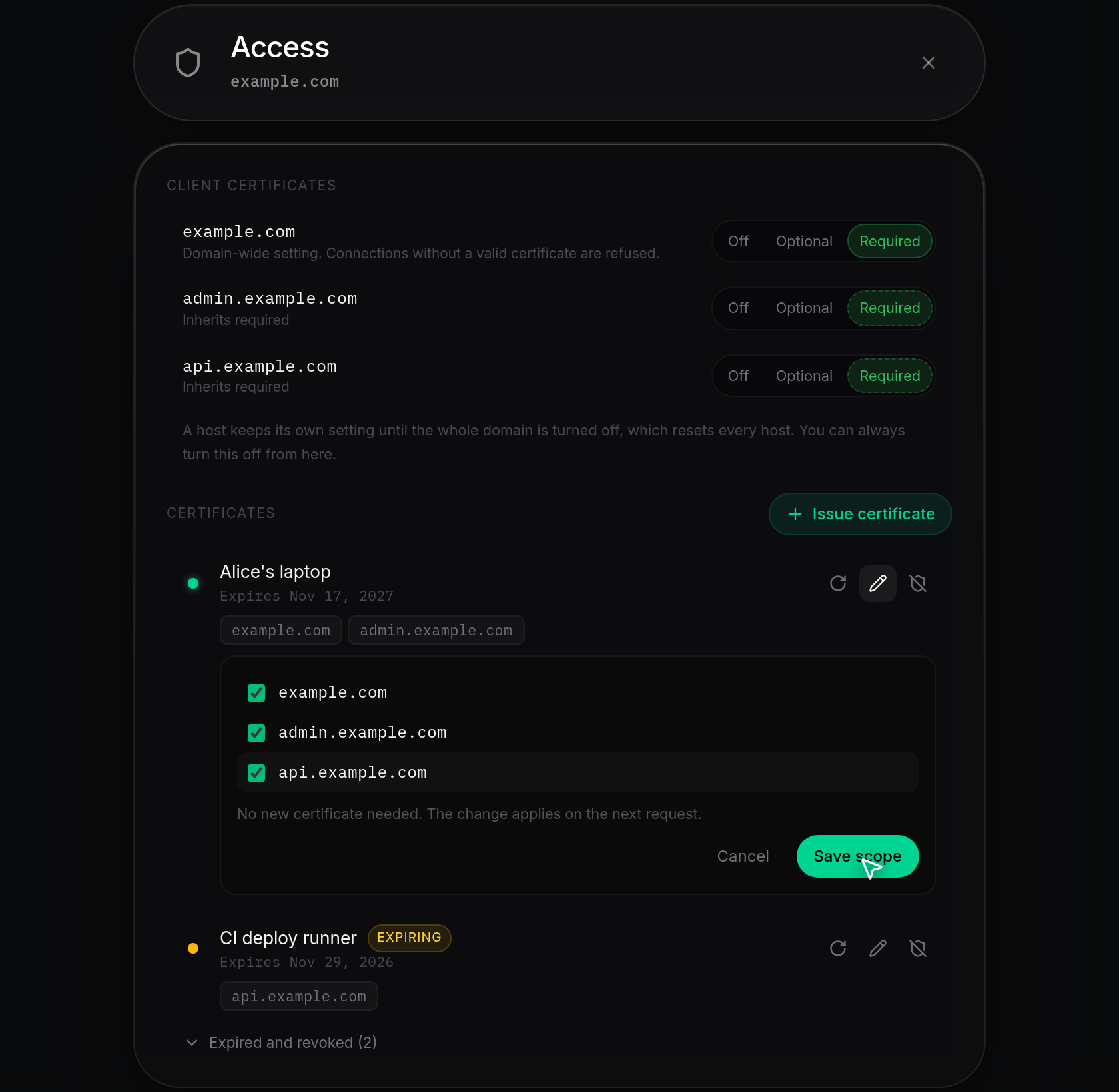
- An inline checklist expands beneath the row with checkboxes for every host on the domain and the note
No new certificate needed. The change applies on the next request.Select or clear the hosts you want the certificate to unlock, then click Save scope (or Cancel to discard your changes). You must keep at least one host checked; clicking Save scope with every host cleared showsPick at least one host. To stop it opening anything, revoke it.Once saved,Scope updatedappears and the certificate row updates immediately without reinstalling the file on any device.
Renew a certificate
- On any active, expiring, or expired certificate row under Certificates, click Renew (the circular arrow icon).
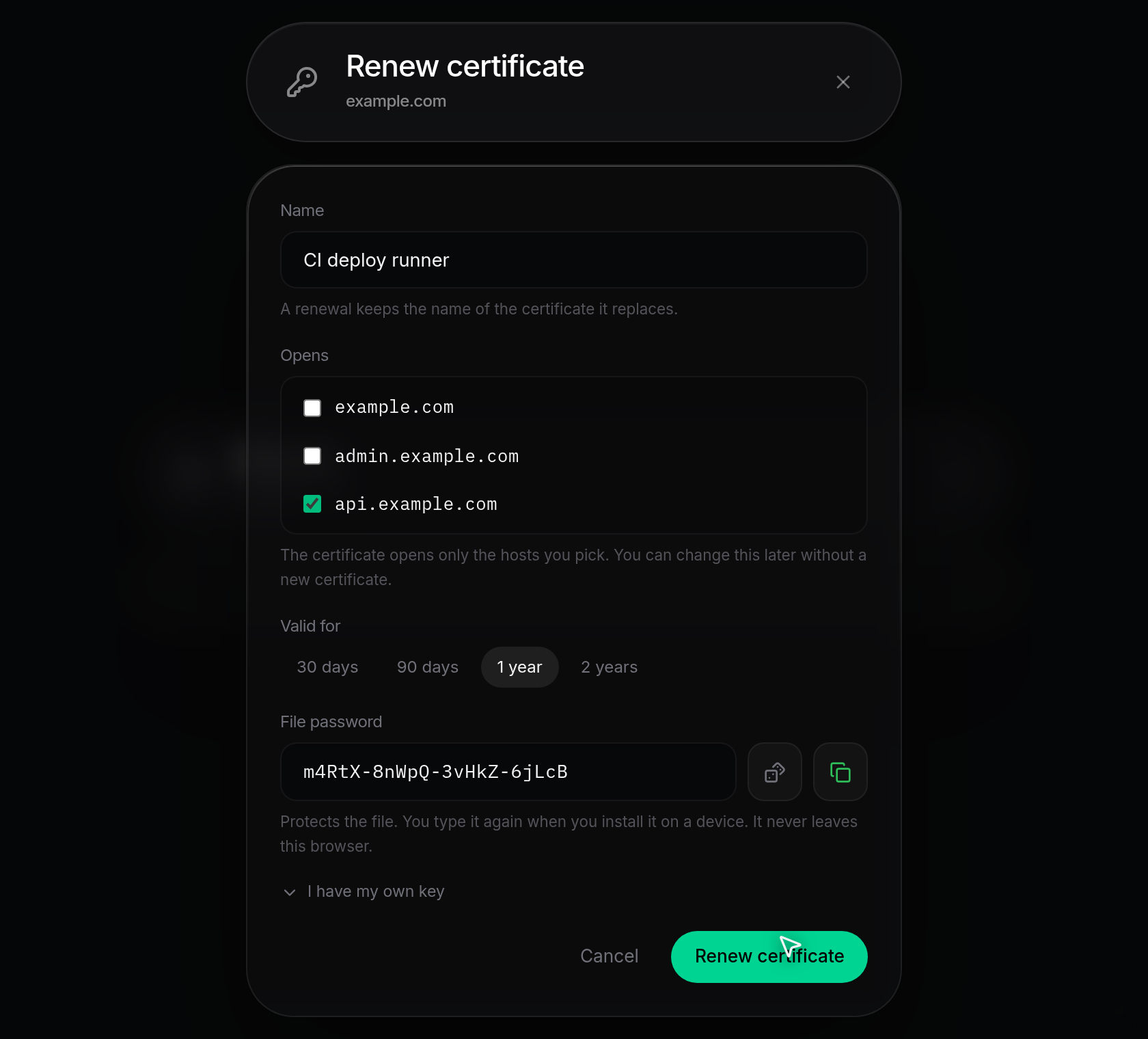
- The Renew certificate dialog opens with Name prefilled and locked to the existing certificate (
A renewal keeps the name of the certificate it replaces.), Opens preselected with its current hosts, and Valid for set to 1 year. Adjust the allowed hosts or validity period if needed, enter or generate a File password (or click I have my own key to paste a certificate request), then click Renew certificate.
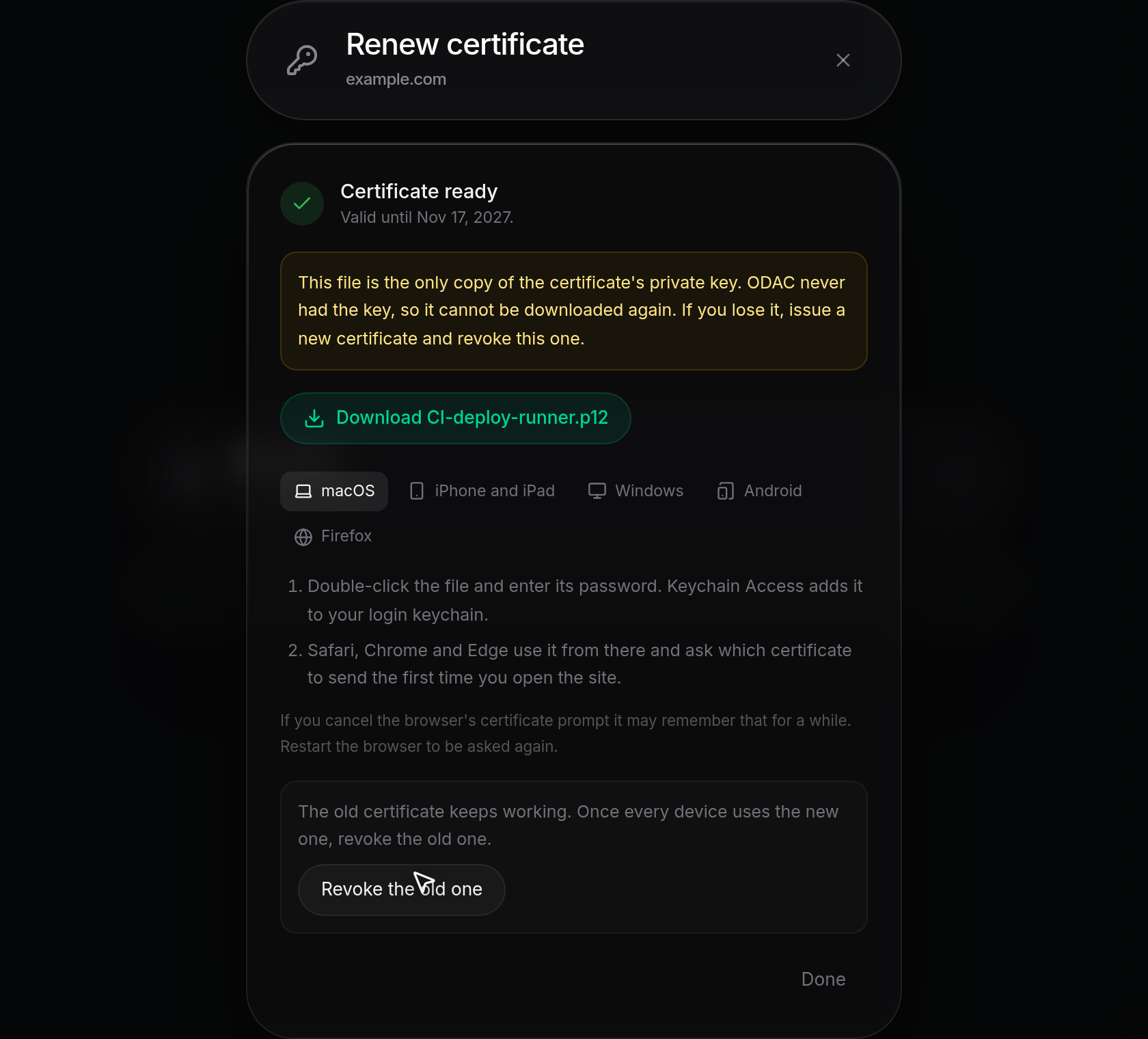
- When Certificate ready appears, download the new
.p12file (or.crtand CA chain files) and install it on your devices (see Issue and install a client certificate). Below the installation tabs, a notice statesThe old certificate keeps working. Once every device uses the new one, revoke the old one.with a Revoke the old one button. When downloading a.p12file, Revoke the old one stays disabled with the tooltipDownload the new file firstuntil you click the download link so you do not lose the only copy of the new private key. Click Revoke the old one once devices are updated, or click Done to keep both certificates active during the transition.
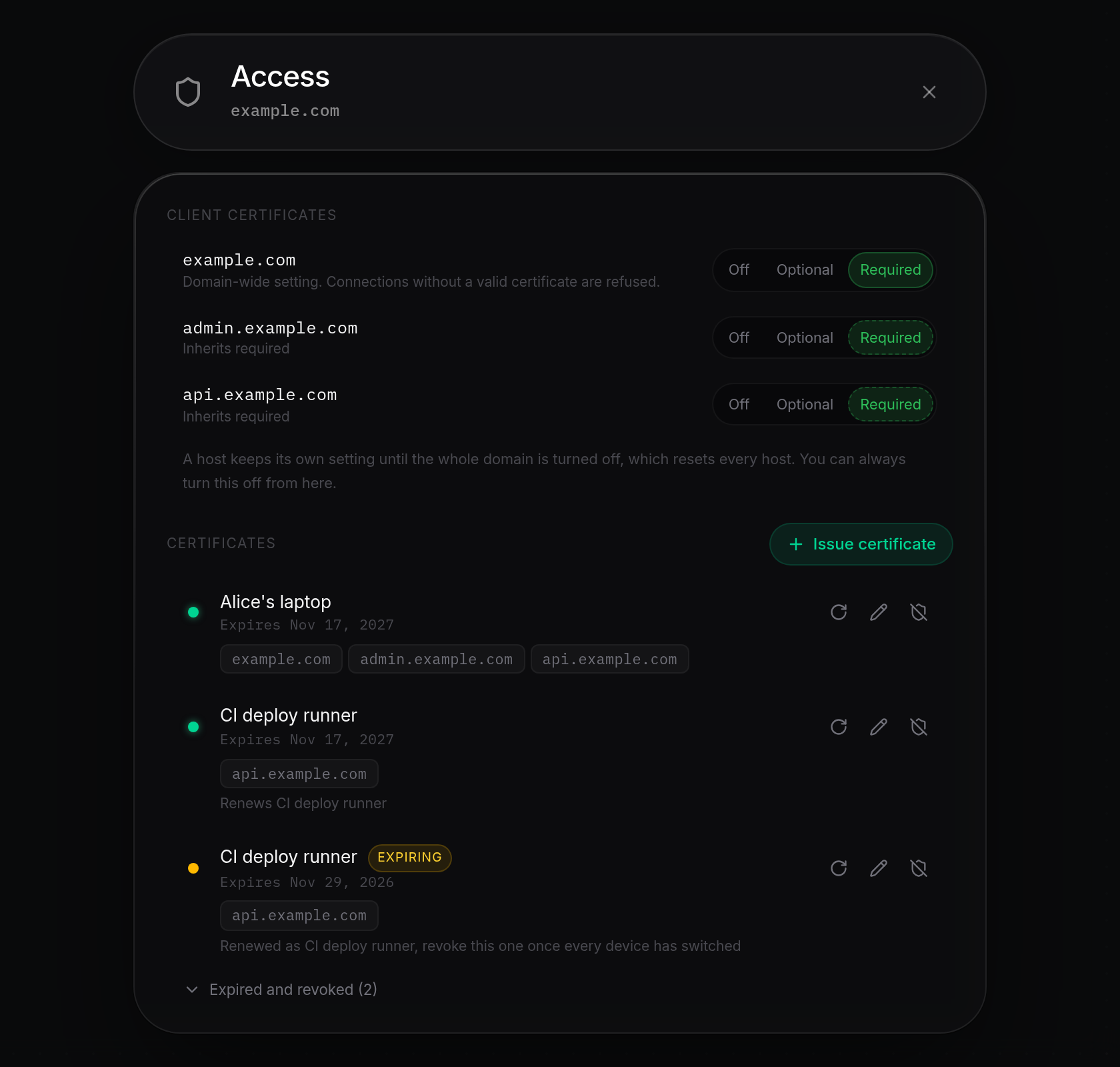
- Back in the Access sheet, both certificates appear in the Certificates list while devices switch over: the replacement shows
Renews <name>below its host chips, and the previous live certificate showsRenewed as <name>, revoke this one once every device has switched.
Revoke a certificate
- To block a certificate immediately, click Revoke (the crossed-shield icon) on its row under Certificates, or click Revoke the old one on the renewal completion screen. Revoke is available on active, expiring, and expired certificates.
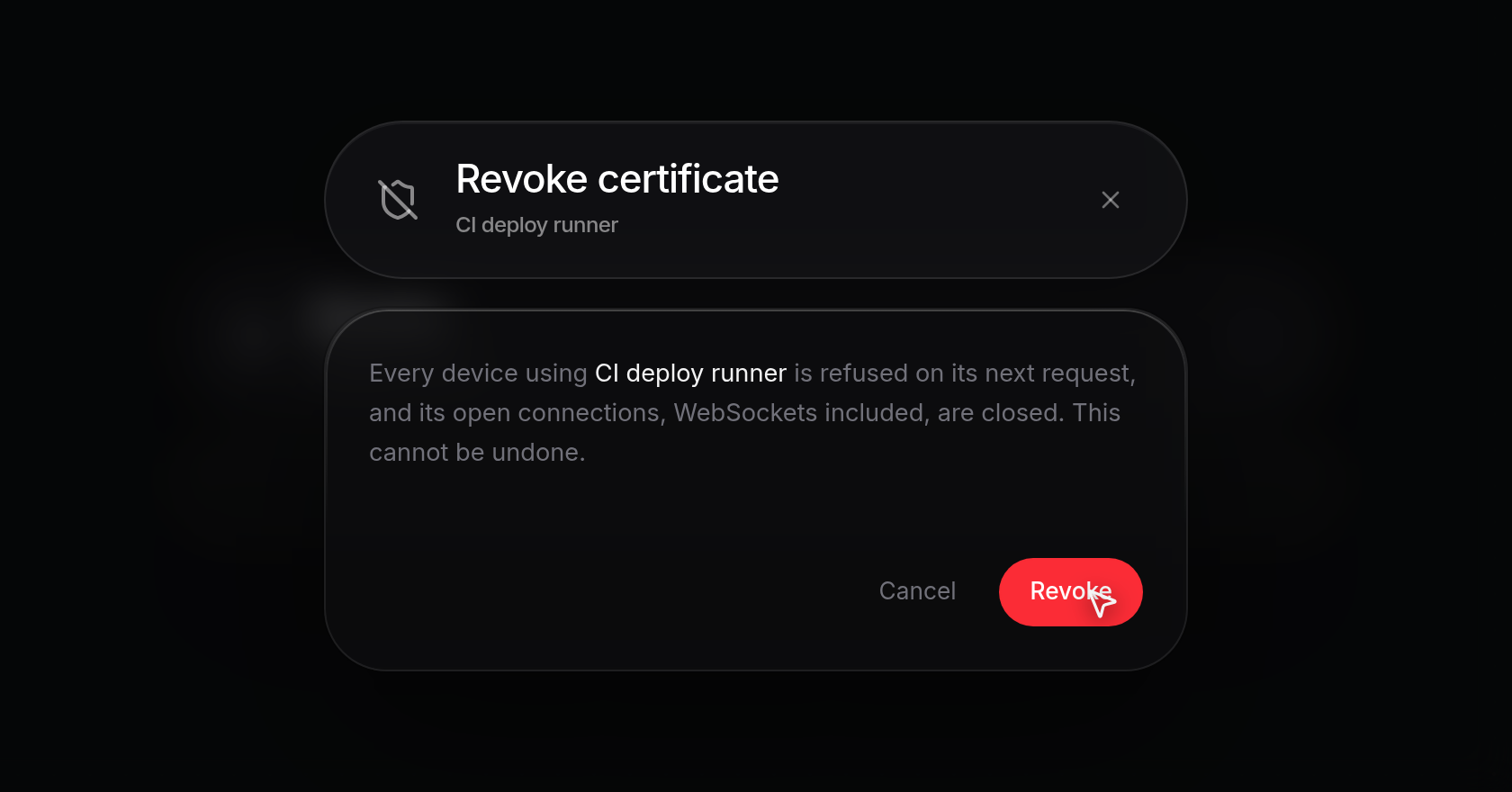
- In the Revoke certificate confirmation dialog, review the warning (
Every device using <name> is refused on its next request, and its open connections, WebSockets included, are closed. This cannot be undone.) and click Revoke (or Cancel to keep it active). If no other certificate uses the same key,Certificate revokedappears, the dialog closes, and the certificate moves to Expired and revoked.
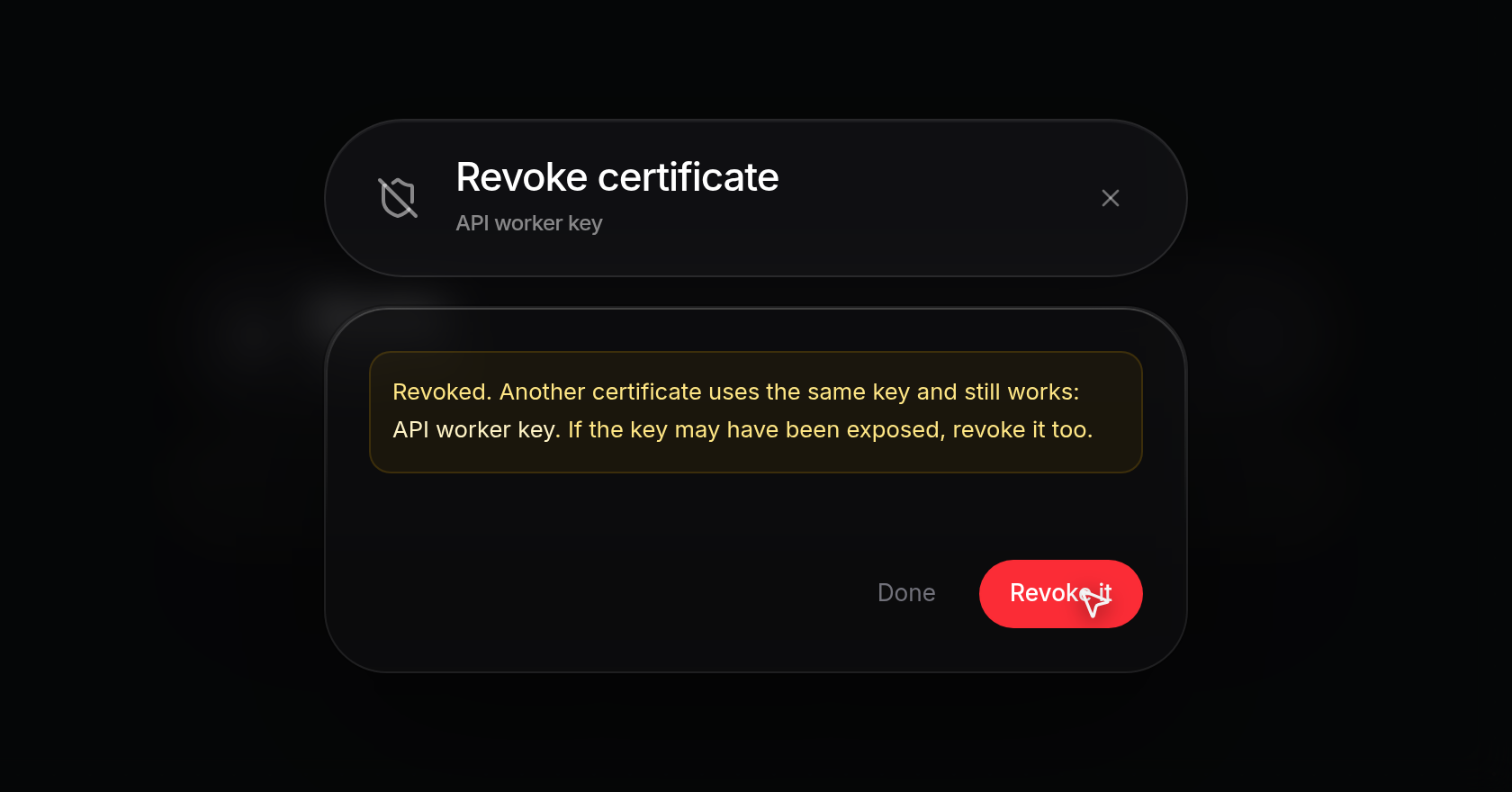
- If other active certificates share the same key (for example, after renewing with I have my own key using the same key pair), the dialog stays open and displays an amber notice listing every matching certificate: Revoked. Another certificate uses the same key and still works: <name>. If the key may have been exposed, revoke it too. Click Done to leave the remaining certificate active, or click Revoke it (or Revoke all when multiple certificates share the key) to revoke them as well.
View expired and revoked certificates
- Whenever a domain has past certificates, an Expired and revoked (<count>) toggle appears at the bottom of Certificates (below
No active certificates.if none are active). Click Expired and revoked (<count>) to expand the section and inspect each row's Expired or Revoked badge, expiration or revocation date, allowed hosts, and renewal history. Expired certificates still include Renew and Revoke buttons, while revoked certificates show no actions. Click the toggle again to collapse the section.