Tunnel sign-in and device certificates
Control who can reach your .odac.cc tunnels at app.odac.run. Tunnels require ODAC account sign-in by default, and you can issue device certificates for scripts, apps, or devices that cannot sign in interactively, then renew or revoke them as needed.
Open a tunnel's Access sheet
- Open Domains from the left sidebar (see View domains, tunnel usage, and uptime) and find your
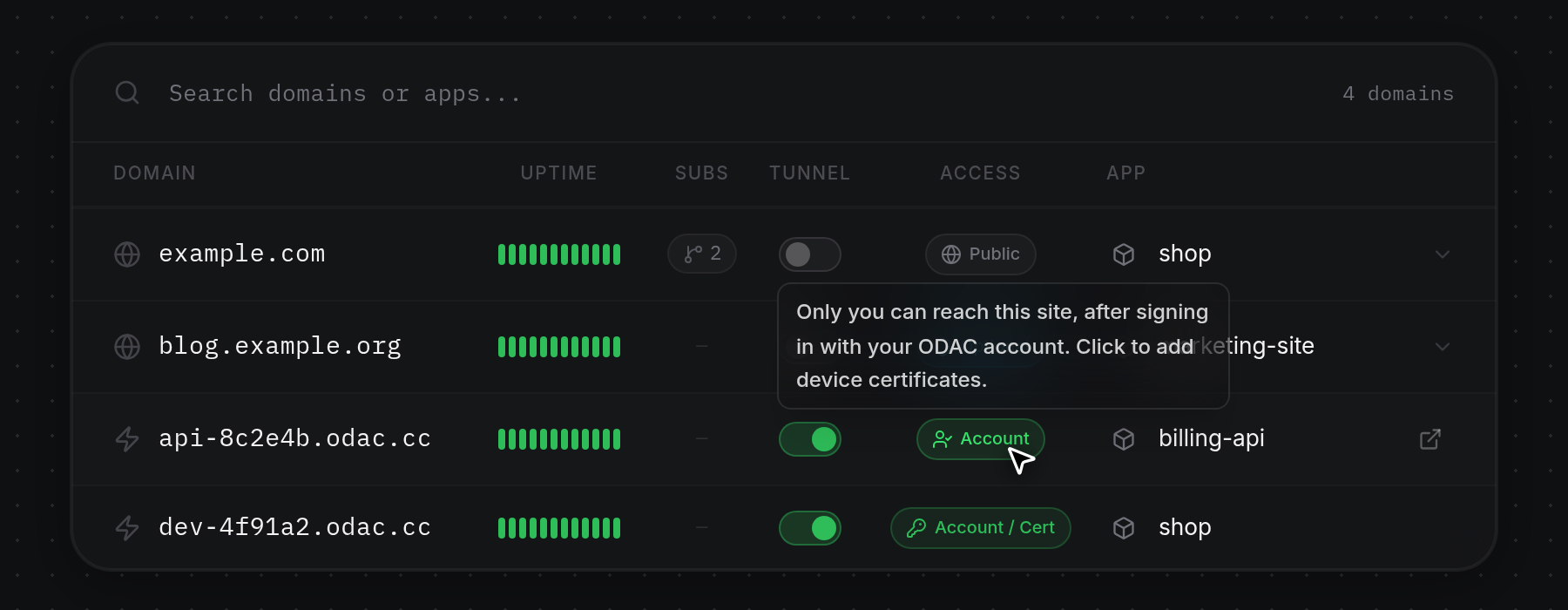
.odac.cctunnel row (marked with a lightning icon and an active green Tunnel switch). The Access badge shows how visitors authenticate and displays a tooltip on hover:- Account:
Only you can reach this site, after signing in with your ODAC account. Click to add device certificates. - Account / Cert:
ODAC account sign-in, plus devices with a certificate. Click to manage.
Click anywhere on the tunnel row (outside the Tunnel switch or external link icon), or click its Access badge, to open its access settings.
- Account:
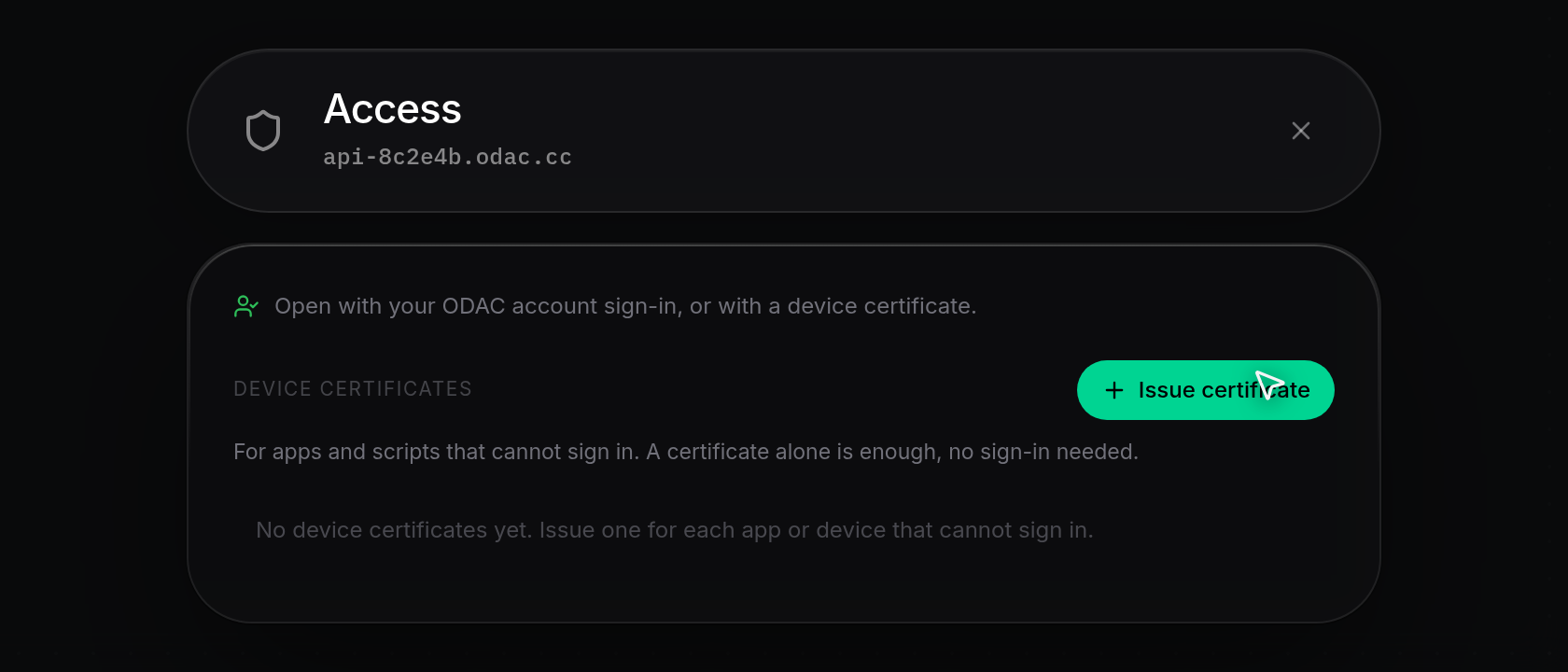
- The Access sheet opens with the tunnel hostname in the subtitle. Tunnels always keep ODAC account sign-in enabled (
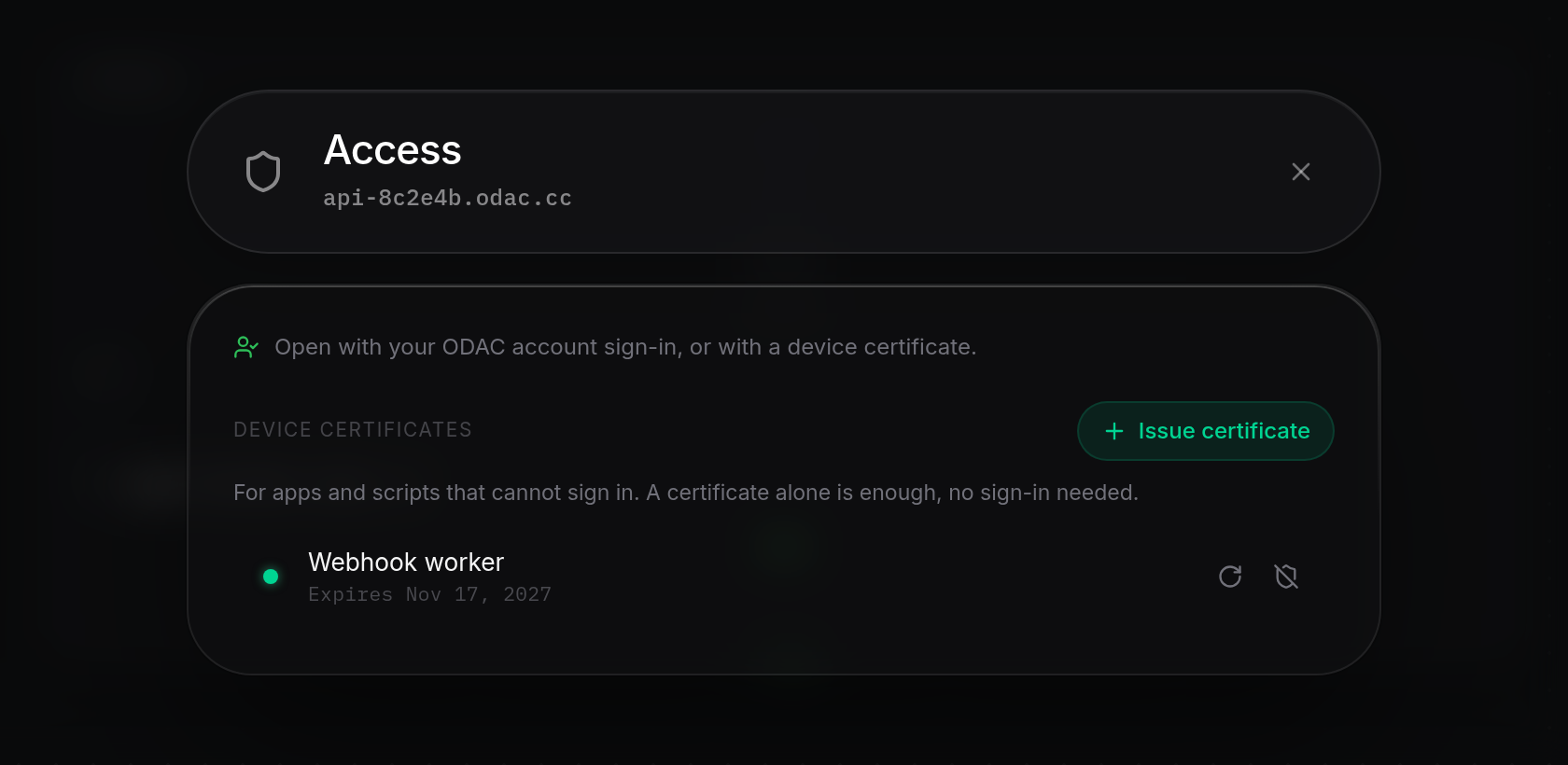
Open with your ODAC account sign-in, or with a device certificate.). Below that, the Device certificates section readsFor apps and scripts that cannot sign in. A certificate alone is enough, no sign-in needed.and showsNo device certificates yet. Issue one for each app or device that cannot sign in.until you create one.
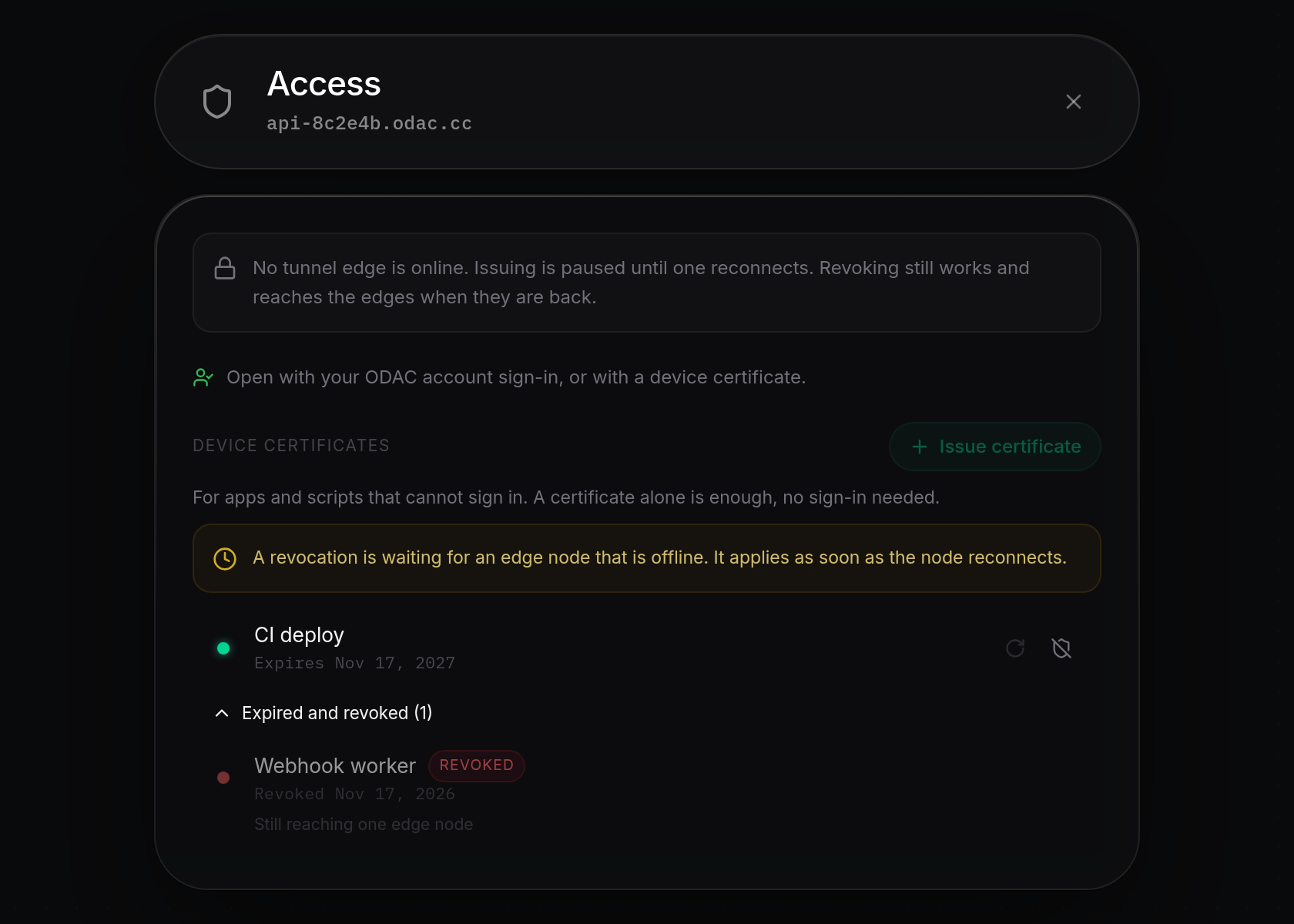
If device certificates are unavailable for the project, the tunnel is not active, or no tunnel edge is online, a lock banner appears at the top of the sheet and Issue certificate stays disabled until the condition clears.
Issue a device certificate
- Click Issue certificate to open the Issue a device certificate dialog. Enter a Name (such as Webhook worker) to identify the script or device in the list. Under Opens, the tunnel hostname appears as a single fixed pill (
The certificate opens this host only.). Choose a Valid for duration (30 days, 90 days, 1 year by default, or 2 years), then type a File password or click Generate a password (the dice icon) to create one. If the client generates its own private key, click I have my own key to paste a PEM Certificate request (CSR) instead (see Issue and install a client certificate).
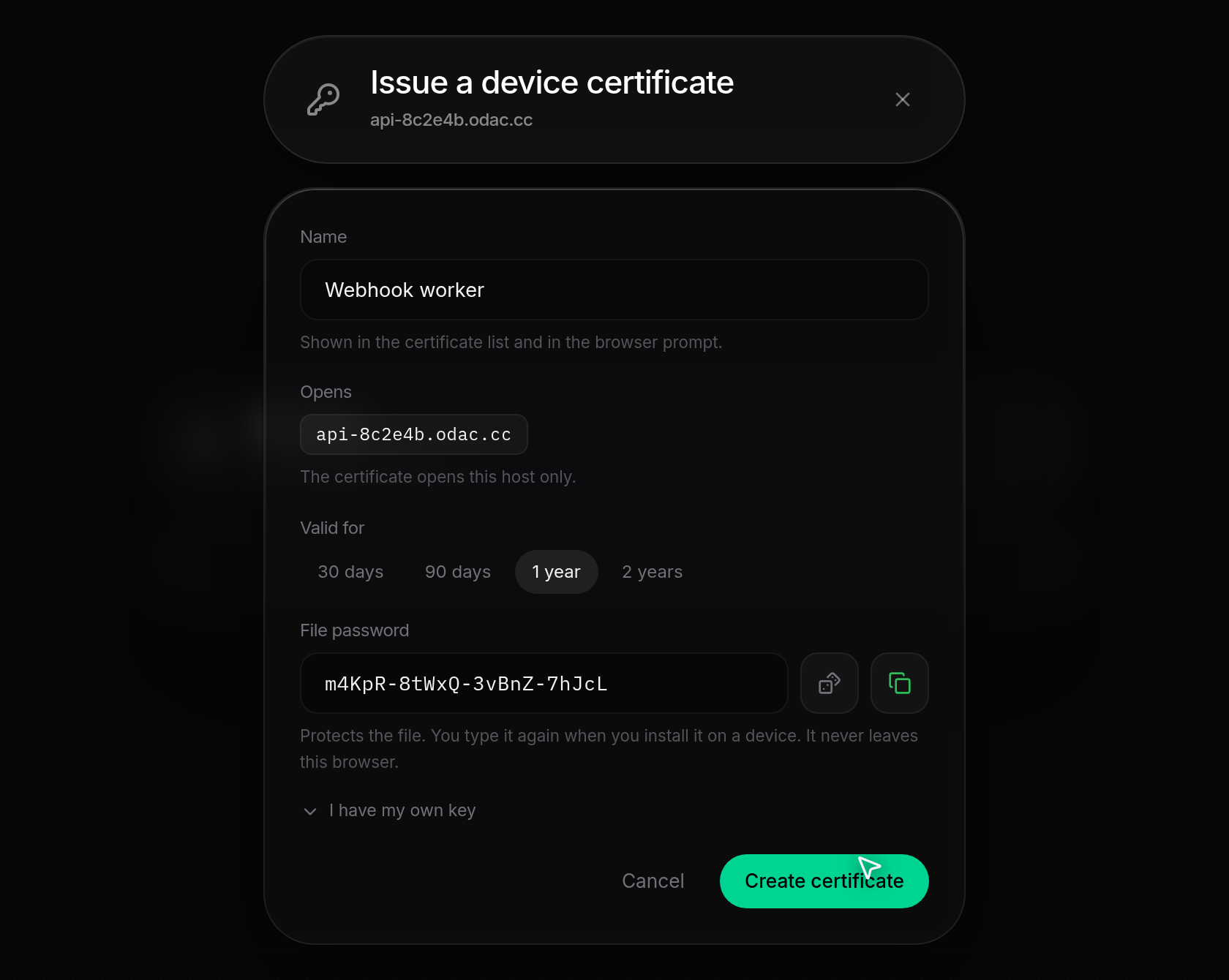
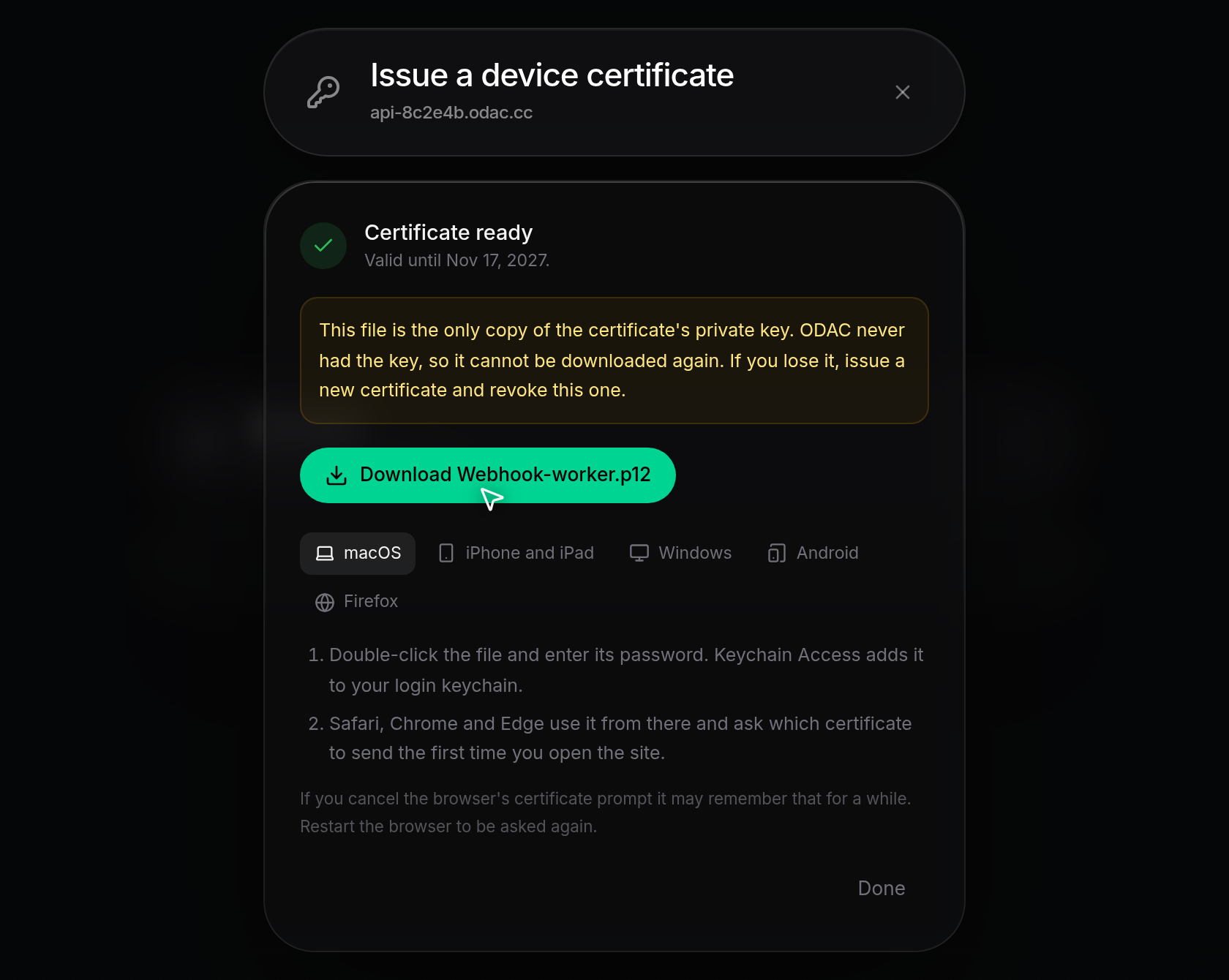
- Click Create certificate. Once the progress steps complete, Certificate ready appears with the expiration date (
Valid until ...). If a tunnel edge does not confirm in time, the dialog showsThe tunnel edge did not confirm in time. Try again: the same request goes out, so you will not end up with two certificates.; click Try again to retry safely or Back to return to the form. Click the.p12download button (for example, Download Webhook-worker.p12) and keep the file and File password safe, or follow the macOS, iPhone and iPad, Windows, Android, or Firefox tabs to install it on a device. If you used I have my own key, download Certificate (.crt) and CA chain (-ca.crt) instead. Click Done when finished.
- Back in the Access sheet, the new certificate appears under Device certificates with a green status dot, its expiration date, and Renew and Revoke buttons on the right. In the Domains table behind the sheet, the tunnel's Access badge switches from Account to Account / Cert.
Renew a device certificate
- Under Device certificates, click Renew (the circular arrow icon) on an active certificate row. Only active tunnel certificates show Renew; expired or revoked tunnel certificates cannot be renewed.
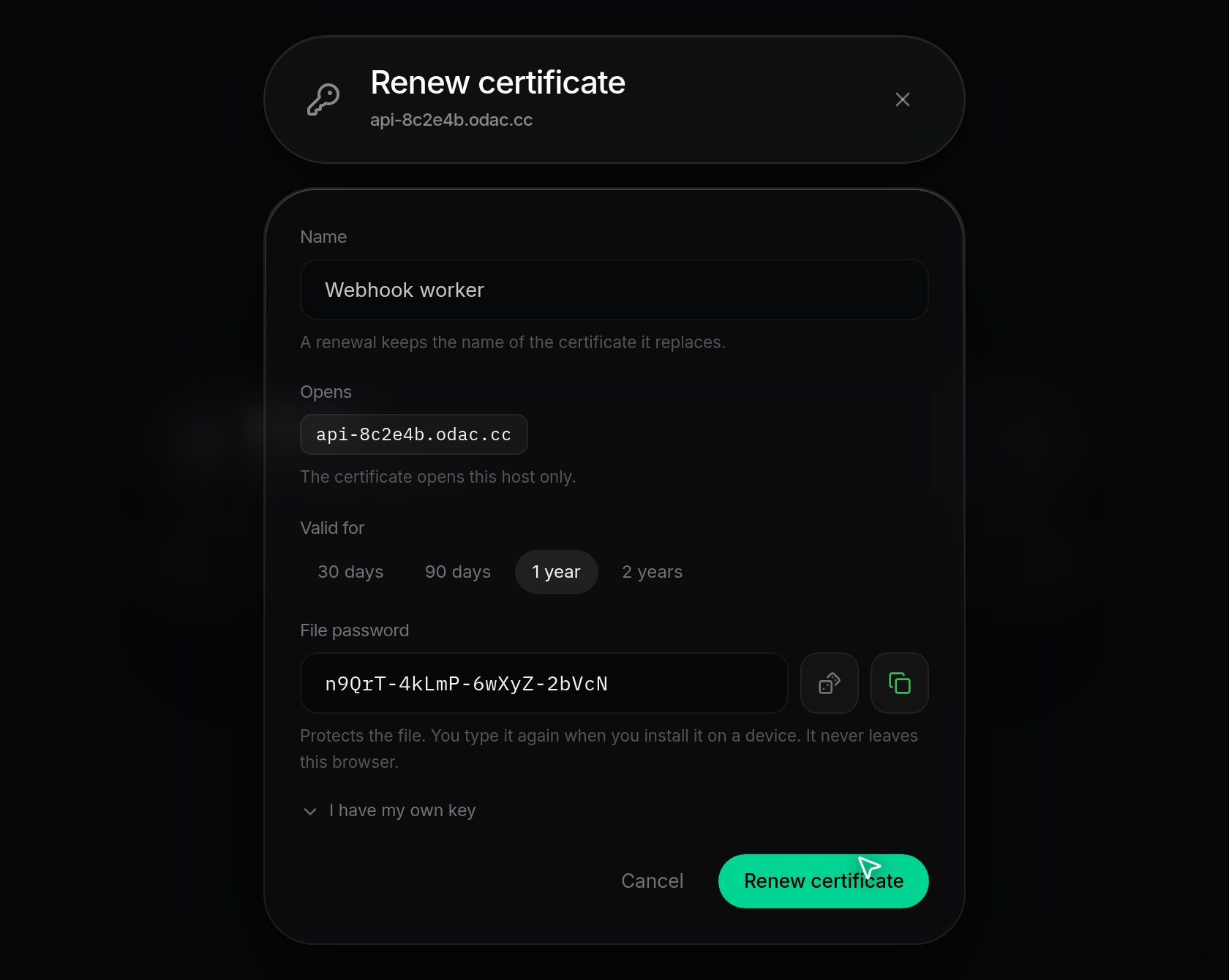
- In the Renew certificate dialog, Name is prefilled and locked to the certificate it replaces (
A renewal keeps the name of the certificate it replaces.), and Opens remains fixed to the tunnel hostname. Pick a Valid for duration, enter or generate a File password (or click I have my own key), and click Renew certificate.
- On Certificate ready, download the new
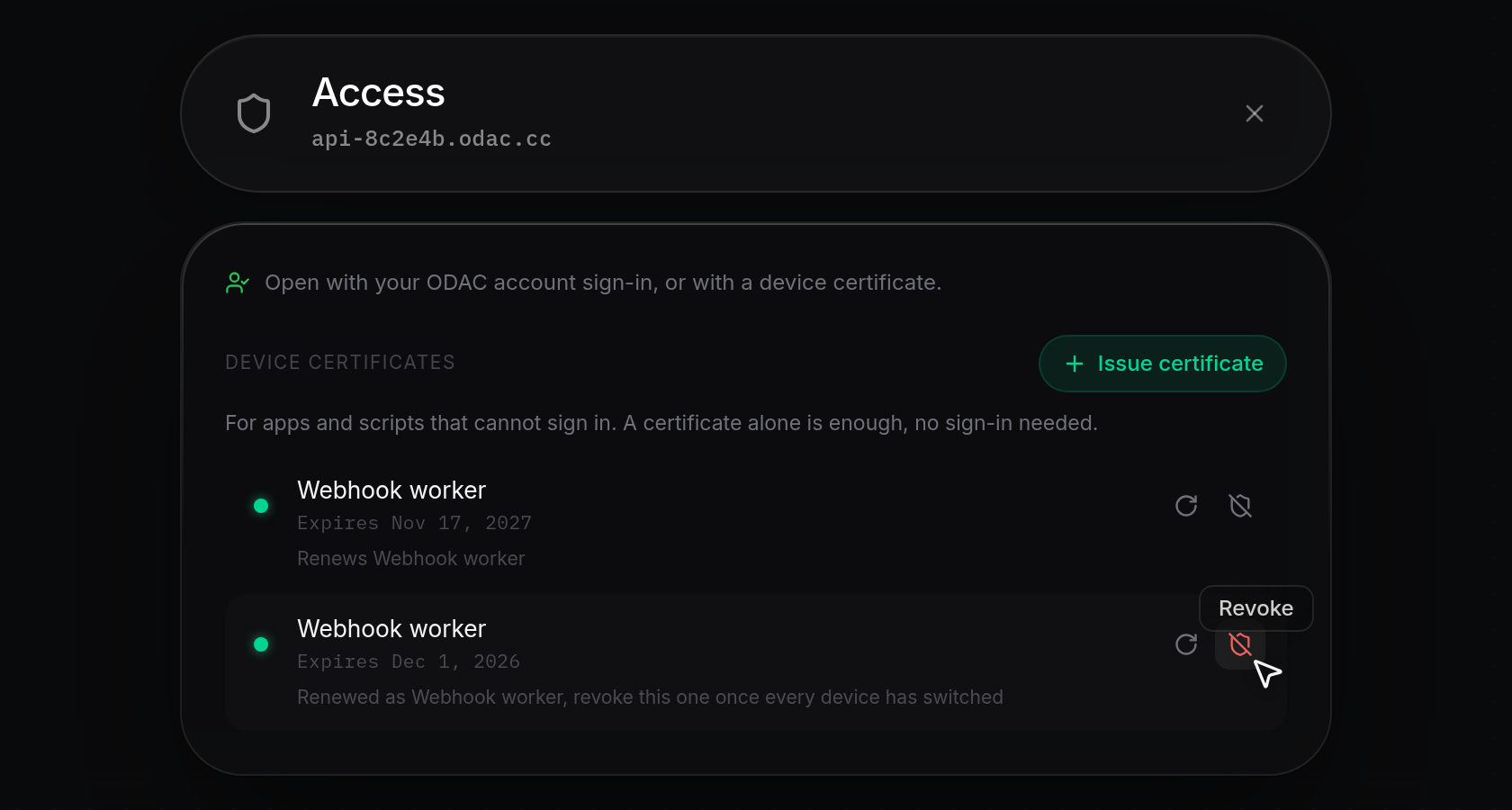
.p12(or.crtand CA chain) file and update your script or device. Below the installation tabs, Revoke the old one stays disabled (Download the new file first) until you download a.p12file. Click Revoke the old one once every client uses the replacement, or click Done to leave both active during the transition. In the Access sheet, the replacement showsRenews <name>and the previous row showsRenewed as <name>, revoke this one once every device has switched.
Revoke a device certificate and offline edge sync
- To block a device certificate immediately, click Revoke (the crossed-shield icon) on any active or expired row under Device certificates, or click Revoke the old one after renewing. Even when no tunnel edge is online, Revoke remains enabled so revocations are recorded right away.
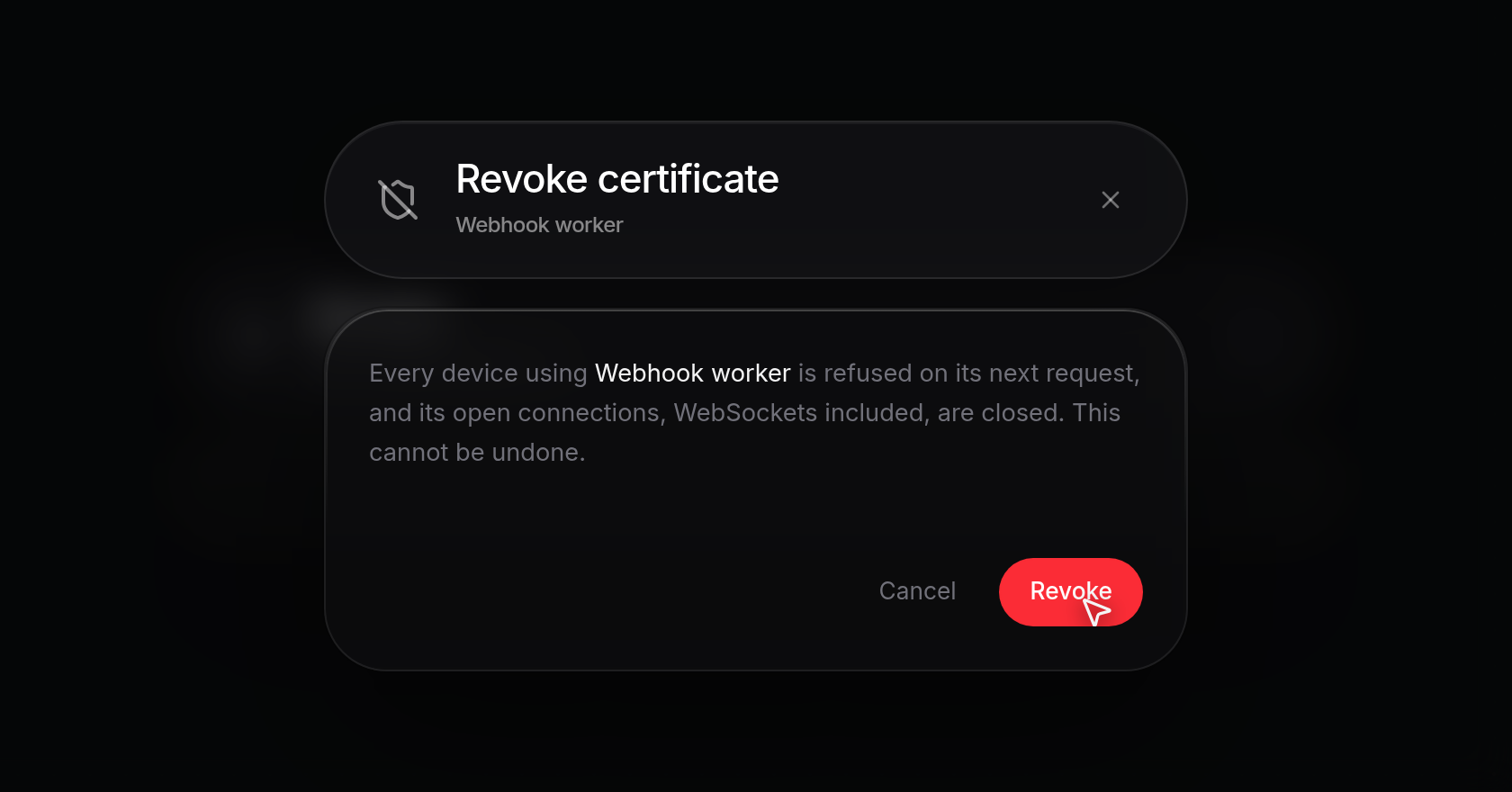
- In the Revoke certificate confirmation dialog, review the warning (
Every device using <name> is refused on its next request, and its open connections, WebSockets included, are closed. This cannot be undone.) and click Revoke (or Cancel to keep the certificate active).
- When every tunnel edge receives the update immediately,
Certificate revokedappears and the certificate moves under Expired and revoked (<count>). If an edge node is offline or still receiving the revocation:- A notification reads
Revoked. The revocation is reaching every edge. - An amber banner above the list in the Access sheet reports the pending sync, such as
A revocation is waiting for an edge node that is offline. It applies as soon as the node reconnects. - Expanding Expired and revoked (<count>) shows
Still reaching one edge node(orStill reaching <count> edge nodes) beneath the revoked certificate until every node reconnects.
Once no active device certificates remain on the tunnel, its Access badge in Domains returns to Account.
- A notification reads