Create a mail account
Create a mailbox on any domain in your active project at app.odac.run. Open Mail Accounts from the left sidebar, pick a domain from Search domains..., enter the local address before the fixed domain suffix, set or generate a one-time password, and click Create account.
Open Mail Accounts
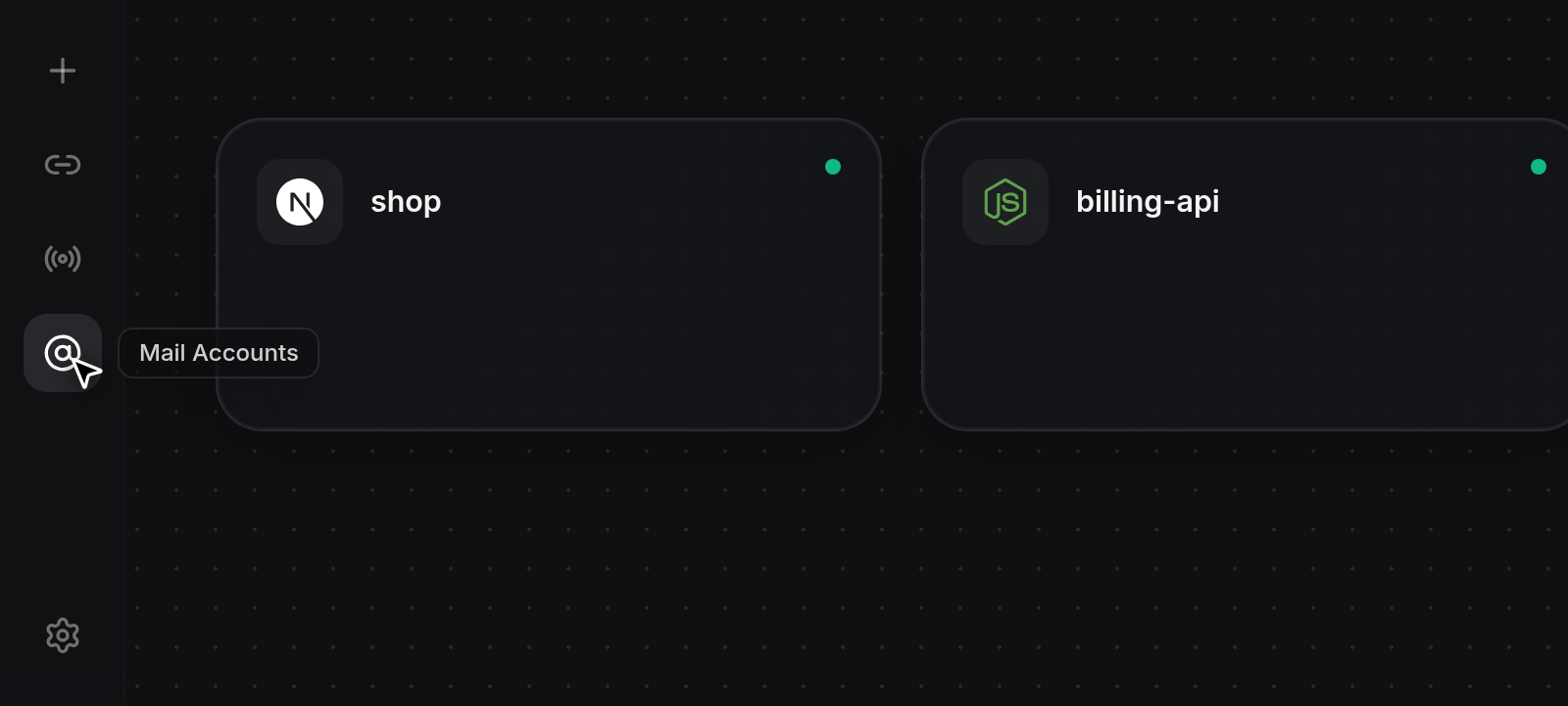
- Click the
@(Mail Accounts) icon in the left sidebar rail on any project page. Hovering over the icon displays theMail Accountslabel.
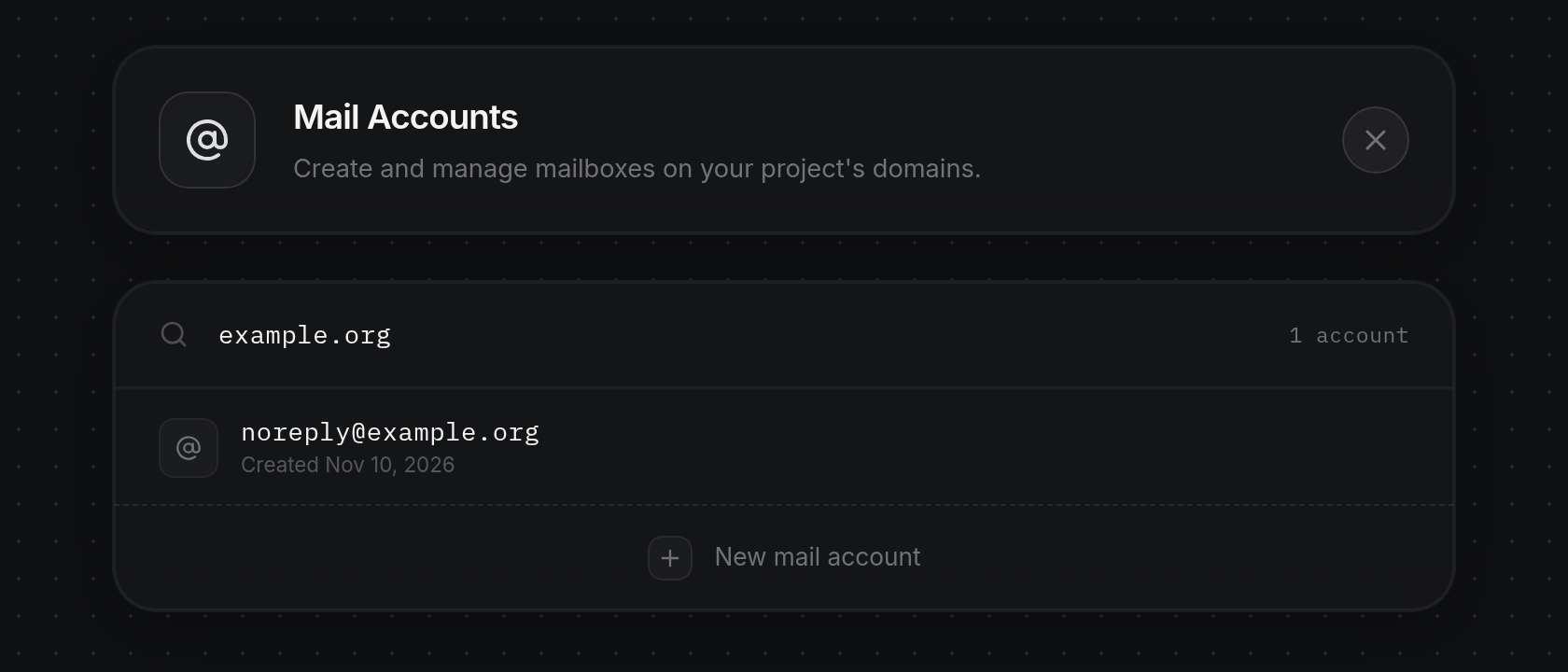
- At the top of the page, the Mail Accounts header card displays
Create and manage mailboxes on your project's domains.with an×button on the right to return to the Canvas. AfterLoading domains...finishes, ODAC automatically selects the first domain in the project alphabetically, fills Search domains... with that domain name, shows the mailbox count on the right, and lists existing mailboxes below (orNo mail accounts on this domain yet.if none exist yet). If your project has no domains yet, ODAC displaysNo domains in this project yet.andAdd a domain first, then mailboxes can live on it.instead (see Attach domains and tunnels to an app).
Select a project domain
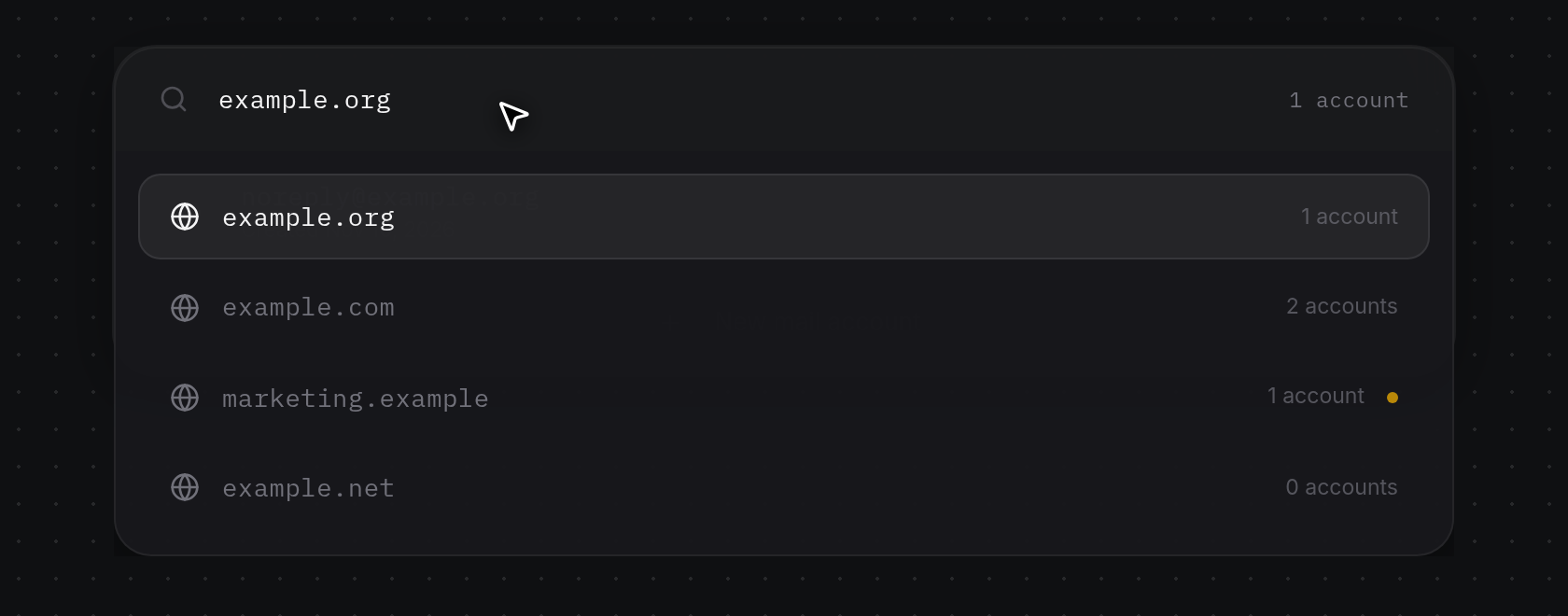
- Click the Search domains... bar at the top of the accounts card to open the domain list directly beneath it. Even when a domain is already loaded in the field, focusing the bar displays every domain in the project with a globe icon, its domain name, and its mailbox count on the right (such as 2 accounts), highlighting the active domain. Any domain whose server is currently disconnected shows an amber dot (
Server offline) on the right.
- Type part of a domain name into Search domains... to filter the list as you type. If no domain matches your filter, the dropdown shows
No matching domains..
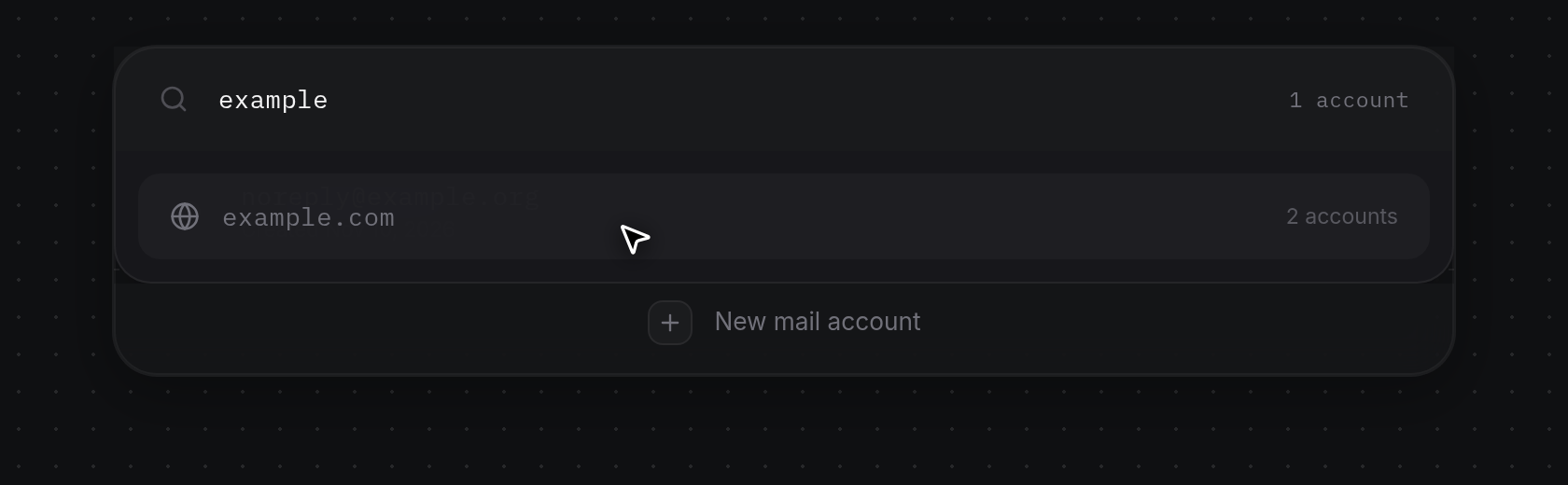
- Click a domain in the dropdown (or press
Enterto select the first match) to load its mailboxes, update Search domains... and the counter on the right, and close any open creation form. To close the dropdown without switching domains, pressEscapeor click outside the search bar: ODAC discards any half-typed filter text and restores the currently loaded domain name. When the selected domain's server is offline, New mail account is hidden until the server reconnects (see Change passwords and delete mail accounts).
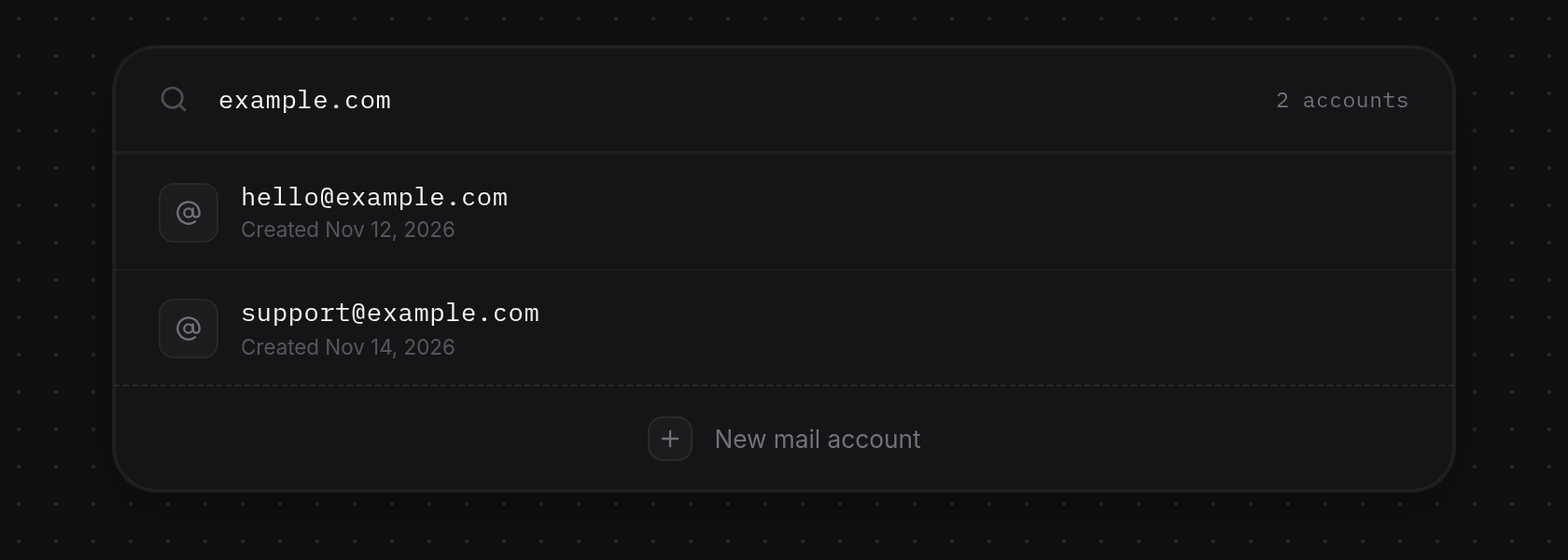
Enter the local address and password
- Click the dashed New mail account row at the bottom of the accounts card. The placeholder collapses and expands the creation form inline, placing your cursor in the Address input with the selected domain locked as a fixed suffix on the right.
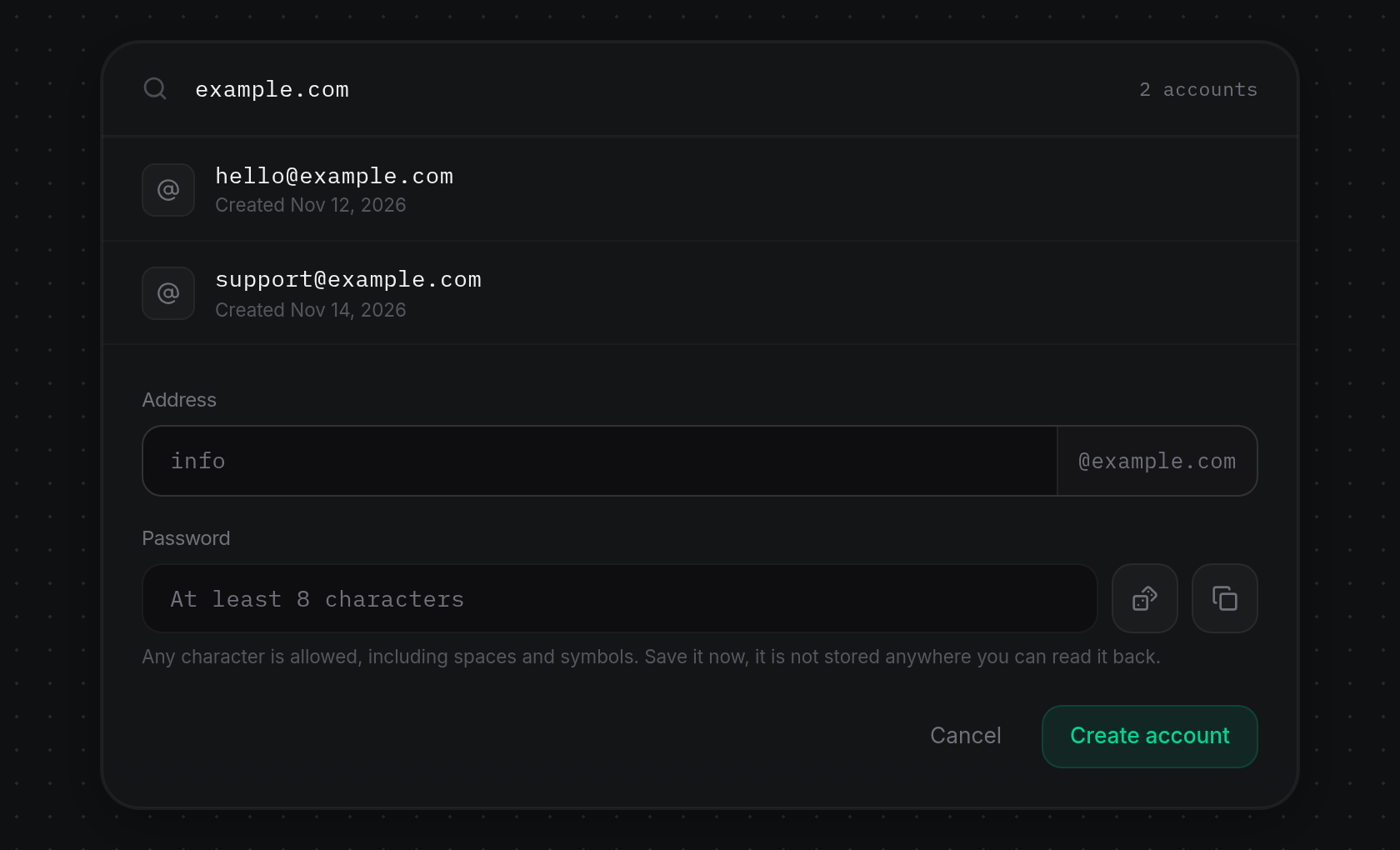
- Enter only the local part of the address before @example.com in Address (placeholder
info). Lowercase letters, numbers, dots, underscores, plus signs, and hyphens are accepted, up to 64 characters without consecutive dots. If you paste a full address containing@, ODAC keeps only the local part before@and keeps the selected domain suffix.
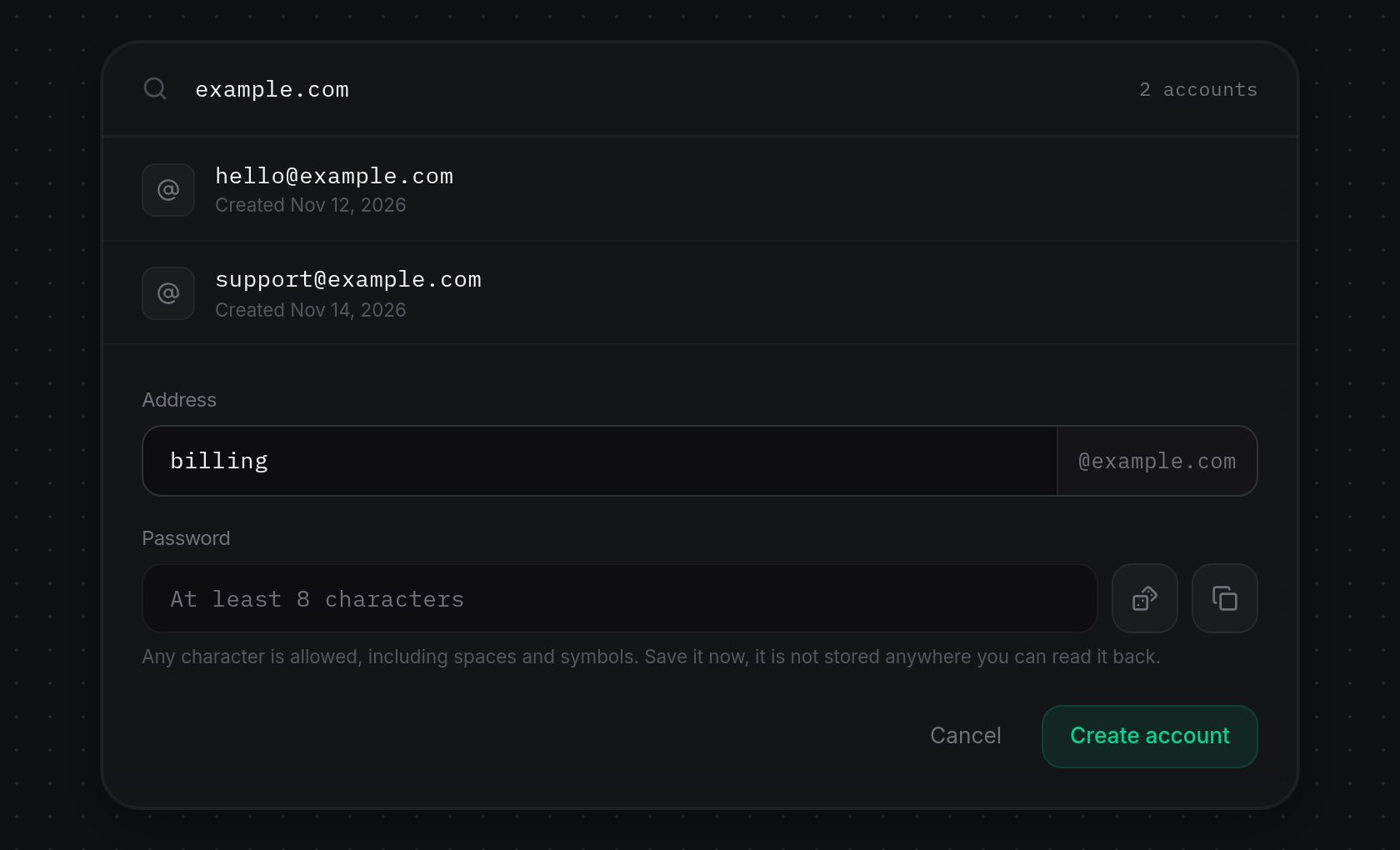
- Type a password between 8 and 256 characters in Password (placeholder
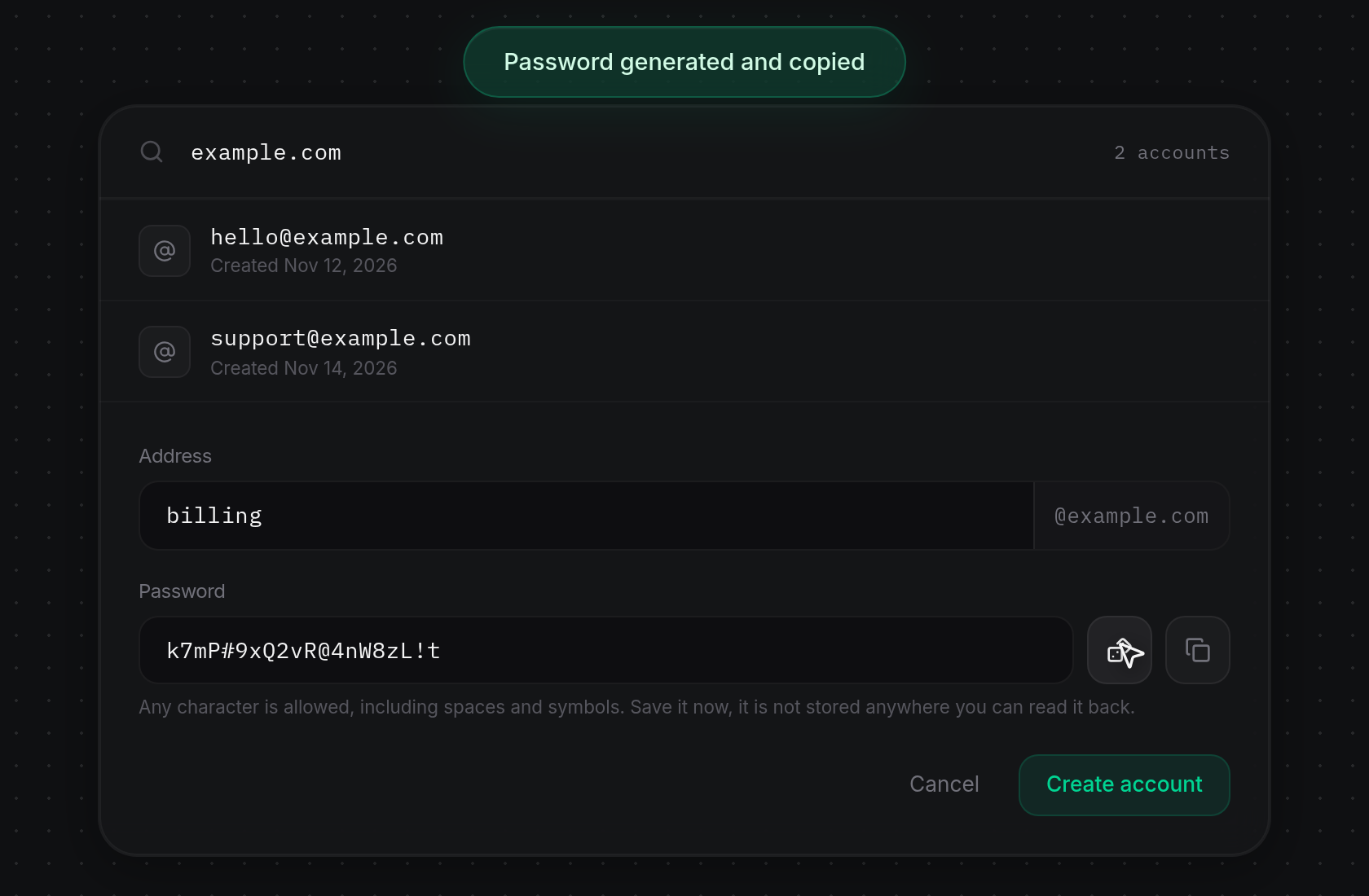
At least 8 characters), or click the Generate a strong password dice button beside it to fill the field with a random 20-character password. Clicking the dice button automatically copies the generated password to your clipboard and displays a greenPassword generated and copiednotification at the top of the screen (orPassword generatedif clipboard access is unavailable). The password appears in plain text because it is only shown once at creation:Any character is allowed, including spaces and symbols. Save it now, it is not stored anywhere you can read it back.
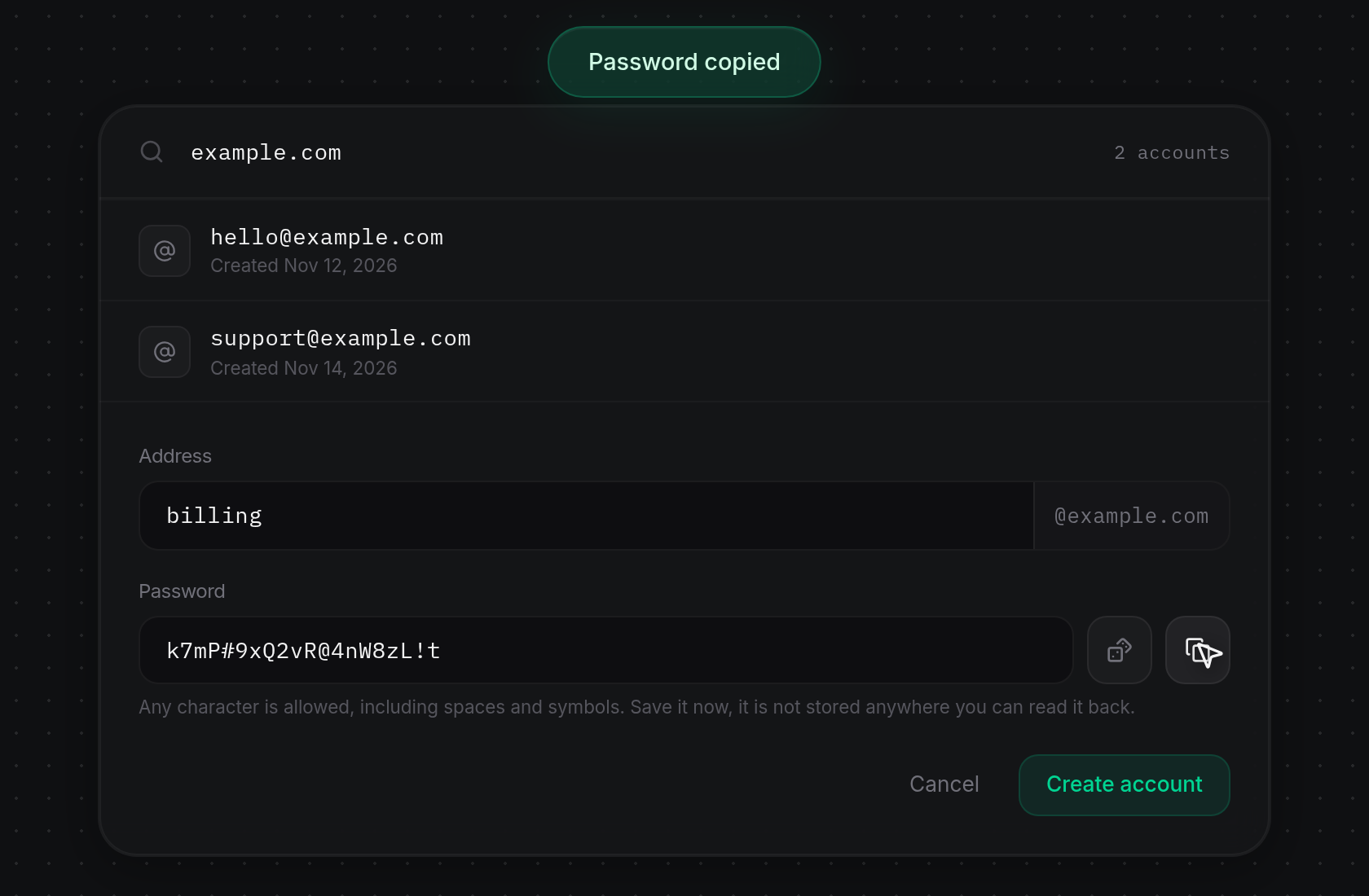
- Click the Copy password button next to the dice button whenever you want to copy the password currently in the field. ODAC displays a green
Password copiednotification (or a redNothing to copynotification if the field is empty).
Create the mail account
- Click Create account at the bottom right of the form (or click Cancel to discard your entries and collapse the form back into New mail account).
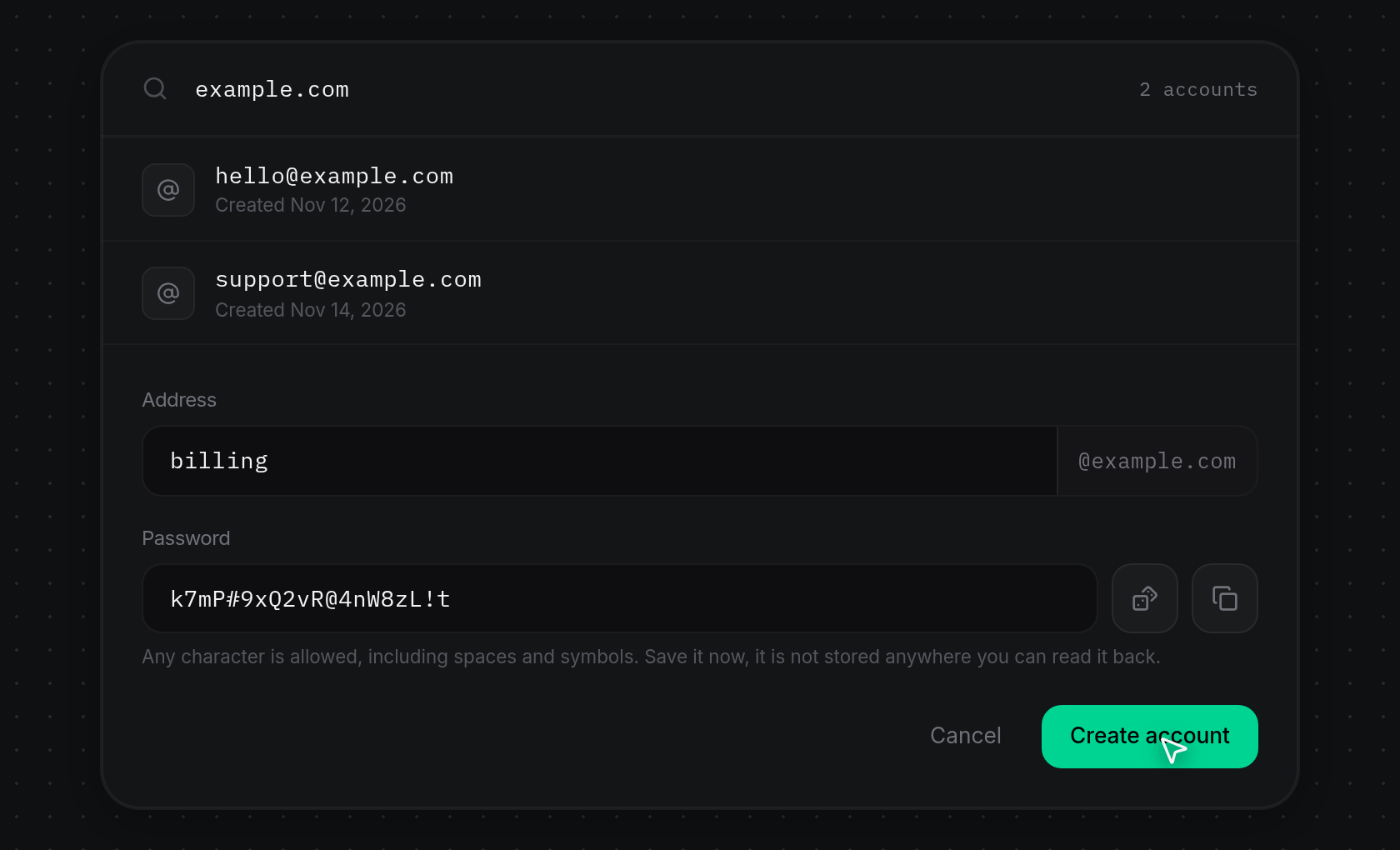
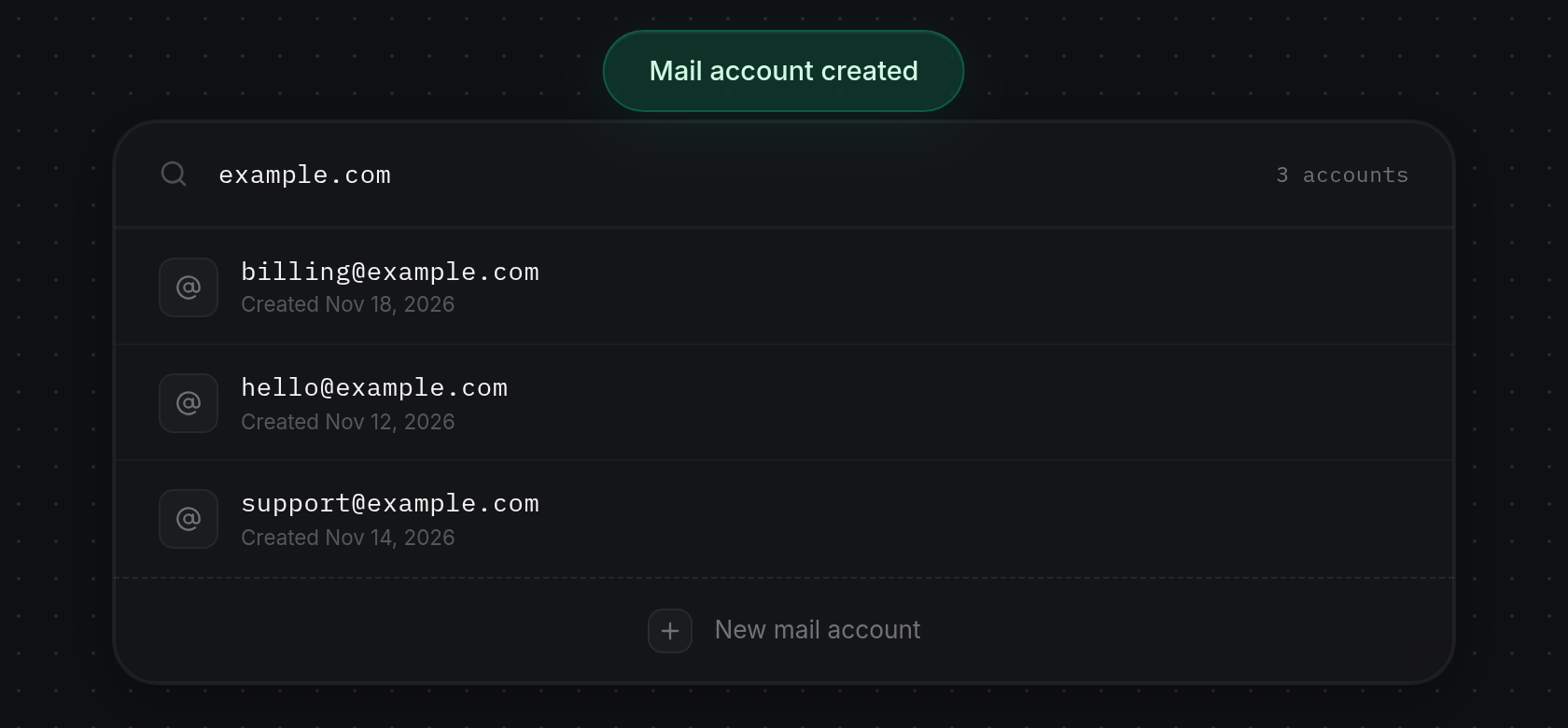
- While creating the mailbox, Create account disables briefly, then ODAC displays a green
Mail account creatednotification at the top of the screen, collapses the form, updates the mailbox counter, and adds the new address to the list in alphabetical order with today'sCreateddate. If the address or password is invalid or the server cannot be reached, a red notification explains the issue and the form remains open so you can fix it.