Change passwords and delete mail accounts
Copy a mailbox address, update a mailbox password, delete an account, or view mailboxes when a server is offline at app.odac.run. Open Mail Accounts from the left sidebar and select a domain from Search domains... (see Create a mail account).
Copy a mailbox address
- Move your pointer over any mailbox row on Mail Accounts to reveal its action buttons on the right: Copy address, Change password, and Delete account.
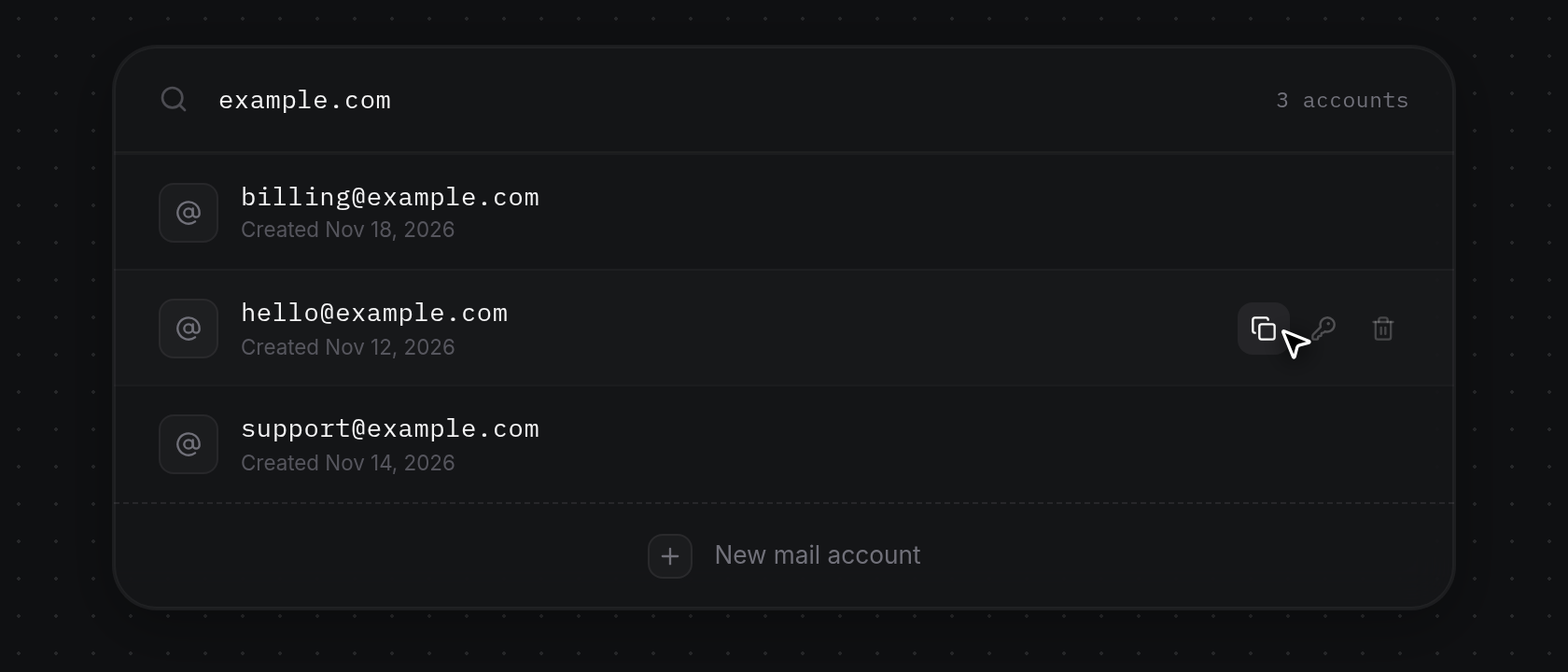
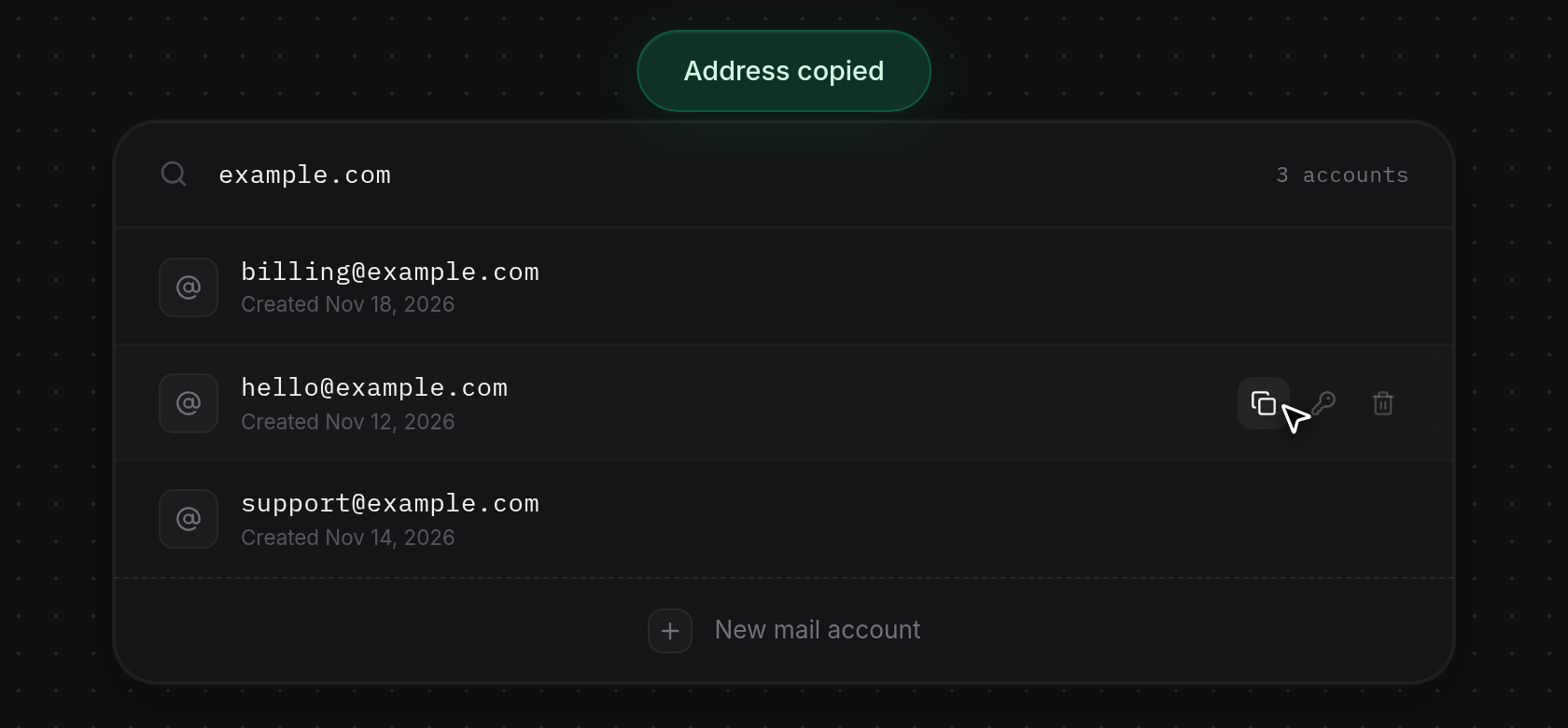
- Click Copy address to copy the full email address to your clipboard. ODAC displays a green
Address copiednotification at the top of the screen (or a redCould not copynotification if clipboard access is unavailable).
Change a mailbox password
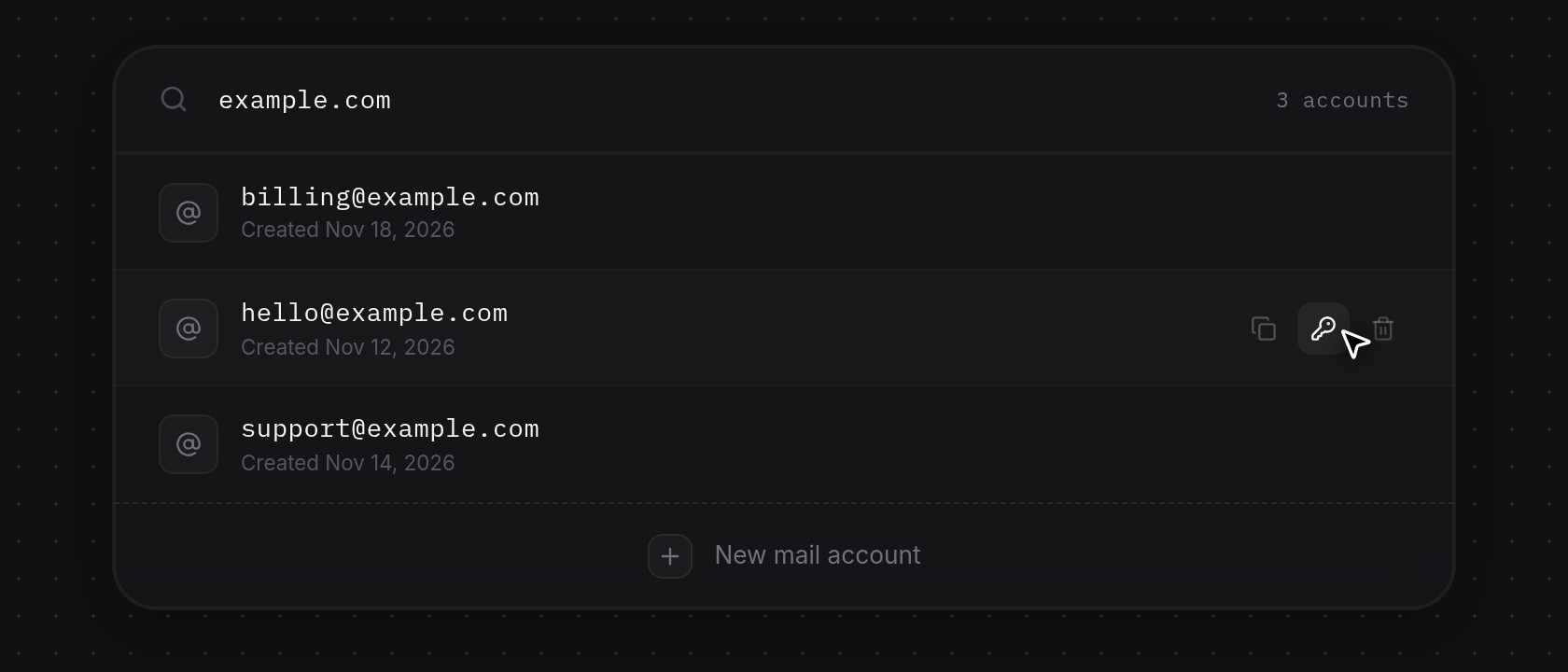
- Hover over the mailbox row whose password you want to replace and click Change password (the key icon).
- In the Change password dialog, the mailbox address appears beneath the title. Type a password between 8 and 256 characters in New password (placeholder
At least 8 characters), or click Generate (the dice button) beside the field to fill in a random 20-character password and copy it to your clipboard (Password generated and copied, orPassword generatedif clipboard access is unavailable). The password appears in plain text so you can save it before updating.
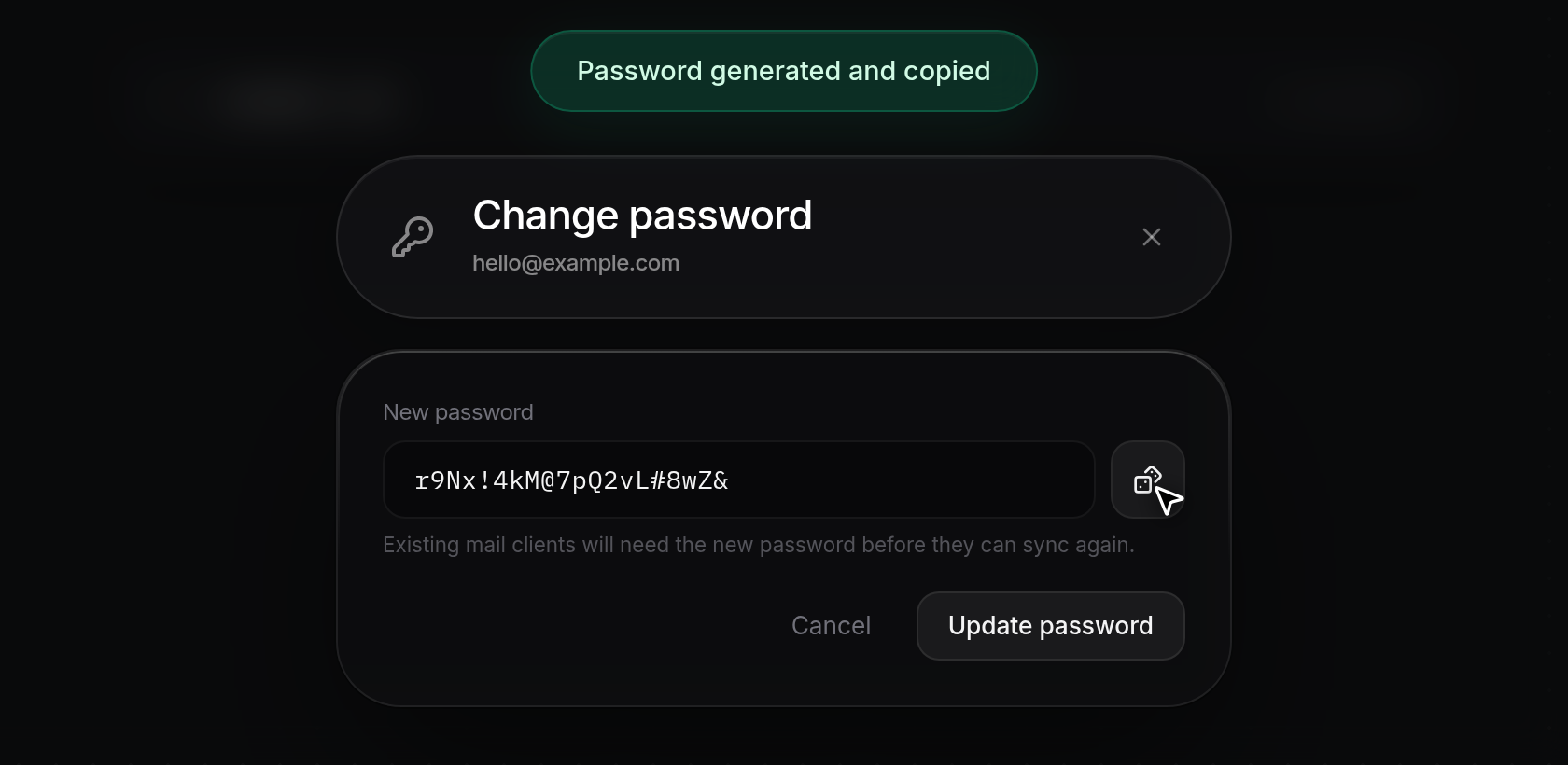
- Click Update password (or click Cancel to keep the existing password).
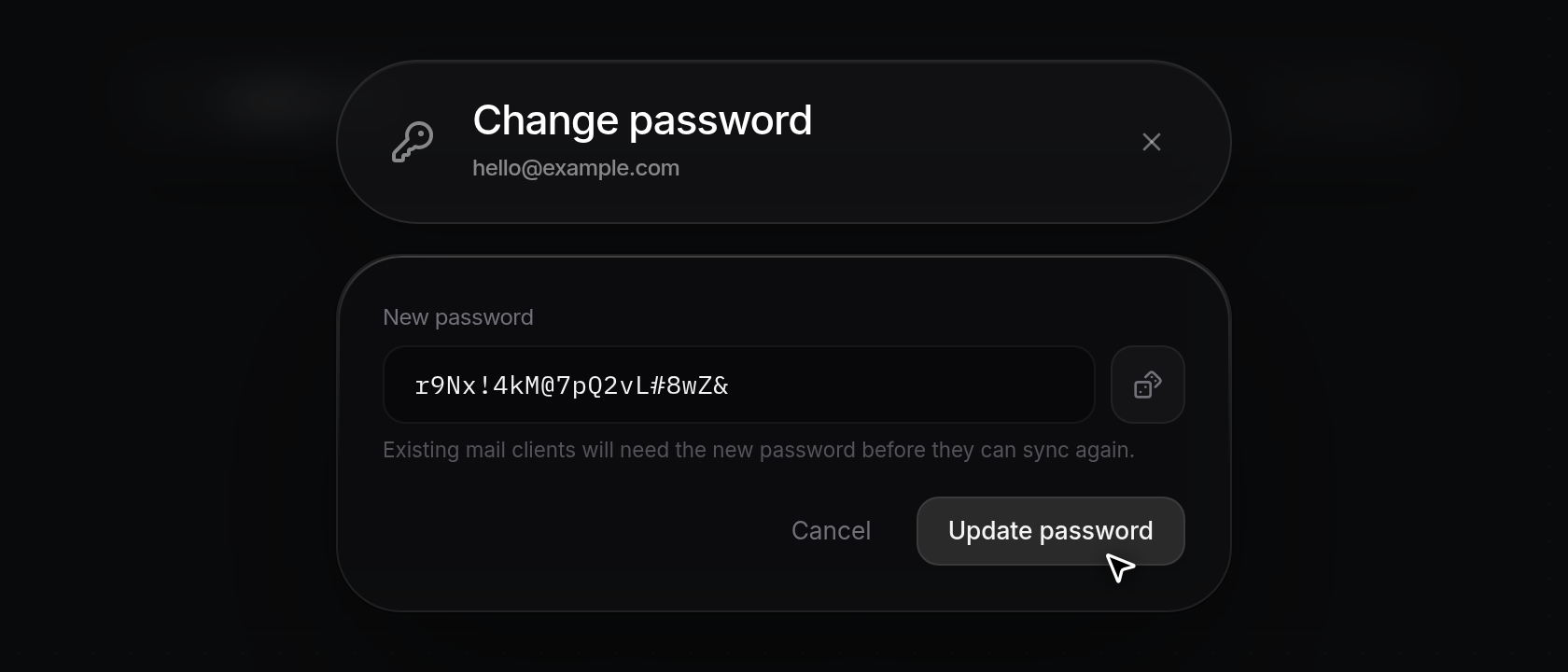
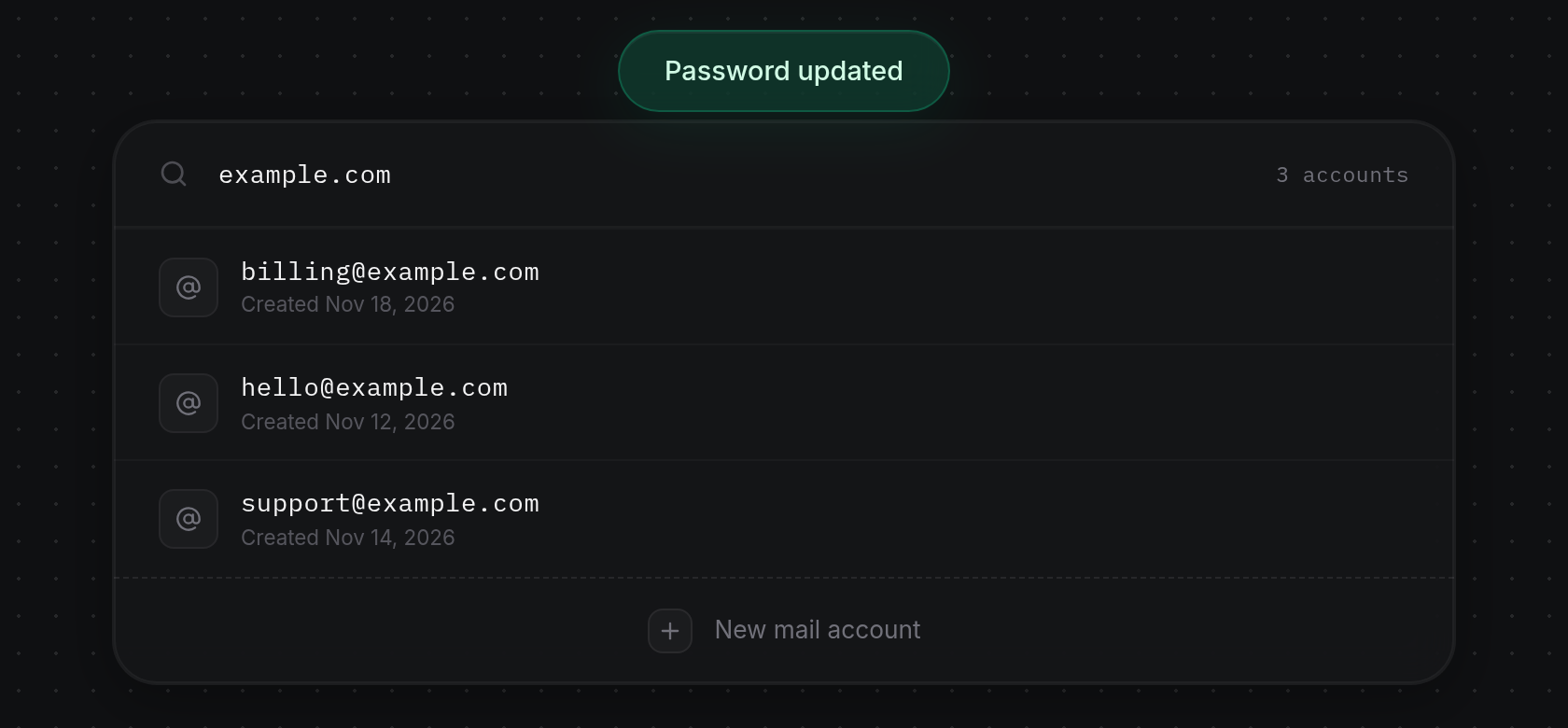
- Update password disables briefly while the change runs, then the dialog closes and ODAC displays a green
Password updatednotification at the top of the screen. As noted below New password (Existing mail clients will need the new password before they can sync again.), any mail client already signed in to this mailbox must be updated with the new password before it can sync again. If the password is invalid or the server cannot be reached, a red notification explains why and the dialog stays open.
Delete a mail account
- Hover over the mailbox row you want to remove and click Delete account (the trash icon on the right).
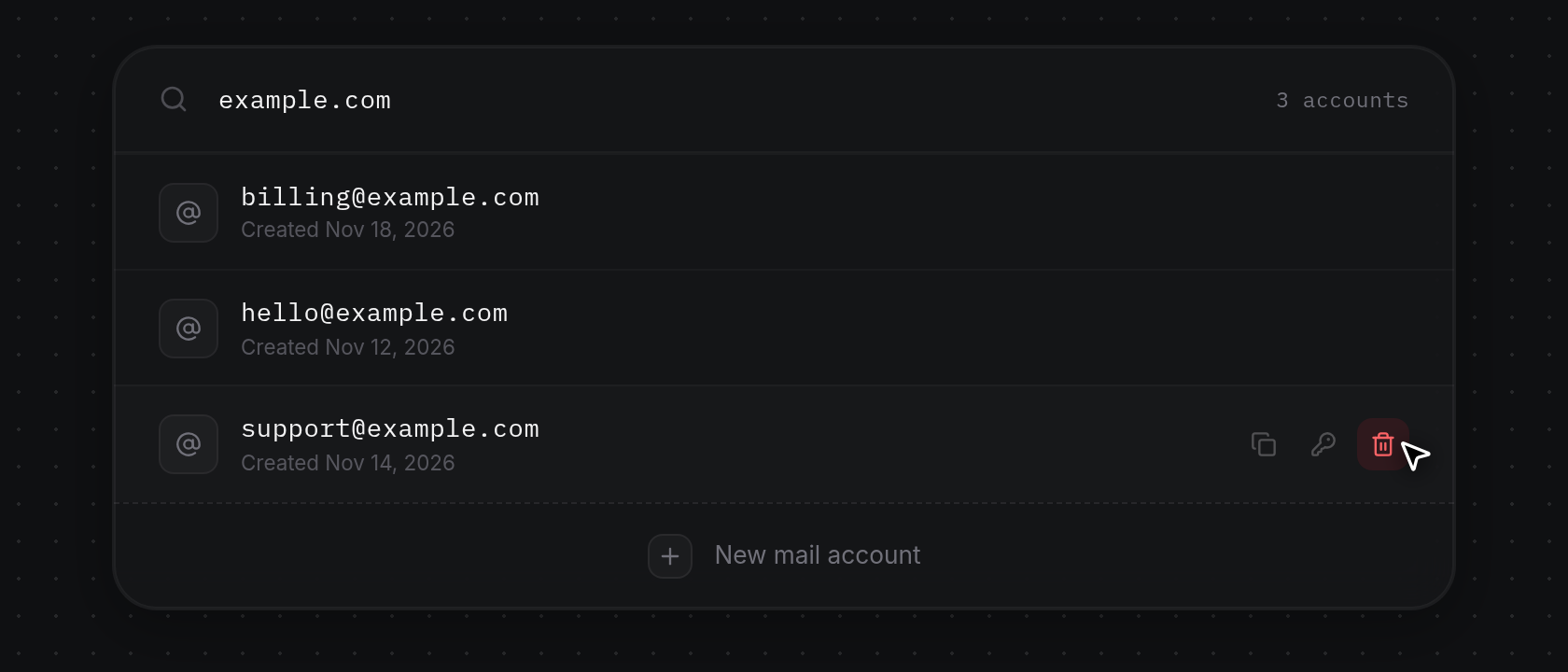
- In the Delete mail account dialog, check the address below the title and review the warning:
This removes the mailbox and everything stored in it from the server. It cannot be undone.Click Delete account to permanently remove the mailbox (or Cancel to keep it).
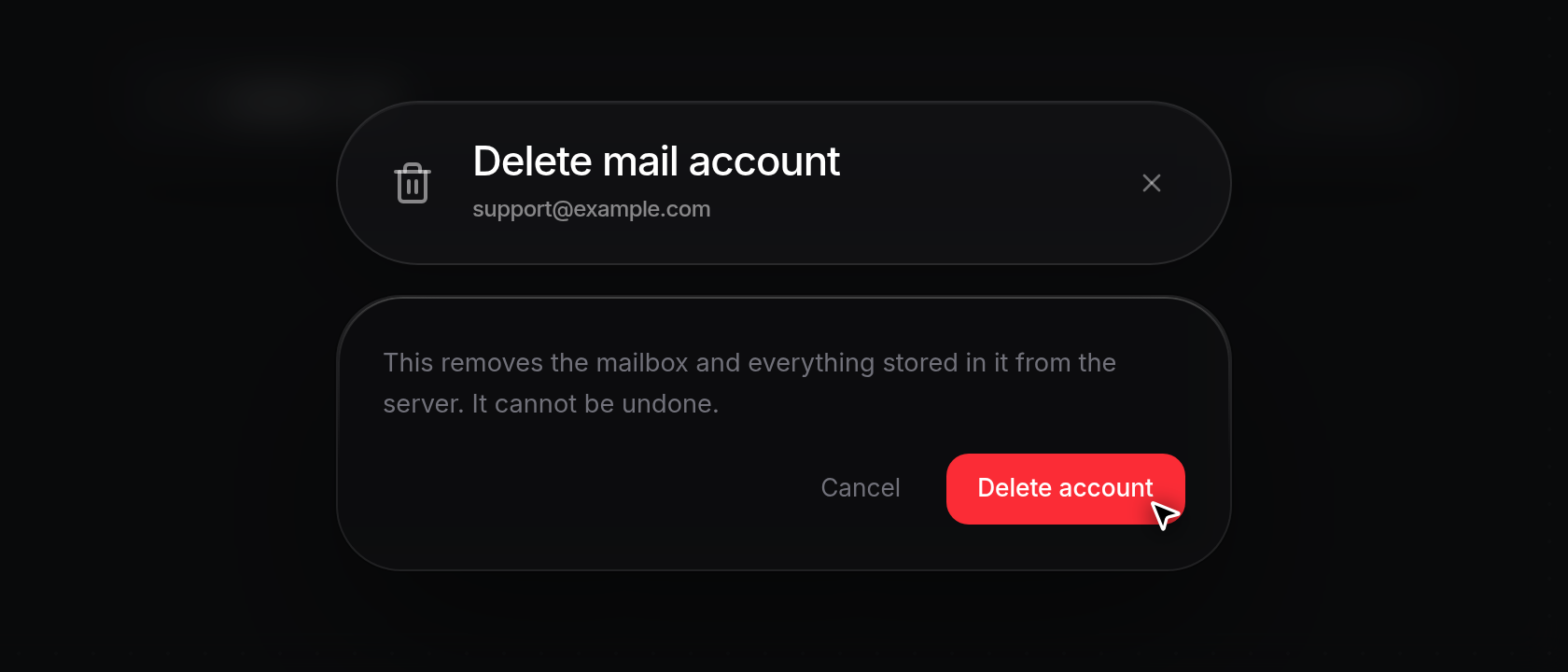
- Delete account disables briefly while the mailbox is removed, then the dialog closes, ODAC displays a green
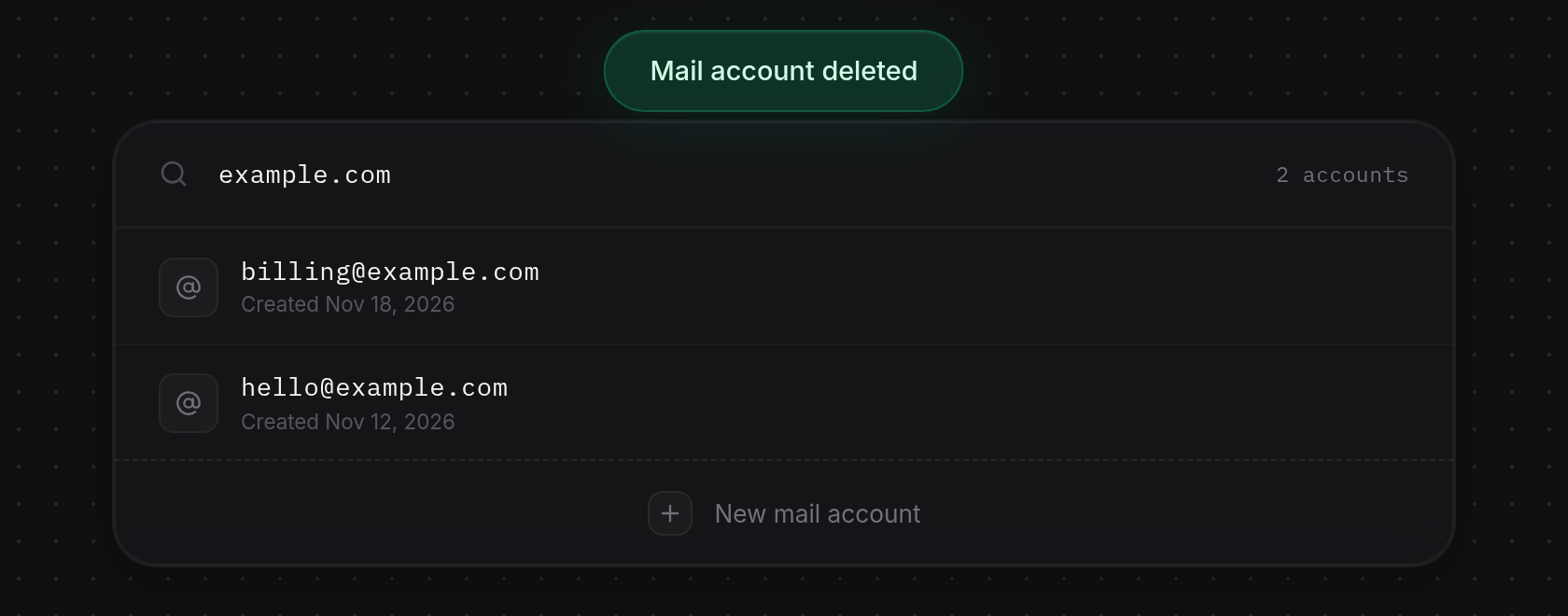
Mail account deletednotification at the top of the screen, updates the mailbox counter, and removes the row from the list (or showsNo mail accounts on this domain yet.if no mailboxes remain on the domain). If the server cannot be reached or another change is already in progress for that address, a red notification appears and the dialog stays open.
View mailboxes when the server is offline
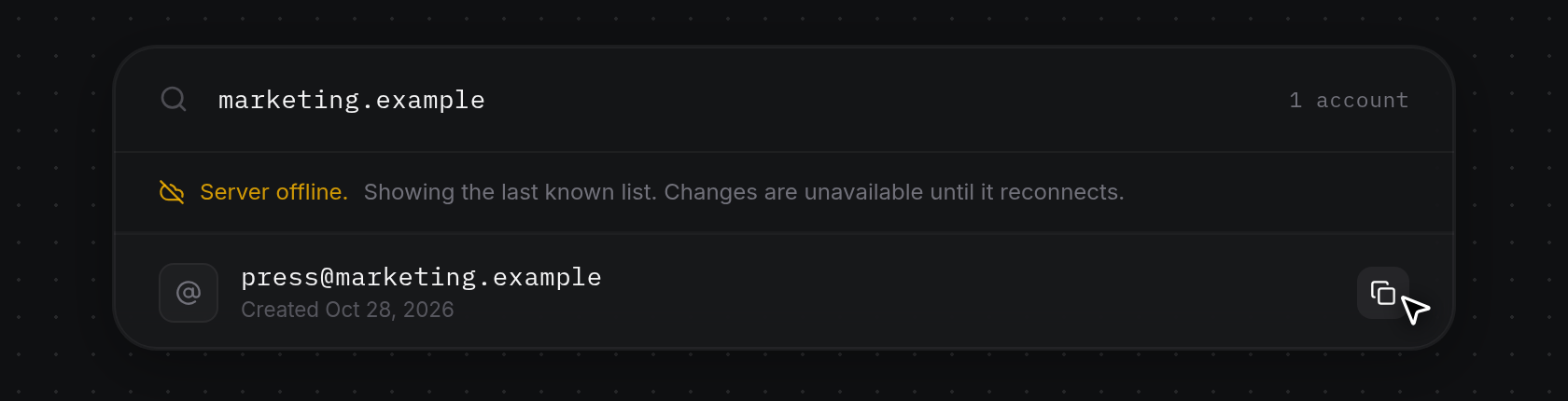
- Select a domain whose server is disconnected (marked with an amber
Server offlinedot in Search domains...). ODAC displays a read-only notice directly beneath the search bar (Server offline.in amber followed byShowing the last known list. Changes are unavailable until it reconnects.) and hides New mail account at the bottom of the card. You can still read the last known mailbox list and hover any row to click Copy address, while Change password and Delete account remain hidden until the server reconnects. If a server disconnects while Change password or Delete account is already open, submitting the dialog shows a redServer is offlinenotification.