Edit your profile photo, name, and language
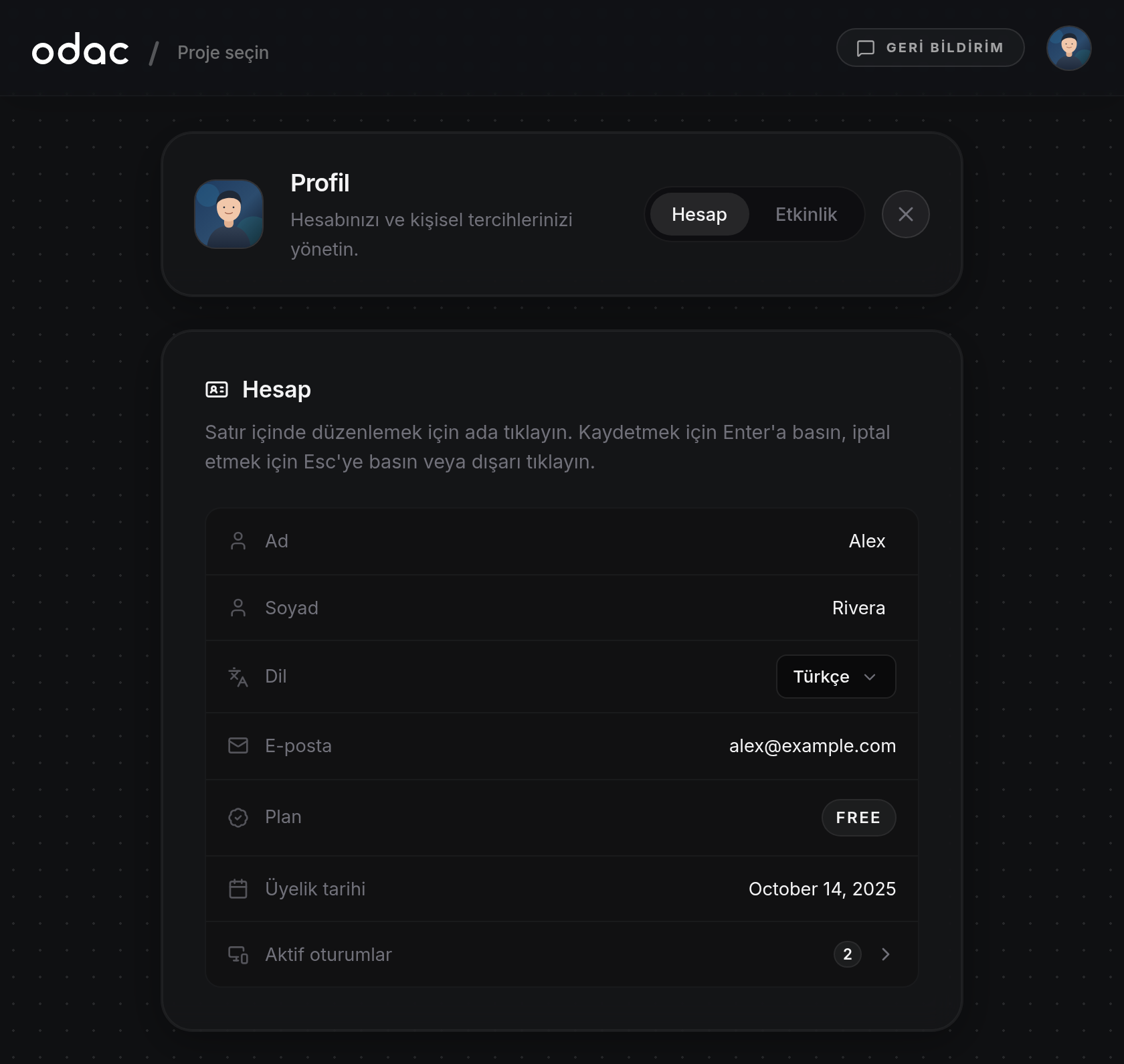
Update your personal details and dashboard preferences on Profile at app.odac.run. You can upload and frame a square profile photo, remove an existing photo, edit your First name and Last name inline, switch the dashboard Language, and review your Email, Plan, and Member since details.
Open Profile
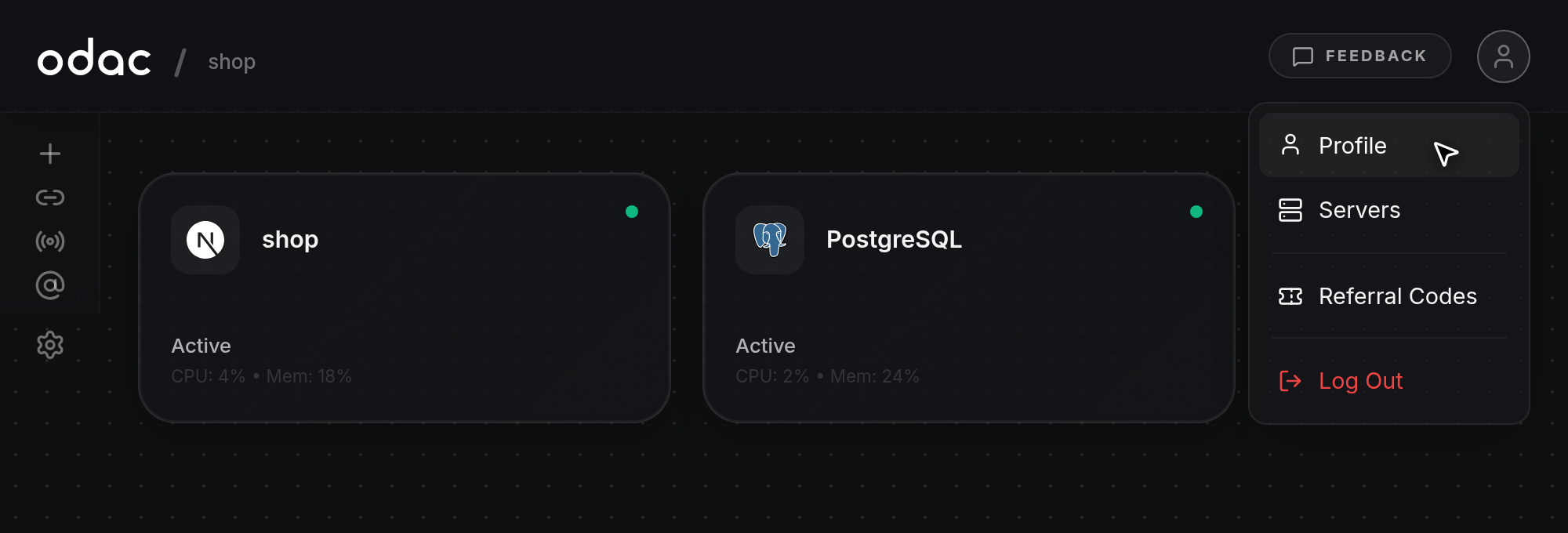
- Click your avatar in the top-right header on any dashboard page to open the user menu, then click Profile.
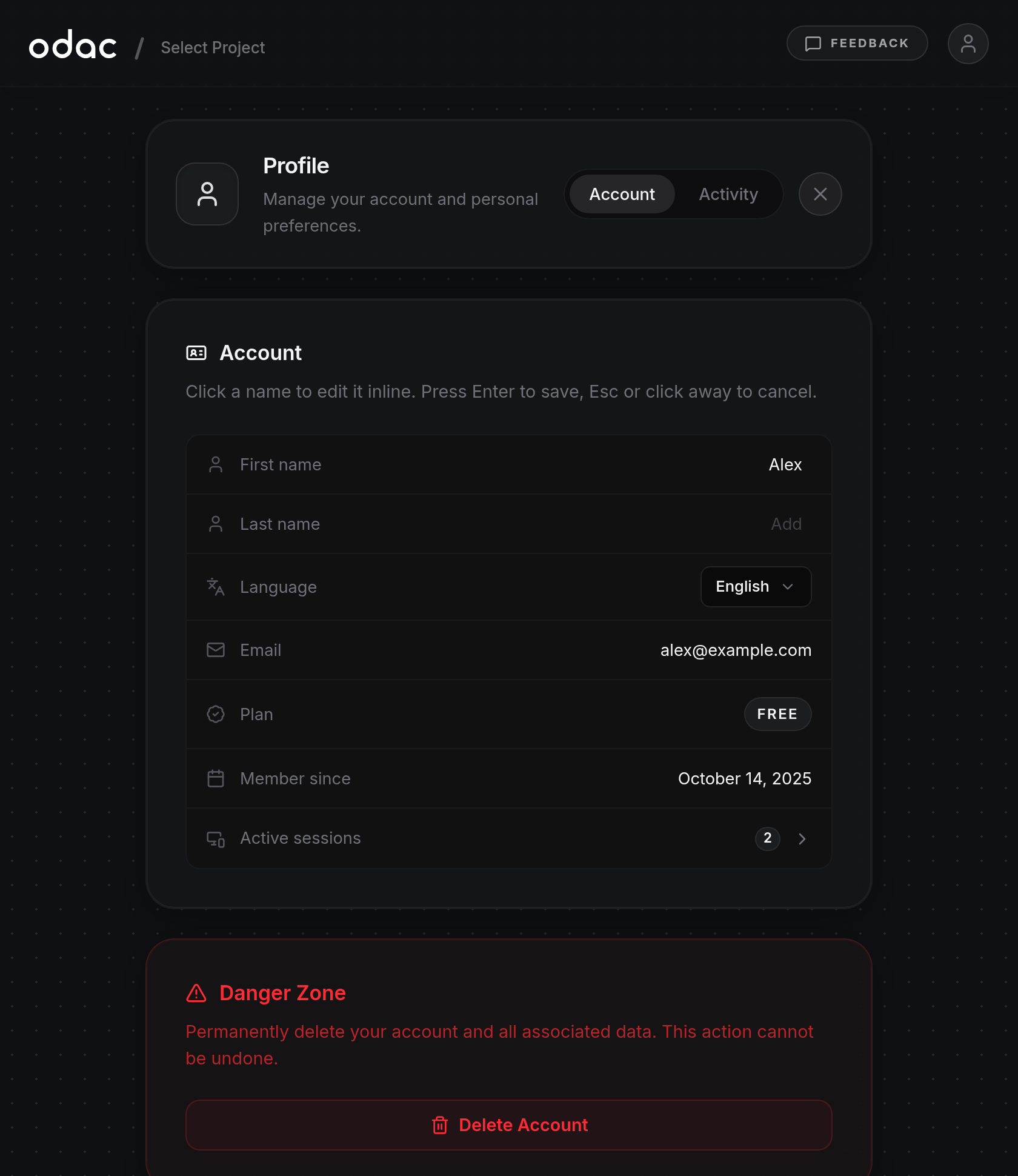
- Profile opens on the Account tab, displaying your profile photo, Account preferences and details, Active sessions, and Danger Zone. Use the Activity tab in the header card or expand Active sessions to manage signed-in devices (see Manage sessions, view activity, and send feedback), use Danger Zone to delete your account (see Delete and restore your account), or click
×in the top-right corner of the header card to return to the Canvas.
Upload or remove your profile photo
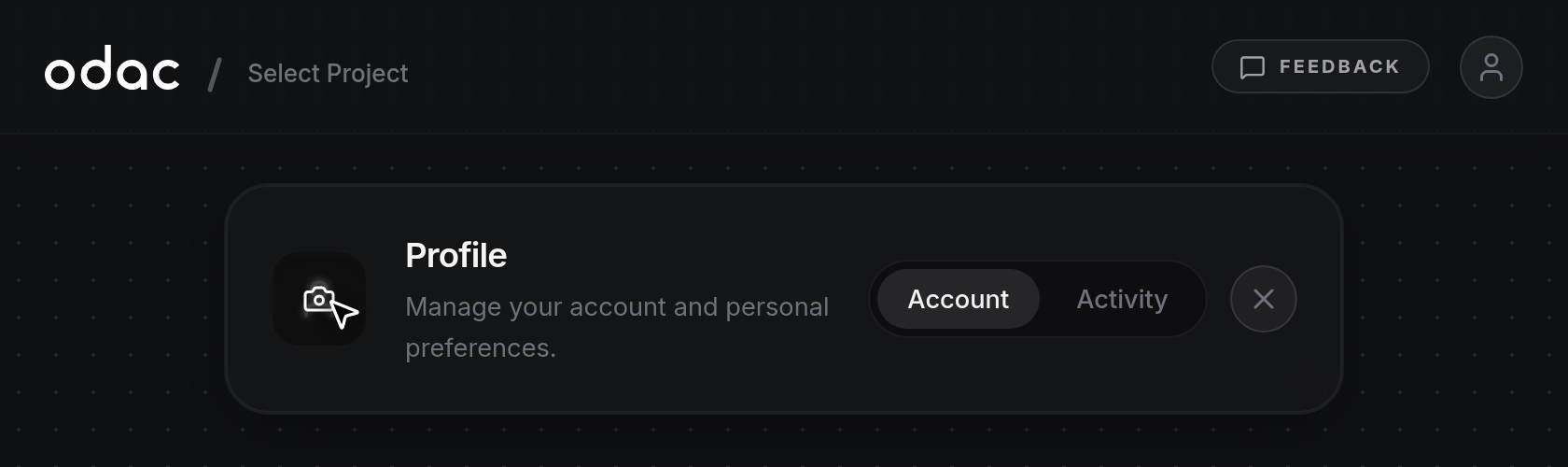
- Hover over the square profile picture on the left side of the Profile header card to reveal the camera overlay (Change profile photo). Click the picture and choose a PNG, JPEG, WebP, or GIF image up to 4 MB from your device. If you select an unsupported file type or an image larger than 4 MB, an error notification appears at the top of the screen (
Use a PNG, JPEG, WebP or GIF image.orThat image is too large. Please pick one under 4MB.).
- Selecting a valid image opens the Adjust your profile photo dialog, showing the chosen file name below the title and your image inside a square crop frame. Drag the image to reposition it inside the square, and adjust the zoom slider below (or scroll with your mouse wheel or pinch on a touchscreen) to zoom from 1x up to 5x. Click Set as profile photo to save, or click Cancel (or
×or outside the dialog) to discard the selection.
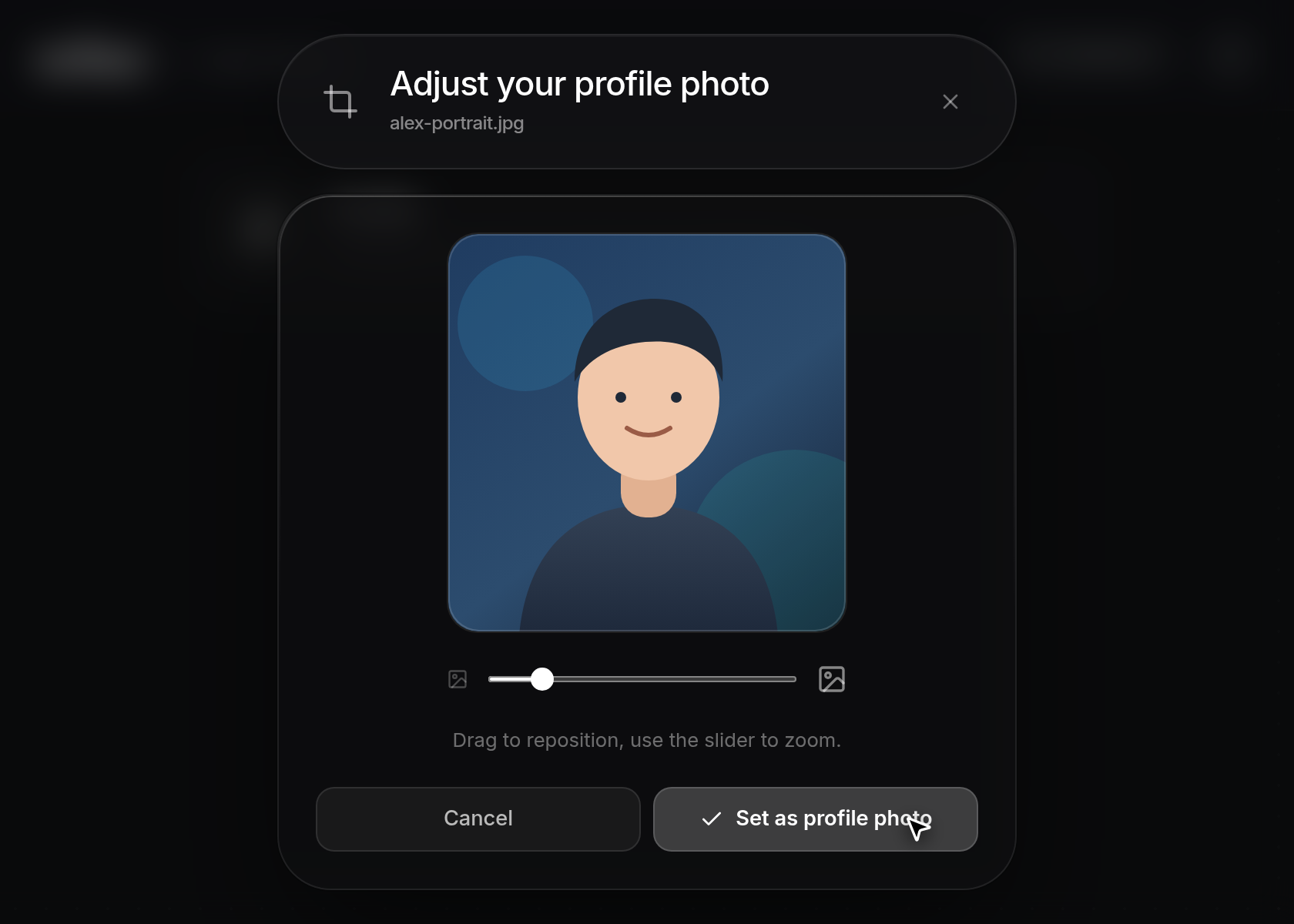
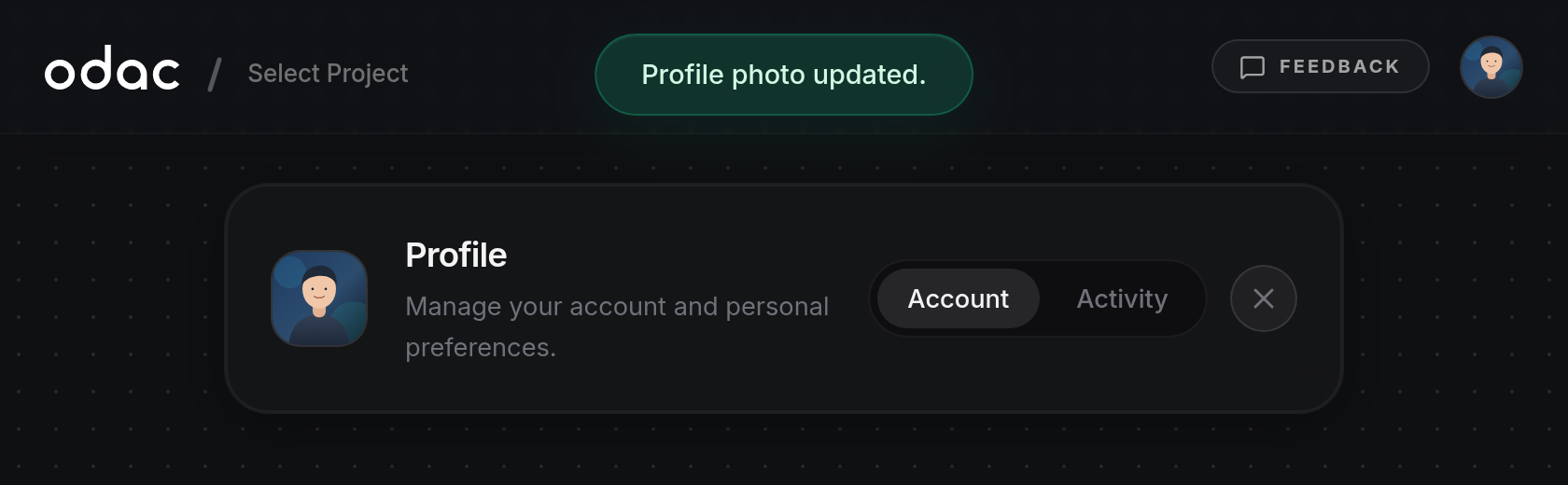
- A brief spinner covers the frame while saving. Once saved, the new square photo appears on the Profile header card and in the top-right header avatar menu, and a green
Profile photo updated.notification appears at the top of the screen.
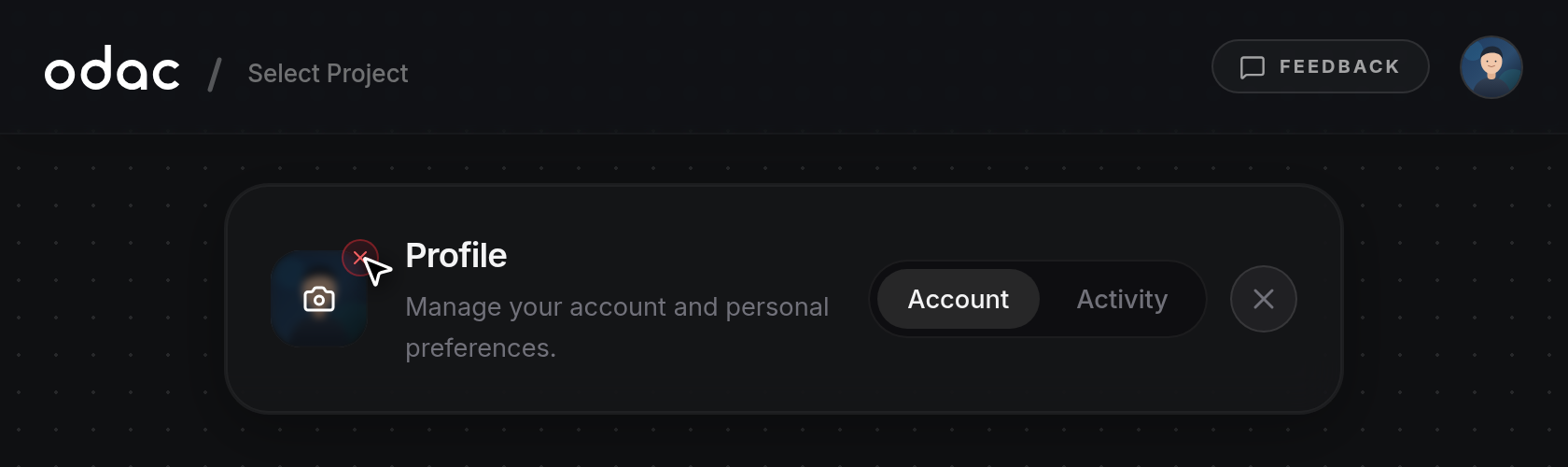
- To remove an existing photo, hover over the profile picture on the Profile header card and click the small
×badge (Remove profile photo) that appears in its top-right corner.
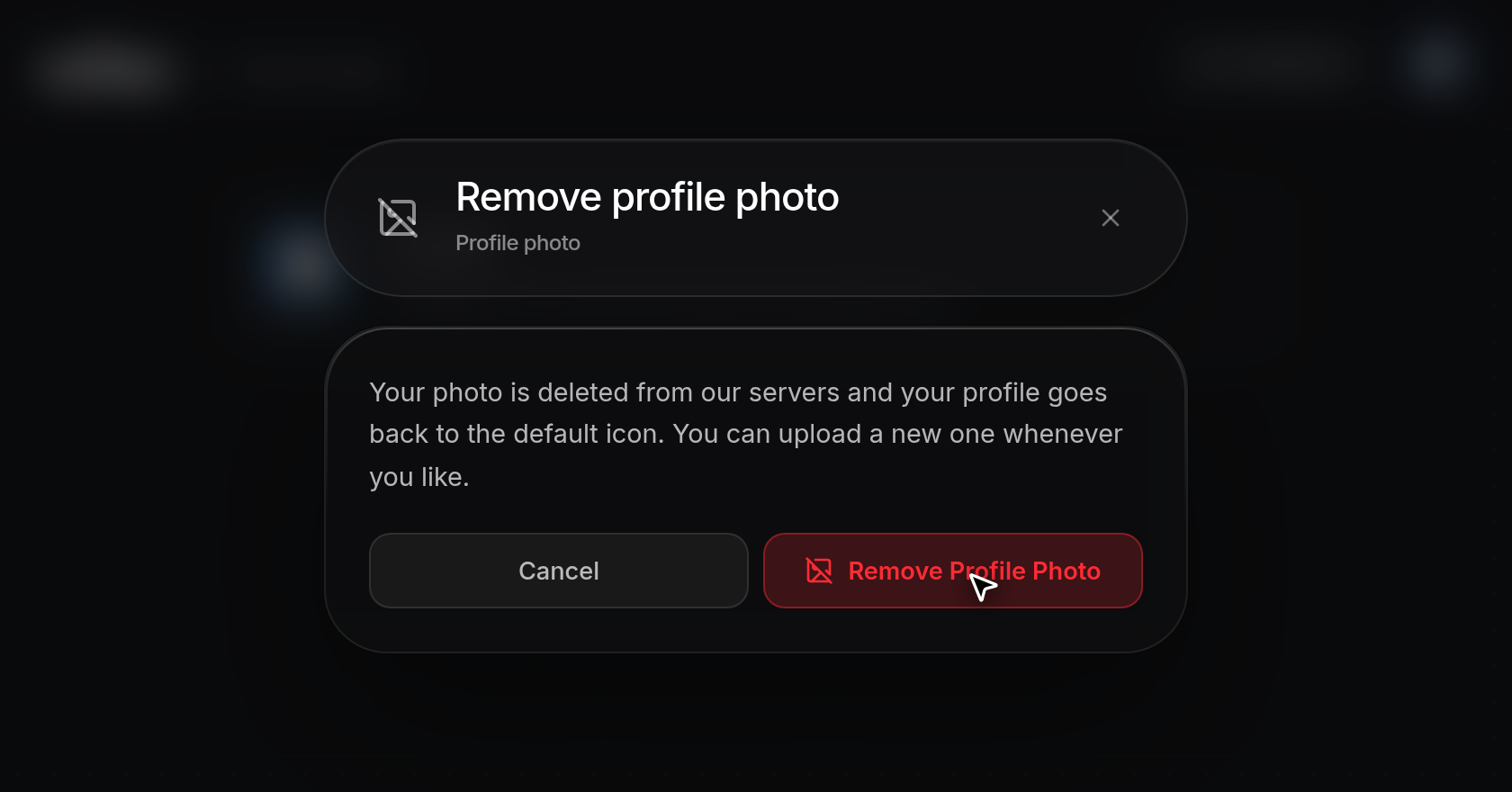
- The Remove profile photo dialog opens to confirm that deleting the photo restores the default icon (
Your photo is deleted from our servers and your profile goes back to the default icon. You can upload a new one whenever you like.). Click Remove Profile Photo to delete it (or Cancel to keep your photo). Both the Profile card and top-right header revert to the default user icon, and a greenProfile photo removed.notification appears at the top.
Edit your name
- In the Account card, click the First name or Last name field on the right (shown as
Addwhen empty) and type your name, up to 64 characters. As soon as you change the text, the user icon on the left side of that row switches to a pulsing amber dot to indicate unsaved changes.
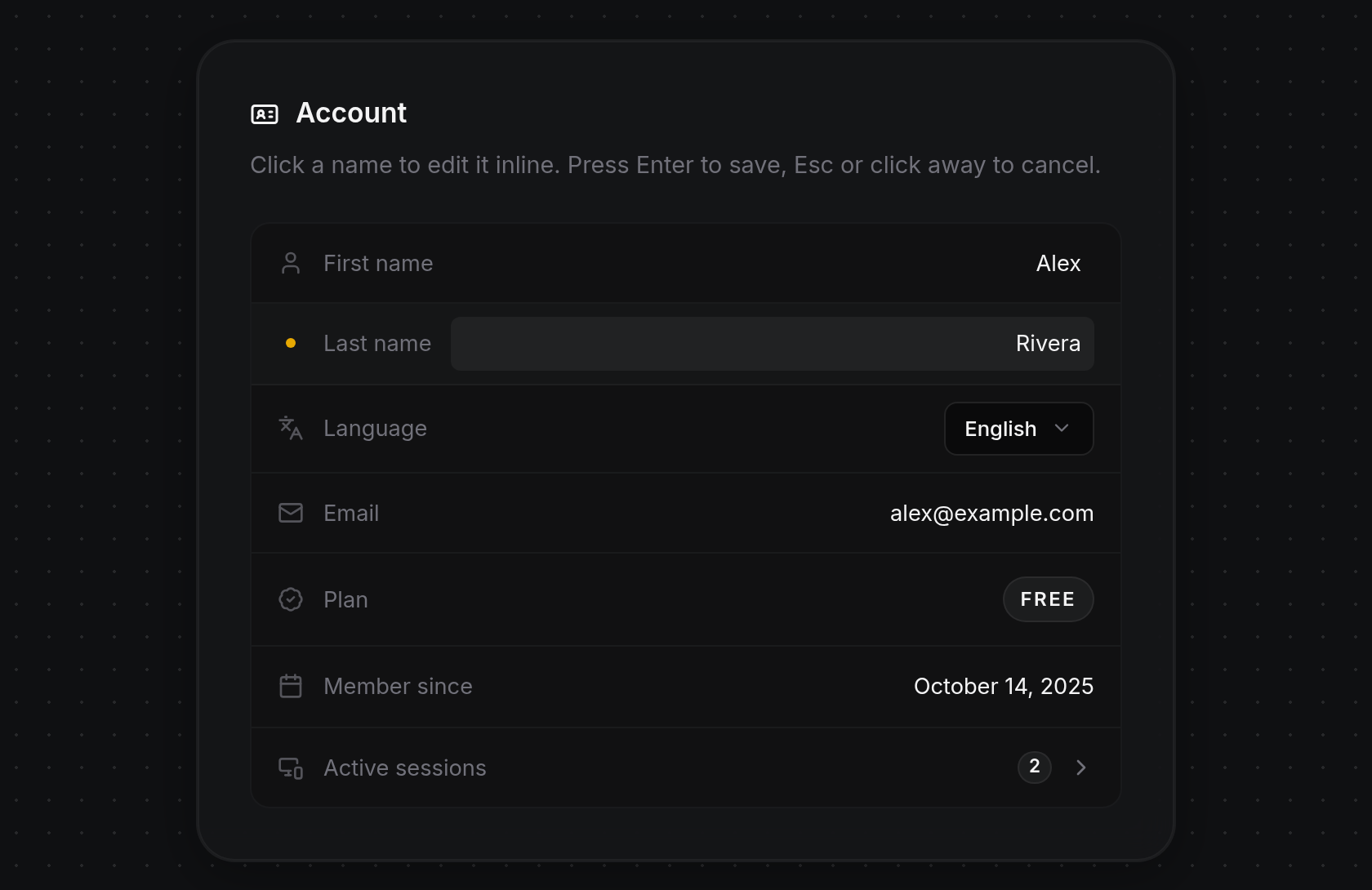
- ODAC saves automatically shortly after you stop typing, or immediately when you press
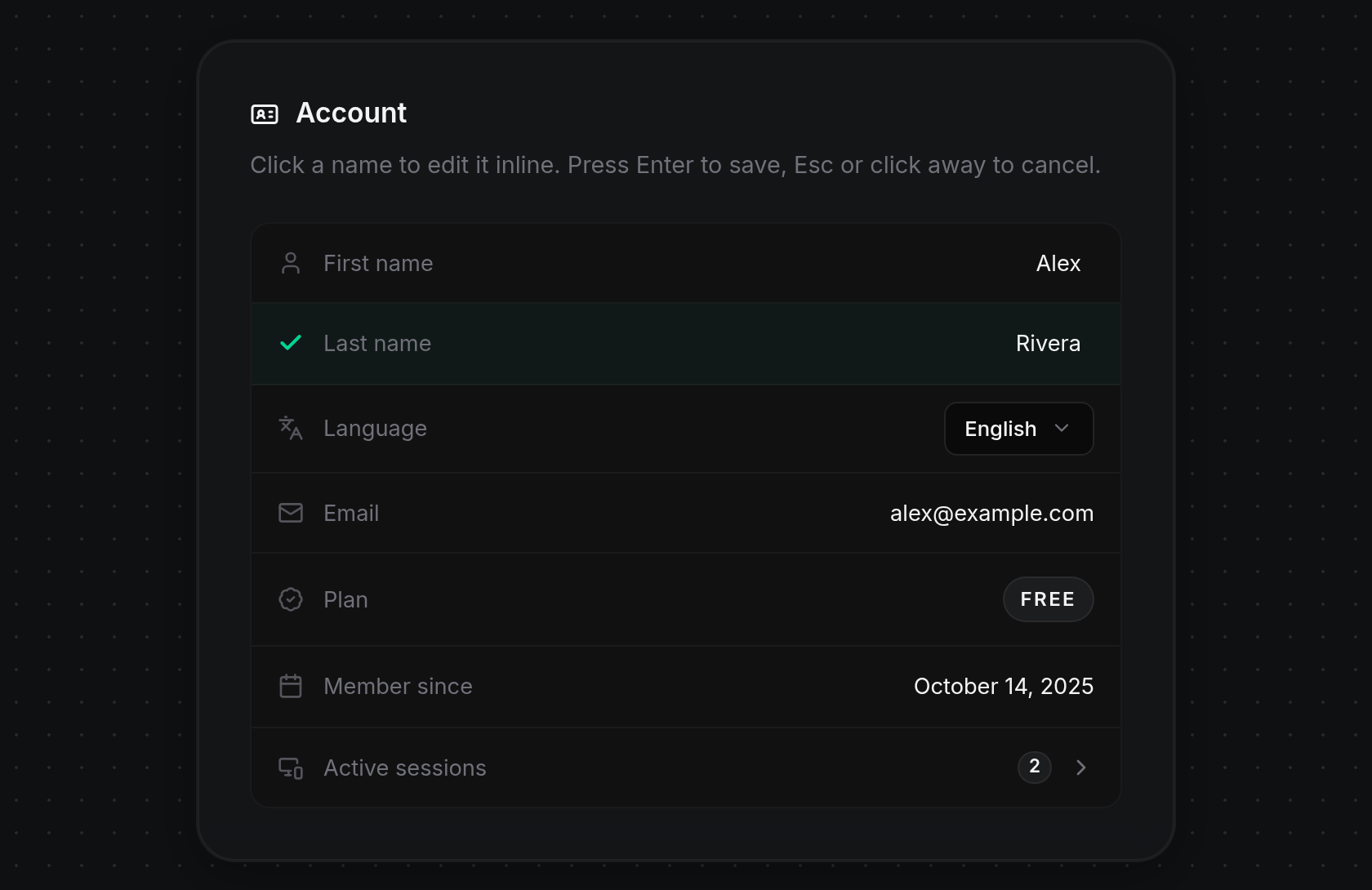
Enteror click outside the field. PressEscwhile editing to cancel and restore the previous saved value. While saving, the amber dot switches to a spinner; once saved, the row briefly tints green with a green checkmark before returning to normal.
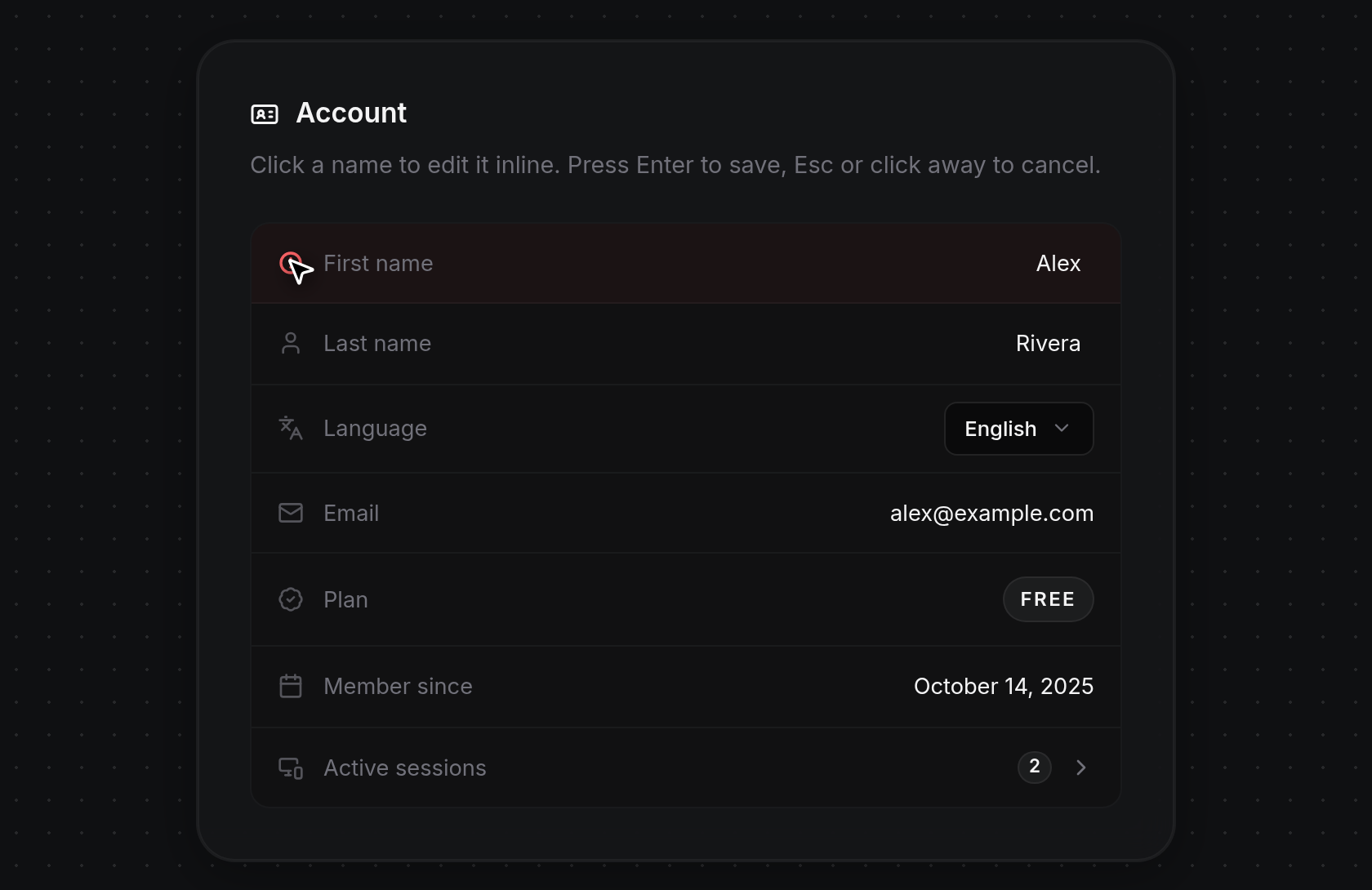
- If a name exceeds 64 characters or contains unsupported characters, the field reverts to its previous saved value and the row tints red with a red alert icon on the left. Hover over the alert icon to read the reason (such as
First name can't exceed 64 charactersorFirst name contains invalid characters.). Clear a name field completely and save to remove it.
Switch dashboard language
- In the Account card, click the Language selector button on the right (displaying your current language, such as
English) to open the menu of available languages (Englishand Türkçe), with a checkmark next to the active choice. PressEscor click outside the menu to close it without making a change.
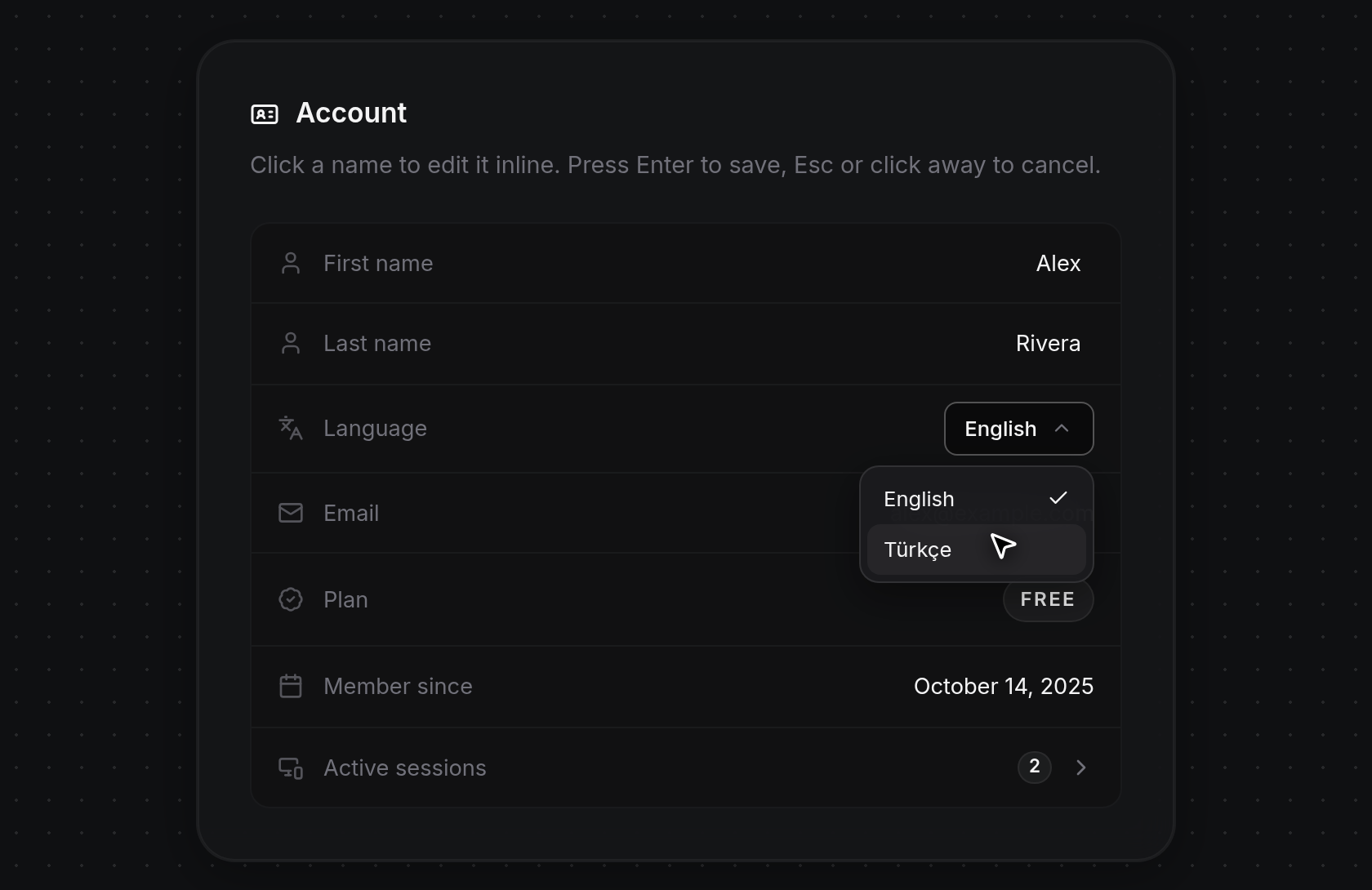
- Click a language option to apply it. The menu closes, a spinner replaces the languages icon while saving, and the page reloads automatically with menus, labels, and notifications across app.odac.run shown in the chosen language.
View email, plan, and membership details
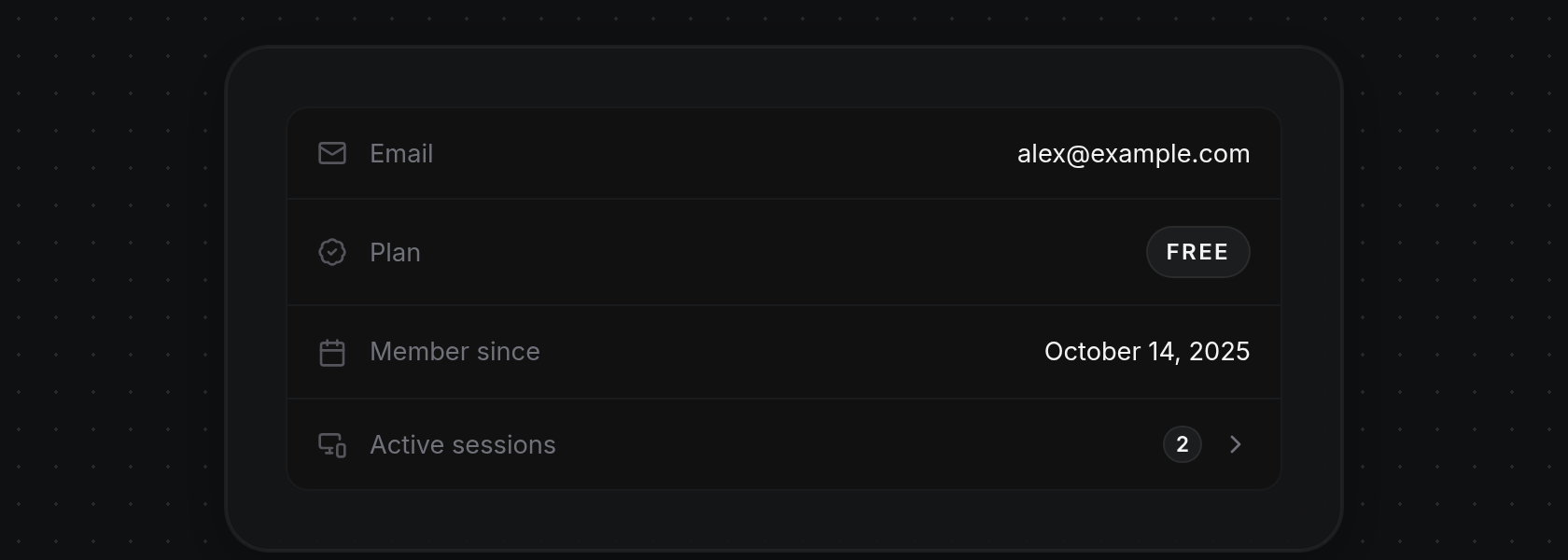
- Below Language in the Account card, three read-only rows show your account details:
- Email: The email address associated with your account.
- Plan: Your current account plan badge (such as FREE).
- Member since: The date your account was created (for example, October 14, 2025), shown when available.