Restore data from backups and snapshots
Restore app data from either a scheduled backup or a local server snapshot on Backups at app.odac.run. Restores change only the app's data, leaving its deployed code untouched, and can create a copy alongside the live app or replace the live data in place.
Browse and open a snapshot or backup
Open Backups from the left sidebar (see Create and run backup jobs). To view local server snapshots instead of backup jobs, click Snapshots in the tab switcher on the right side of the Backups header card.
Click any app row in the Snapshots card to expand its snapshots, newest first. Each row shows when the snapshot was taken, what triggered it (
Before a deploy,Before the app was deleted,Before an ODAC update,Manual,Scheduled, orBefore a restore), the included apps with consistency badges (Consistent,Crash-consistent, orLive copy), the snapshot size, and a Restore button. If snapshots are disabled on a server, a notice at the top explains how to turn them on (odac snapshot settings --on), or you can enable them in the server's settings (see Monitor, rename, and unlink a server).
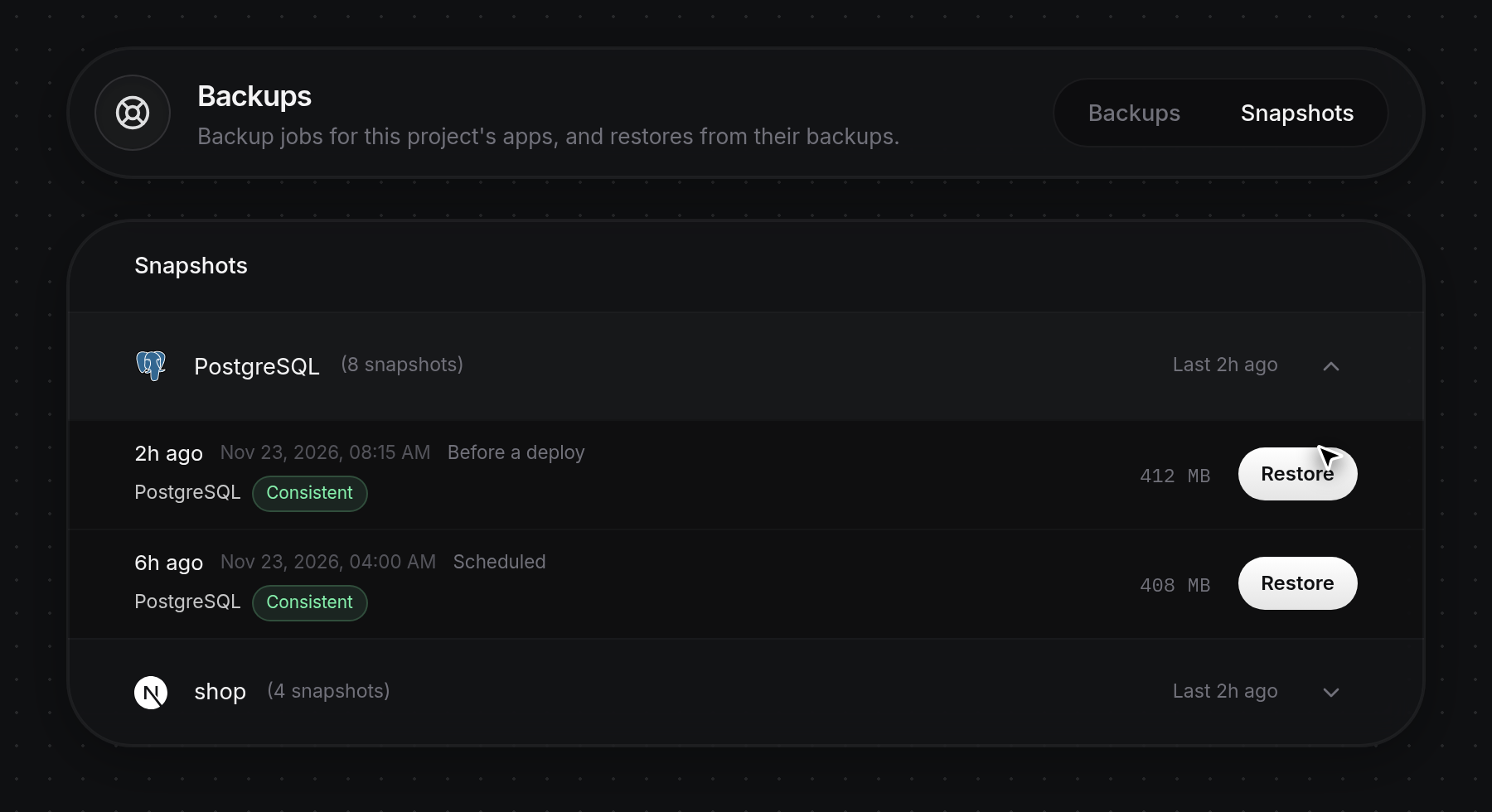
- Click Restore next to any snapshot on the Snapshots tab or any backup run inside an expanded job on the Backups tab to open the Restore data dialog.
Restore as a new app
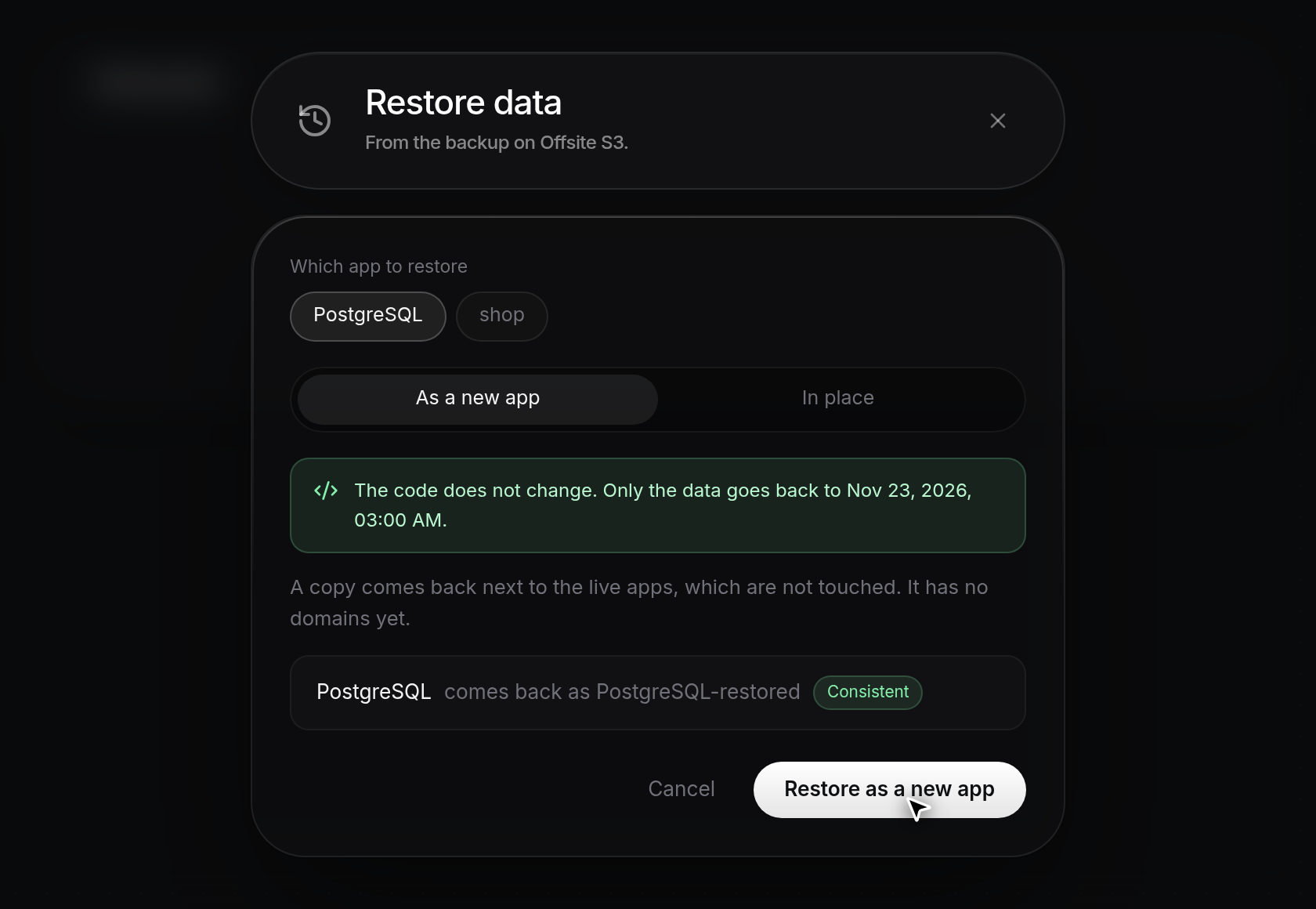
In the Restore data dialog, if the backup contains multiple apps, select the app under Which app to restore. Choose As a new app (selected by default for backups) and wait briefly while ODAC reads the point and builds the restore preview.
Confirm the green notice (
The code does not change. Only the data goes back to ...) and check the preview card showing what the new copy will be named (comes back as ...), its consistency badge, and any warnings (Not kept: ...). Because As a new app creates a separate copy without domains, your live app stays untouched. Click Restore as a new app to start.
Replace data in place
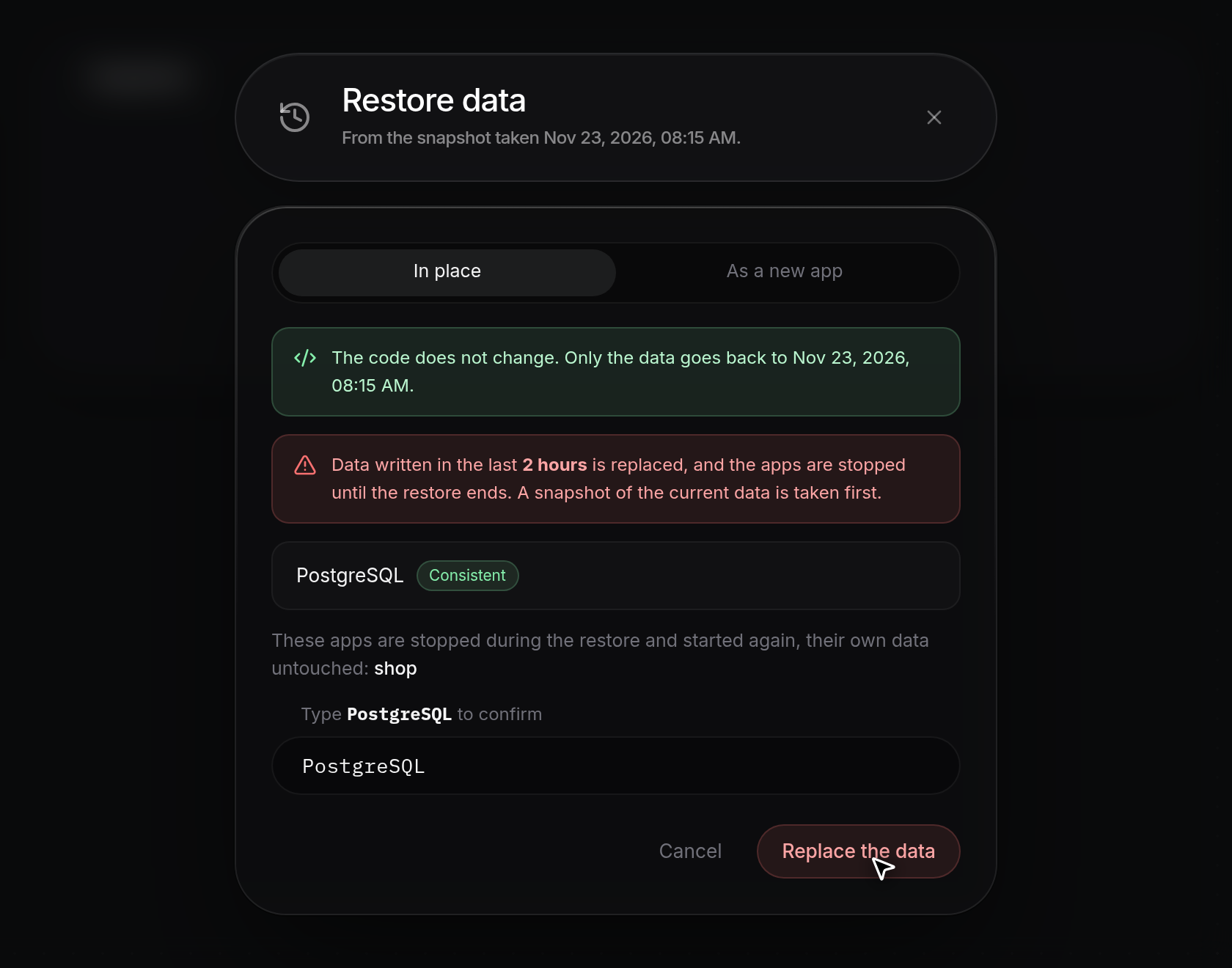
To overwrite the existing app's data instead, choose In place (selected by default for snapshots) and wait for the preview to load.
Review the red warning explaining how much recent data will be replaced and confirming that ODAC backs up or snapshots the current data first, along with any linked apps that will be stopped and restarted during the restore. Type the exact confirmation name shown under Type ... to confirm, then click Replace the data.
- The dialog closes and ODAC shows
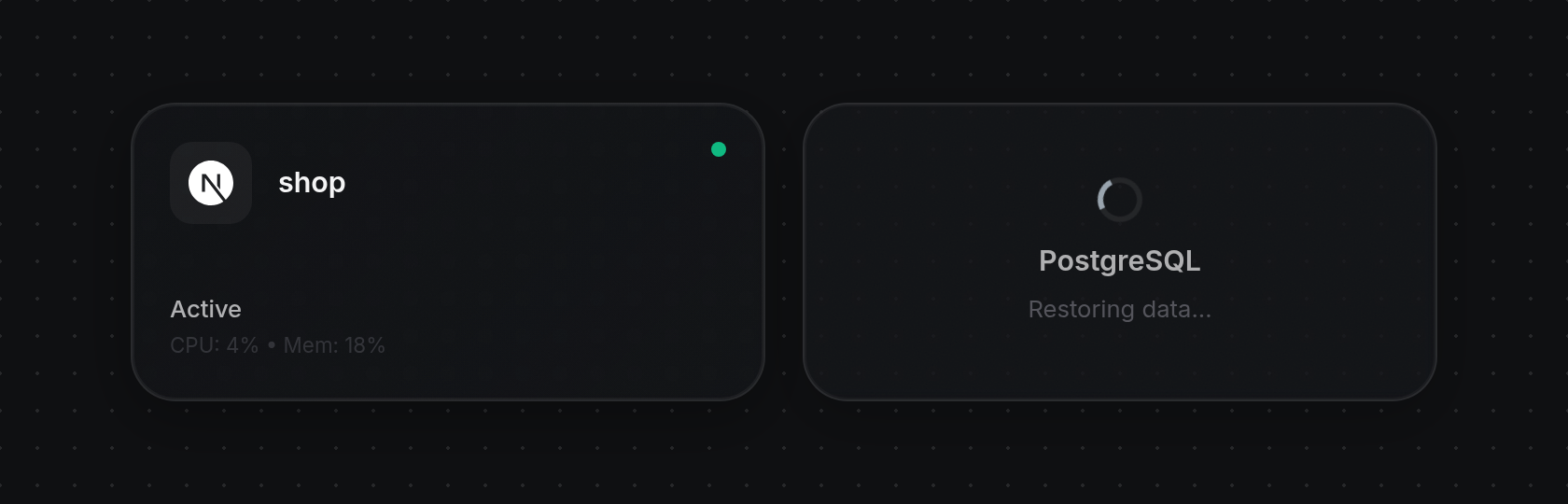
Restore started.. Return to the project's Canvas to follow progress on the app card, which displaysRestoring data...until the restore completes.